Your First Screen
Let’s create a simple screen that displays a greeting and the current time. This will introduce you to the basic workflow of creating Byonk screens.
Step 0: Set Up Your Workspace
Byonk embeds all assets in the binary. To customize screens, you must set environment variables pointing to external directories.
For binary users:
# Set paths and start server (auto-seeds empty directories)
export SCREENS_DIR=./screens
export CONFIG_FILE=./config.yaml
byonk serve
For Docker users:
docker run -d --pull always -p 3000:3000 \
  -e SCREENS_DIR=/data/screens \
  -e CONFIG_FILE=/data/config.yaml \
  -v ./data:/data \
  ghcr.io/oetiker/byonk
On first run, empty directories are automatically populated with defaults. You can then edit the screen files under screens/ and config.yaml.
Tip: Keep the server running in a terminal. Lua scripts and SVG templates are reloaded on every request - just save and refresh!
How screens are organized
A screen is a folder inside a screen package. Each screen folder holds three fixed-name files:
| File | Purpose |
|---|---|
meta.yaml | Title, description, engine compatibility, and the parameter schema |
script.lua | Data-fetch logic; returns a data table and optional refresh_rate |
screen.svg | Tera SVG template rendered with that data |
A package is a directory tree with a byonk-screens.yaml manifest at its root; every
folder inside it that contains a meta.yaml is a screen. When SCREENS_DIR is set, byonk
auto-registers it as a writable package under the handle local, whose folder layout
looks like this:
screens/                       # SCREENS_DIR — registers as the `local` package
  byonk-screens.yaml           # package manifest (name, description, author, license)
  hello/                       # screen ref: local/hello
    meta.yaml
    script.lua
    screen.svg
A screen is referenced by handle/path — here local/hello — and that is the
value a device’s screen field is set to. In this tutorial we build a screen at
local/hello. (Byonk also ships a ready-made, near-identical worked example at
examples/hello — screens/examples/hello/ in the Byonk source — for reference.)
Step 1: Create the meta.yaml
Create screens/hello/meta.yaml. It describes the screen and (later) its parameters:
title: Hello World
description: Displays a greeting with the current time.
byonk: "0.19"       # byonk engine series this screen targets (caret range)
refresh: 60         # default refresh in seconds (script.lua may override)
titleanddescriptionare shown by the admin API and the Home Assistant integration.byonkdeclares engine compatibility: a bare version is parsed as a caret range ("0.17"means>=0.17.0, <0.18.0), not a minimum — pin it to the byonk series you actually tested against.refreshis an optional default; the Lua script’s returnedrefresh_ratestill overrides.
Step 2: Create the Lua Script
Create screens/hello/script.lua:
-- Hello World screen
-- Displays a greeting with the current time

local now = time_now()

return {
  data = {
    greeting = "Hello, World!",
    time = time_format(now, "%H:%M:%S"),
    date = time_format(now, "%A, %B %d, %Y")
  },
  refresh_rate = 60  -- Refresh every minute
}
What this does:
time_now()gets the current Unix timestamptime_format()formats it into readable strings- The returned
datatable is passed to the template refresh_ratetells the device to check back in 60 seconds
Step 3: Create the SVG Template
Create screens/hello/screen.svg:
<svg xmlns="http://www.w3.org/2000/svg" viewBox="0 0 800 480" width="800" height="480">
  <style>
    text {
      font-family: Outfit, sans-serif;
      fill: black;
    }
    .greeting { font-size: 48px; font-weight: 700; }
    .time { font-size: 72px; font-weight: 700; }
    .date { font-size: 24px; font-weight: 400; fill: #555; }
    .footer { font-size: 14px; font-weight: 400; fill: #999; }
  </style>

  <!-- White background -->
  <rect width="800" height="480" fill="white"/>

  <!-- Greeting -->
  <text class="greeting" x="400" y="120" text-anchor="middle">
    {{ data.greeting }}
  </text>

  <!-- Large time display -->
  <text class="time" x="400" y="260" text-anchor="middle">
    {{ data.time }}
  </text>

  <!-- Date below -->
  <text class="date" x="400" y="320" text-anchor="middle">
    {{ data.date }}
  </text>

  <!-- Footer -->
  <text class="footer" x="400" y="450" text-anchor="middle">
    My first Byonk screen!
  </text>
</svg>
Template features used:
{{ data.variable }}- Inserts values from the Lua script’sdatatable- Nothing for font hinting — byonk hints text automatically, choosing the treatment from the panel’s palette. Override it from Lua only if you need to (see Font Hinting)
- CSS styling for fonts and colors
text-anchor="middle"for centered text
Step 4: Assign to a Device
Edit config.yaml and assign the screen to your device by its handle/path reference. There
is no separate screens: block — screens are auto-discovered from their package folders:
devices:
  "YOUR:MAC:AD:DR:ES:S0":
    screen: local/hello
    params: {}
Replace YOUR:MAC:AD:DR:ES:S0 with your device’s actual MAC address.
Tip: Check the Byonk server logs when your device connects - the MAC address is printed there.
Step 5: Test It
-
Restart Byonk (config.yaml changes require restart)
-
Check the API at
http://localhost:3000/swagger-ui:- Use the
/api/displayendpoint with your device’s MAC - You’ll get an image URL with a content hash
- Open that URL to see your screen!
- Use the
-
Or wait for your device to refresh automatically
Adding Parameters
Let’s make the greeting customizable. First declare the parameter in the screen’s
meta.yaml so the admin API and Home Assistant know about it:
screens/hello/meta.yaml:
title: Hello World
description: Displays a greeting with the current time.
byonk: "0.19"
refresh: 60
params:
  name:
    type: string
    label: "Name"
    default: "World"
    description: "Who to greet"
screens/hello/script.lua:
local now = time_now()

-- Get name from params, default to "World"
local name = params.name or "World"

return {
  data = {
    greeting = "Hello, " .. name .. "!",
    time = time_format(now, "%H:%M:%S"),
    date = time_format(now, "%A, %B %d, %Y")
  },
  refresh_rate = 60
}
config.yaml:
devices:
  "YOUR:MAC:AD:DR:ES:S0":
    screen: local/hello
    params:
      name: "Alice"
Now your screen will say “Hello, Alice!” instead of “Hello, World!”.
Adding a QR Code
Let’s add a QR code to the screen that links to documentation. QR codes are useful for providing quick access to related content.
Update screens/hello/script.lua:
local now = time_now()
local name = params.name or "World"

return {
  data = {
    greeting = "Hello, " .. name .. "!",
    time = time_format(now, "%H:%M:%S"),
    date = time_format(now, "%A, %B %d, %Y"),
    -- Generate a QR code anchored to bottom-right corner with 10px margin
    qr_code = qr_svg("https://www.youtube.com/watch?v=dQw4w9WgXcQ", {
      anchor = "bottom-right",
      right = 10,
      bottom = 10,
      module_size = 4
    })
  },
  refresh_rate = 60
}
Update screens/hello/screen.svg to include the QR code:
<!-- Add before the closing </svg> tag -->

<!-- QR Code - use 'safe' filter to render SVG -->
{{ data.qr_code | safe }}
The qr_svg() function generates pixel-aligned QR codes optimized for e-ink displays. Use anchor to specify which corner, and top/left/right/bottom for margins from that edge:
| Anchor | Margin options |
|---|---|
top-left | top, left |
top-right | top, right |
bottom-left | bottom, left |
bottom-right | bottom, right |
center | (centered on screen) |
All options:
qr_svg("https://example.com", {
  anchor = "bottom-right", -- Which corner (default: "top-left")
  right = 10,              -- Margin from right edge in pixels
  bottom = 10,             -- Margin from bottom edge in pixels
  module_size = 4,         -- QR "pixel" size (default: 4, recommended: 3-6)
  ec_level = "M",          -- Error correction: L/M/Q/H (default: M)
  quiet_zone = 4           -- QR quiet zone in modules (default: 4)
})
Tip: Use the
| safefilter in templates to render SVG content without escaping.
Understanding the Result
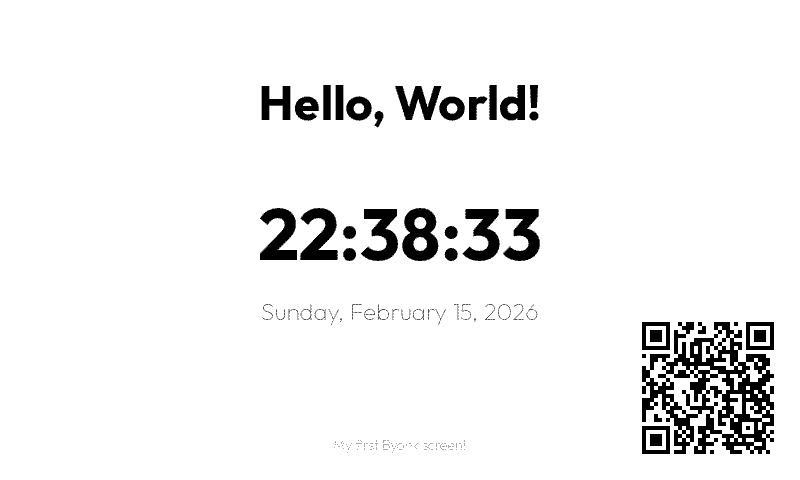
Your screen should look like this:
Troubleshooting
Screen shows error
Check the Byonk logs for script errors:
byonk serve
# Look for ERROR or WARN lines
Template variables not replaced
Make sure your Lua script returns a data table with the expected keys:
return {
  data = {
    greeting = "Hello"  -- Must match {{ greeting }} in template
  },
  refresh_rate = 60
}
Device not updating
- Check that the device MAC in config matches exactly (uppercase, with colons)
- Verify the device is pointing to your Byonk server
- Check device WiFi connectivity
Real-World Example: Transit Departures
Here’s what a more complex screen looks like - the built-in Swiss departure board display:
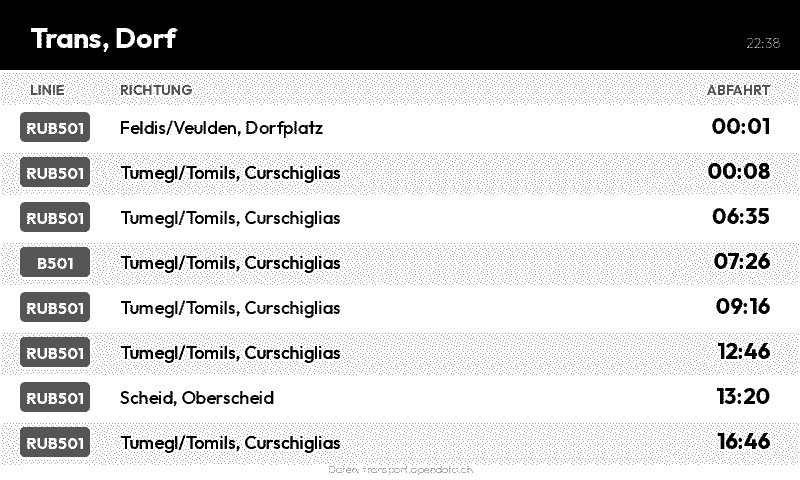
This screen demonstrates:
- Fetching live data from an API
- Processing JSON responses
- Dynamic refresh rates (updates after each bus departs)
- Styled table layout with alternating rows
- Color-coded line badges
Check out the screens/examples/swiss-departure-board/ folder
(examples/swiss-departure-board) in the Byonk source for the complete
implementation.
What’s Next?
Now that you have a basic screen working, learn more about:
- Lua Scripting - Fetch data from APIs
- SVG Templates - Create complex layouts