SVG Templates
SVG templates define the visual layout of your screens. They use Tera templating syntax to insert data from your Lua scripts.
Template Basics
A Byonk SVG template is a standard SVG file with Tera expressions:
<svg xmlns="http://www.w3.org/2000/svg"
     viewBox="0 0 {{ layout.width }} {{ layout.height }}"
     width="{{ layout.width }}" height="{{ layout.height }}">
  <rect width="{{ layout.width }}" height="{{ layout.height }}" fill="white"/>

  <text x="{{ layout.center_x }}" y="{{ layout.center_y }}" text-anchor="middle" font-size="24">
    {{ message }}
  </text>
</svg>
Key points:
- Size the
viewBoxfromlayout.widthandlayout.height, never from fixed numbers - Always include
widthandheightattributes - Use
{{ variable }}to insert values from Lua
Display Dimensions
| Device | Width | Height | Aspect Ratio |
|---|---|---|---|
| TRMNL OG | 800 | 480 | 5:3 |
| TRMNL X | 1872 | 1404 | 4:3 |
Build the size from layout.width and layout.height. These are the panel’s
own pixels, so a template that uses them is always drawn at scale 1, on every
device.
If your SVG is some other size, Byonk scales it to fit rather than failing — and that costs you more than sharpness:
- Every dimension you chose is displayed at the wrong size. Type set at 10 px in a 400x240 SVG is 20 px on an 800x480 panel. You cannot judge a layout that is not being shown at the size you designed it.
- Hinting stops helping. Hinted glyph outlines are fitted to the pixel grid of the SVG’s own coordinate system, not the panel’s.
- Bitmap fonts stop being bitmaps. A strike is drawn for one exact pixel size, so it is only reproduced faithfully at scale 1; at any other scale it is resampled.
Byonk reports this when it happens. byonk render prints it to stderr, and the
authoring API returns it in the render log:
[warn] this screen's SVG is 400x240 but the device is 800x480, so the render is
scaled by 2 to fit ... Use layout.width and layout.height rather than hardcoded
dimensions.
A mismatched aspect ratio is scaled by the smaller of the two ratios and centred, so the render is also padded with blank bands.
The remaining examples on this page write 0 0 800 480 literally, to keep them
short. In a real screen, use layout.width and layout.height.
Variables
Template Namespaces
Variables in templates are organized into four namespaces:
| Namespace | Source | Example |
|---|---|---|
data.* | Lua script return value | data.title, data.items |
device.* | Device info (battery, signal) | device.battery_voltage, device.rssi |
params.* | Config params from config.yaml | params.station, params.limit |
layout.* | Pre-computed layout values | layout.width, layout.grey_count |
Device Variables
These are automatically available under device.*:
| Variable | Type | Description |
|---|---|---|
device.mac | string | Device MAC address (e.g., “AC:15:18:D4:7B:E2”) |
device.battery_voltage | float or nil | Battery voltage (e.g., 4.12) |
device.rssi | integer or nil | WiFi signal strength in dBm (e.g., -65) |
device.model | string or nil | Device model (“og” or “x”) |
device.firmware_version | string or nil | Firmware version string |
device.width | integer or nil | Display width in pixels (800 or 1872) |
device.height | integer or nil | Display height in pixels (480 or 1404) |
<!-- Display battery and signal in header -->
<text class="status" x="780" y="25" text-anchor="end">
  {% if device.battery_voltage %}{{ device.battery_voltage | round(precision=2) }}V{% endif %}
  {% if device.rssi %} · {{ device.rssi }}dBm{% endif %}
</text>

<!-- Responsive layout based on device dimensions -->
{% if device.width == 1872 %}
  <!-- TRMNL X layout (1872x1404) -->
{% else %}
  <!-- TRMNL OG layout (800x480) -->
{% endif %}
Note: Some device variables may be
nilif the device doesn’t report them. Always use{% if device.variable %}to check before using.
Layout Variables
Pre-computed layout values are available under layout.*. These mirror the layout table available in Lua scripts:
| Variable | Type | Description |
|---|---|---|
layout.width | integer | Display width in pixels (default 800) |
layout.height | integer | Display height in pixels (default 480) |
layout.scale | float | Scale factor relative to 800×480 base |
layout.center_x | integer | Horizontal center (width / 2) |
layout.center_y | integer | Vertical center (height / 2) |
layout.margin | integer | Standard margin (20px × scale) |
layout.margin_sm | integer | Small margin (10px × scale) |
layout.margin_lg | integer | Large margin (40px × scale) |
layout.colors | array | Display color palette (hex strings) |
layout.color_count | integer | Number of colors in palette (default 4) |
layout.grey_count | integer | Number of grey levels in palette (default 4) |
This is useful for conditional logic in SVG templates without needing Lua to pass the values through — a template can, for example, choose a denser layout on a small panel by branching on layout.width.
Basic Interpolation
<text>{{ data.title }}</text>
<text>{{ data.user.name }}</text>
<text>{{ data.items[0].label }}</text>
Filters
Apply filters to modify values:
<!-- Truncate long text -->
<text>{{ data.description | truncate(length=50) }}</text>

<!-- Format timestamp (uses UTC) -->
<text>{{ data.updated_at | format_time(format="%H:%M") }}</text>

<!-- Get length -->
<text>{{ data.items | length }} items</text>
Tip: The
format_timetemplate filter uses UTC timezone. For local time formatting, usetime_format()in your Lua script and pass the pre-formatted string to the template.
Default Values
<text>{{ data.title | default(value="Untitled") }}</text>
Control Flow
Conditionals
{% if data.error %}
  <text fill="red">Error: {{ data.error }}</text>
{% else %}
  <text>All systems operational</text>
{% endif %}
Comparisons
{% if data.count > 0 %}
  <text>{{ data.count }} items</text>
{% elif data.count == 0 %}
  <text>No items</text>
{% endif %}

{% if data.status == "active" %}
  <circle fill="green" r="10"/>
{% endif %}
Boolean Checks
{% if data.is_online %}
  <text fill="green">Online</text>
{% endif %}

{% if not data.items %}
  <text>No data available</text>
{% endif %}
Loops
Basic Loop
{% for item in data.items %}
  <text y="{{ 100 + loop.index0 * 30 }}">{{ item.name }}</text>
{% endfor %}
Loop Variables
| Variable | Description |
|---|---|
loop.index | Current iteration (1-indexed) |
loop.index0 | Current iteration (0-indexed) |
loop.first | True on first iteration |
loop.last | True on last iteration |
Positioning with Loops
{% for dep in data.departures %}
  <!-- Calculate Y position based on index -->
  <text y="{{ 80 + loop.index0 * 40 }}">
    {{ dep.time }} - {{ dep.destination }}
  </text>
{% endfor %}
Conditional Styling in Loops
{% for item in data.items %}
  <!-- Alternating row backgrounds -->
  {% if loop.index0 is odd %}
    <rect y="{{ 100 + loop.index0 * 40 }}" width="800" height="40" fill="#f5f5f5"/>
  {% endif %}

  <text y="{{ 125 + loop.index0 * 40 }}">{{ item.name }}</text>
{% endfor %}
Empty State
{% if data.items | length > 0 %}
  {% for item in data.items %}
    <text>{{ item.name }}</text>
  {% endfor %}
{% else %}
  <text fill="#999">No items found</text>
{% endif %}
Styling
Inline Styles
<text x="20" y="40"
      font-family="sans-serif"
      font-size="24"
      font-weight="bold"
      fill="black">
  {{ data.title }}
</text>
CSS in Style Block
<svg xmlns="http://www.w3.org/2000/svg" viewBox="0 0 800 480">
  <style>
    .title { font-family: sans-serif; font-size: 32px; font-weight: bold; }
    .subtitle { font-family: sans-serif; font-size: 18px; fill: #666; }
    .highlight { fill: #333; font-weight: bold; }
  </style>

  <text class="title" x="20" y="40">{{ data.title }}</text>
  <text class="subtitle" x="20" y="70">{{ data.subtitle }}</text>
</svg>
Variable Fonts
Byonk supports variable fonts via CSS font-variation-settings:
<style>
  .light { font-family: Outfit; font-variation-settings: "wght" 300; }
  .regular { font-family: Outfit; font-variation-settings: "wght" 400; }
  .bold { font-family: Outfit; font-variation-settings: "wght" 700; }
</style>
Note: Place custom font files (e.g.,
Outfit-Variable.ttf) in thefonts/directory.
Bundled Fonts
Byonk ships these outline families, so they render the same on your machine and on the device. (The device image contains no system fonts at all — anything not bundled simply does not draw.)
| Family | Use |
|---|---|
Outfit | The house sans. Variable weight 100–900. |
'Source Sans 3' | What sans-serif resolves to. Variable weight 200–900. |
'Source Serif 4' | What serif resolves to. Variable weight and optical size. |
'Source Code Pro' | What monospace resolves to. Variable weight 200–900. |
'Terminus (TTF)' | A pixel face, plus 26 X11* bitmap families — see fonts/FONTS.md. |
cursive and fantasy resolve to Outfit; byonk bundles nothing decorative.
Quote any family name that ends in a digit or contains parentheses. CSS reads
an unquoted font-family as a list of identifiers, and 3, 4 and (TTF) are
not identifiers — the whole declaration is discarded and your text silently comes
out in some other face. There is no warning.
<!-- Wrong: renders in a fallback face -->
<text font-family="Source Sans 3">…</text>
<text font-family="Terminus (TTF)">…</text>

<!-- Right -->
<text font-family="'Source Sans 3'">…</text>
<text font-family="'Terminus (TTF)'">…</text>
Outfit and Source Code Pro contain neither, so they are safe either way.
You do not need to ask for a weight: text with no font-weight renders at 400,
not at whatever the variable font’s own default happens to be. Source Sans 3 and
Source Code Pro default internally to 200 (ExtraLight), and that default does not
reach your screen.
Colors and Palettes
E-ink displays support a limited color palette. The default 4-grey OG palette is #000000, #555555, #AAAAAA, #FFFFFF, but color displays may have palettes like #000000, #FFFFFF, #FF0000, #FFFF00. The display palette is available in Lua via layout.colors.
The palette follows a priority chain: Lua script colors return > device config colors > firmware Colors header > system default. You can override the palette per-device in config.yaml:
devices:
  "ABCDE-FGHJK":
    screen: examples/swiss-departure-board
    colors: "#000000,#FFFFFF,#FF0000"
Or per-script by returning colors in the Lua result table (see Lua API: colors).
Dithering Mode
Byonk supports two dithering modes via the dither option:
graphics(default) — Blue noise ordered dithering, best for UI contentphoto— Atkinson error diffusion, best for photographs
Set per-device in config.yaml or per-script in the Lua return table (see Lua API: dither and Content Pipeline: Rendering Intents).
Using Palette Colors
For the cleanest output, use colors from the display palette directly. Byonk will dither any color to the nearest palette color, but exact palette matches are preserved without dithering.
-- In your Lua script
local colors = layout.colors  -- e.g., {"#000000", "#555555", "#AAAAAA", "#FFFFFF"}
<!-- Use palette colors for crisp rendering -->
{% for swatch in data.swatches %}
<rect x="{{ swatch.x }}" width="{{ swatch.width }}" height="100" fill="{{ swatch.color }}"/>
{% endfor %}
Marking continuous-tone content
Byonk renders a screen as two kinds of content, and you choose which is which by marking the continuous-tone parts:
<!-- A photograph, or a gradient that sweeps through hues -->
<image data-byonk-tone="continuous" href="photo.jpg" .../>
Everything not marked is treated as structure — text, rules, logos, flat fills, UI chrome. The difference is not cosmetic:
| Unmarked (structure) — the default | Marked continuous | |
|---|---|---|
| Matched against | Official palette (device.colors) | Measured palette (device.colors_actual) |
| Gamut mapping | off | on |
| Exact-match pinning | on — an official colour comes out as that one ink, flat | off |
For structure this is what you want. #FF0000 is simply red: it matches
at distance zero, pins, and renders as one flat ink with no speckle. Black
text next to a saturated block stays black instead of picking up diffused
colour error.
For a photograph it is not. Nominal matching aims a photo at primaries the panel cannot physically produce, so an unmarked photograph looks markedly worse than a marked one. This is the one mistake that costs you real quality — mark your photographs and your hue gradients.
Two rules that are easy to get wrong:
- Mark the element that is continuous-tone, never a group around it. A
<g>wrapper will swallow neighbouring labels and captions, turning text into continuous-tone content and switching off its pinning. - Don’t mark achromatic (grey) gradients. Grey is always in gamut, so mapping it is a no-op — while marking it switches exact-match pinning off across the whole gradient, for no gain. Before marking anything, ask whether the content can even be out of gamut.
Marking rasterizes in document order, so an unmarked element drawn after a marked one paints over it and reverts those pixels to structure. Text over a photograph therefore needs no special handling, as long as it comes later in the document.
Testing Display Colors
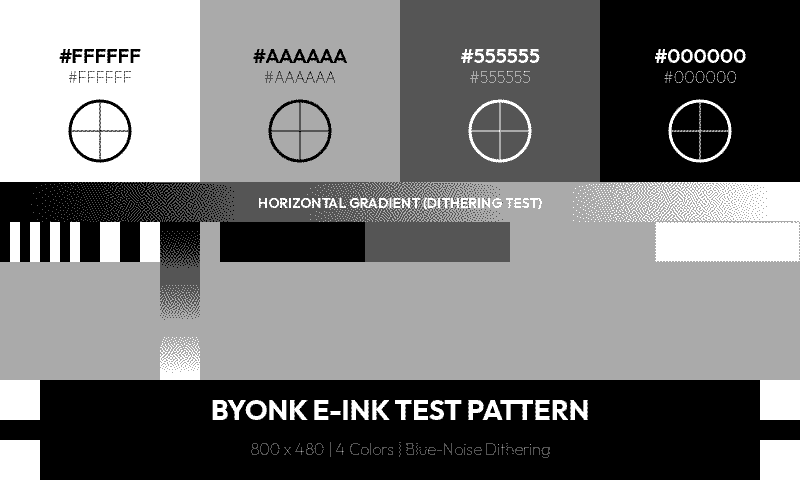
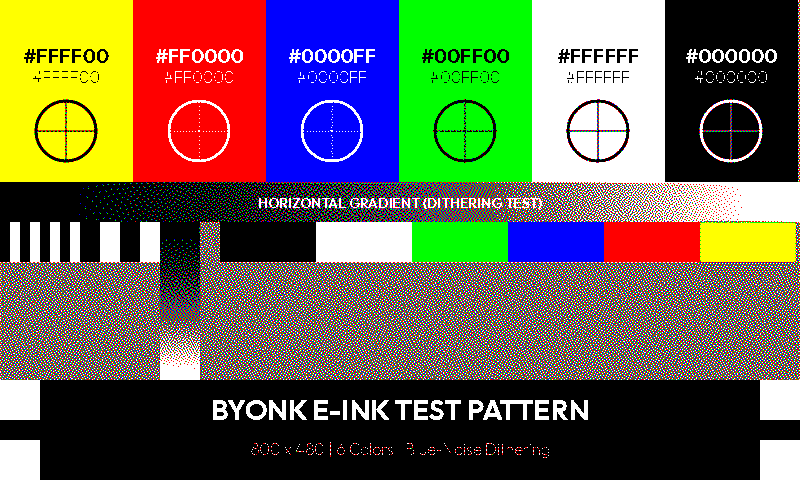
The included graytest screen adapts to the device palette and shows all available colors as swatches with gradient and dithering tests.
4-grey palette (TRMNL OG default):
6-color palette (color e-ink display):
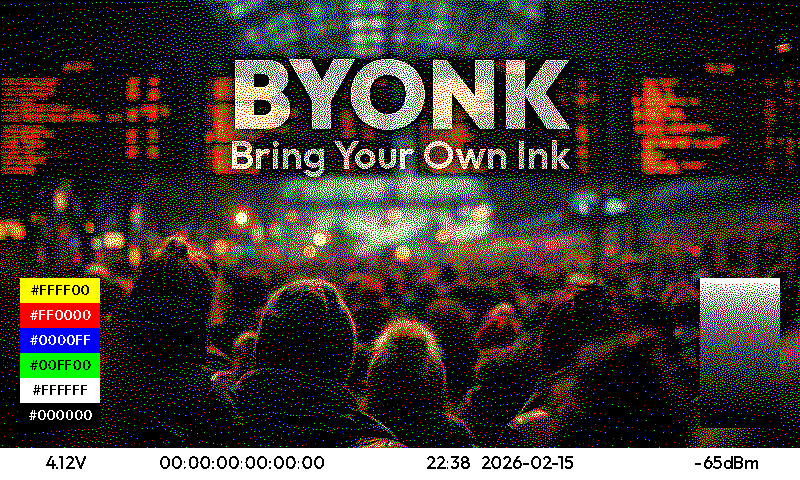
The default screen also adapts to the palette:
Avoid
- Gradients - Convert to dithered patterns (may look noisy)
- Subtle color differences - May become indistinguishable on limited palettes
- Colors not in palette - Will be dithered to nearest match
Font Rendering for E-ink
Byonk hints text for you. There is nothing to put in the template — hinting is chosen per render from the palette the device reports, so the same screen does the right thing on a black-and-white panel and on a greyscale one.
Only override it if you have a reason to. That is done from script.lua with
the font_hinting directive, not from CSS: see
Font Hinting for the full surface, including
variants, which let one family appear twice in a screen with different
treatment.
If you are updating an older screen: the
-resvg-hinting-*CSS properties no longer exist, and{% include "byonk-base-v1/hinting.svg" %}is now inert. Including it still works and renders identically, so it can simply be deleted. Anything that set-resvg-hinting-*directly must move into thefont_hintingdirective.
Properties that still matter
| Property | Values | Applies to | Description |
|---|---|---|---|
shape-rendering | auto, crispEdges, geometricPrecision | shapes only | crispEdges disables anti-aliasing on lines and rectangles. It has no effect inside a text rule — text takes its rasterization from text-rendering. |
text-rendering | auto, optimizeSpeed, optimizeLegibility, geometricPrecision | text | optimizeLegibility restores anti-aliasing and keeps hinting. geometricPrecision restores anti-aliasing but disables hinting. |
text-rendering is worth knowing about for one specific case: on a
black-and-white panel byonk draws the whole document 1-bit, and any text that
is not mono-hinted can lose stems. Setting text-rendering="optimizeLegibility"
on those elements is the fix. Byonk warns you when a screen sets this up.
Hinting Demo Screen
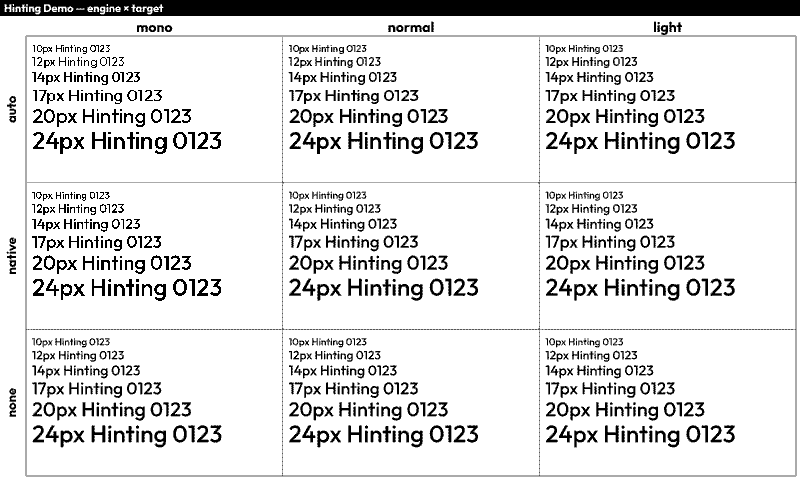
examples/demo/font/hinting renders a 3×3 grid of font_hinting variants over
one family — engine (auto, interpreter, auto_fallback) against target
(mono, smooth, and a hinting-off control) at six sizes. It is the worked
example for variants, and a useful thing to put on your own panel.
Several cells deliberately coincide, which is the most useful thing the grid teaches: for a font carrying no usable hinting program the target matters and the engine barely does. The image states which coincidences are expected.
Tips
- Choose font sizes that land on whole pixel boundaries. Fractional pixel heights cause glyphs to snap to the grid differently, producing inconsistent shapes.
- Quote interpolated font families.
font-family="{{ line.family }}"is invalid CSS as soon as the name contains anything but plain identifiers — a family likeTerminus (TTF)silently falls back to a serif. Writefont-family="'{{ line.family }}'". - Don’t set
font-familyin both a CSS rule and an attribute. A presentation attribute is the lowest-priority source in SVG, sotext { font-family: … }in a<style>block silently overrides everyfont-family="…"attribute on matching elements. The text still renders, in the wrong face. Set it on a class or on the element, not both. - Put text on whole-pixel positions, not just whole-pixel sizes. Hinting
fits the outline to the pixel grid; a baseline at
y="80.667"then slides the fitted glyph back off it. Measured on byonk’s own demo, fractional baselines cost 3–5% of the ink to dropped stems — more than the difference between two hinting engines. - Test on your actual display. What reads well depends on the font, the size and the panel.
Bitmap Fonts
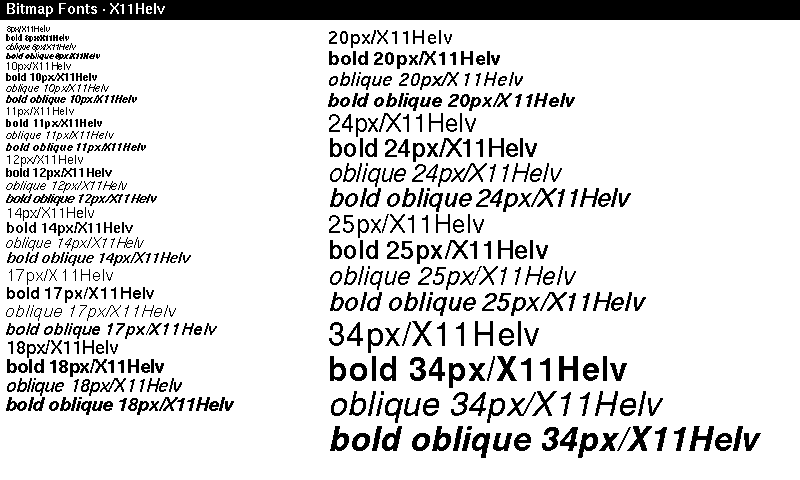
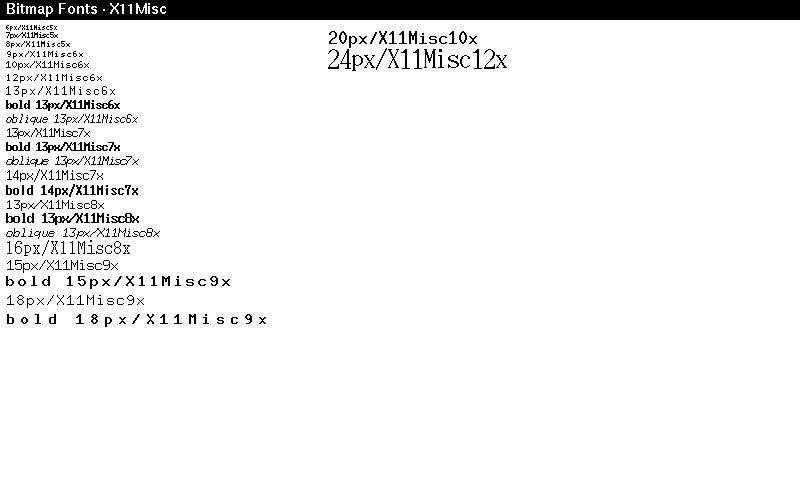
Byonk ships with X11 bitmap fonts converted to TTF files. These contain embedded bitmap strikes — pre-rendered glyphs at specific pixel sizes — which produce perfectly crisp text on e-ink displays without any hinting artifacts.
Available Families
Proportional fonts:
| Family | Styles | Pixel Sizes |
|---|---|---|
| X11Helv | Regular, Bold, Oblique, BoldOblique | 8, 10, 11, 12, 14, 17, 18, 20, 24, 25, 34 |
| X11LuSans | Regular, Bold, Oblique, BoldOblique | 8–34 (13 sizes) |
| X11LuType | Regular, Bold | 8–34 (13 sizes) |
| X11Term | Regular, Bold | 14, 18 |
Fixed-width fonts (grouped by cell width):
| Family | Styles | Pixel Sizes |
|---|---|---|
| X11Misc5x | Regular | 6, 7, 8 |
| X11Misc6x | Regular, Bold, Oblique | 9, 10, 12, 13 |
| X11Misc7x | Regular, Bold, Oblique | 13, 14 |
| X11Misc8x | Regular, Bold, Oblique | 13, 16 |
| X11Misc9x | Regular, Bold | 15, 18 |
| X11Misc10x | Regular | 20 |
| X11Misc12x | Regular | 24 |
Usage
Set font-family to the family name and font-size to a pixel size that matches a bitmap strike. The renderer automatically selects the closest strike:
<text font-family="X11Helv" font-size="14">Proportional text</text>
<text font-family="X11Helv" font-size="14" font-weight="700">Bold</text>
<text font-family="X11Misc7x" font-size="13">Fixed width</text>
<text font-family="X11Misc7x" font-size="13" font-style="oblique">Fixed oblique</text>
For sizes without an exact bitmap strike, autotraced scalable outlines are used as fallback — but these won’t look as clean as the native bitmap sizes.
Bitmap Font Demo Screen
The example examples/demo/font/bitmap screen showcases all sizes and styles for a given font family. Assign it to a device and configure it with the font_prefix parameter:
devices:
  "YOUR:MAC:AD:DR:ES:S0":
    screen: examples/demo/font/bitmap
    params:
      font_prefix: X11Helv   # or X11LuSans, X11LuType, X11Term, X11Misc
This renders each available size and style combination as a labeled line, useful for picking the right font and size for your screen.
Layout Patterns
Header + Content
<svg xmlns="http://www.w3.org/2000/svg" viewBox="0 0 800 480">
  <!-- Header bar -->
  <rect width="800" height="70" fill="black"/>
  <text x="30" y="48" fill="white" font-size="28">{{ data.title }}</text>
  <text x="770" y="48" fill="#aaa" font-size="14" text-anchor="end">{{ data.time }}</text>

  <!-- Content area -->
  <g transform="translate(0, 70)">
    <!-- Your content here, Y coordinates start at 0 -->
  </g>
</svg>
Grid Layout
{% for item in data.items %}
  {% set col = loop.index0 % 3 %}
  {% set row = loop.index0 // 3 %}

  <rect x="{{ col * 266 }}" y="{{ 80 + row * 100 }}"
        width="260" height="90" fill="#f0f0f0" rx="5"/>
  <text x="{{ col * 266 + 130 }}" y="{{ 130 + row * 100 }}"
        text-anchor="middle">{{ item.name }}</text>
{% endfor %}
Two Columns
<!-- Left column -->
<text x="30" y="100">Left content</text>

<!-- Divider -->
<line x1="400" y1="80" x2="400" y2="450" stroke="#ccc"/>

<!-- Right column -->
<text x="430" y="100">Right content</text>
Dynamic Styling
Conditional Colors
{% for item in data.items %}
  <text fill="{% if item.is_urgent %}red{% else %}black{% endif %}">
    {{ item.name }}
  </text>
{% endfor %}
Dynamic Classes
<text class="{% if data.count > 100 %}highlight{% else %}normal{% endif %}">
  {{ data.count }}
</text>
Status Indicators
{% if data.status == "online" %}
  <circle cx="20" cy="20" r="8" fill="green"/>
{% elif data.status == "warning" %}
  <circle cx="20" cy="20" r="8" fill="orange"/>
{% else %}
  <circle cx="20" cy="20" r="8" fill="red"/>
{% endif %}
Common Patterns
Truncating Long Text
<text>
  {% if data.title | length > 30 %}
    {{ data.title | truncate(length=30) }}
  {% else %}
    {{ data.title }}
  {% endif %}
</text>
Formatted Numbers
Use Lua to format numbers before passing to template:
-- In Lua script
return {
  data = {
    temperature = string.format("%.1f°C", temp),
    price = string.format("$%.2f", amount)
  }
}
Time-Based Styling
-- In Lua script
local hour = tonumber(time_format(time_now(), "%H"))
return {
  data = {
    is_night = hour < 6 or hour > 20
  }
}
<rect width="800" height="480" fill="{% if is_night %}#333{% else %}white{% endif %}"/>
Debugging Templates
Show Raw Data
<!-- Temporarily add this to see all data -->
<text x="10" y="460" font-size="10" fill="#999">
  Debug: {{ data.items | length }} items
</text>
Check for Missing Data
{% if not data.title %}
  <text fill="red">ERROR: title is missing!</text>
{% endif %}
Template Errors
If your template has a syntax error, Byonk will display an error screen with the message. Check the server logs for details.
Embedding Images
Byonk supports embedding images in your SVG templates. You can include PNG, JPEG, GIF, WebP, and SVG files.
Asset Directory Structure
Place image assets inside the screen’s own folder, alongside its script.lua, screen.svg,
and meta.yaml:
screens/
└── hello/                # screen ref: local/hello
    ├── meta.yaml
    ├── script.lua
    ├── screen.svg
    ├── logo.png
    ├── icon.svg
    └── background.jpg
Method 1: Direct in SVG (Automatic Resolution)
Simply reference images by filename in your SVG template. Byonk automatically resolves relative paths to the screen’s own folder and embeds them as data URIs:
<svg xmlns="http://www.w3.org/2000/svg" viewBox="0 0 800 480">
  <!-- This automatically loads the screen folder's logo.png -->
  <image x="10" y="10" width="64" height="64" href="logo.png"/>

  <text x="100" y="50">{{ data.greeting }}</text>
</svg>
Supported image formats:
- PNG (
.png) - JPEG (
.jpg,.jpeg) - GIF (
.gif) - WebP (
.webp) - SVG (
.svg)
Notes:
- Paths are relative to the screen’s asset directory
- URLs starting with
data:,http://, orhttps://are left unchanged - Missing images log a warning but don’t break rendering
Method 2: Via Lua (For Dynamic Images)
For more control, use read_asset() and base64_encode() in your Lua script:
screens/hello/script.lua:
local icon = read_asset("icon.png")

return {
    data = {
        greeting = "Hello World!",
        icon_src = "data:image/png;base64," .. base64_encode(icon)
    },
    refresh_rate = 3600
}
screens/hello/screen.svg:
<svg xmlns="http://www.w3.org/2000/svg" viewBox="0 0 800 480">
  <image x="10" y="10" width="64" height="64" href="{{ data.icon_src }}"/>
  <text x="100" y="50">{{ data.greeting }}</text>
</svg>
This method is useful when you need to:
- Conditionally include images
- Fetch images from external URLs
- Process or transform image data
Background Images
To use a full-screen background image:
<svg xmlns="http://www.w3.org/2000/svg" viewBox="0 0 800 480" width="800" height="480">
  <!-- Background image -->
  <image x="0" y="0" width="800" height="480" href="background.png" preserveAspectRatio="xMidYMid slice"/>

  <!-- Content on top -->
  <text x="400" y="240" text-anchor="middle" fill="white" font-size="32">
    {{ data.title }}
  </text>
</svg>
Tips for background images:
- Use
preserveAspectRatio="xMidYMid slice"to cover the entire area - Consider e-ink limitations: high-contrast images work best
- Keep file sizes reasonable for fast rendering
Template Reusability
Byonk supports Tera’s template inheritance and includes for reusable components. Shared SVG comes from two places:
byonk-base-v1/…— byonk’s built-in standard library of shared layouts and components (the base layout,header.svg,footer.svg,status_bar.svg), versioned by the-vNsuffix so a futurebyonk-base-v2can change the contract without breaking existing screens.- Repo-relative paths — any
.svgfile inside your own screen package, referenced by its path relative to the package root (e.g.parts/panel.svg). Because a package is one atomic, versioned unit, a screen and the shared SVG it uses can never drift out of sync.
Package Structure
A package is a directory with a byonk-screens.yaml manifest at its root; shared SVG lives
alongside the screen folders:
my-screens/                  # a package (its own repo, or the embedded byonk-builtin tree)
├── byonk-screens.yaml       # package manifest
├── parts/
│   └── panel.svg            # shared SVG, referenced as "parts/panel.svg"
└── dashboard/               # a screen folder
    ├── meta.yaml
    ├── script.lua
    └── screen.svg
Template Inheritance (extends)
Use byonk’s base layout, which defines the overall structure with replaceable blocks:
dashboard/screen.svg:
{% extends "byonk-base-v1/base.svg" %}

{% block title %}My Screen{% endblock %}

{% block content %}
<text x="400" y="200" text-anchor="middle" font-size="32">
  {{ data.message }}
</text>
{% endblock %}

{% block footer %}
<text x="400" y="460" text-anchor="middle" fill="#999" font-size="12">
  Updated: {{ data.updated_at }}
</text>
{% endblock %}
Key points:
- Use
{% extends "byonk-base-v1/base.svg" %}at the start of your template (or a repo-relative base of your own, e.g.{% extends "layouts/base.svg" %}where that path is inside your package) - Define blocks with
{% block name %}...{% endblock %} - Child templates override parent blocks
- Unoverridden blocks use the parent’s default content
Template Includes
Include reusable components in your templates. Reference byonk’s standard components by their
byonk-base-v1/… path, or your own shared SVG by a repo-relative path:
dashboard/screen.svg:
<svg xmlns="http://www.w3.org/2000/svg" viewBox="0 0 800 480" width="800" height="480">
  <rect width="800" height="480" fill="white"/>

  <!-- Include a standard-library component -->
  {% include "byonk-base-v1/header.svg" %}

  <!-- Main content -->
  <g transform="translate(0, 60)">
    <text x="400" y="200" text-anchor="middle">{{ data.message }}</text>
  </g>

  <!-- Include your own shared SVG (repo-relative) -->
  {% include "parts/panel.svg" %}
</svg>
Key points:
-
Use
{% include "byonk-base-v1/filename.svg" %}for standard-library components, or a repo-relative path for your package’s own shared SVG -
Included templates have access to all variables in the current context — but note that your script’s data arrives namespaced under
data.*, while the standard components read bare names liketitle. Bridge the two with{% set %}before the include, or the component silently falls back to its default:{% set title = data.headline %} {% include "byonk-base-v1/header.svg" %} -
Components work well for headers, footers, status bars, and other repeated elements
Standard-Library Components
Byonk’s byonk-base-v1 package ships several ready-to-use components:
| Component | Description |
|---|---|
byonk-base-v1/base.svg | Base layout with title/content/footer blocks (for {% extends %}) |
byonk-base-v1/header.svg | Black title bar across the top 60px |
byonk-base-v1/footer.svg | Footer with timestamp (updated_at) and optional text |
byonk-base-v1/hinting.svg | Deprecated and inert. Hinting moved into the server; see Font Hinting. Kept so existing screens keep working. |
byonk-base-v1/status_bar.svg | WiFi and battery indicators, drawn into the header’s top-right corner |
These components are designed to stack without overlapping: header.svg owns the top 60px,
status_bar.svg the corner inside it, and footer.svg the bottom 30px.
-
The timestamp belongs to the footer.
header.svgdoes not draw one, because that is wherestatus_bar.svg’s icons go. Setupdated_atand includefooter.svg. -
The status icons default to light ink (
rgb(200,200,200)), since they sit on the black header bar. To place them anywhere else, set both position and colour:{% set status_y = 70 %} {% set status_color = "rgb(80,80,80)" %} {% include "byonk-base-v1/status_bar.svg" %}
Combining Extends and Includes
You can use both in the same template:
{% extends "byonk-base-v1/base.svg" %}

{% block title %}Dashboard{% endblock %}

{% block header_extra %}
{% include "byonk-base-v1/status_bar.svg" %}
{% endblock %}

{% block content %}
<text x="400" y="200" text-anchor="middle">{{ data.message }}</text>
{% endblock %}
Next Steps
- Advanced Topics - HTML scraping, error handling
- API Reference - Complete Lua function reference