Byonk
Bring Your Own Ink - Self-hosted content server for TRMNL e-ink devices
Features
- Lua Scripting - Fetch data from any API, scrape websites, process JSON - all with simple Lua scripts.
- SVG Templates - Design pixel-perfect screens using SVG with Tera templating (Jinja2-style syntax).
- Variable Fonts - Full support for variable font weights via CSS font-variation-settings.
- Smart Refresh - Scripts control when devices refresh - optimize for fresh data and battery life.
- Palette-Aware Dithering - Perceptually correct Oklab dithering with two rendering intents (Graphics and Photo), supporting greyscale and color palettes.
- Device Mapping - Assign different screens to different devices via simple YAML configuration.
Quick Start
# Run with Docker
docker run -d -p 3000:3000 ghcr.io/oetiker/byonk:latest
Or download a pre-built binary for your platform.
Point your TRMNL device to http://your-server:3000 and it will start displaying content.
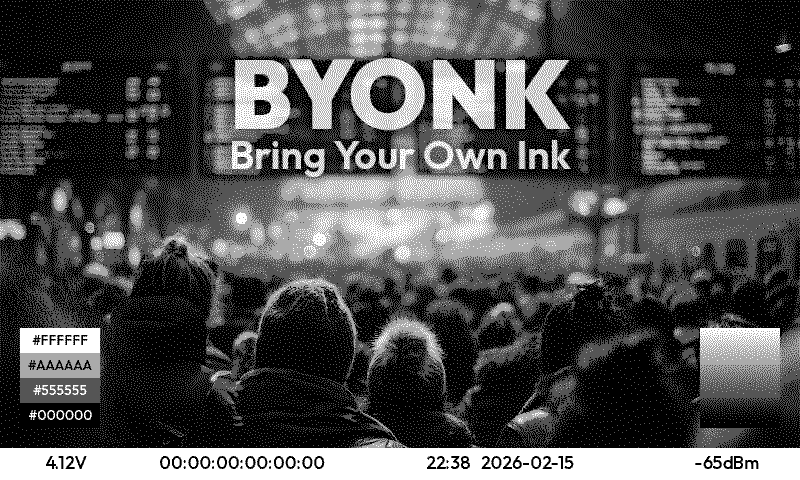
How It Works
flowchart LR
    A[Lua Script] --> B[SVG Template] --> C[Dithering] --> D[TRMNL PNG]
- Lua scripts fetch data from APIs or scrape websites
- SVG templates render the data into beautiful layouts
- Renderer converts SVG to dithered PNG optimized for e-ink
- Device displays the content and sleeps until next refresh
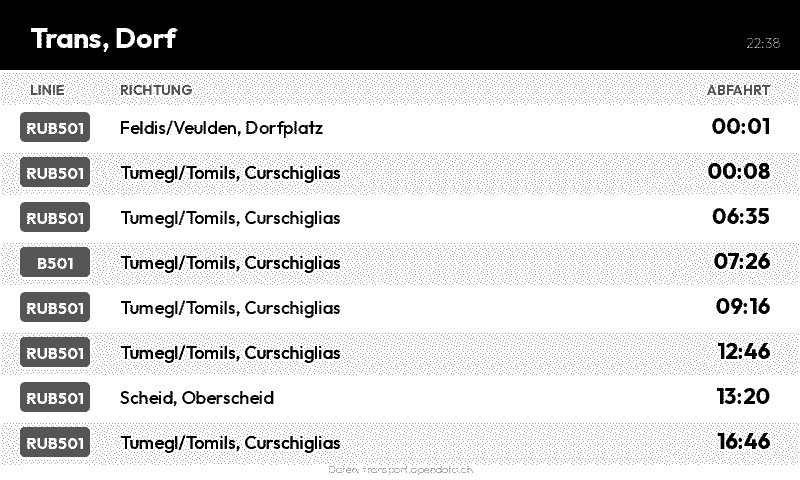
Example: Transit Departures
Lua Script fetches real-time data:
local response = http_get("https://transport.opendata.ch/v1/stationboard?station=Olten")
local data = json_decode(response)

return {
  data = { departures = data.stationboard },
  refresh_rate = 60
}
SVG Template renders the display:
<svg viewBox="0 0 800 480">
  {% for dep in departures %}
  <text y="{{ 100 + loop.index0 * 40 }}">
    {{ dep.category }}{{ dep.number }} → {{ dep.to }}
  </text>
  {% endfor %}
</svg>
Result on e-ink display:
Next Steps
- Installation Guide - Set up Byonk on your server
- Architecture - Understand how Byonk works
- Create Your First Screen - Build a custom display
- API Reference - HTTP and Lua API documentation
Installation
Byonk can be installed via Docker container or pre-built binaries. All screens, fonts, and configuration are embedded in the binary, so it works out of the box with zero configuration.
Quick Start
# Just run it - embedded assets work immediately
docker run --pull always -p 3000:3000 ghcr.io/oetiker/byonk:latest
That’s it! The server is running with embedded default screens.
Docker (Recommended)
Zero-Config Mode
The simplest way to run Byonk:
docker run -d --pull always \
  --name byonk \
  -p 3000:3000 \
  ghcr.io/oetiker/byonk:latest
This uses embedded screens, fonts, and config - no volumes needed.
Customization Mode
To customize screens and config, mount volumes and set environment variables:
docker run -d --pull always \
  --name byonk \
  -p 3000:3000 \
  -e SCREENS_DIR=/data/screens \
  -e FONTS_DIR=/data/fonts \
  -e CONFIG_FILE=/data/config.yaml \
  -v ./data:/data \
  ghcr.io/oetiker/byonk:latest
On first run with empty directories, Byonk automatically seeds them with embedded defaults.
Available tags:
latest- Latest stable release0- Latest v0.x release0.4- Latest v0.4.x release0.4.0- Specific version
Docker Compose
Zero-config:
services:
  byonk:
    image: ghcr.io/oetiker/byonk:latest
    ports:
      - "3000:3000"
    restart: unless-stopped
With customization:
services:
  byonk:
    image: ghcr.io/oetiker/byonk:latest
    ports:
      - "3000:3000"
    environment:
      - SCREENS_DIR=/data/screens
      - FONTS_DIR=/data/fonts
      - CONFIG_FILE=/data/config.yaml
    volumes:
      - ./data:/data  # Empty on first run = auto-seeded
    restart: unless-stopped
Pre-built Binaries
Download the latest release from GitHub Releases.
Available platforms:
x86_64-unknown-linux-gnu- Linux (Intel/AMD 64-bit)aarch64-unknown-linux-gnu- Linux (ARM 64-bit, e.g., Raspberry Pi 4)x86_64-apple-darwin- macOS (Intel)aarch64-apple-darwin- macOS (Apple Silicon)x86_64-pc-windows-msvc- Windows
Extract and run:
tar -xzf byonk-*.tar.gz
./byonk
This will show you a short usage message. If you want to directly test the server, try
./byonk serve
By default, Byonk listens on 0.0.0.0:3000 and uses embedded assets.
Extracting Embedded Assets
# See what's embedded (built-in screens, examples, fonts, config)
./byonk init --list

# Extract everything for editing
./byonk init --all

# Extract specific categories
./byonk init --screens
./byonk init --config
./byonk init --screens initializes SCREENS_DIR as your writable local
screen repo: it writes a byonk-screens.yaml manifest there (nothing else).
It does not copy the built-in or example screens — those stay embedded
and read-only (built-ins) or get seeded separately (examples), as described
in Screen Repos Section and
Screen Authoring. Use ./byonk init --config to get an
editable config.yaml to start from.
Directory Structure (When Customizing)
When using external files (via env vars), Byonk expects:
data/
├── config.yaml              # Device and screen configuration
├── screens/                 # Your writable `local` screen repo
│   ├── byonk-screens.yaml   # Repo manifest (name, description, author, license)
│   ├── my-clock/            # One screen = one folder
│   │   ├── meta.yaml        # Title, description, params schema
│   │   ├── script.lua       # Data-fetch logic
│   │   └── screen.svg       # Tera template
│   └── ...
├── examples/                # Shipped worked examples, seeded once (editable)
│   ├── byonk-screens.yaml
│   ├── hello/
│   └── ...
└── fonts/                   # Custom fonts (optional)
    └── Outfit-Variable.ttf
See Screen Authoring for how the built-in, example, and your-own-screens layers relate to each other.
Environment Variables
| Variable | Default | Description |
|---|---|---|
BIND_ADDR | 0.0.0.0:3000 | Server bind address |
CONFIG_FILE | (embedded) | Path to configuration file |
SCREENS_DIR | (embedded) | Your own writable screen repo (auto-registers as the local handle) |
FONTS_DIR | (embedded) | Directory containing font files |
EXAMPLES_DIR | <SCREENS_DIR>/../examples | Where the shipped worked-example screens are seeded (auto-registers as the examples handle). Only takes effect once — an existing, non-empty directory is left alone. |
When path variables are not set, Byonk uses embedded assets (no filesystem access).
On first run, an empty/missing SCREENS_DIR gets seeded with only a
byonk-screens.yaml manifest (no screen files — byonk-builtin’s default +
calibration/* screens stay embedded-only and are never copied there). An
empty/missing examples directory separately gets the full shipped examples
set (worked examples like hello, gphoto, swiss-departure-board) plus its
own manifest. Both seed once; your edits and deletions afterward are never
touched again.
Docker note: the default EXAMPLES_DIR is derived as a sibling of
SCREENS_DIR (<SCREENS_DIR>/../examples), one level up from the directory
you actually mount. If you only mount SCREENS_DIR itself (e.g. -v ./screens:/screens -e SCREENS_DIR=/screens), the derived examples directory
falls outside any mounted volume — ephemeral, and unwritable on a read-only
container root. Either mount a parent directory and point SCREENS_DIR at a
subdirectory of it (as in the example above, -v ./data:/data -e SCREENS_DIR=/data/screens, which keeps the derived /data/examples inside
the same volume), or set EXAMPLES_DIR explicitly to a path you’ve mounted.
Config vs. seeding: if screen_repos.examples is set explicitly in
config.yaml, it wins for registration — the examples handle resolves to
that configured path instead of the auto-registered EXAMPLES_DIR/derived
default. Seeding (writing the shipped example files to disk) is unaffected by
this and always follows EXAMPLES_DIR/the derived default, since seeding runs
before config.yaml is parsed. In practice this only matters if you both
override screen_repos.examples.path and still want the shipped examples
copied to disk — in that case, set EXAMPLES_DIR to the same path.
Running as a Service (systemd)
Create /etc/systemd/system/byonk.service:
[Unit]
Description=Byonk Content Server
After=network.target

[Service]
Type=simple
User=byonk
WorkingDirectory=/opt/byonk
ExecStart=/opt/byonk/byonk serve
Environment="BIND_ADDR=0.0.0.0:3000"
Restart=always
RestartSec=5

[Install]
WantedBy=multi-user.target
Enable and start:
sudo systemctl enable byonk
sudo systemctl start byonk
CLI Commands
Status (Default)
Running byonk without arguments shows current configuration:
./byonk
Server
Start the HTTP server:
./byonk serve
Render
Render a screen directly to PNG (useful for testing):
./byonk render --mac "00:00:00:00:00:00" --output test.png
Options:
| Option | Description |
|---|---|
-m, --mac | Device MAC address (required) |
-o, --output | Output PNG file path (required) |
-d, --device | Device type: “og” (800x480) or “x” (1872x1404) |
-b, --battery | Battery voltage for testing (e.g., 4.12) |
-r, --rssi | WiFi signal strength for testing (e.g., -67) |
-f, --firmware | Firmware version string for testing |
--use-actual | Draw the output PNG in the device’s measured colours instead of the spec colours it sends to the panel. Defaults to on whenever the device’s panel has a calibration; this only changes how the PNG is drawn, never the dithering. Accepts a bare flag (--use-actual means true) or an explicit --use-actual true/--use-actual false. true with no calibration is a no-op, not an error. |
Example with all device info:
./byonk render -m "AC:15:18:D4:7B:E2" -o test.png \
  --battery=4.12 --rssi=-67 --firmware="1.2.3"
Note: Use
=syntax for negative numbers (e.g.,--rssi=-67).
Init
Extract embedded assets for customization:
./byonk init --all        # Extract everything
./byonk init --screens    # Initialize SCREENS_DIR as your writable `local` repo (manifest only)
./byonk init --list       # List embedded assets
Verifying Installation
- Open
http://your-server:3000/health- should return “OK” - Open
http://your-server:3000/swagger-ui- shows API documentation - Point a TRMNL device to your server to test
Configuring Your TRMNL Device
To use Byonk with your TRMNL device, configure the device to point to your server instead of the default TRMNL cloud service.
Note: Refer to TRMNL documentation for instructions on configuring a custom server URL.
Next Steps
- Configure your screens and devices
- Create your first screen
Byonk in Home Assistant
Byonk runs as a Home Assistant app: the same prebuilt ghcr.io/oetiker/byonk
image, storing its configuration in a persistent, editable folder and exposing
Byonk on a host port so your TRMNL devices can reach it directly on your LAN.
It brings its own integration with it — device onboarding, entities, and
automatic token provisioning — so there is nothing separate to install.
Requires a Supervisor-managed install (Home Assistant OS or Supervised) — the integration controls the app via the Supervisor API and will not work on plain Home Assistant Core or Container.
Apps were called add-ons before Home Assistant 2026.2 — same thing, new name.
Install
- In Home Assistant, go to Settings → Apps → App store.
- Open the ⋮ menu, choose Repositories, add
https://github.com/oetiker/byonkand select Add. - Find Byonk in the store, select Install, then Start.
- Byonk asks you to restart Home Assistant. Do that (Settings → System → Restart).
- After the restart, a Byonk card is waiting in Settings → Devices & Services. Select Add.
That is the whole setup. Byonk generates its own management token, and no token or password is ever asked of you.
Point your TRMNL device at Byonk
The app publishes Byonk on host port 3000. Set your TRMNL device’s server
to http://<your-home-assistant-host>:3000.
Onboarding a device
Byonk ships with no devices configured — Home Assistant is the source of truth. When a TRMNL device boots for the first time, it contacts Byonk and displays a registration code on its e-ink screen while waiting to be claimed.
A Discovered card for the new device appears automatically in Settings → Devices & Services.
- Click Add on the Discovered card.
- In the Set up TRMNL device form, choose the screen you want displayed on the device. Optionally set a dither algorithm and panel type.
- If the chosen screen declares parameters (via the
paramsschema in itsmeta.yaml), a second form appears to fill in those values. - Submit — the device is now an HA device with its own config entry, and its screen mapping is written to Byonk. The device starts fetching its assigned screen on the next refresh.
Note: What an un-onboarded (or registered-but-unassigned) device displays on its e-ink panel is controlled by the Byonk Default device’s Screen select (see Entities below) — change it there any time, live, no restart needed.
Removing an HA device (via Settings → Devices & Services → Delete) removes its mapping from Byonk. Byonk mappings that have no corresponding HA device are pruned automatically.
Entities
Hub device (Byonk Server)
| Entity | Type | Description |
|---|---|---|
| Registration enabled | Switch | Allow new TRMNL devices to register |
| Update screen repos | Button | Trigger an immediate refresh of all screen repos (see below) |
| Screen repo status (one per screen repo) | Sensor | Diagnostic sensor per non-builtin screen repo — see Monitoring screen repos below |
The remaining server-global settings — auth_mode and screen_repo_refresh_interval —
are not exposed as entities here; they’re edited in
Settings below (changes apply on app restart).
Byonk Default device
Alongside the hub, Byonk automatically creates a Byonk Default
device — no setup step needed. Its single Screen select entity sets the
screen assigned to byonk’s reserved devices.DEFAULT entry: the screen shown by
every un-onboarded device (with its pairing code) and by any registered device
with no screen of its own. Changes apply live, no restart required.
Per-device entities (one device per TRMNL)
| Entity | Type | Description |
|---|---|---|
| Battery voltage | Sensor | Battery voltage (V) |
| Signal strength | Sensor | Wi-Fi RSSI (dBm) |
| Last seen | Sensor | Timestamp of last check-in |
| Firmware version | Sensor | Firmware version string |
| Screen preview | Camera | Picture of what the panel is showing, rendered by Byonk. It sits in the Sensors card; click it for a full-size view. |
| Refresh preview | Button | Re-render the screen preview now (see Screen Preview) |
| Preview dithering | Switch | On: the dithered image the panel receives. Off: the screen before dithering, in full color. Affects the preview only |
| Preview measured colors | Switch | On: the measured colors a calibration says the panel really produces. Off: the spec colors byonk sends to it. Affects the preview only |
| Model | Sensor | Verbatim Model header reported by the device |
| Screen | Select | Active screen assigned to this device |
| Dither | Select | Dither algorithm override |
| Panel | Select | Panel profile override |
| Refresh interval | Number | Per-device refresh interval in seconds (0 = no override). Precedence: screen’s Lua refresh_rate > this override > screen’s static default |
| Screen parameter (one per param) | Text / Number / Switch / Select | Each parameter declared in the current screen’s parameter schema (the params block in its meta.yaml) appears as its own entity in the Controls card (type mapped from the schema: string→Text, int/float→Number, bool→Switch, enum→Select). Changes apply instantly. The set of entities updates automatically when you assign a different screen to the device. |
Editing device settings
To change the screen for an already-onboarded device, use the Screen select entity on the device card. To adjust dither algorithm or panel type, use the Dither or Panel select entities.
To update the per-screen parameters, use the live entities in the device’s Controls card — each parameter of the current screen appears as its own Text, Number, Switch, or Select entity and applies instantly. The set of parameter entities updates automatically when you change the device’s screen.
Device naming: the device’s name is owned by Home Assistant. Rename the device the usual way (device card → pencil icon) and byonk will mirror the name automatically when you rename the device in Home Assistant. No changes are needed in byonk’s config directly.
Screen preview
Each device page shows a Screen preview camera: a picture of what that device’s panel is displaying, rendered by Byonk from the device’s own screen, parameters, panel profile and dither settings. Change the Screen select and the picture follows, so you can see the effect of a setting without walking over to the device.
The Byonk Default device has one too — that is the screen every un-onboarded or unassigned device shows.
It costs nothing while you are not looking at it. Home Assistant never polls a camera; frames are only pulled while a browser has the picture open. Byonk in turn keeps the rendered image and only re-renders when the device’s configuration changes or the screen’s own refresh rate elapses, so an open device page does not turn into a render loop or hammer whatever APIs the screen’s script calls.
That last rule has one consequence worth knowing: a screen whose data moves on its own — a clock, a weather forecast — can sit still in the preview while the panel has moved on. Press Refresh preview to force a fresh render.
A screen that fails to render shows the error image the panel itself would display, rather than an empty box.
What the preview shows
Two switches on the device page change how the preview is drawn. Neither changes what the device displays — they are Home Assistant’s own view settings, stored on the device’s config entry, and nothing is written back to Byonk’s device configuration.
Preview dithering — on by default. Off returns the screen before dithering: a full-color rasterization with no palette restriction. That is the version to look at when you are checking a layout, since dithering at card size obscures fine detail. Turn it back on to judge how the screen will actually reproduce on e-ink.
Preview measured colors — on by default. Byonk draws the palette in the measured colors a panel calibration says the panel really produces, which is what makes the preview look like the physical device rather than like an idealised screen. Off draws the spec colors Byonk sends to the panel instead. With no calibration configured the two are the same. This switch has no effect while Preview dithering is off, because an undithered render has no palette to map.
Note: the preview is rendered at the panel’s own resolution and scaled to fit the card. E-ink dither patterns are fine-grained, so some of that texture is lost at card size — click the picture to see it full size.
Settings
| Option | Default | Notes |
|---|---|---|
admin_token | (blank) | Leave blank. Managed automatically by Byonk. While blank, the management API is disabled — serving screens is unaffected. |
log_level | info | Server log verbosity (trace/debug/info/warn/error). |
auth_mode | api_key | Device authentication mode (api_key or ed25519). |
screen_repo_refresh_interval | 0 | Seconds between automatic screen repo refreshes (0 = disabled — refresh only via the Update screen repos button, see Entities above). |
screen_repos | (empty) | The screen repo registry: a repeatable list of handle / repo / pin (branch, tag, or commit SHA) / token (optional, for private repos) rows — add one row per remote screen repo. |
This Configuration tab is the source of truth for Byonk’s server-global
configuration — auth_mode, screen_repo_refresh_interval, and the screen repo
registry. Home Assistant Supervisor writes your changes to /data/options.json,
and Byonk reads them back on startup.
Changes apply on app restart — there is no live-reload for app options (this is a Home Assistant Supervisor limitation, not a Byonk one). Restart the app after saving to apply a change. The restart is quick, per-device screen mappings are unaffected (they’re Byonk’s own persisted state), and already-fetched screen repo checkouts are cached on disk, so unchanged screen repos are not re-fetched.
These settings are read-only over the admin API — attempts to change them there are rejected with a 409 pointing back to this Configuration tab. This tab is the only editor. Per-device screen/dither/panel assignment and the two live operational controls (the registration switch, the “Update screen repos” button) are unaffected and continue to work from the entities described in Entities above.
Configuration, screens and fonts
The app maps an editable, persistent folder to /config inside the container,
holding config.yaml, screens/ (your writable local screen repo),
examples/ (the shipped worked-example screens, seeded once so you can read,
run, and fork them), and fonts/. Edit these with the File editor or
Studio Code Server app. Empty folders are seeded with the embedded
defaults on first start — see Screen Authoring for what gets
seeded where. Edits to config.yaml are applied without a restart.
Note: the
screen_repos:section and theauth_mode/screen_repo_refresh_intervalsettings inconfig.yamlare ignored — those come from Settings above instead.config.yamlstill supplies everything else: per-device mappings (devices:, normally managed through the entities in Entities above), including the reserveddevices.DEFAULTentry that controls what an un-onboarded or unassigned device displays — set live from the Byonk Default device’s Screen select (see Entities above), no restart needed.
Screen repo cache persistence
If the screen_repos list in Settings above references remote
(git-backed) screen repos, their fetched git checkouts are cached on disk.
The app ships with SCREEN_REPOS_CACHE_DIR=/data/packages set in its manifest —
/data is the app’s automatically-persistent private storage — so the cache
survives restarts and rebuilds and screen repos are not re-fetched every boot. You
do not need to configure anything.
(For reference: when SCREEN_REPOS_CACHE_DIR is unset, byonk falls back to a
temp directory, so every fetched checkout would be lost and re-fetched on each
restart. The shipped app sets it, so this caveat does not apply here.)
Monitoring screen repos
Screen repos (see Screen Repos Section in the Configuration guide) are added, edited, and removed in Settings above — not here. This page’s entities give you read-only monitoring and one operational control:
Each screen repo gets a diagnostic status sensor (e.g.
sensor.byonk_disttest_status) on the Byonk Server hub device, whose state is
the fetch status (fetching, ready, error, …) and whose attributes include
the resolved commit (resolved_sha), last_fetched time, repo, pin, and any
error.
When a screen repo fails to fetch, Byonk raises a Home Assistant Repair issue (Settings → System → Repairs) carrying the fetch error, so a broken screen repo surfaces visibly rather than only in the status sensor’s attributes. The issue clears automatically once the screen repo fetches successfully again.
Press the hub device’s Update screen repos button to trigger an immediate
content refresh of every already-configured screen repo (a git pull on the existing
pin — equivalent to waiting for the screen_repo_refresh_interval set in
Settings above); the status sensors update once the fetch completes. This
button does not add, remove, or repin screen repos — only Settings
does that.
Re-authentication
If the admin token stored in the app options becomes invalid (for example after reinstalling the app), Home Assistant will raise a Re-authentication required notification. Click Re-authenticate, and Byonk will read or re-provision the token automatically — no manual input is needed.
Upgrading from an earlier install
If you installed Byonk through HACS before version 0.19.0, switch over in this order:
- Remove Byonk from HACS.
- Restart the Byonk app (Settings → Apps → Byonk → Restart). HACS’s removal deletes the integration files from disk; restarting the app writes them straight back, now managed by the app instead of HACS.
- Restart Home Assistant.
Doing the HACS removal and the Home Assistant restart back-to-back — without restarting the Byonk app in between — leaves Home Assistant with no byonk integration at all until the app is restarted. Your devices and settings are unaffected either way.
Configuration
Byonk embeds all screens, fonts, and configuration in the binary itself. This means you can run Byonk with zero configuration - it works out of the box.
For customization, Byonk uses a YAML configuration file to map devices to screens and to register screen repos.
Screens live in screen repos, not config entries
There is no screens: block in config.yaml. A screen is a folder inside a screen
repo — a directory tree with a byonk-screens.yaml manifest at its root, where every
folder containing a meta.yaml is a screen. Each screen folder holds three fixed-name files:
| File | Purpose |
|---|---|
meta.yaml | Title, description, byonk: engine compatibility, default refresh:, and the params: schema |
script.lua | Data-fetch logic |
screen.svg | Tera SVG template |
Byonk auto-discovers these screens; you reference one by its handle/path ref (e.g.
examples/swiss-departure-board). A minimal default + calibration/* set ships in the
embedded byonk-builtin screen repo; worked examples like swiss-departure-board and
hello ship separately in the embedded examples screen repo. See
Your First Screen for how to author one, and
Admin API for the screen repo/screen listing endpoints.
Configuration Structure
# Device-to-screen mapping
devices:
  "94:A9:90:8C:6D:18":                              # Device MAC address
    screen: examples/swiss-departure-board  # handle/path screen ref
    params:                                          # Parameters passed to script.lua
      station: "Olten, Bahnhof"
      limit: 8

  "AA:BB:CC:DD:EE:FF":
    screen: examples/hello
    params:
      name: "Zurich"

  # Reserved key: shown to every un-onboarded or unassigned device
  DEFAULT:
    screen: byonk-builtin/default

# Optional: register additional screen repos (see below)
screen_repos:
  byonk-builtin: {}                                  # the embedded built-in screen repo
Devices Section
Each device entry maps a MAC address to a screen:
| Property | Required | Description |
|---|---|---|
screen | Yes | Qualified handle/path reference of the screen to display |
params | No | Key-value pairs passed to the Lua script |
colors | No | Override display palette (comma-separated hex RGB, e.g. "#000000,#FFFFFF,#FF0000") |
dither | No | Dithering algorithm (see Dither Algorithms below) |
panel | No | Panel profile name (references panels section) |
max_error | No | Caps how much accumulated dithering error one pixel may carry (e.g. 1.0, the default). Lower values suppress error diffusion; very low values make saturated areas render flat. |
noise_scale | No | Blue noise jitter scale (e.g. 0.6). Controls noise modulation strength. |
chroma_clamp | No | Chroma clamp for dithering. Limits chromatic error propagation. |
strength | No | Error diffusion strength (0.0–2.0, default 1.0). Lower = less dithering texture. |
temperature_profile | No | Refresh profile sent to the device: default (the default), a or b. See Ghosting below. |
maximum_compatibility | No | Ask the device to force a full refresh on every update. No effect on a TRMNL X. See Ghosting. |
min_png_bytes | No | Pad the served image up to this many bytes. Only useful on a TRMNL X; see Ghosting. |
Ghosting
A faint image staying visible under the current one has two different causes, and only one of them is a settings problem. Tell them apart first:
- Refresh residue — the ghost is the screen shown a moment ago, and it changes as the content changes. The panel is refreshing too gently. The settings below help.
- Burn-in — the ghost is an image the panel held for days or weeks, and it stays put no matter what is drawn over it. No setting fixes this. See Burn-in below.
Both look the same at a glance, and both show up in mid-greys while staying invisible in solid black and solid white — those two are reached by any refresh, while the intermediate levels are the ones left half-set.
temperature_profile
devices:
  "1C:DB:D4:66:5B:50":
    screen: examples/hello
    temperature_profile: a
What this does depends on which panel is listening:
- TRMNL OG, Gen2 and the DIY kits pick their refresh waveform from look-up
tables indexed by temperature, because cold particles need longer, stronger
drive pulses. A non-
defaultprofile selects a different waveform, making the device drive harder and flash more than the room temperature calls for. - TRMNL X has no such table. Its firmware uses the value as a yes/no
switch: any non-
defaultprofile makes the panel run its long clearing sweep before every update instead of every eighth.aandbare therefore identical on an X — expect much heavier flashing, and a longer update.
Notes:
defaultis the value that ghosts. It stays the default so that upgrading changes nothing for devices that are fine.- Try
afirst, thenb. cis not accepted, even though it appears in TRMNL’s own documentation. Device firmware up to and including 1.8.14 never implemented it and silently treats it asdefault— which turns the extra clearing back off. Byonk refuses it and logs a warning rather than letting that happen unseen.- On a TRMNL X this needs device firmware 1.8.4 or newer.
maximum_compatibility
devices:
  "94:A9:90:8C:6D:18":
    maximum_compatibility: true
Asks the device to disable fast refresh and use a full-waveform refresh on every update. Updates flash visibly and take longer, and the firmware drops 2-bit support.
This does nothing on a TRMNL X. That model has no partial-refresh path to
switch off — it already does a full update every time — and its firmware
ignores the flag. Leave it unset there and use temperature_profile instead.
Unset is not the same as false: unset omits the field entirely and leaves the
device on its own default, whereas false would actively ask for fast refresh.
min_png_bytes
devices:
  "1C:DB:D4:66:5B:50":
    min_png_bytes: 102401
A TRMNL X chooses how carefully it renders greys from the size in bytes of the image it downloaded. Above 102 400 bytes it uses a 38-pass grey table; below it, a 9-pass one. Byonk’s images are usually far smaller than that, so an X never reaches the better table on its own.
Setting min_png_bytes pads the served image with a comment block that
decoders ignore, so the picture is unchanged to the pixel and only the byte
count grows. Use 102401 to just clear the threshold. Each update then takes
noticeably longer.
Values above 750 000 bytes are capped, and a warning says so. That is the largest image a TRMNL X accepts — asking for more would produce an image the device refuses, leaving the screen blank.
Pointless on any other model: their firmware refuses images above 90 000 bytes, so the larger table cannot be reached at all.
Burn-in
An e-ink panel that shows the same image for days or weeks keeps a trace of it. Pigment particles that sit in one position gradually stick to the capsule wall, and charge builds up in the material around the held pattern. The result is a bias in the panel itself rather than leftover ink from the last refresh, so driving the next refresh harder does not remove it — the settings above will not help, however far you push them.
Two ways to tell it apart from ordinary refresh residue: the ghost is an old image rather than the previous one, and it survives even when the panel visibly flashes black and white several times before drawing.
It usually fades, slowly, if the panel is made to swing fully between black and white many times — hours of cycling, not one refresh. Deep cases never clear completely. A warm room helps, because the particles move more freely.
The way to avoid it is to keep the picture moving. A screen whose pixels are nearly identical for weeks is what causes this, so prefer content that changes, and avoid leaving a device on one static screen indefinitely.
MAC Address Format
- Use uppercase letters with colons:
"94:A9:90:8C:6D:18" - The MAC address must be quoted (it’s a YAML string)
Parameters
The params section can contain any YAML values:
params:
  # Strings
  station: "Olten, Bahnhof"

  # Numbers
  limit: 8
  temperature_offset: -2.5

  # Booleans
  show_delays: true

  # Lists
  rooms:
    - "Rosa"
    - "Flora"
These are available in Lua as the global params table:
local station = params.station or "Default Station"
local limit = params.limit or 10
Dither Algorithms
The dither option selects which dithering algorithm to use. All algorithms perform color matching in perceptually uniform Oklab space and process pixels in gamma-correct linear RGB.
| Algorithm | Value | Description |
|---|---|---|
| Atkinson (default) | "atkinson" | Error diffusion (75% propagation). Good general-purpose default. |
| Atkinson Hybrid | "atkinson-hybrid" | Hybrid propagation: 100% achromatic, 75% chromatic. Fixes color drift on chromatic palettes. |
| Floyd-Steinberg | "floyd-steinberg" | Error diffusion with blue noise jitter. Smooth gradients, good general-purpose. |
| Jarvis-Judice-Ninke | "jarvis-judice-ninke" or "jjn" | Wide 12-neighbor kernel. Least oscillation on sparse chromatic palettes. |
| Sierra | "sierra" | 10-neighbor kernel. Good balance of quality and speed. |
| Sierra Two-Row | "sierra-two-row" | 7-neighbor kernel. Lighter weight than full Sierra. |
| Sierra Lite | "sierra-lite" | 3-neighbor kernel. Fastest error diffusion. |
| Stucki | "stucki" | Wide 12-neighbor kernel similar to JJN. |
| Burkes | "burkes" | 7-neighbor kernel. Good balance of speed and quality. |
For most screens, the default "atkinson" works well. Use "atkinson-hybrid" for chromatic palettes where Atkinson shows color drift. Use "floyd-steinberg" for photographic content. For sparse chromatic palettes (e.g. black/white/red/yellow), try "jarvis-judice-ninke" or "sierra" to reduce oscillation artifacts.
The Reserved DEFAULT Device
devices reserves one key, DEFAULT, whose screen is shown to any device that
isn’t listed elsewhere in devices — either because it hasn’t been onboarded yet
(new devices show their registration code on this screen while waiting to be
claimed) or because it’s registered but has no screen assigned. It’s a qualified
handle/path ref, set the same way as any other device’s screen:
devices:
  DEFAULT:
    screen: byonk-builtin/default
If devices.DEFAULT is omitted, byonk falls back to its embedded
byonk-builtin/default screen — a code-level fallback that always resolves, so
there’s no configuration state that leaves a device with nothing to show.
Screen Repos Section
Screens are distributed as screen repos. The screen_repos: block maps a short handle to
a screen repo source. The embedded byonk-builtin screen repo is always available; register
additional screen repos by repo and pin:
screen_repos:
  byonk-builtin: {}                                       # embedded built-in (always present)
  weather:      { repo: https://github.com/acme/screens, pin: v1.4.0 }
  weather-beta: { repo: https://github.com/acme/screens, pin: v2.0.0 }  # same repo, different pin
  private:      { repo: https://github.com/acme/secret, pin: v1.0.0, token: ${GITHUB_TOKEN} }
  drafts:       { path: /data/drafts }                    # writable local directory
| Property | Required | Description |
|---|---|---|
repo | No | Source git repo, as a full URL with a scheme — https://…, git://…, ssh://…, scp-style git@host:owner/repo, or file:///path for a local repo. A schemeless value like github.com/acme/screens is rejected (it would otherwise be read as a local path). Mutually exclusive with path. Omit both for the embedded built-in. |
path | No | A writable local directory to register as this handle, as an alternative to a git-fetched repo. Mutually exclusive with repo. Unlike repo-backed screen repos, path-backed ones can be written to (see Screen Authoring). |
pin | No | Commit sha, tag, or branch to fetch. Only meaningful with repo. |
token | No | Auth token for private repos (redacted in read APIs). Only meaningful with repo. |
A screen ref’s first segment is the handle: weather/forecast resolves the forecast screen
in the weather screen repo. Registering the same repo under two handles at different pins
lets you run two versions side by side.
Auto-registered local and examples handles
Two handles auto-register from filesystem paths, without needing a
screen_repos: entry — unless you add one yourself, which always wins:
local—SCREENS_DIR, your own writable screen repo.examples— the shipped worked-example screens, seeded once to<SCREENS_DIR>/../examplesby default (override with theEXAMPLES_DIRenv var). See Installation for the env vars and the seeding-vs-registration precedence note (an explicitscreen_repos.examplesconfig entry wins for registration, but seeding always followsEXAMPLES_DIR/the derived default, not the configured path).
See Screen Authoring for how the built-in, example, and your-own-screens layers fit together, and how to fork a read-only screen into a writable one.
Device Registration
Byonk supports optional device registration for enhanced security. When enabled, new devices must be explicitly approved before they can display content.
registration:
  enabled: true

devices:
  # Register using the code shown on the device screen
  "ABCDE-FGHJK":
    screen: examples/swiss-departure-board
    params:
      station: "Olten"
How It Works
- New device connects - Shows the
devices.DEFAULTscreen with a 10-character registration code - Admin reads code - The code is displayed in 2x5 format on the e-ink screen
- Admin adds code to devices - Add the code (hyphenated format) to the
devicessection - Device refreshes - Now shows the configured screen
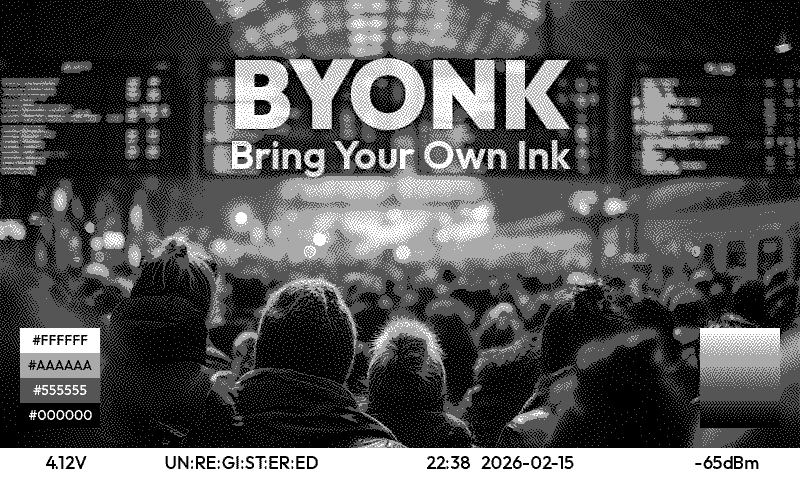
Note: The registration code is derived from the device’s API key via a hash function. This means:
- Devices keep their existing API key (including TRMNL-issued keys) - no WiFi reset required
- The same API key always produces the same registration code
- The config shows only the derived code, not the actual API key
Registration Settings
| Property | Required | Description |
|---|---|---|
enabled | No | Enable device registration (default: true) |
There is no separate registration screen setting — the screen shown to a new,
unregistered device is the same devices.DEFAULT screen described in
The Reserved DEFAULT Device above.
Registration Code Format
- 10 uppercase letters displayed in 2 rows of 5:
A B C D E/F G H J K - Written in config as hyphenated:
"ABCDE-FGHJK" - Uses unambiguous letters only (excludes I, L, O)
- Can be used interchangeably with MAC addresses in the
devicessection - Deterministic: same API key always produces the same code
Example
registration:
  enabled: true

devices:
  # By registration code (read from device screen)
  "ABCDE-FGHJK":
    screen: examples/swiss-departure-board
    params:
      station: "Olten"

  # By MAC address (found in logs)
  "AA:BB:CC:DD:EE:FF":
    screen: examples/hello
Custom Registration Screen
The registration code is available to the devices.DEFAULT screen as device.registration_code and device.registration_code_hyphenated. That screen’s screen.svg can conditionally show it:
{% if device.registration_code %}
<text>Register: {{ device.registration_code_hyphenated }}</text>
{% endif %}
See Device Mapping for more details.
Authentication Mode
Byonk supports optional Ed25519 cryptographic authentication for devices. When enabled, devices use Ed25519 signatures instead of plain API keys.
auth_mode: ed25519 # or "api_key" (default)
The auth_mode setting controls what /api/setup tells devices. The /api/display endpoint always accepts both authentication methods, so existing devices continue to work during migration.
Ed25519 Flow
- Device calls
GET /api/timeto get the server timestamp - Device signs
timestamp_ms (8 bytes BE) || public_key (32 bytes)with its Ed25519 private key - Device sends
X-Public-Key,X-Signature,X-Timestampheaders along with the normalAccess-TokenandIDheaders - Server verifies the signature and checks the timestamp is within ±60 seconds
Settings
| Property | Default | Description |
|---|---|---|
auth_mode | api_key | Authentication mode advertised to devices (api_key or ed25519) |
Hot Reloading
Byonk loads a screen’s script.lua and screen.svg fresh on every request. You can edit
those files without restarting the server.
However, config.yaml is only loaded at startup. Changes to device mappings, the screen repo
registry, or other settings require a server restart (or use the Admin API,
which hot-reloads after writes).
Example: Complete Configuration
# Byonk Configuration

devices:
  # Kitchen display - bus departures
  "94:A9:90:8C:6D:18":
    screen: examples/swiss-departure-board
    params:
      station: "Olten, Südwest"
      limit: 8

  # Office display - room booking (webscrape example)
  "AA:BB:CC:DD:EE:FF":
    screen: examples/webscrape
    params:
      room: "Rosa"

  # Lobby display - different bus stop
  "BB:CC:DD:EE:FF:00":
    screen: examples/swiss-departure-board
    params:
      station: "Olten, Bahnhof"
      limit: 6

  # Reserved key: shown to every un-onboarded or unassigned device
  DEFAULT:
    screen: byonk-builtin/default
Panels Section
Panel profiles define the physical characteristics and measured colors of your e-ink displays. They are used for accurate dithering — the ditherer models what the panel really displays, producing better output.
panels:
  trmnl_og_4grey:
    name: "TRMNL OG (4-grey)"
    match: "trmnl_og_4grey"
    width: 800
    height: 480
    colors: "#000000,#555555,#AAAAAA,#FFFFFF"
    colors_actual: "#383838,#787878,#B8B8B0,#D8D8C8"

  trmnl_og_4clr:
    name: "TRMNL OG (4-color)"
    match: "trmnl_og_4clr"
    width: 800
    height: 480
    colors: "#000000,#FFFFFF,#FF0000,#FFFF00"
    colors_actual: "#303030,#D0D0C8,#C04040,#D0D020"
Panel Properties
| Property | Required | Description |
|---|---|---|
name | Yes | Human-readable display name |
match | No | Exact string match against firmware Board header for auto-detection |
width | No | Display width in pixels |
height | No | Display height in pixels |
colors | Yes | Official palette colors (comma-separated hex) |
colors_actual | No | Measured/actual colors the panel really displays |
dither | No | Per-panel dither tuning defaults (see below) |
Panel Dither Defaults
Panels can carry default dither tuning values that apply to all devices using that panel. This avoids repeating the same tuning in every device config entry.
panels:
  trmnl_og_4clr:
    name: "TRMNL OG (4-color)"
    colors: "#000000,#FFFFFF,#FF0000,#FFFF00"
    colors_actual: "#303030,#D0D0C8,#C04040,#D0D020"
    dither:
      max_error: 1.0         # flat default for all algorithms
      noise_scale: 5.0
      floyd-steinberg:          # per-algorithm override
        max_error: 0.8
        noise_scale: 4.0
      atkinson:
        max_error: 1.2
The dither section supports:
- Flat keys (
max_error,noise_scale,chroma_clamp,strength): default values for all algorithms - Algorithm sub-sections: per-algorithm overrides that take priority over flat defaults
Resolution within a panel: per-algorithm value > flat default > None.
error_clampwas renamed tomax_errorand is now ignored.Up to 0.17.x the knob was called
error_clampand it capped the resulting pixel value. Since 0.18.0 it caps the accumulated error, which moved the useful range from around0.1to around1.0. A pre-0.18.0 value still parses under the new meaning and still renders — flat, with saturated areas collapsing to a single ink.Because the name could not keep its old meaning, it changed with it.
error_clampis read, reported at startup with the exact path to edit, and then discarded. Delete the key to take the default, or setmax_errorif you have retuned it. The warning looks like:WARN panels.reterminal_e1004.dither.sierra-lite.error_clamp: 0.11 — `error_clamp` was removed in 0.18.0 and is IGNORED. ...
Algorithm names accept aliases (e.g. jjn for jarvis-judice-ninke).
The overall tuning priority chain is:
| Priority | Source |
|---|---|
| 1 (highest) | Dev UI overrides |
| 2 | Lua script return values |
| 3 | Device config (max_error, noise_scale, chroma_clamp, strength) |
| 4 | Panel dither defaults |
| 5 (lowest) | Built-in per-algorithm defaults |
That chain is for the tuning values. Choosing the algorithm puts the device above the screen instead:
| Priority | Source |
|---|---|
| 1 (highest) | Dev UI override |
| 2 | Device config dither |
| 3 | Screen’s Lua dither |
| 4 (lowest) | atkinson |
The algorithm suits the panel rather than the content, and an operator who
sets it on the device cannot see a screen replacing it. A screen’s dither
still applies on any device that does not name one; when both do and they
differ, Byonk logs which value was dropped.
The refresh interval goes the other way, because only the script knows when its own content next changes:
| Priority | Source |
|---|---|
| 1 (highest) | Screen’s Lua refresh_rate (when greater than 0) |
| 2 | Device config refresh |
| 3 (lowest) | The screen’s meta.yaml refresh, or 900 seconds |
Byonk logs when a device’s refresh is displaced by a screen, so an operator
can see why their setting is inert.
Panel Assignment
Panels are assigned to devices in three ways (highest priority first):
- Device config
panel— explicit assignment in thedevicessection - Board header auto-detection — firmware sends a
Boardheader, matched against panelmatchpatterns - None — firmware palette header or system defaults
devices:
  "ABCDE-FGHJK":
    screen: examples/swiss-departure-board
    panel: trmnl_og_4grey  # explicit panel assignment
When a panel has colors_actual, the ditherer uses these measured values to model what the display really shows. Use dev mode to calibrate and find the right measured colors for your panel.
Customization & File Locations
See Installation for embedded assets, environment variables,
the byonk init command, Docker volume mounts, and file locations.
Next Steps
Screen Authoring
This page explains where byonk’s screens actually come from, why some are editable and others aren’t, and how to turn a read-only screen into a starting point for your own.
Three source layers
Every screen ref (handle/path) resolves through a screen repo — a
directory tree with a byonk-screens.yaml manifest, where every folder
containing a meta.yaml is a screen (see
Screens live in screen repos, not config entries).
byonk ships three of these out of the box, and they play different roles:
| Layer | Handle | Writable? | What it’s for |
|---|---|---|---|
| Base include library | byonk-base-v1 | No (embedded) | Shared SVG layouts and components (base.svg, header.svg, footer.svg, …) that screens {% extends %} or {% include %} — see SVG Templates. It’s also a sandboxed Lua module namespace: require("byonk-base-v1/std") and similar from script.lua. Not a screen repo itself; you never reference it as handle/path for a screen, only inside {% include "byonk-base-v1/…" %} or require("byonk-base-v1/…"). |
| Built-in screens | byonk-builtin | No | A minimal, fixed set: default (the fallback screen for un-onboarded/unassigned devices) and calibration/* (panel calibration patterns). Always present, never changes shape. |
| Examples | examples | Yes | Worked, runnable samples (hello, mandelbrot, webscrape, gphoto, swiss-departure-board, a font demo) — seeded to disk once so you can read, run, and edit them directly. |
Your own screens live in a fourth place: the local repo, described below.
It isn’t a shipped layer — it starts out empty (or with whatever you put
in it).
What makes a repo writable
Writability is a property of where a screen repo’s files live, not of its
name. A screen repo backed by files on disk under a directory byonk manages
(local, examples, or any path:-configured repo — see below) is
writable. A screen repo embedded in the binary (byonk-builtin) or checked
out from git (repo:-configured, including the git-fetched form of
screen_repos entries) is read-only — git checkouts can be silently
replaced by the next fetch, so treating them as writable would risk losing
edits.
This is why the byonk-builtin handle can never be re-pointed at your own
files: it’s always the embedded set, wherever you run byonk.
However, watch out for a sharp edge this doesn’t protect you from:
SCREENS_DIR (your local repo) is also checked, file by file, whenever a
byonk-builtin screen is read — so a local screen that happens to reuse
a built-in’s exact folder name silently overrides that built-in’s files.
(This is per-file only: byonk-builtin’s set of screens is fixed by what’s
embedded in the binary, so your own screens are never listed under it — they
appear once, under local.) In
particular, don’t create local/default or local/calibration/color (etc.)
expecting them to be independent of byonk-builtin/default and
byonk-builtin/calibration/color — they aren’t; byonk-builtin/default is
the fallback screen shown to un-onboarded and unassigned devices, so
overriding it this way is easy to do by accident. Pick a different name for
your own screens (as in the examples on this page) and this never comes up.
Where your own screens live: local
Set SCREENS_DIR (or, for the Home Assistant app, use its /config/screens
folder) and byonk auto-registers it as a writable screen repo under the
handle local — no screen_repos: entry required. This is where you
put screens you author yourself: local/my-clock, local/hello from the
tutorial, and so on.
An empty or missing SCREENS_DIR is seeded once with just the
byonk-screens.yaml manifest that registers it — never with copies of the
built-in screens, which stay embedded-only. See
Environment Variables for the
seeding details.
Where examples land: EXAMPLES_DIR
The shipped example screens are seeded once to <SCREENS_DIR>/../examples
by default, and auto-register as the writable examples handle — override
the location with the EXAMPLES_DIR environment variable (useful in Docker,
where the derived default may fall outside your mounted volume). See
Environment Variables for the full
seeding-vs-registration precedence rules.
The path: config variant
Beyond local and examples, you can register any writable directory as a
named screen repo with screen_repos.<handle>.path:
screen_repos:
  drafts: { path: /data/drafts }
This is the writable counterpart to repo: (a git-fetched, read-only screen
repo): repo and path are mutually exclusive on the same entry. Use
path: when you want a second writable repo of your own — organized
separately from local — rather than a third layer for everyone.
Fork-to-edit
Because byonk-builtin and any repo:-configured screen repo are
read-only, the way to customize one of their screens is to copy it into a
writable repo and edit the copy — the original keeps working for anyone
still referencing it, and your edits are safe from the next git fetch.
Today that copy is a manual step: copy the screen’s meta.yaml,
script.lua, and screen.svg (and any other files in its folder) from the
read-only repo’s directory into local or examples under a new name, then
point a device’s screen at the new handle/path. For example, to base a
screen on examples/hello:
cp -r <examples dir>/hello <SCREENS_DIR>/my-hello
then set screen: local/my-hello on a device.
Forking from an MCP client
You don’t have to copy files by hand. byonk exposes its screen-authoring core
(ScreenStore) over MCP, so an LLM client can do the whole loop for you. Point
your client at /mcp with the admin token as a bearer credential — see
MCP for the endpoint and authentication details — then:
copy_screenforks any screen, including read-only builtins and examples, into a writable repo. Pass the destination repo handle asto_handle(e.g.local) and the copy’s path inside that repo asto_path(e.g.my-hello), yieldinglocal/my-hello.to_pathis a directory path, not a title — the copy keeps the source’smeta.yaml, so retitle it by writing that file.read_screen_file/write_screen_fileread and editmeta.yaml,script.luaandscreen.svg. Writes take an optionalif_matchetag so concurrent edits don’t clobber each other.validate_screenandrender_screencheck your work;render_screenreturns the actual dithered PNG plus the script’slog,dataanderror, which is the fastest way to debug a script.configure_devicepoints a device at the result, and sets how it is rendered there — panel, dither algorithm and tuning, refresh interval.
list_screens and list_screen_repos report which handles are writable —
only those can be edited in place, so fork a builtin first.
A web-based screen editor is still to come; this page will gain a section on it once it lands.
Next Steps
- Your First Screen — build a screen from scratch in
local - Configuration — the
screen_repos:section reference - Installation —
SCREENS_DIR,EXAMPLES_DIR, and seeding behavior
Authoring with an LLM (MCP)
Byonk exposes a Model Context Protocol endpoint at
/mcp. It lets an assistant like Claude Code list, read, create, edit, validate and
render screens on a running byonk — including one running inside Home Assistant —
entirely over the network. There is no filesystem access involved: no Samba share,
no SCREENS_DIR mount, no SSH. Every tool call goes through the same screen store
that backs the rest of byonk, so what the assistant sees and changes is exactly
what byonk itself will render and serve.
Prerequisite: an admin token
/mcp is gated by the same admin token as the Admin API. If no
token is configured, the endpoint doesn’t just refuse requests — it returns
404 Not Found, as if it didn’t exist. Set a token first:
config.yaml:admin.token: <your-secret>- environment variable
BYONK_ADMIN_TOKEN(takes precedence overconfig.yaml) - the Home Assistant app’s Options screen, which provisions the token automatically
See Admin API — Enabling the API for the full rules; they apply here unchanged.
Connecting
The endpoint is http://<host>:<port>/mcp — http://localhost:3000/mcp with byonk’s
default port, or http://homeassistant.local:3000/mcp for the Home Assistant
app. Transport is streamable HTTP, stateless, with plain JSON responses (no
server-sent-events framing to worry about). Authenticate with the token as a Bearer
credential:
Authorization: Bearer <your-secret>
With the Claude Code CLI:
claude mcp add --transport http byonk http://localhost:3000/mcp \
  --header "Authorization: Bearer <your-secret>"
Or as a JSON config block (the shape most MCP clients accept):
{
  "mcpServers": {
    "byonk": {
      "type": "http",
      "url": "http://localhost:3000/mcp",
      "headers": {
        "Authorization": "Bearer <your-secret>"
      }
    }
  }
}
Tools
Read
| Tool | What it does |
|---|---|
list_screens | List every screen this server can resolve, with its repo, title and whether it is writable. |
read_screen_file | Read one file inside a screen (meta.yaml, script.lua, screen.svg, or another asset). Binary files (not valid UTF-8) return no content — only the etag and binary: true. |
list_screen_repos | List the configured screen repositories: handle, kind, writability. |
list_devices | List known TRMNL devices: MAC, model, assigned screen. |
get_config | Read this server’s non-secret global configuration. |
Edit
| Tool | What it does |
|---|---|
write_screen_file | Write one file inside a screen, atomically (supports optimistic-concurrency if_match). UTF-8 text only — refuses to overwrite an existing binary asset. |
create_screen | Scaffold a new screen from the minimal starter (meta.yaml, script.lua, screen.svg). |
copy_screen | Fork any screen — including read-only builtins and examples — into a writable repo. |
rename_screen | Move a screen to a different path within its repo. |
delete_screen | Delete a screen and every file in its directory. |
delete_screen_file | Delete one sibling asset from a screen directory. |
create_screen, copy_screen and rename_screen each take the screen’s
location inside a repo — path, to_path and new_path respectively. These
are directory paths (clock, or home/clock to nest), not display titles:
a new screen is always scaffolded as “New Screen” and a copy keeps the source’s
meta.yaml verbatim. Set the title by writing meta.yaml. The repo handle is
passed separately (local, never local/clock).
Binary assets (images, fonts, anything not valid UTF-8) can be read for their etag
but not their content, and cannot be written or overwritten over MCP at all —
write_screen_file refuses if the target already exists and is binary. Place binary
assets by another means (a writable local screen repo mounted via SCREENS_DIR, a
Samba share, or an EXAMPLES_DIR-seeded repo) and author text files around them.
Render
| Tool | What it does |
|---|---|
render_screen | Render a screen and return the dithered PNG plus diagnostics (log, data, error). |
validate_screen | Statically check a screen — meta.yaml, Lua, and template — without running it. |
render_screen shows what the panel will really look like by default: when measured
colours are available (from a named panel or from its own colors_actual argument), the
returned PNG is drawn in them. This changes only how the PNG is drawn, never the dithering
itself — a screen’s dithering targets measured colours whenever they resolve, regardless of
use_actual.
| Argument | Type | What it does |
|---|---|---|
image | dithered | raw | both | none | Which image(s) to return. Default dithered. both returns the dithered image then the pre-dither one, each preceded by a text block naming it. |
image_max_width | int, optional | Downscale returned image(s) to at most this width, preserving aspect ratio. Never upscales. |
include_data | bool, default true | Return the table the script produced. |
include_svg | bool, default false | Also return the fully expanded SVG that was rasterized. |
data_uris | shorten | full | omit | How to treat embedded base64 data: URIs in data and the SVG. Default shorten. |
use_actual | bool, optional | Draw the returned PNG in the panel’s measured colours instead of the spec colours. Defaults to on whenever measured colours are available. true with nothing measured is a no-op, not an error. |
colors_actual | string, optional | Comma-separated hex, index-parallel to the palette (e.g. #0A0A0A,#E8E6E0,#A83A30). Lets you preview a calibration without adding a panel to config.yaml. A colors_actual returned by the screen’s own script still wins over this; a length mismatch is ignored (with a warning in the diagnostics’ log) rather than failing the render. |
Keeping the response small
render_screen is by far the most expensive tool here, and an LLM client pays
for every byte of it. Rendering the builtin default screen at 800×480 measures:
| Arguments | Response |
|---|---|
| (defaults) | 65 KB |
image_max_width: 200 | 25 KB |
image: "none" | 3 KB |
image: "none", include_data: false | 0.3 KB |
image: "raw" | 648 KB |
image: "both" | 710 KB |
image: "both", image_max_width: 300 | 171 KB |
Note the raw pre-dither image: it is full-colour and ten times the size of
the dithered one, so raw and both are worth pairing with image_max_width
unless you specifically need its exact pixels.
Screens that embed a photo are the extreme case. image_process returns the
picture as a base64 data: URI, which lands in data — serialised twice, as
text and as structured content — and again inside the SVG if you ask for it.
Rendering a 400×240 photo screen measures:
| Arguments | Response |
|---|---|
data_uris: "full" | 336 KB |
(defaults — shorten) | 17 KB |
include_svg: true, data_uris: "full" | 656 KB |
include_svg: true | 17 KB |
include_svg: true, image: "none" | 0.9 KB |
include_svg: true, image: "none", include_data: false | 0.7 KB |
Shortening is what makes include_svg usable at all: verbatim it doubles the
response to 656 KB, shortened it costs about 400 bytes.
Reading the expanded SVG
include_svg returns the markup resvg actually parsed — Tera rendered,
{% extends %} resolved, script data interpolated:
<svg xmlns="http://www.w3.org/2000/svg" width="800" height="480">
  <image x="0" y="0" width="400" height="240" href="data:image/png;base64,<159784 chars elided>"/>
</svg>
Reach for it when a screen renders but looks wrong and the template and the
data each look correct on their own — the bug is usually in how they combined.
validate_screen parses the SVG too, but statically, without the data, and it
returns no markup.
Five arguments let the caller decide what a render is worth:
image: "none"when you only need the script’slog,dataorerror— e.g. checking that an edit still runs. The images dominate the response.image_max_widthfor a layout check at a fraction of the cost. Be aware that resampling destroys the dither pattern, so a scaledditheredimage is fine for judging layout and tone and useless for judging dithering itself. Omit it when you need to inspect the real pixels.include_data: falsewhen you only want the picture and not the table that produced it.data_uristo keep embedded images out of the text entirely. The default already shortens them;omitalso drops the media type, andfullis only worth it when you genuinely need the bytes.
The diagnostics also include measured_source, naming which layer actually supplied the
measured colours for that render: script, render_opts (the colors_actual argument
above), panel.colors_actual, or none.
Configure a device
| Tool | What it does |
|---|---|
configure_device | Set which screen a device shows and how that screen is rendered for it (use list_devices first to find its MAC). |
Every field except mac is optional, and an omitted field is left as it was, so
one call can change a single setting without disturbing the others. screen_ref
is only required the first time a device is configured.
Besides screen_ref the tool covers the device’s panel, dither algorithm,
colors palette, script params, refresh interval and name, the dither
tuning knobs max_error, noise_scale, chroma_clamp and strength, and the
panel-behaviour flags temperature_profile, maximum_compatibility and
min_png_bytes. It reaches the same settings as
PATCH /api/admin/devices/{key}, which spells two of them differently: there
the device is named by the URL rather than by mac, and its screen field is
screen rather than screen_ref.
To take a setting back rather than change it, name it in clear:
{ "mac": "44:1B:F6:83:93:38", "clear": ["noise_scale"] }
A device setting overrides the panel’s, so removing it lets the panel’s own value apply again. Setting and clearing the same field in one call is refused.
Names are checked before anything is written: an unknown dither algorithm, an
unconfigured panel, a malformed colors list or a temperature_profile other
than default/a/b all fail with a message listing what is accepted. This
matters most for dither — an unrecognised algorithm name is not an error
further down the pipeline, it just renders Atkinson, so a typo used to be
invisible until you looked at the panel.
Resources
Byonk also publishes its own authoring references as MCP resources, so the assistant works from this server’s actual rules instead of guessing from stale training data:
byonk://reference/lua-api— every global and function available toscript.lua.byonk://reference/svg-templates— thescreen.svgtemplating contract.byonk://reference/authoring— how screens, screen repos and writability fit together.byonk://schema/meta.yaml— the JSON Schema formeta.yaml, generated from the same type that parses it.byonk://examples/<screen path>— one resource per shipped example screen, with the fullmeta.yaml+script.lua+screen.svgsource, known to render on this server.
Have the assistant read byonk://reference/lua-api before it writes a script — it
describes exactly what’s injected into the Lua sandbox, which is not the same as
general-purpose Lua.
A workflow that works
list_screensto see what’s already there and which repos are writable.copy_screena builtin or an example into a writable repo as a starting point. The built-in screens (byonk-builtin) are read-only, so editing one in place fails; forking first is the way in.examplesis writable directly, but copying still keeps the original example intact as a reference.- Edit with
write_screen_file. render_screenand read itsloganderror.linefields — Lua errors and template errors both surface there, pointing at what to fix.- Repeat steps 3–4 until it renders clean.
configure_deviceto put it on a real device.
Security note
The admin token this endpoint uses grants full screen-authoring rights — creating, editing and deleting screens — and device-configuration rights, not just read access. Treat it like any other credential.
/mcp also accepts requests for any Host header, unlike the loopback-only default
most MCP servers use — this is deliberate, so the endpoint can be reached at a LAN
hostname such as homeassistant.local:3000 rather than only localhost. That means
the Bearer token is the only thing standing between this endpoint and anyone who
can reach the port. Don’t expose it to the internet.
Dev Mode
Byonk includes a development mode that provides a web-based device simulator with live reload capabilities, making it easier to develop and test screens.
Starting Dev Mode
# Start with dev mode enabled
byonk dev

# With external screens directory for live reload
SCREENS_DIR=./screens byonk dev
Once started, open your browser to http://localhost:3000/dev to access the device simulator.
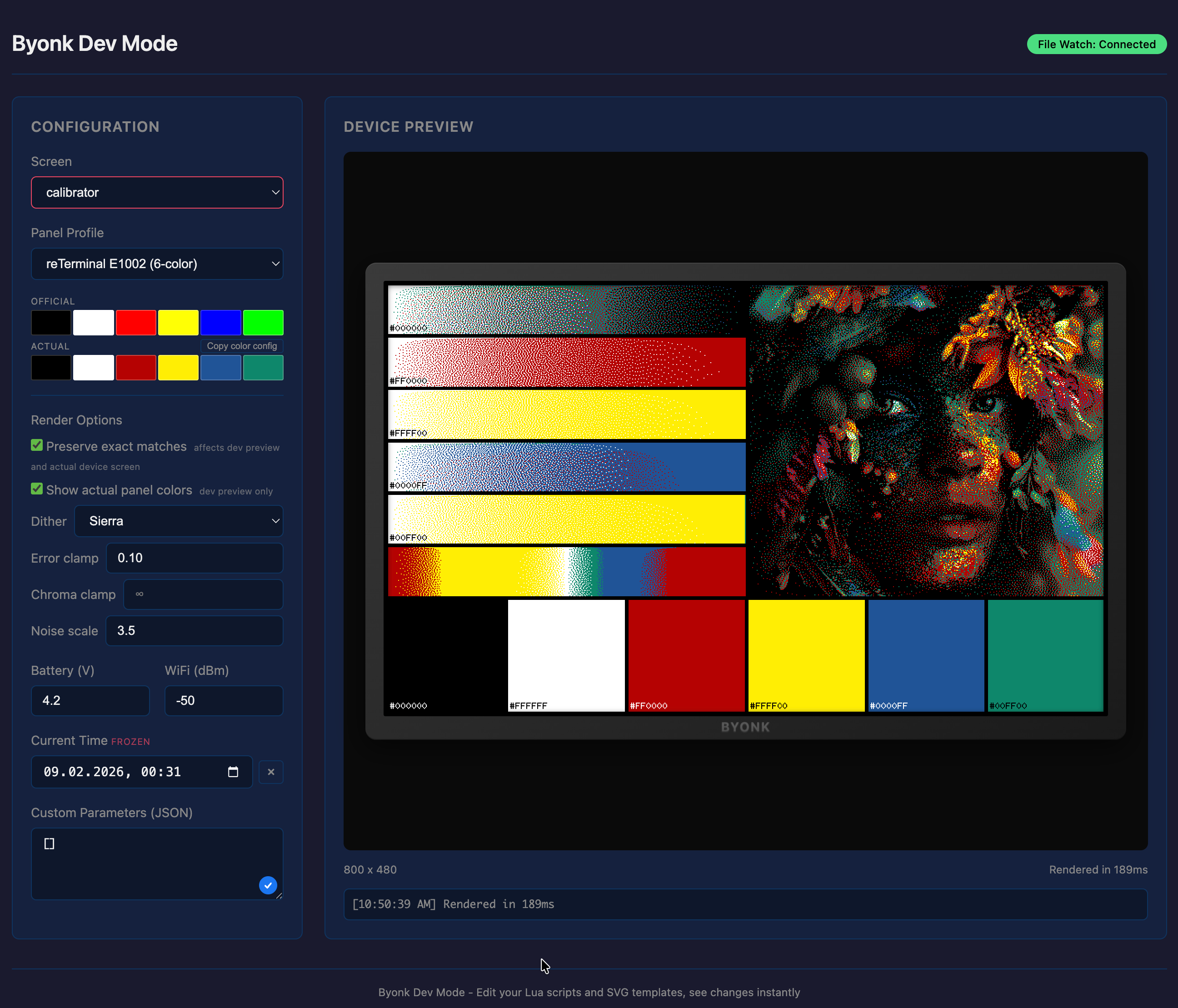
Features
Device Simulator
The simulator displays your rendered screens in a visual frame resembling a TRMNL device. You can:
- Select a screen from the dropdown (populated from config.yaml and auto-discovered screens)
- Select a device to auto-load its configured screen, parameters, panel, and dither settings
- Simulate device context: battery voltage, WiFi RSSI, and time override
- View the rendered PNG exactly as it would appear on the device
- Pixel inspector: hover over the image to see a magnified view
Live Reload
When SCREENS_DIR is set to an external directory, the dev mode watches for changes to .lua and .svg files. When you save a file:
- The file watcher detects the change
- An event is sent to connected browsers via Server-Sent Events (SSE)
- The screen automatically re-renders with the latest code
Custom Parameters
The dev UI includes a JSON editor for passing custom parameters to your Lua scripts. These are available in your script via the params table.
Error Display
Errors are displayed in a console below the device preview, including Lua syntax/runtime errors, template errors, and render failures.
Display Calibration
Dev mode provides tools for calibrating dithering to match your physical display. Changes made in the dev UI are synced live to the actual device — what you tune is what the device shows.
Dither Algorithm Selection
The dither dropdown lets you try all 9 algorithms on your content:
atkinson(default) — Atkinson error diffusion (75% propagation)atkinson-hybrid— Atkinson with hybrid propagation (100% achromatic / 75% chromatic)floyd-steinberg— Floyd-Steinberg with blue noise jitterjarvis-judice-ninke— wide 12-neighbor kernelsierra,sierra-two-row,sierra-lite— Sierra familystucki— wide 12-neighbor kernel similar to JJNburkes— 7-neighbor kernel, good balance of speed and quality
Dither Tuning Controls
The Render Options panel exposes three tuning parameters:
| Control | Effect |
|---|---|
| Error clamp | Caps how much accumulated error one pixel may carry into its neighbours. The default is 1.0 — full scale in a channel. Lowering it suppresses diffusion, which quietens oscillation but makes saturated areas render flat. |
| Noise scale | Controls blue noise jitter strength. Higher values break “worm” artifacts more aggressively. |
| Chroma clamp | Limits chromatic error propagation. Prevents color bleeding on chromatic palettes. |
Color Calibration
Click any actual-color swatch to open the HSL adjustment popup. Adjust hue, saturation, and lightness with live preview to match what your panel really displays. The adjusted colors_actual string can be copied to config.yaml.
Live Device Sync
When you select a device entry and adjust dither algorithm, tuning parameters, or measured colors, changes are synced to the production /api/display handler. The physical device picks up the new settings on its next refresh.
Calibrator Screen
Byonk ships a built-in calibration screen (byonk-builtin/calibration/color) designed specifically for display calibration. Assign it to your device temporarily while tuning:
devices:
  "ABCDE-FGHJK":
    screen: byonk-builtin/calibration/color
    panel: my_panel
    dither: atkinson
The calibrator shows everything you need to evaluate dithering quality:
- White-to-color gradients for each palette color — reveals error diffusion artifacts, oscillation, and color bleeding
- Full hue sweep at 100% saturation — shows how the ditherer maps arbitrary colors to your limited palette
- Test photo — real-world image to judge overall photo reproduction
- Solid color patches with hex labels — compare what the panel actually displays against the expected color values
Use the calibrator on your physical device while adjusting tuning in dev mode — the live sync means every change you make is immediately visible on the display.
Gamut Patch Screen
byonk-builtin/calibration/gamut answers a narrower question: which colors can
this panel actually mix, and which does it give up on?
devices:
  "ABCDE-FGHJK":
    screen: byonk-builtin/calibration/gamut
    panel: my_panel
    params:
      hues: 24      # hue columns around the full circle (2-48)
      levels: 6     # lightness rows (1-12)
It draws the hue circle as isolated flat patches rather than the calibrator’s smooth gradient. That difference is the point: in a gradient, neighbouring hues bleed together, so a hue the panel cannot reproduce still looks like it is doing something. Here each patch stands alone, so you can read it directly:
- A speckled patch — the ditherer mixed several palette colors to approximate the request. This is what working output looks like.
- A solid patch — the ditherer picked one palette entry for every pixel. On a 6-color panel expect solid blue across roughly 225°–270°: that genuinely is the best the palette offers, not a bug.
- A solid white patch (drawn outlined, so it doesn’t read as a missing cell) — the request collapsed to white entirely. Cyan around 180° does this on 6-color panels, whose bluest and greenest inks are both dark.
Rows vary lightness because reachability depends on it — a hue may mix cleanly when dark and collapse when light.
Tone Marker A/B Screen
byonk-builtin/calibration/tone answers a different question again: what does
the gamut mapper actually change on real content, on your real panel?
devices:
  "ABCDE-FGHJK":
    screen: byonk-builtin/calibration/tone
    panel: my_panel
    params:
      hues: 12      # patch grid hue columns (2-48)
      levels: 5     # patch grid rows (1-12)
It renders the same content — a photograph, a hue sweep, and a colour patch
grid, top to bottom — twice, side by side. The two columns are identical
markup with one difference: only the right-hand column is marked
data-byonk-tone="continuous". That mark drives three things at once — the
right column is matched against the panel’s measured colours and gamut
mapped, while the left column is matched against the official palette and
exact-match pinned (see
Marking continuous-tone content).
The left column is the untouched control. Whatever visibly differs between the
two columns on your device is what that whole difference in treatment is doing
to your content. The hue sweep is a fixed gradient of 12 equal hue steps, not
driven by either param.
There are no gamut-mapping knobs on this screen — it deliberately shows you what a real screen gets, not a tuning surface.
Calibration Workflow
- Assign the
byonk-builtin/calibration/colorscreen to your device inconfig.yaml - Select your device in dev mode — this loads its screen, panel, and dither settings
- Choose a dither algorithm that works well for your content type
- Adjust tuning parameters (max_error, noise_scale, chroma_clamp, strength) until the preview looks good
- Calibrate measured colors by clicking actual-color swatches and adjusting HSL to match the solid patches on the physical display
- Verify on device — changes sync automatically; wait for the next device refresh
- Commit to config — copy the values to
config.yamland switch back to your normal screen:
panels:
  my_panel:
    name: "My Panel"
    colors: "#000000,#FFFFFF,#FF0000,#FFFF00"
    colors_actual: "#303030,#D0D0C8,#C04040,#D0D020"  # from dev mode calibration

devices:
  "ABCDE-FGHJK":
    screen: examples/gphoto
    panel: my_panel
    dither: floyd-steinberg
    max_error: 1.0    # from dev mode tuning
    noise_scale: 0.5    # from dev mode tuning
Tuning values can also be set per-script in the Lua return table — see Lua API.
Configuration
Dev mode uses the same environment variables as the normal server:
| Variable | Description | Default |
|---|---|---|
BIND_ADDR | Server bind address | 0.0.0.0:3000 |
SCREENS_DIR | External screens directory (enables live reload) | (embedded) |
FONTS_DIR | External fonts directory | (embedded) |
CONFIG_FILE | External config file | (embedded) |
Example Workflow
-
Extract embedded assets to work with:
byonk init --all -
Start dev mode with external screens:
SCREENS_DIR=./screens CONFIG_FILE=./config.yaml byonk dev -
Open
http://localhost:3000/devin your browser -
Select the screen you want to work on
-
Edit your Lua script or SVG template — changes appear automatically
-
Use the calibration tools to tune dithering for your panel
-
Check the console below the preview if something goes wrong
Differences from Production
Dev mode includes a few differences from the production byonk serve command:
- Additional
/dev/*routes for the simulator UI - File watching enabled (when using external SCREENS_DIR)
- No content caching — always renders fresh content
- More verbose logging by default
- Tuning and color overrides are session-only (reset on server restart)
Architecture Overview
Byonk is designed as a content server that bridges dynamic data sources with e-ink displays. This page explains how the system is structured and how requests flow through it.
System Overview
flowchart LR
    Display[TRMNL Display]

    subgraph Server[Byonk Server]
        Router[HTTP Router]
        Registry[(Device Registry)]
        Cache[(Content Cache)]
        Lua[Lua Runtime]
        Template[Template Service]
        Renderer[SVG Renderer]
    end

    Display --> Router
    Router --> Registry
    Router --> Cache
    Router --> Lua
    Lua --> Template
    Template --> Renderer
Core Components
HTTP Router
The entry point for all device requests. Built with Axum, it handles:
- Device registration (
/api/setup) - Content requests (
/api/display,/api/image/:id) - Logging (
/api/log) - API documentation (
/swagger-ui)
Device Registry
Stores device information in memory:
- MAC address to API key mapping
- Device metadata (firmware version, model, battery level)
- Last seen timestamps
Note: The current implementation uses an in-memory store. Device registrations are lost on restart. The architecture supports adding database persistence in the future.
Content Cache
Stores rendered content between the display and image requests:
- Caches rendered SVG documents by content hash
- Enables content change detection via hash comparison
- Allows devices to skip unchanged content
Content Pipeline
The heart of Byonk - orchestrates content generation:
- Looks up screen configuration for the device
- Executes Lua script with device parameters
- Renders SVG template with script data
- Converts SVG to PNG with dithering
Lua Runtime
Executes Lua scripts in a sandboxed environment:
- HTTP client for fetching external data
- JSON/HTML parsing utilities
- Time functions
- Logging
Template Service
Renders SVG templates using Tera:
- Jinja2-style syntax
- Custom filters (
truncate,format_time) - Fresh loading on each request (hot reload)
SVG Renderer
Converts SVG to PNG optimized for e-ink:
- Uses resvg for rendering
- Loads custom fonts from
fonts/directory - Palette-aware dithering via eink-dither engine (Oklab color matching, two rendering intents)
- Outputs optimized PNG (greyscale or indexed, depending on palette)
Request Flow
The device-server interaction happens in three phases:
Phase 1: Device Registration
sequenceDiagram
    participant Device as E-ink Display
    participant Router as HTTP Router
    participant Registry as Device Registry

    Device->>+Router: GET /api/setup
    Router->>Registry: lookup/create device
    Registry-->>Router: api_key
    Router-->>-Device: {api_key, friendly_id}
    Note right of Device: Store api_key
Phase 2: Content Generation
sequenceDiagram
    participant Device
    participant Router
    participant Lua
    participant API as External API
    participant Template
    participant Cache

    Device->>+Router: GET /api/display
    Router->>+Lua: execute script
    Lua->>+API: http_get(url)
    API-->>-Lua: JSON data
    Lua-->>-Router: {data, refresh_rate}
    Router->>+Template: render SVG with data
    Template-->>-Router: SVG document
    Router->>Cache: store SVG + hash
    Router-->>-Device: {image_url, filename, refresh_rate}
    Note right of Device: filename is content hash
Phase 3: Image Rendering
sequenceDiagram
    participant Device
    participant Router
    participant Cache
    participant Renderer

    Device->>+Router: GET /api/image/:id
    Router->>Cache: get cached SVG
    Cache-->>Router: SVG document
    Router->>+Renderer: convert to PNG
    Renderer-->>-Router: dithered PNG
    Router-->>-Device: PNG image
    Note right of Device: Display and sleep
Request Details
| Phase | Endpoint | Purpose |
|---|---|---|
| 1. Setup | GET /api/setup | Device registers, receives API key |
| 2. Display | GET /api/display | Runs Lua script, renders SVG, caches it, returns image URL with content hash |
| 3. Image | GET /api/image/:hash | Converts cached SVG to PNG, returns image |
Phase 2 (content generation):
- Load and execute Lua script with
paramsanddevicecontext - Script fetches external data via
http_get() - Render SVG template with script data
- Cache rendered SVG with content hash
- Return image URL and
filename(content hash) to device
The filename field contains a hash of the rendered SVG content. This allows TRMNL devices to detect when content has actually changed, even if the same screen is configured.
Phase 3 (image rendering):
- Look up cached SVG by content hash
- Convert SVG to PNG with palette-aware dithering
- Return PNG to device
Technology Stack
| Component | Technology |
|---|---|
| Web framework | Axum |
| Async runtime | Tokio |
| Scripting | mlua (Lua 5.4) |
| Templating | Tera |
| SVG rendering | resvg (patched for variable fonts) |
| HTTP client | reqwest |
| HTML parsing | scraper |
Design Principles
Fresh Loading
Lua scripts and SVG templates are loaded from disk on every request. This enables:
- Live editing during development
- No restart needed for content changes
- Simple deployment (just copy files)
Blocking Isolation
CPU-intensive operations run in a blocking task pool:
- Lua HTTP requests
- SVG rendering
- Image encoding
This prevents blocking the async event loop.
Graceful Degradation
If content generation fails, devices receive an error screen rather than nothing. The error message helps debugging while keeping the device functional.
Security Model
Content-Based URLs
Image URLs use content hashes instead of signatures:
- URL path contains SHA-256 hash of rendered content
- Same content always produces the same URL
- No expiration - content is immutable by hash
No Authentication Required
The /api/setup endpoint is open - any device can register. This matches TRMNL’s design where devices self-register.
Script Sandboxing
Lua scripts run in a controlled environment:
- Only exposed functions are available
- No filesystem access
- No arbitrary code execution
Content Pipeline
The content pipeline is how Byonk transforms data into images for e-ink displays. This page explains each stage in detail.
Pipeline Overview
flowchart TD
    A[Lua Script] -->|JSON data| B[SVG Template]
    B -->|SVG document| C[Cache]
    C -->|cached SVG| D[Renderer]
    D -->|dithered pixels| E[E-ink PNG]
| Stage | Input | Processing | Output |
|---|---|---|---|
| Lua Script | API endpoints, params | Fetch data, parse JSON/HTML | Structured data |
| SVG Template | Data + device context | Tera templating, layout | SVG document |
| Cache | SVG document | Hash content, store | Cached SVG + content hash |
| Renderer | Cached SVG | Rasterize, dither to palette | Pixel buffer |
| E-ink PNG | Pixel buffer | Encode as greyscale or indexed PNG | Palette PNG |
Content Change Detection
TRMNL devices use the filename field in the /api/display response to detect content changes. Byonk computes a SHA-256 hash of the rendered SVG content and returns it as the filename. This means:
- Same content = same filename: If your Lua script returns identical data and the template produces the same SVG, the device knows nothing changed
- Changed content = new filename: Any change in the rendered SVG (data, template, or device context) produces a new hash
This is why template rendering happens during /api/display rather than /api/image - the hash must be known before the device decides whether to fetch the image.
Stage 1: Lua Script Execution
Lua scripts fetch and process data from external sources.
Input
The script receives a global params table from config.yaml:
# config.yaml
devices:
  "94:A9:90:8C:6D:18":
    screen: transit
    params:
      station: "Olten, Bahnhof"
      limit: 8
-- In your script
local station = params.station  -- "Olten, Bahnhof"
local limit = params.limit      -- 8
Processing
Scripts can:
- Fetch HTTP data: APIs, web pages, JSON endpoints
- Parse content: JSON decoding, HTML scraping
- Transform data: Filter, sort, calculate
local response = http_get("https://api.example.com/data")
local data = json_decode(response)

local filtered = {}
for _, item in ipairs(data.items) do
  if item.active then
    table.insert(filtered, item)
  end
end
Output
Scripts must return a table with two fields:
return {
  data = {
    -- Any structure - passed to template
    title = "My Screen",
    items = filtered,
    updated_at = time_format(time_now(), "%H:%M")
  },
  refresh_rate = 300  -- Seconds until next update
}
Refresh Rate
The refresh_rate controls when the device fetches new content:
- Low values (30-60s): Real-time data (transit, stocks)
- Medium values (300-900s): Regular updates (weather, calendar)
- High values (3600+s): Static content
Tip: Calculate refresh rates dynamically. For transit, refresh after the next departure:
local seconds_until_departure = departure_time - time_now()
return {
  data = departures,
  refresh_rate = seconds_until_departure + 30
}
Stage 2: Template Rendering
SVG templates use Tera syntax (similar to Jinja2).
Input
The template receives a structured context with three namespaces:
Template Namespaces
| Namespace | Source | Description |
|---|---|---|
data.* | Lua script data return | Your script’s output |
device.* | Device headers | Battery voltage, RSSI |
params.* | config.yaml | Device-specific params |
Device Context Variables
These are automatically available under device.* (when reported by the device):
| Variable | Type | Description |
|---|---|---|
device.battery_voltage | float | Battery voltage (e.g., 4.12) |
device.rssi | integer | WiFi signal strength in dBm (e.g., -65) |
<!-- Show battery voltage in header -->
<text x="780" y="30" text-anchor="end">
  {% if device.battery_voltage %}{{ device.battery_voltage | round(precision=2) }}V{% endif %}
</text>
Note: Device info is also available in Lua scripts via the
deviceglobal table.
Syntax
Variables:
<text>{{ data.title }}</text>
<text>{{ data.user.name }}</text>
<text>{{ device.battery_voltage }}V</text>
<text>{{ params.station }}</text>
Loops:
{% for item in data.items %}
<text y="{{ 100 + loop.index0 * 30 }}">{{ item.name }}</text>
{% endfor %}
Conditionals:
{% if data.error %}
<text fill="red">{{ data.error }}</text>
{% else %}
<text>All good!</text>
{% endif %}
Built-in Filters
| Filter | Usage | Description |
|---|---|---|
truncate | {{ data.text | truncate(length=30) }} | Truncate with ellipsis |
format_time | {{ data.ts | format_time(format="%H:%M") }} | Format Unix timestamp |
length | {{ data.items | length }} | Get array/object length |
Output
A complete SVG document ready for rendering.
Stage 3: SVG to PNG Conversion
The renderer converts SVG to a PNG optimized for e-ink displays.
Font Handling
- Custom fonts from
fonts/directory (loaded first) - System fonts as fallback
- Variable fonts supported via CSS
font-variation-settings
<style>
  .title {
    font-family: Outfit;
    font-variation-settings: "wght" 700;
  }
</style>
Scaling
SVGs are scaled to fit the display while maintaining aspect ratio:
- TRMNL OG: 800 × 480 pixels
- TRMNL X: 1872 × 1404 pixels
The image is centered if the aspect ratio doesn’t match exactly.
Palette-Aware Dithering
E-ink displays support a limited color palette (typically 4 grey levels, but also color palettes like black/white/red/yellow). Dithering creates the illusion of more shades by distributing quantization error to neighboring pixels.
Byonk uses the eink-dither engine which performs color matching in the perceptually uniform Oklab color space and processes pixels in gamma-correct linear RGB. This produces more accurate color reproduction than naive RGB-space dithering.
Dither Algorithms
Byonk supports 9 dithering algorithms, selectable per-device or per-script via the dither option:
| Algorithm | Value | Best for |
|---|---|---|
| Atkinson (default) | "atkinson" | General-purpose, good for small palettes |
| Atkinson Hybrid | "atkinson-hybrid" | Chromatic palettes (fixes color drift) |
| Floyd-Steinberg | "floyd-steinberg" | General-purpose, smooth gradients |
| Jarvis-Judice-Ninke | "jarvis-judice-ninke" | Sparse chromatic palettes (least oscillation) |
| Sierra | "sierra" | Good quality/speed balance |
| Sierra Two-Row | "sierra-two-row" | Lighter weight error diffusion |
| Sierra Lite | "sierra-lite" | Fastest error diffusion |
| Stucki | "stucki" | Wide kernel similar to JJN |
| Burkes | "burkes" | Good balance of speed and quality |
All error diffusion algorithms use blue noise jitter to break “worm” artifacts. Color matching is performed in perceptually uniform Oklab space with gamma-correct linear RGB processing.
Set the dither mode per-device in config.yaml:
devices:
  "ABCDE-FGHJK":
    screen: gphoto
    dither: photo
Or per-script by returning dither in the Lua result table:
return {
  data = { ... },
  refresh_rate = 300,
  dither = "photo"
}
The priority chain is: dev UI override > script dither > device config dither > default (graphics).
Dither Tuning
Fine-tune dithering behavior with these parameters, settable at multiple levels:
| Parameter | Description | Typical range |
|---|---|---|
error_clamp | Limits error diffusion amplitude. Lower values reduce oscillation. | 0.05 – 0.5 |
noise_scale | Blue noise jitter scale. Higher values break worm artifacts more aggressively. | 0.3 – 1.0 |
chroma_clamp | Limits chromatic error propagation. Prevents color bleeding. | 0.5 – 5.0 |
strength | Scales diffused error before propagation. 0.0 = no diffusion, 1.0 = standard. | 0.0 – 2.0 |
Use dev mode to find optimal values interactively, then commit them to your panel profile, device config, or Lua script for production use.
Priority chain: dev UI override > script return > device config > panel dither defaults > algorithm defaults.
Panel dither defaults are especially useful because optimal tuning is usually tied to the color palette (which is tied to the panel). Set them once in the panel profile and every device using that panel inherits good defaults. See Panel Dither Defaults for the config format.
Output Format
The final PNG format is chosen automatically based on the palette:
- Grey palette (≤4 colors): Native 2-bit greyscale PNG (4 pixels per byte)
- Grey palette (5-16 colors): Native 4-bit greyscale PNG (2 pixels per byte)
- Color palette: Indexed PNG with PLTE chunk (bit depth chosen by palette size)
- Size validated against device limits (90KB for OG, 750KB for X)
Error Handling
If any stage fails, Byonk generates an error screen:
<svg>
  <rect fill="white" stroke="red" stroke-width="5"/>
  <text>Error: Failed to fetch data</text>
  <text>Will retry in 60 seconds</text>
</svg>
This ensures:
- Device always receives valid content
- Error is visible for debugging
- Automatic retry on next refresh
Performance Considerations
What’s Fast
- Lua script execution (milliseconds)
- Template rendering (milliseconds)
- Simple SVG rendering (10-50ms)
What’s Slower
- HTTP requests (network dependent)
- Complex SVG with many elements (100-500ms)
- Large images or gradients
Optimization Tips
- Minimize HTTP calls - Cache data in script if possible
- Simplify SVG - Fewer elements = faster rendering
- Avoid gradients - They’re converted to dithered patterns anyway
- Use appropriate refresh rates - Don’t refresh more often than needed
Device Mapping
Byonk allows you to show different content on different TRMNL devices. This page explains how devices are identified, registered, and mapped to screens.
How Devices Are Identified
Each TRMNL device has a unique MAC address that identifies it. This address is sent in the ID header with every request:
ID: 94:A9:90:8C:6D:18
Byonk uses this MAC address to:
- Register new devices
- Look up existing device configuration
- Map devices to screens
Device Registration Flow
sequenceDiagram
    participant Device
    participant Byonk

    Device->>Byonk: GET /api/setup<br/>Headers: ID, FW-Version, Model
    Byonk-->>Device: {api_key, friendly_id}
    Note right of Device: Store api_key

    Device->>Byonk: GET /api/display<br/>Headers: Access-Token, ID
    Byonk-->>Device: {image_url, refresh_rate}
Setup Response
{
  "status": 200,
  "api_key": "a1b2c3d4e5f6...",
  "friendly_id": "abc123def456"
}
- api_key: Authentication token for subsequent requests
- friendly_id: Human-readable identifier (12 hex characters)
Configuration-Based Mapping
Devices are mapped to screens in config.yaml:
devices:
  "94:A9:90:8C:6D:18":
    screen: examples/swiss-departure-board
    params:
      station: "Olten, Bahnhof"

  "AA:BB:CC:DD:EE:FF":
    screen: weather/forecast
    params:
      city: "Zurich"

  # Reserved key: shown to every un-onboarded or unassigned device
  DEFAULT:
    screen: byonk-builtin/default
A screen is referenced by a qualified handle/path reference: handle names a
registered package and path locates the screen folder within it. A minimal
default + calibration/* set lives in the embedded byonk-builtin package;
worked examples such as swiss-departure-board live in the embedded examples
package (for example examples/swiss-departure-board); third-party packages
are referenced through their own handle (for example weather/forecast).
Lookup Order
When a device requests content:
- Exact MAC match - Check if MAC is in
devicessection - Reserved DEFAULT device - Use the screen assigned to
devices.DEFAULTif no match - Built-in fallback - If
devices.DEFAULTisn’t set, use the embeddedbyonk-builtin/defaultscreen (this always resolves)
MAC Address Format
MAC addresses in config must be:
- Uppercase:
"94:A9:90:8C:6D:18"not"94:a9:90:8c:6d:18" - Colon-separated:
"94:A9:90:8C:6D:18"not"94-A9-90-8C-6D-18" - Quoted: YAML requires quotes for strings with colons
Device Parameters
See Configuration — Parameters for details on parameter types and usage.
Finding Your Device’s MAC Address
The MAC address is shown:
-
In Byonk logs when the device connects:
INFO Device registered device_id="94:A9:90:8C:6D:18" -
On the device during setup (check TRMNL documentation)
-
In your router’s connected devices list
The Reserved DEFAULT Device
devices reserves one key, DEFAULT, whose screen provides a fallback for:
- Devices not yet onboarded (shows the registration code)
- Devices registered but with no screen assigned
- New devices during testing
devices:
  DEFAULT:
    screen: byonk-builtin/default
If devices.DEFAULT isn’t set, byonk falls back to its embedded
byonk-builtin/default screen, so there’s always something to show.
Auto-Registration
Byonk automatically registers new devices on their first /api/setup call:
- Generates a random API key (32-character hex string)
- Derives a registration code from the key
- Stores device in registry
No pre-configuration is needed - just add the device to config.yaml to assign a custom screen.
Device Registration (Security Feature)
For enhanced security, Byonk supports device registration — requiring new devices to be explicitly approved before showing content.
See Configuration — Device Registration for full setup instructions, registration code format, custom registration screens, and migration notes.
Multiple Screens per Device?
Currently, each device shows one screen. However, you can create a “dashboard” screen that combines multiple data sources:
-- dashboard.lua
local weather = fetch_weather()
local transit = fetch_transit()
local calendar = fetch_calendar()

return {
  data = {
    weather = weather,
    transit = transit,
    calendar = calendar
  },
  refresh_rate = 300
}
Device Metadata
Byonk tracks additional device information from request headers:
| Header | Description |
|---|---|
FW-Version | Firmware version |
Model | Device model (og, x) |
Battery-Voltage | Battery level |
RSSI | WiFi signal strength |
Width, Height | Display dimensions |
This metadata is stored in the device registry and can be used for:
- Debugging connectivity issues
- Monitoring battery levels
- Adapting content to device model
Persistence
Warning: The current implementation stores device registrations in memory. Registrations are lost on server restart.
Devices will automatically re-register on their next request, but any collected metadata is lost.
Future versions may add database persistence for device data.
Tutorial
This tutorial series will teach you how to create custom screens for your TRMNL device using Byonk. You’ll learn:
- Your First Screen - Create a simple “Hello World” screen
- Lua Scripting - Fetch data from APIs and process it
- SVG Templates - Design beautiful layouts
- Advanced Topics - HTML scraping, dynamic refresh, error handling
Prerequisites
Before starting, make sure you have:
- Byonk installed and running
- A text editor for writing Lua and SVG files
- Basic familiarity with programming concepts
Example Screens
Byonk comes with several example screens you can learn from. Each screen is a
folder containing three fixed-name files — meta.yaml (title, description,
and its params: schema), script.lua (the data-fetch logic), and screen.svg
(the Tera template). Those folders live inside a package, and each screen is
referenced by its qualified handle/path. A minimal default + calibration/*
set ships in the embedded byonk-builtin package; the worked examples below ship
separately in the embedded examples package:
Default Screen
A simple clock display showing time and date. Referenced as byonk-builtin/default.
screens/builtin/default/
├── meta.yaml     - Title, description, params
├── script.lua    - Script
└── screen.svg    - Template
Transit Departures
Real-time public transport departures from Swiss OpenData. Referenced as
examples/swiss-departure-board.
screens/examples/swiss-departure-board/
├── meta.yaml     - Title, description, params
├── script.lua    - Fetches from transport.opendata.ch API
└── screen.svg    - Displays departure list with colors
Room Booking (Web Scrape)
Scrapes a web page to show room availability. Referenced as
examples/webscrape.
screens/examples/webscrape/
├── meta.yaml     - Title, description, params
├── script.lua    - HTML scraping example
└── screen.svg    - Shows current/upcoming bookings
Display Color Test
Demonstrates the display palette colors available on e-ink. Referenced as
byonk-builtin/calibration/grey.
screens/builtin/calibration/grey/
├── meta.yaml     - Title, description, params
├── script.lua    - Adapts to device palette
└── screen.svg    - Shows palette color swatches and dithering test
Quick Reference
File Locations
| Type | Location |
|---|---|
byonk-builtin manifest | screens/builtin/byonk-screens.yaml |
examples manifest | screens/examples/byonk-screens.yaml |
| Screen folder | screens/builtin/<path>/ or screens/examples/<path>/ (each with meta.yaml, script.lua, screen.svg) |
| Configuration | config.yaml |
| Custom fonts | fonts/ |
Workflow
- Create a screen folder (
meta.yaml+script.lua+screen.svg) inside a package - Assign the screen to a device by its
handle/pathreference inconfig.yaml - Test by refreshing your device or checking
/swagger-ui
Tip:
script.luaandscreen.svgare loaded fresh on every request. Just save your changes and refresh!
Ready to Start?
Head to Your First Screen to create your first custom display!
Your First Screen
Let’s create a simple screen that displays a greeting and the current time. This will introduce you to the basic workflow of creating Byonk screens.
Step 0: Set Up Your Workspace
Byonk embeds all assets in the binary. To customize screens, you must set environment variables pointing to external directories.
For binary users:
# Set paths and start server (auto-seeds empty directories)
export SCREENS_DIR=./screens
export CONFIG_FILE=./config.yaml
byonk serve
For Docker users:
docker run -d --pull always -p 3000:3000 \
  -e SCREENS_DIR=/data/screens \
  -e CONFIG_FILE=/data/config.yaml \
  -v ./data:/data \
  ghcr.io/oetiker/byonk
On first run, empty directories are automatically populated with defaults. You can then edit the screen files under screens/ and config.yaml.
Tip: Keep the server running in a terminal. Lua scripts and SVG templates are reloaded on every request - just save and refresh!
How screens are organized
A screen is a folder inside a screen package. Each screen folder holds three fixed-name files:
| File | Purpose |
|---|---|
meta.yaml | Title, description, engine compatibility, and the parameter schema |
script.lua | Data-fetch logic; returns a data table and optional refresh_rate |
screen.svg | Tera SVG template rendered with that data |
A package is a directory tree with a byonk-screens.yaml manifest at its root; every
folder inside it that contains a meta.yaml is a screen. When SCREENS_DIR is set, byonk
auto-registers it as a writable package under the handle local, whose folder layout
looks like this:
screens/                       # SCREENS_DIR — registers as the `local` package
  byonk-screens.yaml           # package manifest (name, description, author, license)
  hello/                       # screen ref: local/hello
    meta.yaml
    script.lua
    screen.svg
A screen is referenced by handle/path — here local/hello — and that is the
value a device’s screen field is set to. In this tutorial we build a screen at
local/hello. (Byonk also ships a ready-made, near-identical worked example at
examples/hello — screens/examples/hello/ in the Byonk source — for reference.)
Step 1: Create the meta.yaml
Create screens/hello/meta.yaml. It describes the screen and (later) its parameters:
title: Hello World
description: Displays a greeting with the current time.
byonk: "0.19"       # byonk engine series this screen targets (caret range)
refresh: 60         # default refresh in seconds (script.lua may override)
titleanddescriptionare shown by the admin API and the Home Assistant integration.byonkdeclares engine compatibility: a bare version is parsed as a caret range ("0.17"means>=0.17.0, <0.18.0), not a minimum — pin it to the byonk series you actually tested against.refreshis an optional default; the Lua script’s returnedrefresh_ratestill overrides.
Step 2: Create the Lua Script
Create screens/hello/script.lua:
-- Hello World screen
-- Displays a greeting with the current time

local now = time_now()

return {
  data = {
    greeting = "Hello, World!",
    time = time_format(now, "%H:%M:%S"),
    date = time_format(now, "%A, %B %d, %Y")
  },
  refresh_rate = 60  -- Refresh every minute
}
What this does:
time_now()gets the current Unix timestamptime_format()formats it into readable strings- The returned
datatable is passed to the template refresh_ratetells the device to check back in 60 seconds
Step 3: Create the SVG Template
Create screens/hello/screen.svg:
<svg xmlns="http://www.w3.org/2000/svg" viewBox="0 0 800 480" width="800" height="480">
  <style>
    text {
      font-family: Outfit, sans-serif;
      fill: black;
    }
    .greeting { font-size: 48px; font-weight: 700; }
    .time { font-size: 72px; font-weight: 700; }
    .date { font-size: 24px; font-weight: 400; fill: #555; }
    .footer { font-size: 14px; font-weight: 400; fill: #999; }
  </style>

  <!-- White background -->
  <rect width="800" height="480" fill="white"/>

  <!-- Greeting -->
  <text class="greeting" x="400" y="120" text-anchor="middle">
    {{ data.greeting }}
  </text>

  <!-- Large time display -->
  <text class="time" x="400" y="260" text-anchor="middle">
    {{ data.time }}
  </text>

  <!-- Date below -->
  <text class="date" x="400" y="320" text-anchor="middle">
    {{ data.date }}
  </text>

  <!-- Footer -->
  <text class="footer" x="400" y="450" text-anchor="middle">
    My first Byonk screen!
  </text>
</svg>
Template features used:
{{ data.variable }}- Inserts values from the Lua script’sdatatable- Nothing for font hinting — byonk hints text automatically, choosing the treatment from the panel’s palette. Override it from Lua only if you need to (see Font Hinting)
- CSS styling for fonts and colors
text-anchor="middle"for centered text
Step 4: Assign to a Device
Edit config.yaml and assign the screen to your device by its handle/path reference. There
is no separate screens: block — screens are auto-discovered from their package folders:
devices:
  "YOUR:MAC:AD:DR:ES:S0":
    screen: local/hello
    params: {}
Replace YOUR:MAC:AD:DR:ES:S0 with your device’s actual MAC address.
Tip: Check the Byonk server logs when your device connects - the MAC address is printed there.
Step 5: Test It
-
Restart Byonk (config.yaml changes require restart)
-
Check the API at
http://localhost:3000/swagger-ui:- Use the
/api/displayendpoint with your device’s MAC - You’ll get an image URL with a content hash
- Open that URL to see your screen!
- Use the
-
Or wait for your device to refresh automatically
Adding Parameters
Let’s make the greeting customizable. First declare the parameter in the screen’s
meta.yaml so the admin API and Home Assistant know about it:
screens/hello/meta.yaml:
title: Hello World
description: Displays a greeting with the current time.
byonk: "0.19"
refresh: 60
params:
  name:
    type: string
    label: "Name"
    default: "World"
    description: "Who to greet"
screens/hello/script.lua:
local now = time_now()

-- Get name from params, default to "World"
local name = params.name or "World"

return {
  data = {
    greeting = "Hello, " .. name .. "!",
    time = time_format(now, "%H:%M:%S"),
    date = time_format(now, "%A, %B %d, %Y")
  },
  refresh_rate = 60
}
config.yaml:
devices:
  "YOUR:MAC:AD:DR:ES:S0":
    screen: local/hello
    params:
      name: "Alice"
Now your screen will say “Hello, Alice!” instead of “Hello, World!”.
Adding a QR Code
Let’s add a QR code to the screen that links to documentation. QR codes are useful for providing quick access to related content.
Update screens/hello/script.lua:
local now = time_now()
local name = params.name or "World"

return {
  data = {
    greeting = "Hello, " .. name .. "!",
    time = time_format(now, "%H:%M:%S"),
    date = time_format(now, "%A, %B %d, %Y"),
    -- Generate a QR code anchored to bottom-right corner with 10px margin
    qr_code = qr_svg("https://www.youtube.com/watch?v=dQw4w9WgXcQ", {
      anchor = "bottom-right",
      right = 10,
      bottom = 10,
      module_size = 4
    })
  },
  refresh_rate = 60
}
Update screens/hello/screen.svg to include the QR code:
<!-- Add before the closing </svg> tag -->

<!-- QR Code - use 'safe' filter to render SVG -->
{{ data.qr_code | safe }}
The qr_svg() function generates pixel-aligned QR codes optimized for e-ink displays. Use anchor to specify which corner, and top/left/right/bottom for margins from that edge:
| Anchor | Margin options |
|---|---|
top-left | top, left |
top-right | top, right |
bottom-left | bottom, left |
bottom-right | bottom, right |
center | (centered on screen) |
All options:
qr_svg("https://example.com", {
  anchor = "bottom-right", -- Which corner (default: "top-left")
  right = 10,              -- Margin from right edge in pixels
  bottom = 10,             -- Margin from bottom edge in pixels
  module_size = 4,         -- QR "pixel" size (default: 4, recommended: 3-6)
  ec_level = "M",          -- Error correction: L/M/Q/H (default: M)
  quiet_zone = 4           -- QR quiet zone in modules (default: 4)
})
Tip: Use the
| safefilter in templates to render SVG content without escaping.
Understanding the Result
Your screen should look like this:
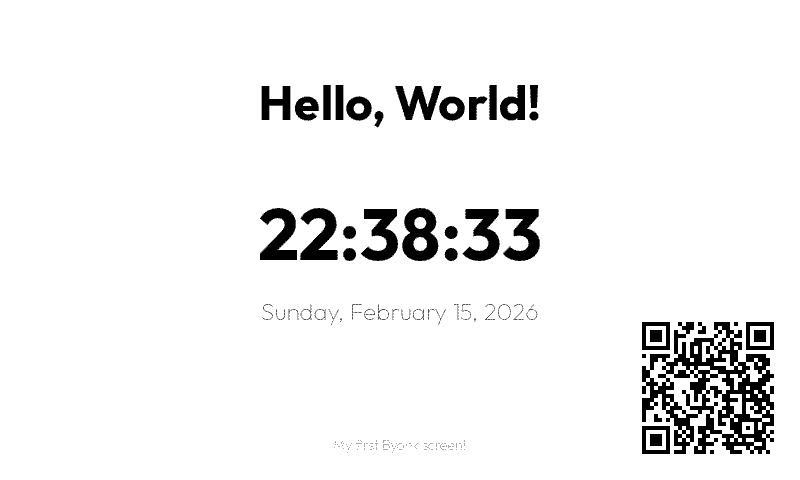
Troubleshooting
Screen shows error
Check the Byonk logs for script errors:
byonk serve
# Look for ERROR or WARN lines
Template variables not replaced
Make sure your Lua script returns a data table with the expected keys:
return {
  data = {
    greeting = "Hello"  -- Must match {{ greeting }} in template
  },
  refresh_rate = 60
}
Device not updating
- Check that the device MAC in config matches exactly (uppercase, with colons)
- Verify the device is pointing to your Byonk server
- Check device WiFi connectivity
Real-World Example: Transit Departures
Here’s what a more complex screen looks like - the built-in Swiss departure board display:
This screen demonstrates:
- Fetching live data from an API
- Processing JSON responses
- Dynamic refresh rates (updates after each bus departs)
- Styled table layout with alternating rows
- Color-coded line badges
Check out the screens/examples/swiss-departure-board/ folder
(examples/swiss-departure-board) in the Byonk source for the complete
implementation.
What’s Next?
Now that you have a basic screen working, learn more about:
- Lua Scripting - Fetch data from APIs
- SVG Templates - Create complex layouts
Lua Scripting
Lua scripts are the data engine of Byonk screens. They fetch, process, and transform data before it’s rendered by the template. This guide covers all the APIs available to your scripts.
Script Structure
Every Lua script must return a table with data and refresh_rate:
-- Optional: Use params from config.yaml
local my_param = params.some_key or "default"

-- Your logic here
local result = do_something()

-- Required: Return data for template
return {
  data = {
    -- Passed to SVG template
  },
  refresh_rate = 300  -- Seconds until next refresh
}
Parameters
Device-specific parameters are available via the global params table:
# config.yaml
devices:
  "94:A9:90:8C:6D:18":
    screen: examples/swiss-departure-board
    params:
      city: "Zurich"
      units: "metric"
-- In your script
local city = params.city        -- "Zurich"
local units = params.units      -- "metric"
local missing = params.other    -- nil (not defined)

-- Always provide defaults
local limit = params.limit or 10
HTTP Requests
http_get(url)
Fetches a URL and returns the response body as a string.
local response = http_get("https://api.example.com/data")
Error handling:
local ok, response = pcall(function()
  return http_get("https://api.example.com/data")
end)

if not ok then
  log_error("Request failed: " .. tostring(response))
  return {
    data = { error = "Failed to fetch data" },
    refresh_rate = 60
  }
end
URL encoding:
local city = "Zürich, Schweiz"
local encoded = city:gsub(" ", "%%20"):gsub(",", "%%2C")
local url = "https://api.example.com/city?name=" .. encoded
JSON
json_decode(string)
Parses a JSON string into a Lua table.
local response = http_get("https://api.example.com/data")
local data = json_decode(response)

-- Access fields
local name = data.name
local items = data.items
local first = data.items[1]  -- Lua arrays are 1-indexed!
json_encode(table)
Converts a Lua table to a JSON string.
local data = { name = "test", values = {1, 2, 3} }
local json_str = json_encode(data)
-- '{"name":"test","values":[1,2,3]}'
HTML Parsing
For scraping web pages, Byonk provides CSS selector-based HTML parsing.
html_parse(html)
Parses an HTML string and returns a document object.
local html = http_get("https://example.com")
local doc = html_parse(html)
doc:select(selector)
Queries elements using CSS selectors. Returns an elements collection.
local links = doc:select("a.nav-link")
local rows = doc:select("table.data tr")
local header = doc:select("h1")
doc:select_one(selector)
Returns only the first matching element (or nil).
local title = doc:select_one("title")
if title then
  log_info("Page title: " .. title:text())
end
elements:each(fn)
Iterates over matched elements.
local items = {}
doc:select("ul.list li"):each(function(el)
  table.insert(items, {
    text = el:text(),
    link = el:attr("href")
  })
end)
element:text()
Gets the inner text content.
local heading = doc:select_one("h1")
local text = heading:text()  -- "Welcome to Example"
element:attr(name)
Gets an attribute value.
local link = doc:select_one("a")
local href = link:attr("href")   -- "https://..."
local class = link:attr("class") -- "nav-link"
element:html()
Gets the inner HTML.
local div = doc:select_one("div.content")
local inner_html = div:html()
Example: Scraping a Table
local html = http_get("https://example.com/data")
local doc = html_parse(html)

local rows = {}
doc:select("table tbody tr"):each(function(row)
  local cells = {}
  row:select("td"):each(function(cell)
    table.insert(cells, cell:text())
  end)

  if #cells >= 2 then
    table.insert(rows, {
      name = cells[1],
      value = cells[2]
    })
  end
end)

return {
  data = { rows = rows },
  refresh_rate = 900
}
Time Functions
time_now()
Returns the current Unix timestamp (seconds since 1970).
local now = time_now() -- e.g., 1703672400
time_format(timestamp, format)
Formats a timestamp into a string using strftime patterns.
local now = time_now()

time_format(now, "%H:%M")        -- "14:32"
time_format(now, "%H:%M:%S")     -- "14:32:05"
time_format(now, "%Y-%m-%d")     -- "2024-12-27"
time_format(now, "%A")           -- "Friday"
time_format(now, "%B %d, %Y")    -- "December 27, 2024"
Common format codes:
| Code | Description | Example |
|---|---|---|
%H | Hour (24h) | 14 |
%M | Minute | 32 |
%S | Second | 05 |
%Y | Year | 2024 |
%m | Month | 12 |
%d | Day | 27 |
%A | Weekday name | Friday |
%B | Month name | December |
%a | Short weekday | Fri |
%b | Short month | Dec |
time_parse(string, format)
Parses a date string into a Unix timestamp.
local ts = time_parse("2024-12-27 14:30", "%Y-%m-%d %H:%M")
Logging
Write messages to the Byonk server logs.
log_info("Processing request for station: " .. station)
log_warn("API returned empty response")
log_error("Failed to parse JSON: " .. err)
Logs appear in the server output:
INFO script=true: Processing request for station: Olten
WARN script=true: API returned empty response
ERROR script=true: Failed to parse JSON: unexpected token
Complete Example: Transit API
Here’s a real-world example fetching transit data:
-- swiss-departure-board script.lua - Fetch public transport departures

local station = params.station or "Olten"
local limit = params.limit or 8

log_info("Fetching departures for: " .. station)

-- URL encode the station name
local encoded = station:gsub(" ", "%%20"):gsub(",", "%%2C")
local url = "https://transport.opendata.ch/v1/stationboard"
      .. "?station=" .. encoded
      .. "&limit=" .. limit

-- Fetch with error handling
local ok, response = pcall(function()
  return http_get(url)
end)

if not ok then
  log_error("API request failed: " .. tostring(response))
  return {
    data = {
      station = station,
      error = "Failed to fetch departures",
      departures = {}
    },
    refresh_rate = 60
  }
end

-- Parse JSON
local json = json_decode(response)

-- Transform data for template
local departures = {}
local now = time_now()

for i, dep in ipairs(json.stationboard or {}) do
  local departure_time = dep.stop and dep.stop.departure or ""
  local hour, min = departure_time:match("T(%d+):(%d+)")

  table.insert(departures, {
    time = hour and (hour .. ":" .. min) or "??:??",
    line = (dep.category or "") .. (dep.number or ""),
    destination = dep.to or "Unknown",
    delay = dep.stop and dep.stop.delay or 0
  })
end

-- Calculate smart refresh rate
local refresh_rate = 300
if #departures > 0 and json.stationboard[1].stop then
  local first_dep = json.stationboard[1].stop.departureTimestamp
  if first_dep then
    local seconds_until = first_dep - now
    refresh_rate = math.max(30, math.min(seconds_until + 30, 900))
  end
end

log_info("Found " .. #departures .. " departures, refresh in " .. refresh_rate .. "s")

return {
  data = {
    station = json.station and json.station.name or station,
    departures = departures,
    updated_at = time_format(now, "%H:%M")
  },
  refresh_rate = refresh_rate
}
Tips & Best Practices
Always Handle Errors
local ok, result = pcall(function()
  return http_get(url)
end)

if not ok then
  return { data = { error = "..." }, refresh_rate = 60 }
end
Provide Default Values
local limit = params.limit or 10
local show_delays = params.show_delays or true
Log for Debugging
log_info("Params: " .. json_encode(params))
log_info("Fetched " .. #items .. " items")
Keep It Simple
Scripts run on every request. Avoid:
- Complex computations
- Multiple HTTP requests when one will do
- Parsing more data than needed
Use Smart Refresh Rates
Don’t refresh more often than necessary:
-- Real-time data: 30-60 seconds
-- Regular updates: 300-900 seconds
-- Static content: 3600+ seconds
Next Steps
- SVG Templates - Design the visual layout
- Advanced Topics - Error handling, caching strategies
SVG Templates
SVG templates define the visual layout of your screens. They use Tera templating syntax to insert data from your Lua scripts.
Template Basics
A Byonk SVG template is a standard SVG file with Tera expressions:
<svg xmlns="http://www.w3.org/2000/svg"
     viewBox="0 0 {{ layout.width }} {{ layout.height }}"
     width="{{ layout.width }}" height="{{ layout.height }}">
  <rect width="{{ layout.width }}" height="{{ layout.height }}" fill="white"/>

  <text x="{{ layout.center_x }}" y="{{ layout.center_y }}" text-anchor="middle" font-size="24">
    {{ message }}
  </text>
</svg>
Key points:
- Size the
viewBoxfromlayout.widthandlayout.height, never from fixed numbers - Always include
widthandheightattributes - Use
{{ variable }}to insert values from Lua
Display Dimensions
| Device | Width | Height | Aspect Ratio |
|---|---|---|---|
| TRMNL OG | 800 | 480 | 5:3 |
| TRMNL X | 1872 | 1404 | 4:3 |
Build the size from layout.width and layout.height. These are the panel’s
own pixels, so a template that uses them is always drawn at scale 1, on every
device.
If your SVG is some other size, Byonk scales it to fit rather than failing — and that costs you more than sharpness:
- Every dimension you chose is displayed at the wrong size. Type set at 10 px in a 400x240 SVG is 20 px on an 800x480 panel. You cannot judge a layout that is not being shown at the size you designed it.
- Hinting stops helping. Hinted glyph outlines are fitted to the pixel grid of the SVG’s own coordinate system, not the panel’s.
- Bitmap fonts stop being bitmaps. A strike is drawn for one exact pixel size, so it is only reproduced faithfully at scale 1; at any other scale it is resampled.
Byonk reports this when it happens. byonk render prints it to stderr, and the
authoring API returns it in the render log:
[warn] this screen's SVG is 400x240 but the device is 800x480, so the render is
scaled by 2 to fit ... Use layout.width and layout.height rather than hardcoded
dimensions.
A mismatched aspect ratio is scaled by the smaller of the two ratios and centred, so the render is also padded with blank bands.
The remaining examples on this page write 0 0 800 480 literally, to keep them
short. In a real screen, use layout.width and layout.height.
Variables
Template Namespaces
Variables in templates are organized into four namespaces:
| Namespace | Source | Example |
|---|---|---|
data.* | Lua script return value | data.title, data.items |
device.* | Device info (battery, signal) | device.battery_voltage, device.rssi |
params.* | Config params from config.yaml | params.station, params.limit |
layout.* | Pre-computed layout values | layout.width, layout.grey_count |
Device Variables
These are automatically available under device.*:
| Variable | Type | Description |
|---|---|---|
device.mac | string | Device MAC address (e.g., “AC:15:18:D4:7B:E2”) |
device.battery_voltage | float or nil | Battery voltage (e.g., 4.12) |
device.rssi | integer or nil | WiFi signal strength in dBm (e.g., -65) |
device.model | string or nil | Device model (“og” or “x”) |
device.firmware_version | string or nil | Firmware version string |
device.width | integer or nil | Display width in pixels (800 or 1872) |
device.height | integer or nil | Display height in pixels (480 or 1404) |
<!-- Display battery and signal in header -->
<text class="status" x="780" y="25" text-anchor="end">
  {% if device.battery_voltage %}{{ device.battery_voltage | round(precision=2) }}V{% endif %}
  {% if device.rssi %} · {{ device.rssi }}dBm{% endif %}
</text>

<!-- Responsive layout based on device dimensions -->
{% if device.width == 1872 %}
  <!-- TRMNL X layout (1872x1404) -->
{% else %}
  <!-- TRMNL OG layout (800x480) -->
{% endif %}
Note: Some device variables may be
nilif the device doesn’t report them. Always use{% if device.variable %}to check before using.
Layout Variables
Pre-computed layout values are available under layout.*. These mirror the layout table available in Lua scripts:
| Variable | Type | Description |
|---|---|---|
layout.width | integer | Display width in pixels (default 800) |
layout.height | integer | Display height in pixels (default 480) |
layout.scale | float | Scale factor relative to 800×480 base |
layout.center_x | integer | Horizontal center (width / 2) |
layout.center_y | integer | Vertical center (height / 2) |
layout.margin | integer | Standard margin (20px × scale) |
layout.margin_sm | integer | Small margin (10px × scale) |
layout.margin_lg | integer | Large margin (40px × scale) |
layout.colors | array | Display color palette (hex strings) |
layout.color_count | integer | Number of colors in palette (default 4) |
layout.grey_count | integer | Number of grey levels in palette (default 4) |
This is useful for conditional logic in SVG templates without needing Lua to pass the values through — a template can, for example, choose a denser layout on a small panel by branching on layout.width.
Basic Interpolation
<text>{{ data.title }}</text>
<text>{{ data.user.name }}</text>
<text>{{ data.items[0].label }}</text>
Filters
Apply filters to modify values:
<!-- Truncate long text -->
<text>{{ data.description | truncate(length=50) }}</text>

<!-- Format timestamp (uses UTC) -->
<text>{{ data.updated_at | format_time(format="%H:%M") }}</text>

<!-- Get length -->
<text>{{ data.items | length }} items</text>
Tip: The
format_timetemplate filter uses UTC timezone. For local time formatting, usetime_format()in your Lua script and pass the pre-formatted string to the template.
Default Values
<text>{{ data.title | default(value="Untitled") }}</text>
Control Flow
Conditionals
{% if data.error %}
  <text fill="red">Error: {{ data.error }}</text>
{% else %}
  <text>All systems operational</text>
{% endif %}
Comparisons
{% if data.count > 0 %}
  <text>{{ data.count }} items</text>
{% elif data.count == 0 %}
  <text>No items</text>
{% endif %}

{% if data.status == "active" %}
  <circle fill="green" r="10"/>
{% endif %}
Boolean Checks
{% if data.is_online %}
  <text fill="green">Online</text>
{% endif %}

{% if not data.items %}
  <text>No data available</text>
{% endif %}
Loops
Basic Loop
{% for item in data.items %}
  <text y="{{ 100 + loop.index0 * 30 }}">{{ item.name }}</text>
{% endfor %}
Loop Variables
| Variable | Description |
|---|---|
loop.index | Current iteration (1-indexed) |
loop.index0 | Current iteration (0-indexed) |
loop.first | True on first iteration |
loop.last | True on last iteration |
Positioning with Loops
{% for dep in data.departures %}
  <!-- Calculate Y position based on index -->
  <text y="{{ 80 + loop.index0 * 40 }}">
    {{ dep.time }} - {{ dep.destination }}
  </text>
{% endfor %}
Conditional Styling in Loops
{% for item in data.items %}
  <!-- Alternating row backgrounds -->
  {% if loop.index0 is odd %}
    <rect y="{{ 100 + loop.index0 * 40 }}" width="800" height="40" fill="#f5f5f5"/>
  {% endif %}

  <text y="{{ 125 + loop.index0 * 40 }}">{{ item.name }}</text>
{% endfor %}
Empty State
{% if data.items | length > 0 %}
  {% for item in data.items %}
    <text>{{ item.name }}</text>
  {% endfor %}
{% else %}
  <text fill="#999">No items found</text>
{% endif %}
Styling
Inline Styles
<text x="20" y="40"
      font-family="sans-serif"
      font-size="24"
      font-weight="bold"
      fill="black">
  {{ data.title }}
</text>
CSS in Style Block
<svg xmlns="http://www.w3.org/2000/svg" viewBox="0 0 800 480">
  <style>
    .title { font-family: sans-serif; font-size: 32px; font-weight: bold; }
    .subtitle { font-family: sans-serif; font-size: 18px; fill: #666; }
    .highlight { fill: #333; font-weight: bold; }
  </style>

  <text class="title" x="20" y="40">{{ data.title }}</text>
  <text class="subtitle" x="20" y="70">{{ data.subtitle }}</text>
</svg>
Variable Fonts
Byonk supports variable fonts via CSS font-variation-settings:
<style>
  .light { font-family: Outfit; font-variation-settings: "wght" 300; }
  .regular { font-family: Outfit; font-variation-settings: "wght" 400; }
  .bold { font-family: Outfit; font-variation-settings: "wght" 700; }
</style>
Note: Place custom font files (e.g.,
Outfit-Variable.ttf) in thefonts/directory.
Bundled Fonts
Byonk ships these outline families, so they render the same on your machine and on the device. (The device image contains no system fonts at all — anything not bundled simply does not draw.)
| Family | Use |
|---|---|
Outfit | The house sans. Variable weight 100–900. |
'Source Sans 3' | What sans-serif resolves to. Variable weight 200–900. |
'Source Serif 4' | What serif resolves to. Variable weight and optical size. |
'Source Code Pro' | What monospace resolves to. Variable weight 200–900. |
'Terminus (TTF)' | A pixel face, plus 26 X11* bitmap families — see fonts/FONTS.md. |
cursive and fantasy resolve to Outfit; byonk bundles nothing decorative.
Quote any family name that ends in a digit or contains parentheses. CSS reads
an unquoted font-family as a list of identifiers, and 3, 4 and (TTF) are
not identifiers — the whole declaration is discarded and your text silently comes
out in some other face. There is no warning.
<!-- Wrong: renders in a fallback face -->
<text font-family="Source Sans 3">…</text>
<text font-family="Terminus (TTF)">…</text>

<!-- Right -->
<text font-family="'Source Sans 3'">…</text>
<text font-family="'Terminus (TTF)'">…</text>
Outfit and Source Code Pro contain neither, so they are safe either way.
You do not need to ask for a weight: text with no font-weight renders at 400,
not at whatever the variable font’s own default happens to be. Source Sans 3 and
Source Code Pro default internally to 200 (ExtraLight), and that default does not
reach your screen.
Colors and Palettes
E-ink displays support a limited color palette. The default 4-grey OG palette is #000000, #555555, #AAAAAA, #FFFFFF, but color displays may have palettes like #000000, #FFFFFF, #FF0000, #FFFF00. The display palette is available in Lua via layout.colors.
The palette follows a priority chain: Lua script colors return > device config colors > firmware Colors header > system default. You can override the palette per-device in config.yaml:
devices:
  "ABCDE-FGHJK":
    screen: examples/swiss-departure-board
    colors: "#000000,#FFFFFF,#FF0000"
Or per-script by returning colors in the Lua result table (see Lua API: colors).
Dithering Mode
Byonk supports two dithering modes via the dither option:
graphics(default) — Blue noise ordered dithering, best for UI contentphoto— Atkinson error diffusion, best for photographs
Set per-device in config.yaml or per-script in the Lua return table (see Lua API: dither and Content Pipeline: Rendering Intents).
Using Palette Colors
For the cleanest output, use colors from the display palette directly. Byonk will dither any color to the nearest palette color, but exact palette matches are preserved without dithering.
-- In your Lua script
local colors = layout.colors  -- e.g., {"#000000", "#555555", "#AAAAAA", "#FFFFFF"}
<!-- Use palette colors for crisp rendering -->
{% for swatch in data.swatches %}
<rect x="{{ swatch.x }}" width="{{ swatch.width }}" height="100" fill="{{ swatch.color }}"/>
{% endfor %}
Marking continuous-tone content
Byonk renders a screen as two kinds of content, and you choose which is which by marking the continuous-tone parts:
<!-- A photograph, or a gradient that sweeps through hues -->
<image data-byonk-tone="continuous" href="photo.jpg" .../>
Everything not marked is treated as structure — text, rules, logos, flat fills, UI chrome. The difference is not cosmetic:
| Unmarked (structure) — the default | Marked continuous | |
|---|---|---|
| Matched against | Official palette (device.colors) | Measured palette (device.colors_actual) |
| Gamut mapping | off | on |
| Exact-match pinning | on — an official colour comes out as that one ink, flat | off |
For structure this is what you want. #FF0000 is simply red: it matches
at distance zero, pins, and renders as one flat ink with no speckle. Black
text next to a saturated block stays black instead of picking up diffused
colour error.
For a photograph it is not. Nominal matching aims a photo at primaries the panel cannot physically produce, so an unmarked photograph looks markedly worse than a marked one. This is the one mistake that costs you real quality — mark your photographs and your hue gradients.
Two rules that are easy to get wrong:
- Mark the element that is continuous-tone, never a group around it. A
<g>wrapper will swallow neighbouring labels and captions, turning text into continuous-tone content and switching off its pinning. - Don’t mark achromatic (grey) gradients. Grey is always in gamut, so mapping it is a no-op — while marking it switches exact-match pinning off across the whole gradient, for no gain. Before marking anything, ask whether the content can even be out of gamut.
Marking rasterizes in document order, so an unmarked element drawn after a marked one paints over it and reverts those pixels to structure. Text over a photograph therefore needs no special handling, as long as it comes later in the document.
Testing Display Colors
The included graytest screen adapts to the device palette and shows all available colors as swatches with gradient and dithering tests.
4-grey palette (TRMNL OG default):
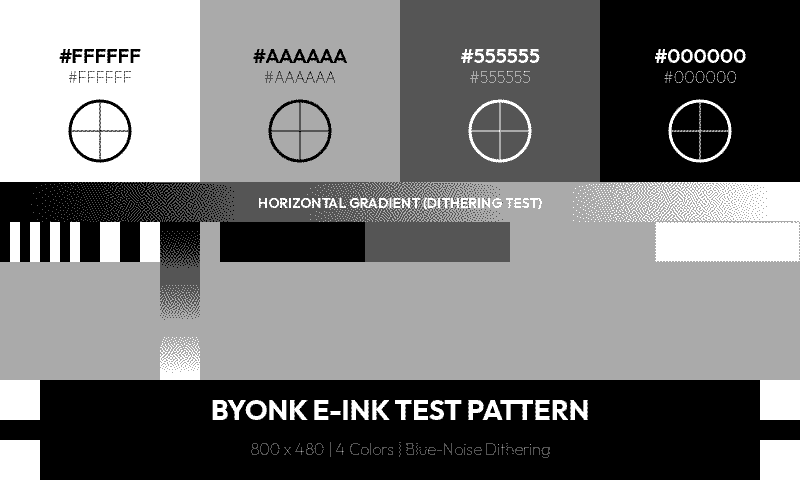
6-color palette (color e-ink display):
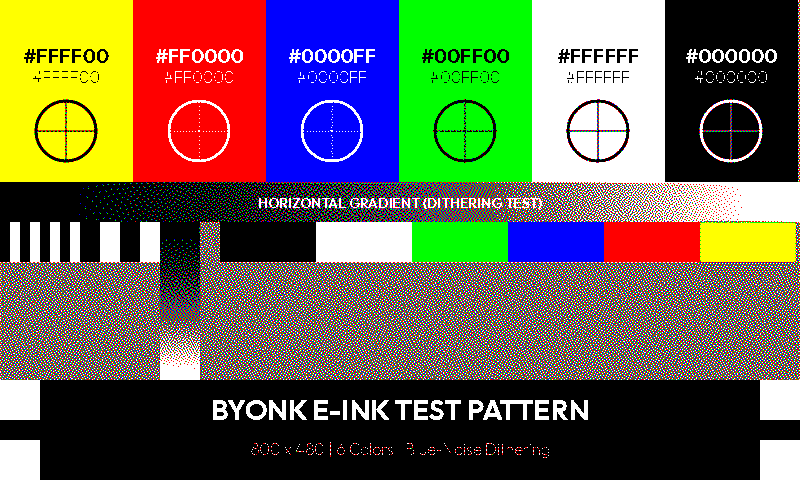
The default screen also adapts to the palette:
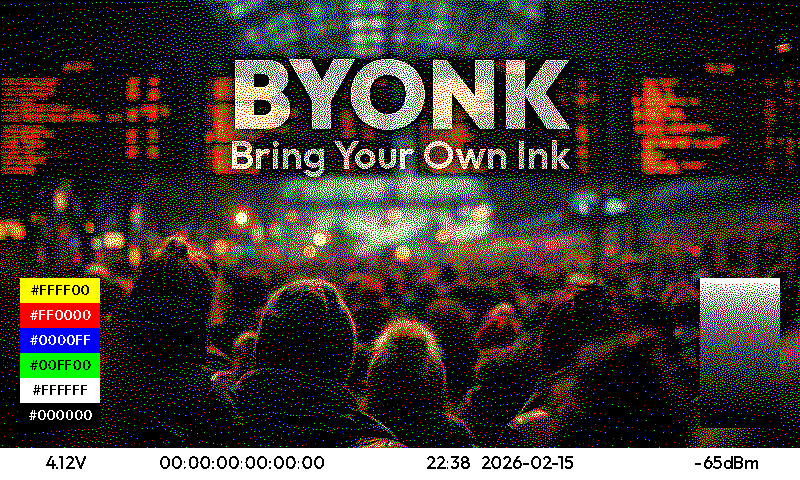
Avoid
- Gradients - Convert to dithered patterns (may look noisy)
- Subtle color differences - May become indistinguishable on limited palettes
- Colors not in palette - Will be dithered to nearest match
Font Rendering for E-ink
Byonk hints text for you. There is nothing to put in the template — hinting is chosen per render from the palette the device reports, so the same screen does the right thing on a black-and-white panel and on a greyscale one.
Only override it if you have a reason to. That is done from script.lua with
the font_hinting directive, not from CSS: see
Font Hinting for the full surface, including
variants, which let one family appear twice in a screen with different
treatment.
If you are updating an older screen: the
-resvg-hinting-*CSS properties no longer exist, and{% include "byonk-base-v1/hinting.svg" %}is now inert. Including it still works and renders identically, so it can simply be deleted. Anything that set-resvg-hinting-*directly must move into thefont_hintingdirective.
Properties that still matter
| Property | Values | Applies to | Description |
|---|---|---|---|
shape-rendering | auto, crispEdges, geometricPrecision | shapes only | crispEdges disables anti-aliasing on lines and rectangles. It has no effect inside a text rule — text takes its rasterization from text-rendering. |
text-rendering | auto, optimizeSpeed, optimizeLegibility, geometricPrecision | text | optimizeLegibility restores anti-aliasing and keeps hinting. geometricPrecision restores anti-aliasing but disables hinting. |
text-rendering is worth knowing about for one specific case: on a
black-and-white panel byonk draws the whole document 1-bit, and any text that
is not mono-hinted can lose stems. Setting text-rendering="optimizeLegibility"
on those elements is the fix. Byonk warns you when a screen sets this up.
Hinting Demo Screen
examples/demo/font/hinting renders a 3×3 grid of font_hinting variants over
one family — engine (auto, interpreter, auto_fallback) against target
(mono, smooth, and a hinting-off control) at six sizes. It is the worked
example for variants, and a useful thing to put on your own panel.
Several cells deliberately coincide, which is the most useful thing the grid teaches: for a font carrying no usable hinting program the target matters and the engine barely does. The image states which coincidences are expected.
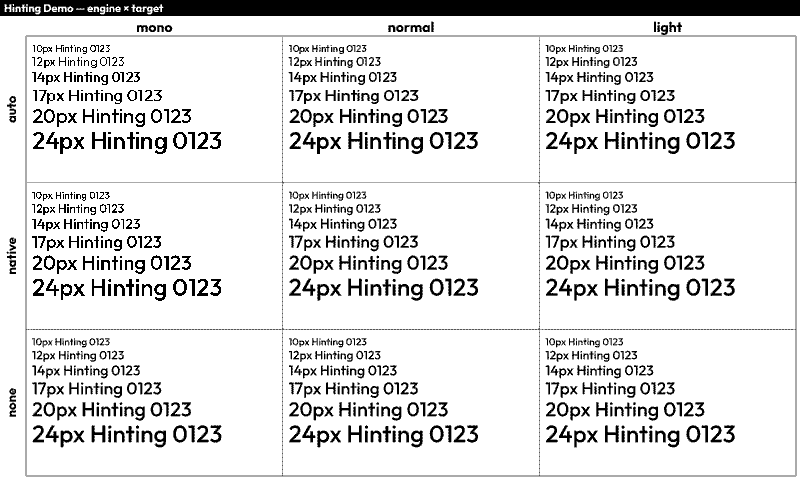
Tips
- Choose font sizes that land on whole pixel boundaries. Fractional pixel heights cause glyphs to snap to the grid differently, producing inconsistent shapes.
- Quote interpolated font families.
font-family="{{ line.family }}"is invalid CSS as soon as the name contains anything but plain identifiers — a family likeTerminus (TTF)silently falls back to a serif. Writefont-family="'{{ line.family }}'". - Don’t set
font-familyin both a CSS rule and an attribute. A presentation attribute is the lowest-priority source in SVG, sotext { font-family: … }in a<style>block silently overrides everyfont-family="…"attribute on matching elements. The text still renders, in the wrong face. Set it on a class or on the element, not both. - Put text on whole-pixel positions, not just whole-pixel sizes. Hinting
fits the outline to the pixel grid; a baseline at
y="80.667"then slides the fitted glyph back off it. Measured on byonk’s own demo, fractional baselines cost 3–5% of the ink to dropped stems — more than the difference between two hinting engines. - Test on your actual display. What reads well depends on the font, the size and the panel.
Bitmap Fonts
Byonk ships with X11 bitmap fonts converted to TTF files. These contain embedded bitmap strikes — pre-rendered glyphs at specific pixel sizes — which produce perfectly crisp text on e-ink displays without any hinting artifacts.
Available Families
Proportional fonts:
| Family | Styles | Pixel Sizes |
|---|---|---|
| X11Helv | Regular, Bold, Oblique, BoldOblique | 8, 10, 11, 12, 14, 17, 18, 20, 24, 25, 34 |
| X11LuSans | Regular, Bold, Oblique, BoldOblique | 8–34 (13 sizes) |
| X11LuType | Regular, Bold | 8–34 (13 sizes) |
| X11Term | Regular, Bold | 14, 18 |
Fixed-width fonts (grouped by cell width):
| Family | Styles | Pixel Sizes |
|---|---|---|
| X11Misc5x | Regular | 6, 7, 8 |
| X11Misc6x | Regular, Bold, Oblique | 9, 10, 12, 13 |
| X11Misc7x | Regular, Bold, Oblique | 13, 14 |
| X11Misc8x | Regular, Bold, Oblique | 13, 16 |
| X11Misc9x | Regular, Bold | 15, 18 |
| X11Misc10x | Regular | 20 |
| X11Misc12x | Regular | 24 |
Usage
Set font-family to the family name and font-size to a pixel size that matches a bitmap strike. The renderer automatically selects the closest strike:
<text font-family="X11Helv" font-size="14">Proportional text</text>
<text font-family="X11Helv" font-size="14" font-weight="700">Bold</text>
<text font-family="X11Misc7x" font-size="13">Fixed width</text>
<text font-family="X11Misc7x" font-size="13" font-style="oblique">Fixed oblique</text>
For sizes without an exact bitmap strike, autotraced scalable outlines are used as fallback — but these won’t look as clean as the native bitmap sizes.
Bitmap Font Demo Screen
The example examples/demo/font/bitmap screen showcases all sizes and styles for a given font family. Assign it to a device and configure it with the font_prefix parameter:
devices:
  "YOUR:MAC:AD:DR:ES:S0":
    screen: examples/demo/font/bitmap
    params:
      font_prefix: X11Helv   # or X11LuSans, X11LuType, X11Term, X11Misc
This renders each available size and style combination as a labeled line, useful for picking the right font and size for your screen.
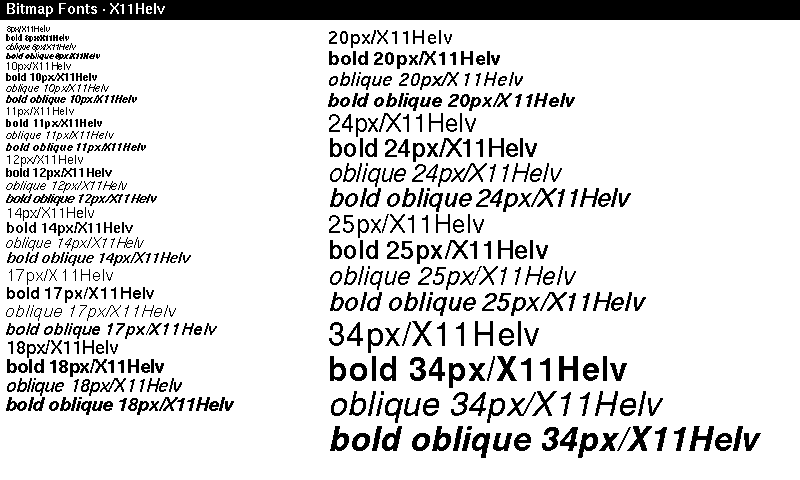
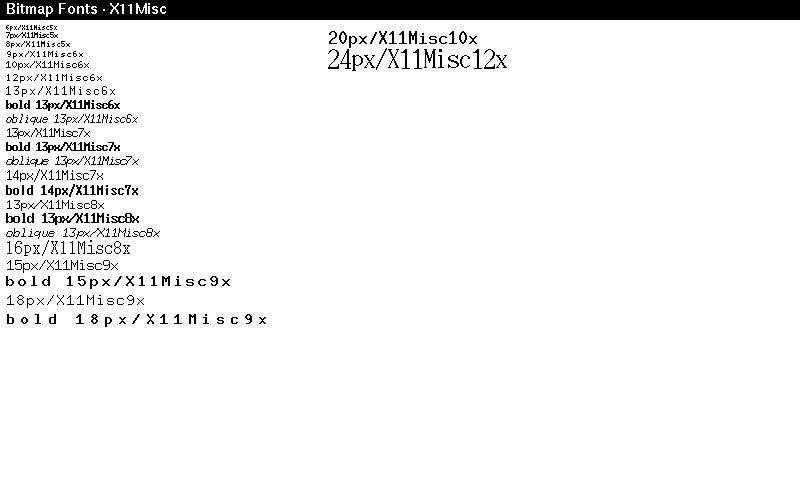
Layout Patterns
Header + Content
<svg xmlns="http://www.w3.org/2000/svg" viewBox="0 0 800 480">
  <!-- Header bar -->
  <rect width="800" height="70" fill="black"/>
  <text x="30" y="48" fill="white" font-size="28">{{ data.title }}</text>
  <text x="770" y="48" fill="#aaa" font-size="14" text-anchor="end">{{ data.time }}</text>

  <!-- Content area -->
  <g transform="translate(0, 70)">
    <!-- Your content here, Y coordinates start at 0 -->
  </g>
</svg>
Grid Layout
{% for item in data.items %}
  {% set col = loop.index0 % 3 %}
  {% set row = loop.index0 // 3 %}

  <rect x="{{ col * 266 }}" y="{{ 80 + row * 100 }}"
        width="260" height="90" fill="#f0f0f0" rx="5"/>
  <text x="{{ col * 266 + 130 }}" y="{{ 130 + row * 100 }}"
        text-anchor="middle">{{ item.name }}</text>
{% endfor %}
Two Columns
<!-- Left column -->
<text x="30" y="100">Left content</text>

<!-- Divider -->
<line x1="400" y1="80" x2="400" y2="450" stroke="#ccc"/>

<!-- Right column -->
<text x="430" y="100">Right content</text>
Dynamic Styling
Conditional Colors
{% for item in data.items %}
  <text fill="{% if item.is_urgent %}red{% else %}black{% endif %}">
    {{ item.name }}
  </text>
{% endfor %}
Dynamic Classes
<text class="{% if data.count > 100 %}highlight{% else %}normal{% endif %}">
  {{ data.count }}
</text>
Status Indicators
{% if data.status == "online" %}
  <circle cx="20" cy="20" r="8" fill="green"/>
{% elif data.status == "warning" %}
  <circle cx="20" cy="20" r="8" fill="orange"/>
{% else %}
  <circle cx="20" cy="20" r="8" fill="red"/>
{% endif %}
Common Patterns
Truncating Long Text
<text>
  {% if data.title | length > 30 %}
    {{ data.title | truncate(length=30) }}
  {% else %}
    {{ data.title }}
  {% endif %}
</text>
Formatted Numbers
Use Lua to format numbers before passing to template:
-- In Lua script
return {
  data = {
    temperature = string.format("%.1f°C", temp),
    price = string.format("$%.2f", amount)
  }
}
Time-Based Styling
-- In Lua script
local hour = tonumber(time_format(time_now(), "%H"))
return {
  data = {
    is_night = hour < 6 or hour > 20
  }
}
<rect width="800" height="480" fill="{% if is_night %}#333{% else %}white{% endif %}"/>
Debugging Templates
Show Raw Data
<!-- Temporarily add this to see all data -->
<text x="10" y="460" font-size="10" fill="#999">
  Debug: {{ data.items | length }} items
</text>
Check for Missing Data
{% if not data.title %}
  <text fill="red">ERROR: title is missing!</text>
{% endif %}
Template Errors
If your template has a syntax error, Byonk will display an error screen with the message. Check the server logs for details.
Embedding Images
Byonk supports embedding images in your SVG templates. You can include PNG, JPEG, GIF, WebP, and SVG files.
Asset Directory Structure
Place image assets inside the screen’s own folder, alongside its script.lua, screen.svg,
and meta.yaml:
screens/
└── hello/                # screen ref: local/hello
    ├── meta.yaml
    ├── script.lua
    ├── screen.svg
    ├── logo.png
    ├── icon.svg
    └── background.jpg
Method 1: Direct in SVG (Automatic Resolution)
Simply reference images by filename in your SVG template. Byonk automatically resolves relative paths to the screen’s own folder and embeds them as data URIs:
<svg xmlns="http://www.w3.org/2000/svg" viewBox="0 0 800 480">
  <!-- This automatically loads the screen folder's logo.png -->
  <image x="10" y="10" width="64" height="64" href="logo.png"/>

  <text x="100" y="50">{{ data.greeting }}</text>
</svg>
Supported image formats:
- PNG (
.png) - JPEG (
.jpg,.jpeg) - GIF (
.gif) - WebP (
.webp) - SVG (
.svg)
Notes:
- Paths are relative to the screen’s asset directory
- URLs starting with
data:,http://, orhttps://are left unchanged - Missing images log a warning but don’t break rendering
Method 2: Via Lua (For Dynamic Images)
For more control, use read_asset() and base64_encode() in your Lua script:
screens/hello/script.lua:
local icon = read_asset("icon.png")

return {
    data = {
        greeting = "Hello World!",
        icon_src = "data:image/png;base64," .. base64_encode(icon)
    },
    refresh_rate = 3600
}
screens/hello/screen.svg:
<svg xmlns="http://www.w3.org/2000/svg" viewBox="0 0 800 480">
  <image x="10" y="10" width="64" height="64" href="{{ data.icon_src }}"/>
  <text x="100" y="50">{{ data.greeting }}</text>
</svg>
This method is useful when you need to:
- Conditionally include images
- Fetch images from external URLs
- Process or transform image data
Background Images
To use a full-screen background image:
<svg xmlns="http://www.w3.org/2000/svg" viewBox="0 0 800 480" width="800" height="480">
  <!-- Background image -->
  <image x="0" y="0" width="800" height="480" href="background.png" preserveAspectRatio="xMidYMid slice"/>

  <!-- Content on top -->
  <text x="400" y="240" text-anchor="middle" fill="white" font-size="32">
    {{ data.title }}
  </text>
</svg>
Tips for background images:
- Use
preserveAspectRatio="xMidYMid slice"to cover the entire area - Consider e-ink limitations: high-contrast images work best
- Keep file sizes reasonable for fast rendering
Template Reusability
Byonk supports Tera’s template inheritance and includes for reusable components. Shared SVG comes from two places:
byonk-base-v1/…— byonk’s built-in standard library of shared layouts and components (the base layout,header.svg,footer.svg,status_bar.svg), versioned by the-vNsuffix so a futurebyonk-base-v2can change the contract without breaking existing screens.- Repo-relative paths — any
.svgfile inside your own screen package, referenced by its path relative to the package root (e.g.parts/panel.svg). Because a package is one atomic, versioned unit, a screen and the shared SVG it uses can never drift out of sync.
Package Structure
A package is a directory with a byonk-screens.yaml manifest at its root; shared SVG lives
alongside the screen folders:
my-screens/                  # a package (its own repo, or the embedded byonk-builtin tree)
├── byonk-screens.yaml       # package manifest
├── parts/
│   └── panel.svg            # shared SVG, referenced as "parts/panel.svg"
└── dashboard/               # a screen folder
    ├── meta.yaml
    ├── script.lua
    └── screen.svg
Template Inheritance (extends)
Use byonk’s base layout, which defines the overall structure with replaceable blocks:
dashboard/screen.svg:
{% extends "byonk-base-v1/base.svg" %}

{% block title %}My Screen{% endblock %}

{% block content %}
<text x="400" y="200" text-anchor="middle" font-size="32">
  {{ data.message }}
</text>
{% endblock %}

{% block footer %}
<text x="400" y="460" text-anchor="middle" fill="#999" font-size="12">
  Updated: {{ data.updated_at }}
</text>
{% endblock %}
Key points:
- Use
{% extends "byonk-base-v1/base.svg" %}at the start of your template (or a repo-relative base of your own, e.g.{% extends "layouts/base.svg" %}where that path is inside your package) - Define blocks with
{% block name %}...{% endblock %} - Child templates override parent blocks
- Unoverridden blocks use the parent’s default content
Template Includes
Include reusable components in your templates. Reference byonk’s standard components by their
byonk-base-v1/… path, or your own shared SVG by a repo-relative path:
dashboard/screen.svg:
<svg xmlns="http://www.w3.org/2000/svg" viewBox="0 0 800 480" width="800" height="480">
  <rect width="800" height="480" fill="white"/>

  <!-- Include a standard-library component -->
  {% include "byonk-base-v1/header.svg" %}

  <!-- Main content -->
  <g transform="translate(0, 60)">
    <text x="400" y="200" text-anchor="middle">{{ data.message }}</text>
  </g>

  <!-- Include your own shared SVG (repo-relative) -->
  {% include "parts/panel.svg" %}
</svg>
Key points:
-
Use
{% include "byonk-base-v1/filename.svg" %}for standard-library components, or a repo-relative path for your package’s own shared SVG -
Included templates have access to all variables in the current context — but note that your script’s data arrives namespaced under
data.*, while the standard components read bare names liketitle. Bridge the two with{% set %}before the include, or the component silently falls back to its default:{% set title = data.headline %} {% include "byonk-base-v1/header.svg" %} -
Components work well for headers, footers, status bars, and other repeated elements
Standard-Library Components
Byonk’s byonk-base-v1 package ships several ready-to-use components:
| Component | Description |
|---|---|
byonk-base-v1/base.svg | Base layout with title/content/footer blocks (for {% extends %}) |
byonk-base-v1/header.svg | Black title bar across the top 60px |
byonk-base-v1/footer.svg | Footer with timestamp (updated_at) and optional text |
byonk-base-v1/hinting.svg | Deprecated and inert. Hinting moved into the server; see Font Hinting. Kept so existing screens keep working. |
byonk-base-v1/status_bar.svg | WiFi and battery indicators, drawn into the header’s top-right corner |
These components are designed to stack without overlapping: header.svg owns the top 60px,
status_bar.svg the corner inside it, and footer.svg the bottom 30px.
-
The timestamp belongs to the footer.
header.svgdoes not draw one, because that is wherestatus_bar.svg’s icons go. Setupdated_atand includefooter.svg. -
The status icons default to light ink (
rgb(200,200,200)), since they sit on the black header bar. To place them anywhere else, set both position and colour:{% set status_y = 70 %} {% set status_color = "rgb(80,80,80)" %} {% include "byonk-base-v1/status_bar.svg" %}
Combining Extends and Includes
You can use both in the same template:
{% extends "byonk-base-v1/base.svg" %}

{% block title %}Dashboard{% endblock %}

{% block header_extra %}
{% include "byonk-base-v1/status_bar.svg" %}
{% endblock %}

{% block content %}
<text x="400" y="200" text-anchor="middle">{{ data.message }}</text>
{% endblock %}
Next Steps
- Advanced Topics - HTML scraping, error handling
- API Reference - Complete Lua function reference
Advanced Topics
This guide covers advanced techniques for building robust Byonk screens.
Error Handling
Graceful HTTP Failures
Always wrap HTTP requests in pcall:
local function fetch_data(url)
  local ok, response = pcall(function()
    return http_get(url)
  end)

  if not ok then
    log_error("HTTP request failed: " .. tostring(response))
    return nil, response
  end

  return response, nil
end

-- Usage
local data, err = fetch_data("https://api.example.com/data")
if err then
  return {
    data = { error = "Could not fetch data" },
    refresh_rate = 60  -- Retry in 1 minute
  }
end
JSON Parsing Errors
local function safe_json_decode(str)
  local ok, result = pcall(function()
    return json_decode(str)
  end)

  if not ok then
    log_error("JSON parse error: " .. tostring(result))
    return nil
  end

  return result
end
Template Error Display
When errors occur, display them helpfully:
return {
  data = {
    has_error = true,
    error_message = "API returned invalid response",
    error_details = "Expected JSON, got HTML",
    retry_in = 60
  },
  refresh_rate = 60
}
{% if has_error %}
  <rect x="20" y="20" width="760" height="440" fill="white" stroke="red" stroke-width="4" rx="10"/>
  <text x="400" y="200" text-anchor="middle" font-size="24" fill="red">{{ error_message }}</text>
  <text x="400" y="240" text-anchor="middle" font-size="16" fill="#666">{{ error_details }}</text>
  <text x="400" y="300" text-anchor="middle" font-size="14" fill="#999">Retrying in {{ retry_in }} seconds...</text>
{% else %}
  <!-- Normal content -->
{% endif %}
HTML Scraping Techniques
Handling Missing Elements
local function safe_text(element)
  if element then
    return element:text()
  end
  return ""
end

local title = safe_text(doc:select_one("h1"))
Complex Table Parsing
local function parse_table(doc, selector)
  local rows = {}

  doc:select(selector .. " tr"):each(function(row)
    local cells = {}
    row:select("td, th"):each(function(cell)
      table.insert(cells, cell:text():match("^%s*(.-)%s*$"))  -- Trim whitespace
    end)

    if #cells > 0 then
      table.insert(rows, cells)
    end
  end)

  return rows
end

local data = parse_table(doc, "table.schedule")
-- Returns: { {"9:00", "Meeting"}, {"10:00", "Call"}, ... }
Following Links
local function get_detail_page(doc, selector)
  local link = doc:select_one(selector)
  if not link then return nil end

  local href = link:attr("href")
  if not href then return nil end

  -- Handle relative URLs
  if href:sub(1, 1) == "/" then
    href = "https://example.com" .. href
  end

  return http_get(href)
end
Handling Pagination
local all_items = {}
local page = 1

while true do
  local url = "https://example.com/list?page=" .. page
  local html = http_get(url)
  local doc = html_parse(html)

  local items_found = 0
  doc:select(".item"):each(function(el)
    table.insert(all_items, el:text())
    items_found = items_found + 1
  end)

  -- Stop if no items or we have enough
  if items_found == 0 or #all_items >= 50 then
    break
  end

  page = page + 1

  -- Safety limit
  if page > 10 then break end
end
Dynamic Refresh Rates
Time-Based Refresh
local now = time_now()
local hour = tonumber(time_format(now, "%H"))

local refresh_rate
if hour >= 6 and hour < 22 then
  -- Daytime: refresh frequently
  refresh_rate = 300
else
  -- Night: refresh less often
  refresh_rate = 3600
end
Event-Based Refresh
-- Refresh when the next event starts
local next_event_time = events[1].timestamp
local seconds_until = next_event_time - time_now()

-- Refresh 30 seconds after event starts (to show updated state)
local refresh_rate = math.max(30, seconds_until + 30)

-- Cap at reasonable maximum
refresh_rate = math.min(refresh_rate, 3600)
Adaptive Refresh
-- Refresh more often if data is stale
local last_update = data.updated_timestamp
local age = time_now() - last_update

if age > 600 then
  -- Data is stale, refresh soon
  refresh_rate = 60
else
  -- Data is fresh, normal refresh
  refresh_rate = 300
end
Data Transformation
Sorting
-- Sort by time
table.sort(items, function(a, b)
  return a.timestamp < b.timestamp
end)

-- Sort alphabetically
table.sort(items, function(a, b)
  return a.name < b.name
end)
Filtering
local active = {}
for _, item in ipairs(items) do
  if item.status == "active" then
    table.insert(active, item)
  end
end
Limiting
local limit = params.limit or 10
local limited = {}
for i = 1, math.min(#items, limit) do
  table.insert(limited, items[i])
end
Grouping
local by_category = {}
for _, item in ipairs(items) do
  local cat = item.category or "Other"
  if not by_category[cat] then
    by_category[cat] = {}
  end
  table.insert(by_category[cat], item)
end
Working with Dates
Relative Time
local function relative_time(timestamp)
  local diff = timestamp - time_now()

  if diff < 0 then
    return "past"
  elseif diff < 60 then
    return "now"
  elseif diff < 3600 then
    return math.floor(diff / 60) .. " min"
  elseif diff < 86400 then
    return math.floor(diff / 3600) .. " hr"
  else
    return math.floor(diff / 86400) .. " days"
  end
end
Date Comparison
local today_start = time_parse(time_format(time_now(), "%Y-%m-%d"), "%Y-%m-%d")
local today_end = today_start + 86400

local todays_events = {}
for _, event in ipairs(events) do
  if event.timestamp >= today_start and event.timestamp < today_end then
    table.insert(todays_events, event)
  end
end
Timezone Handling
-- time_format uses local timezone
-- For UTC, parse the offset from API responses

local function parse_iso_date(str)
  -- "2024-12-27T14:30:00+01:00"
  local y, m, d, h, min, s = str:match("(%d+)-(%d+)-(%d+)T(%d+):(%d+):(%d+)")
  if y then
    return time_parse(
      string.format("%s-%s-%s %s:%s:%s", y, m, d, h, min, s),
      "%Y-%m-%d %H:%M:%S"
    )
  end
  return nil
end
Performance Optimization
Minimize HTTP Requests
-- Bad: Multiple requests
local weather = json_decode(http_get("https://api.example.com/weather"))
local news = json_decode(http_get("https://api.example.com/news"))
local stocks = json_decode(http_get("https://api.example.com/stocks"))

-- Better: Combined endpoint if available
local dashboard = json_decode(http_get("https://api.example.com/dashboard"))
Early Exit
-- Check for errors early
if not params.api_key then
  return {
    data = { error = "Missing API key" },
    refresh_rate = 3600
  }
end
Limit Data Processing
-- Only process what you need
local limit = params.limit or 10
for i, item in ipairs(json.items) do
  if i > limit then break end
  -- Process item
end
Embedding Remote Images
You can fetch images via HTTP and embed them in SVG templates using http_get() and base64_encode(). The pattern is: fetch the image, base64-encode it, construct a data URI, and pass it to the template.
Lua Script
-- Fetch a remote image and embed it as a data URI
local ok, image_bytes = pcall(function()
  return http_get("https://example.com/photo.png", {
    cache_ttl = 3600  -- Cache for 1 hour to avoid re-fetching
  })
end)

if not ok then
  log_error("Failed to fetch image: " .. tostring(image_bytes))
  return {
    data = { error = "Could not load image" },
    refresh_rate = 60
  }
end

local image_src = "data:image/png;base64," .. base64_encode(image_bytes)

return {
  data = {
    image_src = image_src,
    title = "My Screen"
  },
  refresh_rate = 900
}
SVG Template
<image x="100" y="50" width="200" height="200" href="{{ data.image_src }}"/>
Tip: Use
cache_ttlon thehttp_getcall to avoid re-fetching the image on every device refresh. This is especially important for large images or rate-limited servers.
Google Photos Album Display
The built-in gphoto screen demonstrates fetching images from a shared Google Photos album using HTML scraping (no OAuth required).
Setup
- Open Google Photos and create or select an album
- Click Share → Get link to create a shared link
- Copy the URL (e.g.,
https://photos.app.goo.gl/ABC123...)
Configuration
# config.yaml
devices:
  "XX:XX:XX:XX:XX:XX":
    screen: examples/gphoto
    params:
      album_url: "https://photos.app.goo.gl/YOUR_ALBUM_ID"
      show_status: true      # Show battery/signal overlay
      refresh_rate: 1800     # 30 minutes (default: 3600)
How It Works
The script scrapes the shared album HTML page to extract lh3.googleusercontent.com image URLs, then:
- Selects an image from the album in order, advancing by one each refresh interval (derived statelessly from the system clock, so it survives restarts)
- Appends size parameters (
=w{width}-h{height}-no) to request device-sized images - Fetches and base64-encodes the image for embedding in SVG
- Fetches album HTML without caching and caches images for 24 hours
This approach works because Google’s shared album pages embed image URLs directly in the HTML, even though the Photos API sharing features were deprecated in March 2025.
Testing Strategies
Test with Swagger UI
- Open
http://localhost:3000/swagger-ui - Use
/api/displaywith a test MAC address - Copy the image URL and open in browser
- Iterate on your script and template
Log Intermediate Values
log_info("Params: " .. json_encode(params))
log_info("Fetched " .. #items .. " items")
log_info("First item: " .. json_encode(items[1]))
Create Test Screens
# config.yaml
devices:
  "TE:ST:00:00:00:01":
    screen: mypackage/myscreen
    params:
      test_mode: true
      mock_data: true
if params.test_mode then
  -- Use mock data for testing
  return {
    data = {
      items = {
        { name = "Test Item 1" },
        { name = "Test Item 2" }
      }
    },
    refresh_rate = 30
  }
end

-- Normal data fetching
Real-World Example: Room Booking
This example combines many advanced techniques:
-- script.lua (examples/webscrape) - Room booking display

local room_name = params.room or "Rosa"
local base_url = params.url or "https://floerli-olten.ch"

log_info("Fetching bookings for room: " .. room_name)

-- Fetch and parse
local ok, html = pcall(function()
  return http_get(base_url .. "/index.cgi?rm=calendar")
end)

if not ok then
  log_error("Failed to fetch calendar: " .. tostring(html))
  return {
    data = {
      room = room_name,
      error = "Could not load calendar",
      bookings = {}
    },
    refresh_rate = 60
  }
end

local doc = html_parse(html)

-- Find room column index
local room_columns = {
  Flora = 1, Salon = 2, ["Küche"] = 3, Bernsteinzimmer = 4,
  Rosa = 5, Clara = 6, Cosy = 7, Sofia = 8
}
local col = room_columns[room_name] or 5

-- Parse table
local bookings = {}
local now = time_now()
local current_hour = tonumber(time_format(now, "%H"))

doc:select("table.calendar tr"):each(function(row)
  local time_cell = row:select_one("td:first-child")
  local room_cell = row:select_one("td:nth-child(" .. (col + 1) .. ")")

  if time_cell and room_cell then
    local time_str = time_cell:text()
    local hour = tonumber(time_str:match("^(%d+)"))

    if hour and hour >= current_hour then
      local booking_text = room_cell:text():match("^%s*(.-)%s*$")
      local is_free = (booking_text == "" or booking_text == "frei")

      table.insert(bookings, {
        time = time_str,
        title = is_free and nil or booking_text,
        is_free = is_free
      })
    end
  end
end)

-- Calculate refresh: at top of next hour
local minutes_until_next_hour = 60 - tonumber(time_format(now, "%M"))
local refresh_rate = math.max(60, minutes_until_next_hour * 60)

return {
  data = {
    room = room_name,
    bookings = bookings,
    current_booking = bookings[1],
    upcoming = { table.unpack(bookings, 2, 6) },
    updated_at = time_format(now, "%H:%M")
  },
  refresh_rate = refresh_rate
}
Next Steps
- HTTP API Reference - Full endpoint documentation
- Lua API Reference - Complete function reference
HTTP API Reference
Bring Your Own Server API for TRMNL e-ink devices
Version: 0.1.0
Overview
Byonk provides a REST API for TRMNL device communication. The API handles device registration, content delivery, and logging.
| Endpoint | Description |
|---|---|
GET /api/setup | Device registration |
GET /api/display | Get display content URL |
GET /api/image/{hash}.png | Get rendered PNG by content hash |
POST /api/log | Submit device logs |
GET /health | Health check |
Display
GET /api/display
Get display content for a device
Returns JSON with an image_url that the device should fetch separately. The firmware expects status=0 for success (not HTTP 200).
Parameters
| Name | In | Required | Description |
|---|---|---|---|
ID | header | Yes | Device MAC address |
Access-Token | header | Yes | API key from /api/setup |
Width | header | No | Display width in pixels (default: 800) |
Height | header | No | Display height in pixels (default: 480) |
Refresh-Rate | header | No | Current refresh rate in seconds |
Battery-Voltage | header | No | Battery voltage |
RSSI | header | No | WiFi signal strength |
FW-Version | header | No | Firmware version |
Model | header | No | Device model (‘og’ or ‘x’) |
Board | header | No | Board identifier (e.g., ‘trmnl_og_4clr’) |
Colors | header | No | Display palette as comma-separated hex RGB (e.g., ‘#000000,#FFFFFF,#FF0000,#FFFF00’). Defaults to 4-grey palette if absent. |
Responses
200: Display content available
{
  "filename": "string",
  "firmware_url": null,
  "image_url": null,
  "refresh_rate": 0,
  "reset_firmware": true,
  "special_function": null,
  "status": 0,
  "temperature_profile": null,
  "update_firmware": true
}
400: Missing required header
404: Device not found
GET /api/image/{hash}.png
Get rendered PNG image by content hash
Returns the actual PNG image data rendered from SVG with dithering applied.
The content hash is provided in the /api/display response and ensures clients can detect when content has changed.
Parameters
| Name | In | Required | Description |
|---|---|---|---|
hash | path | Yes | Content hash from /api/display response |
Responses
200: PNG image
404: Content not found (cache miss or invalid hash)
500: Rendering error
Logging
POST /api/log
Submit device logs
Devices send diagnostic logs when they encounter errors or issues.
Parameters
| Name | In | Required | Description |
|---|---|---|---|
ID | header | Yes | Device MAC address |
Access-Token | header | Yes | API key from /api/setup |
Request Body
{
  "logs": [null]
}
Responses
200: Logs received successfully
{
  "message": "string",
  "status": 0
}
Device
GET /api/setup
Register a new device or retrieve existing registration
The device sends its MAC address and receives an API key for future requests.
Parameters
| Name | In | Required | Description |
|---|---|---|---|
ID | header | Yes | Device MAC address (e.g., ‘AA:BB:CC:DD:EE:FF’) |
FW-Version | header | Yes | Firmware version (e.g., ‘1.7.1’) |
Model | header | Yes | Device model (‘og’ or ‘x’) |
Responses
200: Device registered successfully
{
  "api_key": null,
  "friendly_id": null,
  "image_url": null,
  "message": null,
  "status": 0
}
400: Missing required header
Admin API
Byonk exposes a token-gated management API under /api/admin/*. It lets you read device
telemetry, manage device-to-screen mappings, inspect the effective config, and update
global settings — all without restarting the server.
Enabling the API
The admin API is disabled by default. If no token is configured, every /api/admin/*
request returns 404 Not Found — the route is invisible to unauthenticated callers.
To enable it, provide a secret token in either of these ways (the environment variable takes precedence):
BYONK_ADMIN_TOKEN=mysecrettoken # environment variable
or in config.yaml:
admin:
  token: mysecrettoken
Authentication
Every request must include the token as a Bearer credential:
Authorization: Bearer mysecrettoken
| Situation | HTTP status |
|---|---|
| No token configured (admin disabled) | 404 Not Found |
Authorization header missing or wrong token | 401 Unauthorized |
| Token correct | request proceeds |
The comparison is constant-time to avoid timing side-channels.
Endpoints
GET /api/admin/devices
Return all known devices: every device that has been seen (with telemetry) merged with its config mapping, plus any configured devices that have never connected yet.
Response 200 — array of device objects:
[
  {
    "key": "AA:BB:CC:DD:EE:FF",
    "mac": "AA:BB:CC:DD:EE:FF",
    "registration_code": "ABCD-1234",
    "registered": true,
    "reserved": false,
    "model": "og",
    "firmware_version": "1.7.1",
    "last_seen": "2026-06-28T10:15:00+00:00",
    "battery_voltage": 4.12,
    "rssi": -58,
    "screen": "examples/swiss-departure-board",
    "dither": "atkinson",
    "panel": null,
    "colors": null,
    "params": { "station": "Olten, Südwest", "limit": 8 }
  }
]
Field notes:
key— the config map key for this device (MAC or registration code).registered—trueif the device appears in thedevices:config section.reserved—truefor the reservedDEFAULTdevice (byonk-managed fallback),falsefor physical devices.registration_codeis an empty string for devices that appear in config but have never connected (it is nevernull).- Telemetry fields (
model,firmware_version,last_seen,battery_voltage,rssi) arenullfor devices that are configured but have never connected. screen,dither,panel,colors,paramsreflect the resolved config mapping; they arenullwhen the device has no mapping.
GET /api/admin/pending
Return devices that have contacted the server but are not yet registered (i.e., they appear
in the device registry but have no matching entry in the devices: config section).
Response 200 — array of pending-device objects:
[
  {
    "mac": "AA:BB:CC:DD:EE:FF",
    "registration_code": "ABCD-1234",
    "model": "og",
    "firmware_version": "1.7.1",
    "last_seen": "2026-06-28T09:00:00+00:00"
  }
]
Use registration_code or mac as the key when calling POST /api/admin/devices.
GET /api/admin/config
Return the effective configuration as JSON, parsed from the on-disk config.yaml. The
admin.token field is stripped from the response.
Response 200 — the full config as a JSON object (structure mirrors config.yaml).
GET /api/admin/screens
Return the available screens grouped by screen repo, plus panel profiles and supported
dither algorithms. Every screen is addressed by its canonical handle/path reference — the
value a device’s screen field is set to.
Response 200:
{
  "screen_repos": [
    {
      "handle": "byonk-builtin",
      "name": "byonk-builtin",
      "description": "Screens bundled with byonk.",
      "author": "Byonk",
      "license": "MIT",
      "screens": [
        {
          "ref": "examples/swiss-departure-board",
          "title": "Swiss Departure Board",
          "description": "Live public-transport departures for a Swiss stop.",
          "params": [
            {
              "name": "station",
              "type": "string",
              "required": false,
              "default": "Olten, Südwest",
              "label": "Stop name",
              "description": "Stop name as used by the transport API"
            },
            {
              "name": "limit",
              "type": "int",
              "required": false,
              "default": 8,
              "label": "Departures",
              "description": "Number of departures to show",
              "min": 1.0,
              "max": 30.0,
              "mode": "box"
            }
          ],
          "byonk": "0.17",
          "compat_warning": null
        }
      ]
    }
  ],
  "panels": [
    {
      "name": "trmnl_og",
      "width": 800,
      "height": 480,
      "colors": "#000000,#555555,#AAAAAA,#FFFFFF"
    }
  ],
  "dither_algorithms": [
    "floyd-steinberg",
    "atkinson",
    "atkinson-hybrid",
    "jarvis-judice-ninke",
    "sierra",
    "sierra-two-row",
    "sierra-lite",
    "stucki",
    "burkes"
  ]
}
Field notes:
- Screens are grouped under the screen repo that provides them. The repo-level
name,description,author, andlicensecome from that screen repo’sbyonk-screens.yamlmanifest. refis the canonicalhandle/pathreference (e.g.examples/gphoto) — the assignable screen id, and whatscreenis set to on a device.titleanddescriptioncome from the screen’smeta.yaml.paramsis the screen’s parameter schema (ParamField[]), sourced frommeta.yaml.byonkis the engine-compatibility requirement declared inmeta.yaml.compat_warningisnullwhen the running engine satisfies the screen’sbyonkrequirement, or a human-readable string when it does not (the screen is still served).widthandheightmay benullfor panels without explicit dimensions.- Optional
ParamFieldkeys (label,description,min,max,step,unit,mode,options) are omitted from the JSON when not set.
GET /api/admin/screen-repos
List the registered screen repos. byonk-builtin is always present (it is the embedded
built-in screen repo, registered even without a screen_repos: config entry); any additional
entries come from the screen_repos: config section.
Response 200 — array of screen repo objects:
[
  {
    "handle": "byonk-builtin",
    "repo": null,
    "pin": null,
    "builtin": true,
    "token_set": false,
    "screen_count": 11,
    "status": "ready",
    "pin_kind": "embedded",
    "resolved_sha": null,
    "last_fetched": null,
    "error": null
  },
  {
    "handle": "weather",
    "repo": "github.com/acme/screens",
    "pin": "v1.4.0",
    "builtin": false,
    "token_set": true,
    "screen_count": 3,
    "status": "ready",
    "pin_kind": "tag",
    "resolved_sha": "13dce1d25716356cc7fc2ef7d137b8dfc3157fbf",
    "last_fetched": "2026-07-03T12:34:56+00:00",
    "error": null
  }
]
Field notes:
handle— the short registry key; also the first segment of everyhandle/pathscreen ref.repo/pin— the source repo and pin for remote screen repos; bothnullfor the embedded built-in.builtin—truefor the embeddedbyonk-builtinhandle (or any screen repo without a remote repo).token_set— whether an auth token is configured for the screen repo. The token itself is never serialized in any response; only this boolean is exposed.screen_count— number of screens the loader discovered in the screen repo.status— one of:"ready"— fetched (or embedded) and currently serving."fetching"— a fetch is in progress right now."error"— the screen repo has never been fetched successfully (e.g. just registered and the background fetch hasn’t completed yet, or every fetch attempt has failed and nothing is cached). It is not currently serving."offline"— the most recent refresh attempt failed, but a previously fetched checkout is still cached and continues to serve. A fetch failure never takes down an already-cached screen repo.
pin_kind— howpinwas resolved:"sha","tag","branch", or"embedded"for the built-in screen repo.nullif the screen repo has never been successfully fetched. A full commitshapin is immutable — it is fetched once and cached forever, never re-fetched. Atagorbranchpin is mutable — it is re-fetched on demand (via the update endpoints below) and automatically everyscreen_repo_refresh_intervalseconds.resolved_sha— the commit sha the screen repo is currently pinned/fetched at, ornullif never successfully fetched. The cache is keyed byrepo+resolved_sha.last_fetched— RFC3339 timestamp of the last successful fetch, ornullif never successfully fetched.error— the most recent fetch error message, ornullif the last fetch (or the current state) has no error.
POST /api/admin/screen-repos
Register a new remote screen repo. Triggers an asynchronous background
fetch (fire-and-forget) — the response reflects whatever status exists at
that instant (typically no status yet, since the fetch hasn’t completed).
Poll GET /api/admin/screen-repos for the settled result.
Request body:
{
  "handle": "weather",
  "repo": "github.com/acme/screens",
  "pin": "v1.4.0",
  "token": "ghp_xxxxxxxxxxxx"
}
Required field: handle. repo, pin, and token are optional (though a
screen repo needs repo/pin to have anything to fetch). token is used for
authenticating against a private repo and — like every screen repo token — is
never echoed back in any response.
Responses:
| Status | Meaning |
|---|---|
200 | Registered — returns the screen repo’s ScreenRepoInfo (same shape as GET /api/admin/screen-repos entries) |
400 | Validation error (missing handle) |
409 | handle is byonk-builtin (reserved), a screen repo with that handle already exists, or config is embedded/read-only (set CONFIG_FILE) |
PATCH /api/admin/screen-repos/:handle
Update an existing screen repo’s repo, pin, or token. All fields are
optional; an omitted field keeps its current value — in particular, an
omitted token is never cleared.
Request body (all fields optional):
{
  "pin": "v1.5.0"
}
If repo or pin changes, a background re-fetch is triggered (same
fire-and-forget semantics as POST /api/admin/screen-repos).
Responses:
| Status | Meaning |
|---|---|
200 | Updated — returns the screen repo’s ScreenRepoInfo |
404 | No screen repo with that handle |
409 | handle is byonk-builtin (reserved), or config is embedded/read-only |
DELETE /api/admin/screen-repos/:handle
Remove a screen repo registration. Rejected if any device’s screen still
references the handle (<handle>/...) — delete or repoint those device
mappings first. On success, the in-memory loader is rebuilt immediately so
the handle’s screens stop resolving right away (the cached checkout on disk
is left in place).
Responses:
| Status | Meaning |
|---|---|
200 | Deleted — {"ok": true} |
404 | No screen repo with that handle |
409 | handle is byonk-builtin (reserved); a device references the handle (message names the offending device); or config is embedded/read-only |
POST /api/admin/screen-repos/:handle/update
Trigger a re-fetch of a single screen repo handle. Fire-and-forget: the fetch
runs in the background, and the response reflects whatever status exists at
that instant. Poll GET /api/admin/screen-repos for the settled status. Calling
this on byonk-builtin is accepted but is a no-op (the embedded screen repo is
never fetched).
Responses:
| Status | Meaning |
|---|---|
200 | Refresh triggered — returns the screen repo’s ScreenRepoInfo (pre-refresh snapshot) |
404 | No screen repo with that handle |
POST /api/admin/screen-repos/update
Trigger a forced re-fetch of every registered non-builtin screen repo
(fire-and-forget, runs in the background). Forcing bypasses the “already
cached and immutable” skip that a normal periodic refresh applies to sha
pins — every handle gets a real fetch attempt. Poll GET /api/admin/screen-repos
for the settled status of each screen repo.
Responses:
| Status | Meaning |
|---|---|
200 | Refresh triggered for all screen repos — {"ok": true} |
POST /api/admin/devices
Create a new device mapping in config.yaml.
Request body:
{
  "key": "AA:BB:CC:DD:EE:FF",
  "screen": "examples/swiss-departure-board",
  "panel": null,
  "dither": "atkinson",
  "colors": null,
  "params": { "station": "Bern, Bahnhof", "limit": 10 }
}
Required fields: key, screen. screen must be a qualified handle/path reference (as
listed by GET /api/admin/screens). All other fields are optional.
The full set of writable settings is:
| Field | Meaning |
|---|---|
screen | Qualified handle/path screen reference |
panel | Panel profile name, as configured under panels |
dither | Dither algorithm — GET /api/admin/screens lists the accepted names |
colors | Palette override, comma-separated #rrggbb, at least two |
params | Parameters for the screen’s Lua script |
refresh | Refresh interval in seconds; 0 means “use the screen’s own default” |
name | Friendly name |
max_error | Cap on accumulated dithering error |
noise_scale | Blue-noise jitter scale |
chroma_clamp | Chroma clamp for dithering |
strength | Dither strength — 0.0 diffuses nothing, 1.0 is standard |
temperature_profile | default, a or b; passed to the device |
maximum_compatibility | Ask the firmware to force a full-waveform refresh every update |
min_png_bytes | Pad the served PNG to at least this many bytes |
panel, dither, colors and temperature_profile are validated against what
this server actually understands, and an unknown value is a 400. This matters
for dither in particular: an unrecognised algorithm name is not an error
anywhere further down the pipeline — the renderer falls back to atkinson — so
without the check a typo would be invisible until you looked at the panel.
The device’s gamut block and the deprecated error_clamp key are not writable
here, but an existing entry keeps them: a write preserves every key it does not
manage itself.
Responses:
| Status | Meaning |
|---|---|
200 | Created — {"key": "AA:BB:CC:DD:EE:FF", "screen": "examples/swiss-departure-board"} |
400 | Validation error (missing key/screen, unknown screen, param type mismatch, out-of-range value) |
409 | Device key already exists, or config is embedded/read-only (set CONFIG_FILE env var) |
PATCH /api/admin/devices/:key
Update an existing device mapping. The :key in the URL must match an existing entry in the
devices: config section.
It accepts the same settings as POST (see the table above), minus key. All of
them merge individually: an omitted field keeps its current value.
params merges key by key, so changing one param does not drop the others.
The exception is a request that also changes screen: the params then belong to
a different script, so whatever the request carries replaces the map wholesale.
Sending no params with a screen change carries the previous params across
unchanged — they are validated against the new screen’s schema, not reset to its
defaults.
Request body (all fields optional):
{
  "screen": "examples/swiss-departure-board",
  "dither": "floyd-steinberg",
  "params": { "limit": 5 }
}
Removing a setting
An omitted field means “leave alone”, so PATCH on its own can change a setting
but never take it back. List the settings to remove in clear:
{ "clear": ["noise_scale", "min_png_bytes"] }
A device setting overrides the panel’s, so clearing one lets the panel’s value
apply again. Every writable field except screen can be cleared — a device must
always have a screen, so change it instead. Setting and clearing the same field
in one request is a 400, as is clearing a name that is not a setting. clear
is only valid on PATCH; on POST there is nothing to clear and it is refused.
Responses:
| Status | Meaning |
|---|---|
200 | Updated — {"key": "AA:BB:CC:DD:EE:FF", "screen": "examples/swiss-departure-board"} |
400 | Validation error |
404 | No device with that key |
409 | Config is embedded/read-only |
DELETE /api/admin/devices/:key
Remove a device mapping from config.yaml.
Responses:
| Status | Meaning |
|---|---|
200 | Deleted — {"deleted": "AA:BB:CC:DD:EE:FF"} |
404 | No device with that key |
409 | :key is the reserved DEFAULT device (it cannot be deleted), or config is embedded/read-only |
GET /api/admin/devices/:key/preview
Render what this device’s panel is showing, as a PNG.
The render uses the device’s own configuration — its screen, parameters, panel
profile, dither algorithm and tuning — and its identity from the registry, so a
screen that reads device.mac or device.battery_voltage sees the real values.
A device that has never checked in reports no telemetry rather than placeholder
values.
Query parameters:
| Parameter | Meaning |
|---|---|
force | Present in any form (?force, ?force=1) — re-render instead of serving the cached copy |
dither | off/0/false/no returns the screen before dithering: the full-colour rasterization, with no palette restriction. Anything else, or absent, keeps the dithered render the panel receives |
measured | off/0/false/no draws the palette in the spec colors byonk sends to the panel, instead of the measured colors a calibration says it really produces. No effect when dither is off — an undithered render has no palette to map |
Only an explicit no turns an option off; dither=on, dither=1 and dither=true
all keep it on. Neither parameter changes what the device displays — they select
how this picture is drawn, nothing more. Each combination is cached separately, so
flipping one back and forth does not re-render.
Caching: a rendered preview is held and re-served until either the device’s
configuration changes or the screen’s own refresh_rate elapses (with a floor of
30 seconds). This is what makes it safe for a client to poll the endpoint every
few seconds. The cache does not notice edits to a screen’s source files — the
refresh rate bounds how long that can be stale, and ?force ends it immediately.
Responses:
| Status | Meaning |
|---|---|
200 | image/png. Cache-Control: no-store, plus X-Byonk-Preview: hit|miss naming whether it was re-served or rendered |
404 | No device configuration for that key — nothing is assigned, so there is nothing to preview |
A screen that fails to render still returns 200 with a PNG: the error image the
panel itself would display. A broken-image icon would say only that something
went wrong, not what.
curl -s -H "Authorization: Bearer $TOKEN" \
  http://localhost:3000/api/admin/devices/AA:BB:CC:DD:EE:FF/preview \
  -o preview.png
PATCH /api/admin/settings
Update global settings in config.yaml. All fields are optional; only provided fields are
changed.
Request body:
{
  "registration_enabled": true,
  "auth_mode": "api_key",
  "screen_repo_refresh_interval": 3600
}
| Field | Type | Allowed values |
|---|---|---|
registration_enabled | boolean | true / false |
auth_mode | string | "api_key" or "ed25519" |
screen_repo_refresh_interval | integer | seconds between automatic re-fetches of mutable (tag/branch) screen repo pins; 0 disables periodic refresh (the default) |
There is no default_screen or registration_screen field here — the screen
shown to un-onboarded or unassigned devices is the reserved DEFAULT device,
set like any other device via POST / PATCH /api/admin/devices/DEFAULT
(see above).
Responses:
| Status | Meaning |
|---|---|
200 | Applied — {"ok": true} |
400 | Validation error (unknown screen, invalid auth_mode) |
409 | Config is embedded/read-only |
Comment-preserving writes and hot-reload
All write endpoints (POST, PATCH, DELETE) modify config.yaml in place using a
targeted YAML path patch. Existing comments and formatting in the file are preserved — only
the specific keys that changed are rewritten.
After a successful write the server reloads the config atomically (via an ARC swap) so the
change takes effect without a restart. The next /api/display request for an affected
device will use the updated mapping immediately. If the reloaded YAML fails to parse, the
write is rolled back to the previous file contents.
Writes require a file-backed config. If the server was started with an embedded/bundled
config (no CONFIG_FILE environment variable), write endpoints return 409 Conflict with
the message "config is embedded/read-only; set CONFIG_FILE".
Parameter schema format
Each screen declares its accepted parameters in the params: block of its meta.yaml.
Byonk parses this as YAML. The result is returned by GET /api/admin/screens and validated
on every device write.
Syntax
# <screen>/meta.yaml
title: My Screen
description: What this screen shows.
byonk: "0.19"
params:
  <param-name>:
    type: <type>
    # … other keys …
Field reference
| Key | Type | Default | Description |
|---|---|---|---|
type | string | — | Required. One of string, int, float, bool, enum, color, url. |
required | bool | false | When true, the param must be present in every device mapping. |
default | any | — | Default value shown in UI when param is absent. |
label | string | — | Human-readable name for UI display. |
description | string | — | Longer hint shown in tooltips or help text. |
min | number | — | Minimum value (applies to int and float). |
max | number | — | Maximum value (applies to int and float). |
step | number | — | Increment step for UI sliders. |
unit | string | — | Unit label shown next to the value (e.g., "px", "°C"). |
mode | string | — | UI hint for input style (e.g., "box" for a numeric input box). |
options | list | — | Required for enum type. A list of bare strings ([a, b]) or {value, label} objects. |
sensitive | bool | false | Treat value as a secret (mask in UI). |
multiline | bool | false | Use a textarea instead of a single-line input. |
hidden | bool | false | Do not show in UI (still accepted in API). |
advanced | bool | false | Collapse into an “advanced” section in UI. |
Example — Swiss departure board screen
The bundled examples/swiss-departure-board screen declares its params in
meta.yaml:
# examples/swiss-departure-board/meta.yaml
title: Swiss Departure Board
description: Live public-transport departures for a Swiss stop.
byonk: "0.19"
params:
  station:
    type: string
    label: "Stop name"
    default: "Olten, Südwest"
    description: "Stop name as used by the transport API"
  limit:
    type: int
    label: "Departures"
    default: 8
    min: 1
    max: 30
    mode: box
    description: "Number of departures to show"
Field order is preserved in the schema response. The script.lua accesses these values via
the params Lua table (params.station, params.limit).
Enum options
Enum options can be plain strings (where label defaults to the value):
theme:
  type: enum
  options: [light, dark, auto]
Or objects with explicit labels:
theme:
  type: enum
  options:
    - { value: light, label: "Light mode" }
    - { value: dark,  label: "Dark mode" }
    - { value: auto,  label: "Follow system" }
Validation
When a device mapping is created or updated via the API, Byonk validates every provided param against the screen’s schema:
- Missing required params →
400 Bad Request - Wrong type (e.g., string where
intexpected) →400 Bad Request - Value outside
min/maxrange →400 Bad Request - Value not in
enumoptions →400 Bad Request
Extra params not listed in the schema are silently accepted (ignored by validation).
Lua API Reference
This page documents all functions available to Lua scripts in Byonk.
Global Variables
params
A table containing device-specific parameters from config.yaml.
local station = params.station  -- From config.yaml
local limit = params.limit or 10  -- With default
Type: table
device
A table containing device information (when available).
-- Check battery level
if device.battery_voltage and device.battery_voltage < 3.3 then
  log_warn("Low battery: " .. device.battery_voltage .. "V")
end

-- Check signal strength
if device.rssi and device.rssi < -80 then
  log_warn("Weak WiFi signal: " .. device.rssi .. " dBm")
end

-- Responsive layout based on device type
if device.width == 1872 then
  -- TRMNL X layout
else
  -- TRMNL OG layout
end
Fields:
| Field | Type | Description |
|---|---|---|
mac | string | Device MAC address (e.g., “AC:15:18:D4:7B:E2”) |
battery_voltage | number or nil | Battery voltage (e.g., 4.12) |
rssi | number or nil | WiFi signal strength in dBm (e.g., -65) |
model | string or nil | Device model (“og” or “x”) |
firmware_version | string or nil | Firmware version string |
width | number or nil | Display width in pixels (800 or 1872) |
height | number or nil | Display height in pixels (480 or 1404) |
board | string or nil | Board identifier (e.g., “trmnl_og_4clr”) |
colors | table or nil | Display palette as hex RGB strings (e.g., {“#000000”, “#FFFFFF”}) |
colors_actual | table or nil | The panel’s measured colours, index-parallel to colors (see below) |
dither | table | Pre-script resolved dither tuning (see below) |
Type: table
Note: Device fields may be
nilif the device doesn’t report them. Always check before using.
device.colors_actual
The colours the panel really shows, as measured — index-parallel to
device.colors. nil when the panel has no measured colours configured.
This is deliberately not filled in from device.colors when absent, so a
script can tell an uncalibrated panel from one that measures exactly to spec.
⚠️ Use measured colours to decide, never to paint.
A measured value is the right input for a judgement — “is this ink dark enough that I need white text on it?” — because it is what the eye will see. It is the wrong thing to write into a
fillorstroke.Ordinary (non-
continuous) content is matched against the official palette, so an official colour like#00FF00matches at distance zero and comes out as that one ink, flat. A measured value like#0D876Bis not an official entry, cannot match exactly, and dithers — the flat block you wanted breaks up into speckle. Paintdevice.colors[i]; the panel maps the index to its real ink for you.
local shown = device.colors_actual or device.colors

-- DECIDE with the measured colour: pick a foreground that genuinely
-- contrasts on this panel, not one that only contrasts in the spec.
local fg = luminance(shown[i]) < 128 and "#FFFFFF" or "#000000"

-- PAINT with the official colour, so the block pins to a single ink.
local bg = device.colors[i]
screens/builtin/calibration/color is the worked example: its solid patches
are filled from device.colors and pick their label colour from
device.colors_actual.
device.colors_actual is resolved before this script runs, so it reflects
whichever of these applies first: the dev colour-tuning override (or, when
rendering via the render_screen MCP tool, its colors_actual argument) >
panel.colors_actual in config.yaml > the Measured-Colors header > none.
A script can still go one step further and override what actually gets
dithered against by returning its own colors_actual — see below. That
return, when present, wins over everything device.colors_actual could have
reported: the full chain for a render is script > dev-override / render-opts > panel.colors_actual > measured header > none. A mismatched
length anywhere in that chain never fails the render — the offending layer is
skipped with a warning and the next one down is tried.
Which palette a pixel is matched against depends on how it is marked.
Content inside a data-byonk-tone="continuous" region is matched against the
measured colours; everything else is matched against the official
ones. So measured colours steer the palette index only for the parts of
the document you marked as continuous-tone — see
Marking continuous-tone content.
Either way, the PNG that gets sent to a real device is drawn in the nominal
palette (colors) — the device itself maps index to physical ink, so sending
it nominal colours is correct whichever palette the matching targeted. This
split only matters if you’re inspecting the raw PNG bytes; render_screen’s
use_actual (see the MCP guide) exists precisely so an authoring agent can
instead see what the panel will really look like.
device.dither
The device.dither sub-table contains the pre-script resolved dither tuning values (panel defaults merged with device config). Scripts can read these to make selective adjustments rather than setting everything blindly.
-- Read current tuning
local algo = device.dither.algorithm       -- "floyd-steinberg" (resolved algorithm)
local ec = device.dither.max_error       -- 1.0 (from panel/device config)
local ns = device.dither.noise_scale       -- 4.0
local cc = device.dither.chroma_clamp      -- nil (not set)
local st = device.dither.strength          -- 1.0 (default)

-- Selectively override: halve the error clamp, keep everything else
return {
  data = { ... },
  refresh_rate = 300,
  max_error = (device.dither.max_error or 1.0) * 0.5,
  -- noise_scale not returned -> keeps panel/device value
}
| Field | Type | Description |
|---|---|---|
algorithm | string or nil | Pre-script resolved dither algorithm |
max_error | number or nil | Error diffusion clamp (from device config / panel) |
noise_scale | number or nil | Blue noise jitter scale |
chroma_clamp | number or nil | Chromatic error clamp |
strength | number or nil | Error diffusion strength (0.0–2.0, default 1.0) |
layout
A table containing pre-computed responsive layout values. These values are automatically calculated based on the device dimensions, making it easy to create screens that work on both TRMNL OG (800×480) and TRMNL X (1872×1404).
-- Use pre-computed values directly
local margin = layout.margin -- pixel-aligned margin
local center = layout.center_x -- screen center X
-- Access display palette
local colors = layout.colors -- {"#000000", "#555555", "#AAAAAA", "#FFFFFF"}
local count = layout.color_count -- 4
local greys = layout.grey_count -- 4 (colors where R=G=B)
Fields:
| Field | Type | Description | Default (OG) | Example (X) |
|---|---|---|---|---|
width | integer | Device width in pixels | 800 | 1872 |
height | integer | Device height in pixels | 480 | 1404 |
scale | number | Scale factor: min(width/800, height/480) | 1.0 | 2.34 |
center_x | integer | Horizontal center: floor(width/2) | 400 | 936 |
center_y | integer | Vertical center: floor(height/2) | 240 | 702 |
colors | table | Display palette as hex RGB strings | {“#000000”,“#555555”,“#AAAAAA”,“#FFFFFF”} | 16 grey values |
color_count | integer | Number of palette colors | 4 | 16 |
grey_count | integer | Number of grey levels (colors where R=G=B) | 4 | 16 |
margin | integer | Standard margin: floor(20 * scale) | 20 | 46 |
margin_sm | integer | Small margin: floor(10 * scale) | 10 | 23 |
margin_lg | integer | Large margin: floor(40 * scale) | 40 | 93 |
Type: table
Note: All margin values are pre-floored for pixel-aligned positioning.
fonts
A table of all available font families and their faces. Keyed by family name, each value is an array of face records.
-- List all font families
for family, faces in pairs(fonts) do
print(family) -- "X11Helv", "TerminusTTF", "Outfit", ...
end
-- Query a specific family
for _, face in ipairs(fonts["X11Helv"]) do
print(face.style) -- "Normal", "Italic", "Oblique"
print(face.weight) -- 400 (number)
print(face.stretch) -- "Normal", "Condensed", ...
print(face.monospaced) -- true/false
print(face.post_script_name)-- "X11Helv"
-- Bitmap strike sizes (sorted ppem values), empty for outline-only fonts
for _, ppem in ipairs(face.bitmap_strikes) do
print(ppem) -- 8, 10, 11, 12, ...
end
end
Face fields:
| Field | Type | Description |
|---|---|---|
style | string | "Normal", "Italic", or "Oblique" |
weight | number | CSS-style weight (100–900, 400 = normal, 700 = bold) |
stretch | string | "Normal", "Condensed", "Expanded", etc. |
monospaced | boolean | Whether the face is monospaced |
post_script_name | string | PostScript name of the face |
bitmap_strikes | table | Sorted array of available bitmap ppem sizes (empty if none) |
Type: table
Layout Helper Functions
These functions help scale values appropriately for different device resolutions.
scale_font(value)
Scales a font size value by the layout scale factor. Returns a float to preserve precision for font rendering.
local title_size = scale_font(48) -- 48.0 on OG, 112.32 on X
local body_size = scale_font(24) -- 24.0 on OG, 56.16 on X
Parameters:
| Name | Type | Description |
|---|---|---|
value | number | Base font size (designed for 800×480) |
Returns: number - Scaled font size (float)
scale_pixel(value)
Scales a pixel value by the layout scale factor and floors the result for pixel-aligned positioning.
local header_y = scale_pixel(70) -- 70 on OG, 163 on X
local icon_size = scale_pixel(32) -- 32 on OG, 74 on X
Parameters:
| Name | Type | Description |
|---|---|---|
value | number | Base pixel value (designed for 800×480) |
Returns: integer - Scaled and floored pixel value
greys(levels)
Generates a grey palette with the specified number of levels. Useful for creating gradients or color swatches that match the device’s grey level capability.
-- Generate palette matching device capability
local palette = greys(layout.grey_levels)
for i, entry in ipairs(palette) do
print(entry.value) -- 0-255 grey value
print(entry.color) -- "#000000" to "#ffffff"
print(entry.text_color) -- "#ffffff" for dark, "#000000" for light
end
Parameters:
| Name | Type | Description |
|---|---|---|
levels | integer | Number of grey levels (typically 4 or 16) |
Returns: table - Array of palette entries
Palette entry fields:
| Field | Type | Description |
|---|---|---|
value | integer | Grey value from 0 (black) to 255 (white) |
color | string | Hex color string (e.g., “#808080”) |
text_color | string | Contrasting text color (“#ffffff” or “#000000”) |
Example with 4 levels:
local palette = greys(4)
-- palette[1] = {value=0, color="#000000", text_color="#ffffff"}
-- palette[2] = {value=85, color="#555555", text_color="#ffffff"}
-- palette[3] = {value=170, color="#aaaaaa", text_color="#000000"}
-- palette[4] = {value=255, color="#ffffff", text_color="#000000"}
Example: Responsive Screen
Here’s how to create a screen that works on both TRMNL OG and TRMNL X:
-- Before (manual boilerplate):
local width = device and device.width or 800
local height = device and device.height or 480
local scale = math.min(width / 800, height / 480)
local font_size = math.floor(48 * scale) -- Wrong: shouldn't floor fonts
local header_y = math.floor(70 * scale) -- Correct: pixel-aligned
-- After (using helpers):
local font_size = scale_font(48) -- Preserves precision for fonts
local header_y = scale_pixel(70) -- Pixel-aligned position
local margin = layout.margin -- Pre-computed pixel margin
local colors = layout.colors -- Display palette colors
HTTP Functions
Byonk provides four HTTP functions: http_request (full control), http_get (GET
shorthand), http_post (POST shorthand), and http_response, which returns the whole
reply so a script can check whether the request actually succeeded.
Which to use. http_get and friends return only the body, so a 404 or a 500 arrives
looking exactly like data. If the screen should react to a failure — or say what went
wrong — use http_response.
http_request(url, options?)
Core HTTP function with full control over the request method and options.
-- GET request (default)
local response = http_request("https://api.example.com/data")
-- POST with JSON body
local response = http_request("https://api.example.com/users", {
method = "POST",
json = { name = "Alice", email = "alice@example.com" }
})
-- PUT request with headers
local response = http_request("https://api.example.com/users/123", {
method = "PUT",
headers = { ["Authorization"] = "Bearer " .. params.token },
json = { name = "Alice Updated" }
})
-- DELETE request
local response = http_request("https://api.example.com/users/123", {
method = "DELETE",
headers = { ["Authorization"] = "Bearer " .. params.token }
})
Parameters:
| Name | Type | Description |
|---|---|---|
url | string | The URL to fetch |
options | table (optional) | Request options (see below) |
Options:
| Name | Type | Default | Description |
|---|---|---|---|
method | string | “GET” | HTTP method: “GET”, “POST”, “PUT”, “DELETE”, “PATCH”, “HEAD” |
params | table | none | Query parameters (automatically URL-encoded) |
headers | table | none | Key-value pairs of HTTP headers |
body | string | none | Request body as string |
json | table | none | Request body as JSON (auto-serializes, sets Content-Type) |
basic_auth | table | none | Basic auth: { username = "...", password = "..." } |
timeout | number | 30 | Request timeout in seconds |
follow_redirects | boolean | true | Whether to follow HTTP redirects |
max_redirects | number | 10 | Maximum number of redirects to follow |
danger_accept_invalid_certs | boolean | false | Accept self-signed/expired certificates (insecure!) |
ca_cert | string | none | Path to CA certificate PEM file for server verification |
client_cert | string | none | Path to client certificate PEM file for mTLS |
client_key | string | none | Path to client private key PEM file for mTLS |
cache_ttl | number | none | Cache response for N seconds (LRU cache, max 100 entries) |
Returns: string - The response body
Throws: Error if the request fails
JSON option details:
The json option supports complex nested structures. Tables with sequential integer keys (starting at 1) become JSON arrays; tables with string keys become JSON objects. Use bracket syntax for keys with spaces or special characters:
http_post("https://api.example.com/data", {
json = {
-- Nested objects and arrays
users = {
{ name = "Alice", tags = {"admin", "user"} },
{ name = "Bob", roles = { level = 2, active = true } }
},
-- Keys with spaces or special characters
["Content-Type"] = "application/json",
["my key with spaces"] = "works fine",
-- Mixed types
count = 42,
enabled = true,
optional = nil -- becomes JSON null
}
})
http_get(url, options?)
Convenience wrapper for GET requests. Same as http_request with method = "GET".
-- Simple usage
local response = http_get("https://api.example.com/data")
-- With query parameters (auto URL-encoded)
local response = http_get("https://api.example.com/search", {
params = {
query = "hello world", -- becomes ?query=hello%20world&limit=10
limit = 10
}
})
-- With authentication header
local response = http_get("https://api.example.com/data", {
headers = { ["Authorization"] = "Bearer " .. params.api_token }
})
-- With basic auth
local response = http_get("https://api.example.com/data", {
basic_auth = { username = params.user, password = params.pass }
})
-- Accept self-signed certificates (for internal APIs)
local response = http_get("https://internal.example.com/data", {
danger_accept_invalid_certs = true
})
-- Use custom CA certificate for server verification
local response = http_get("https://internal.example.com/data", {
ca_cert = "/path/to/ca.pem"
})
-- Mutual TLS (mTLS) with client certificate
local response = http_get("https://secure-api.example.com/data", {
ca_cert = "/path/to/ca.pem",
client_cert = "/path/to/client.pem",
client_key = "/path/to/client-key.pem"
})
-- Cache response for 5 minutes (300 seconds)
-- Useful for APIs with rate limits or data that doesn't change frequently
local response = http_get("https://api.weather.com/current", {
params = { city = "Zurich" },
cache_ttl = 300 -- Cache for 5 minutes
})
Response Caching:
The cache_ttl option enables response caching with LRU (Least Recently Used) eviction:
- Responses are cached in memory for the specified number of seconds
- Cache key is based on URL, method, params, headers, and body
- Maximum 100 cached entries; oldest entries are evicted when full
- Cache is shared across all script executions
- Useful for reducing API calls to rate-limited services or slow APIs
-- First call fetches from API, subsequent calls within 60s use cache
local data = http_get("https://api.example.com/data", { cache_ttl = 60 })
http_post(url, options?)
Convenience wrapper for POST requests. Same as http_request with method = "POST".
-- POST with JSON body
local response = http_post("https://api.example.com/data", {
json = { key = "value", count = 42 }
})
-- POST with form-like body
local response = http_post("https://api.example.com/data", {
headers = { ["Content-Type"] = "application/x-www-form-urlencoded" },
body = "key=value&count=42"
})
-- POST with authentication
local response = http_post("https://api.example.com/data", {
headers = { ["Authorization"] = "Bearer " .. params.token },
json = { action = "update" }
})
Example with error handling:
local ok, response = pcall(function()
return http_get("https://api.example.com/data", {
headers = { ["Authorization"] = "Bearer " .. params.token }
})
end)
if not ok then
log_error("Request failed: " .. tostring(response))
end
http_response(url, options?)
Makes a request and returns the whole reply instead of just the body. Takes exactly the
same options as http_request.
Unlike the other three, it does not raise when the request fails. A refused connection, a timeout and a 500 are all outcomes the script can inspect and decide about, because what a failure means is the screen’s business, not byonk’s.
local reply = http_response("https://api.example.com/data", { timeout = 15 })
if not reply.ok then
-- reply.error is set when nothing arrived at all; otherwise it was a bad status.
error("Could not reach the API: " .. (reply.error or ("HTTP " .. tostring(reply.status))))
end
local data = json_decode(reply.body)
Returns: table
| Field | Type | Description |
|---|---|---|
ok | boolean | true only for a 2xx status |
status | number | The HTTP status, or nil if no reply arrived |
body | string | The response body, or nil if no reply arrived |
headers | table | Response headers, with lowercased names |
error | string | Why nothing arrived, or nil if a reply did |
from_cache | boolean | Whether this came from the cache_ttl cache |
Notes:
okis about the status only. A 404 that returns a helpful JSON error body still hasok = false, and its body is there for you to read.- Only successful responses are cached, so an error page is never served as data for the
rest of a
cache_ttlwindow. - If a screen has no sensible way to carry on, raise. Calling
error()makes byonk draw its own error screen on the device, naming the screen and your message, and makesbyonk renderexit non-zero. That is far more useful than a screen that renders with pieces missing.
JSON Functions
json_decode(str)
Parses a JSON string into a Lua table.
local data = json_decode('{"name": "Alice", "age": 30}')
print(data.name) -- "Alice"
Parameters:
| Name | Type | Description |
|---|---|---|
str | string | JSON string to parse |
Returns: table - The parsed JSON as a Lua table
Notes:
- JSON arrays become 1-indexed Lua tables
- JSON
nullbecomes Luanil
json_encode(table)
Converts a Lua table to a JSON string.
local json = json_encode({name = "Bob", items = {1, 2, 3}})
-- '{"name":"Bob","items":[1,2,3]}'
Parameters:
| Name | Type | Description |
|---|---|---|
table | table | Lua table to encode |
Returns: string - JSON representation
Notes:
- Tables with sequential integer keys become arrays
- Tables with string keys become objects
HTML Parsing Functions
html_parse(html)
Parses an HTML string and returns a document object.
local doc = html_parse("<html><body><h1>Hello</h1></body></html>")
Parameters:
| Name | Type | Description |
|---|---|---|
html | string | HTML string to parse |
Returns: Document - Parsed document object
Document Methods
doc:select(selector)
Queries elements using a CSS selector.
local links = doc:select("a.nav-link")
local items = doc:select("ul > li")
Parameters:
| Name | Type | Description |
|---|---|---|
selector | string | CSS selector |
Returns: Elements - Collection of matching elements
Supported selectors:
- Tag:
div,a,span - Class:
.classname - ID:
#idname - Attribute:
[href],[data-id="123"] - Combinators:
div > p,ul li,h1 + p - Pseudo-classes:
:first-child,:nth-child(2)
doc:select_one(selector)
Returns only the first matching element.
local title = doc:select_one("h1")
if title then
print(title:text())
end
Parameters:
| Name | Type | Description |
|---|---|---|
selector | string | CSS selector |
Returns: Element or nil - First matching element
Elements Methods
elements:each(fn)
Iterates over all elements in the collection.
doc:select("li"):each(function(el)
print(el:text())
end)
Parameters:
| Name | Type | Description |
|---|---|---|
fn | function | Callback receiving each element |
Element Methods
element:text()
Gets the inner text content.
local heading = doc:select_one("h1")
local text = heading:text() -- "Welcome"
Returns: string - Text content
element:attr(name)
Gets an attribute value.
local link = doc:select_one("a")
local href = link:attr("href") -- "https://..."
local class = link:attr("class") -- "nav-link" or nil
Parameters:
| Name | Type | Description |
|---|---|---|
name | string | Attribute name |
Returns: string or nil - Attribute value
element:html()
Gets the inner HTML.
local div = doc:select_one("div.content")
local inner = div:html() -- "<p>Paragraph</p><p>Another</p>"
Returns: string - Inner HTML
element:select(selector)
Queries descendants of this element.
local table = doc:select_one("table.data")
local rows = table:select("tr")
Parameters:
| Name | Type | Description |
|---|---|---|
selector | string | CSS selector |
Returns: Elements - Matching descendants
element:select_one(selector)
Returns first matching descendant.
local row = doc:select_one("tr")
local first_cell = row:select_one("td")
Parameters:
| Name | Type | Description |
|---|---|---|
selector | string | CSS selector |
Returns: Element or nil
Time Functions
time_now()
Returns the current Unix timestamp.
local now = time_now() -- e.g., 1703672400
Returns: number - Unix timestamp (seconds since 1970)
time_format(timestamp, format)
Formats a timestamp into a string using the server’s local timezone.
local now = time_now()
time_format(now, "%H:%M") -- "14:32"
time_format(now, "%Y-%m-%d") -- "2024-12-27"
time_format(now, "%A, %B %d") -- "Friday, December 27"
Parameters:
| Name | Type | Description |
|---|---|---|
timestamp | number | Unix timestamp |
format | string | strftime format string |
Returns: string - Formatted date/time
Format codes:
| Code | Description | Example |
|---|---|---|
%Y | Year (4 digit) | 2024 |
%y | Year (2 digit) | 24 |
%m | Month (01-12) | 12 |
%d | Day (01-31) | 27 |
%H | Hour 24h (00-23) | 14 |
%I | Hour 12h (01-12) | 02 |
%M | Minute (00-59) | 32 |
%S | Second (00-59) | 05 |
%A | Weekday name | Friday |
%a | Weekday short | Fri |
%B | Month name | December |
%b | Month short | Dec |
%p | AM/PM | PM |
%Z | Timezone | CET |
%% | Literal % | % |
time_parse(str, format)
Parses a date string into a Unix timestamp.
local ts = time_parse("2024-12-27 14:30", "%Y-%m-%d %H:%M")
Parameters:
| Name | Type | Description |
|---|---|---|
str | string | Date string to parse |
format | string | strftime format string |
Returns: number - Unix timestamp
Note: Uses local timezone for interpretation.
Asset Functions
read_asset(path)
Reads a file from the current screen’s own folder.
-- From screens/examples/hello/script.lua, reads screens/examples/hello/logo.png
local logo_bytes = read_asset("logo.png")
Parameters:
| Name | Type | Description |
|---|---|---|
path | string | Relative path within the screen’s folder |
Returns: string - Binary file contents
Throws: Error if the file cannot be read
Asset location convention:
screens/examples/hello/ # The "hello" screen folder
├── meta.yaml # Title, description, params
├── script.lua # Data-fetch logic
├── screen.svg # Template
├── logo.png # Asset
└── icon.svg # Asset
When read_asset("logo.png") is called from this screen’s script.lua, it reads
screens/examples/hello/logo.png — a file sitting alongside script.lua in the
screen’s own folder.
Example: Embedding an image in data:
local logo = read_asset("logo.png")
local logo_b64 = base64_encode(logo)
return {
data = {
logo_src = "data:image/png;base64," .. logo_b64
},
refresh_rate = 3600
}
base64_encode(data)
Encodes binary data (string) to a base64 string.
local encoded = base64_encode(raw_bytes)
Parameters:
| Name | Type | Description |
|---|---|---|
data | string | Binary data to encode |
Returns: string - Base64-encoded string
Example: Creating a data URI from a local asset:
local image_data = read_asset("icon.png")
local data_uri = "data:image/png;base64," .. base64_encode(image_data)
Example: Embedding a remote image:
local image_bytes = http_get("https://example.com/photo.png", { cache_ttl = 3600 })
local image_src = "data:image/png;base64," .. base64_encode(image_bytes)
See Embedding Remote Images for a complete example with error handling.
Image Functions
image_process(bytes, options)
Prepares a photograph for an e-ink panel: decodes it, optionally crops and
resizes it, tone-maps it, sharpens it, and re-encodes it as a data: URI
ready to drop into an SVG <image href="...">.
An e-ink panel is a low-dynamic-range display with a handful of colours. A photograph sent to it untouched loses its shadows to a black sink, blows its highlights to paper white, and desaturates until nothing reaches a coloured palette entry. These options exist to fix that before dithering ever sees the image.
local photo = http_get("https://example.com/photo.jpg")
local src, w, h = image_process(photo, {
preset = "eink",
palette_aware = true,
fit = "cover",
width = layout.width,
height = layout.height,
})
return { data = { image_src = src, image_w = w, image_h = h } }
Parameters:
| Name | Type | Description |
|---|---|---|
bytes | string | Encoded image bytes (PNG, JPEG, etc.), e.g. from http_get |
options | table (optional) | Geometry, tone and output options (see below) |
Returns: string, integer, integer — the data: URI, and the result’s
actual width and height in pixels. With fit = "cover" or "stretch" these
always equal the width/height you asked for. With fit = "contain" or
"none" they can differ — see the fit table below — so use the returned
values, not the ones you passed in, when positioning the image in the SVG.
All options are optional. image_process(bytes, {}) decodes and
re-encodes without changing anything.
Geometry options:
| Name | Type | Default | Description |
|---|---|---|---|
crop | table | none | { x = ..., y = ..., w = ..., h = ... }, each 0–1, normalised to the decoded image (after EXIF orientation is applied, before resizing). x/y default to 0; w/h are required if crop is given at all. The region must lie within the image or image_process raises an error. |
fit | string | "cover" | How the (possibly cropped) image meets width/height. One of "cover", "contain", "stretch", "none" — see below. |
width, height | integer | none | Target size in pixels, up to 4096 each. Give both, one, or neither — see fit below for what each combination does. |
How the four fit modes differ — this is the part a screen author most
often gets wrong:
fit | Behaviour |
|---|---|
cover (default) | Fills the width×height box exactly, cropping whatever doesn’t fit. The result is always exactly width×height. Use this for a full-bleed photo. |
contain | Scales to fit inside the box, preserving aspect ratio, and crops nothing. The result is not padded up to width×height — one dimension comes out smaller than requested (e.g. asking for 80×48 on a 200×100 source returns 80×40). Read the two return values to find out how big it actually is. |
stretch | Fills the box exactly like cover, but scales each axis independently instead of cropping — the image distorts if the box’s aspect ratio doesn’t match the source’s. |
none | Ignores width/height entirely and keeps the (cropped) source’s own pixel size. Set this only when you want the source resolution and are positioning the <image> yourself. |
If you give only one of width/height (in any fit mode except none),
the other is derived from the source’s aspect ratio.
Photo (tone) options. Order is fixed and not something you control: crop → resize → exposure → white balance → auto-levels/blacks/whites → highlights/shadows → contrast → curve → clarity → vibrance → saturation → grayscale/invert → sharpen. Resizing first is what keeps a 24-megapixel source cheap; sharpening last, at output size, is what makes it mean anything.
| Option | Range | Effect |
|---|---|---|
exposure | −5…5 | Stops of exposure, applied in linear light |
temperature | −100…100 | Positive is warmer, applied in linear light |
tint | −100…100 | Positive is greener, applied in linear light |
auto_levels | boolean | Stretch the histogram to the full range before the other tone options |
blacks, whites | −100…100 | Nudge where the black/white points land |
highlights, shadows | −100…100 | Recover the two ends. The most useful pair on e-ink |
contrast | −100…100 | S-curve about mid-grey |
curve | { {in, out}, ... } | Point tone curve, sorted by input, for anything the sliders miss |
clarity | −100…100 | Large-radius local contrast. The single option that makes a dithered photo readable |
vibrance | −100…100 | Saturation boost weighted toward dull pixels, so muted colours reach a coloured palette entry |
saturation | −100…100 | Global saturation |
grayscale, invert | boolean | |
sharpen | { amount = 0…100, radius = 0.3…10 } | Applied last, at output size. amount defaults to 40 and radius to 1.0 if you set the table but omit one of them |
preset | "eink" | "none" (default) | A tuned base layer: turns on auto_levels, opens up shadows, pulls back highlights, and adds clarity, vibrance and a light sharpen. Any of those fields you set explicitly yourself overrides the preset’s value for that field — the rest of the preset still applies |
palette_aware | boolean | See below |
There are 17 fields in total on the underlying pipeline (16 tone/geometry
options above plus the palette-derived black/white points palette_aware
sets internally) — preset = "eink" is a starting point for most of them,
not a replacement for the ones you still need to set (fit, width,
height).
palette_aware, when true, places the tone-mapped black and white
points at the panel’s real darkest and lightest measurable colours instead
of pure black/white, so the tone mapping doesn’t spend range the panel can’t
show. It looks at device.colors_actual (the panel’s measured colours)
first, falling back to device.colors (the configured palette) if the
device isn’t calibrated. If neither is available, it does nothing and logs
a warning — a screen using it still renders everywhere, just without the
adjustment on unconfigured devices.
Output options:
| Name | Type | Default | Description |
|---|---|---|---|
format | "png" | "jpeg" | "png" | Output image format |
quality | 1–100 | 90 | JPEG quality. Ignored for PNG |
Throws: Error if the image can’t be decoded, if crop lies outside the
image, if the source exceeds internal size limits (32 MB encoded, 40
megapixels decoded, 4096px per output dimension), or if a tone option is
out of range. Wrap in pcall if a screen should survive a bad image:
local ok, src = pcall(function()
return image_process(photo, { preset = "eink" })
end)
if not ok then
log_error("image failed: " .. tostring(src))
end
Out-of-range tone values (exposure, temperature, tint, blacks,
whites, highlights, shadows, contrast, clarity, vibrance,
saturation, sharpen.amount, sharpen.radius) are errors, not silent
clamps, and the error message names the field, the value you gave, and
the valid range — so exposure = 30 (a typo for 3.0) is caught instead of
quietly producing a blown-out image. Unknown fit, preset or format
strings are errors too, for the same reason.
A wrong-typed value is different: it is silently ignored, not
rejected, matching http_request, qr_svg and the dither options
elsewhere in this API. image_process reads each option with Lua’s normal
number/string coercion, so exposure = "3.0" works exactly like
exposure = 3.0 — but exposure = "abc", width = "twenty",
crop = "half" or sharpen = "lots" fail that coercion and are dropped as
if you hadn’t set them at all, with no error and no log line. Likewise
quality = 300 doesn’t fit in the underlying integer type and silently
falls back to the default of 90. If a photo option doesn’t seem to be
taking effect, double-check its type before assuming a bug.
URL Encoding Functions
url_encode(str)
URL-encodes a string for safe use in URLs (query parameters, path segments).
local encoded = url_encode("hello world") -- "hello%20world"
local station = url_encode("Zürich, HB") -- "Z%C3%BCrich%2C%20HB"
Parameters:
| Name | Type | Description |
|---|---|---|
str | string | String to URL-encode |
Returns: string - URL-encoded string
Example: Building a URL with special characters:
local station = params.station -- "Zürich, HB"
local url = "https://api.example.com/departures?station=" .. url_encode(station)
-- Result: https://api.example.com/departures?station=Z%C3%BCrich%2C%20HB
Note: When using the params option in http_get/http_request, parameters are automatically URL-encoded. Use url_encode only when building URLs manually.
url_decode(str)
Decodes a URL-encoded string.
local decoded = url_decode("hello%20world") -- "hello world"
local station = url_decode("Z%C3%BCrich%2C%20HB") -- "Zürich, HB"
Parameters:
| Name | Type | Description |
|---|---|---|
str | string | URL-encoded string to decode |
Returns: string - Decoded string
Throws: Error if the string contains invalid UTF-8 after decoding
QR Code Functions
qr_svg(data, options)
Generates a pixel-aligned QR code as an SVG fragment for embedding in templates. Uses anchor-based positioning with edge margins, so you don’t need to calculate the QR code size.
-- Position QR code in bottom-right corner with 10px margins
local qr = qr_svg("https://example.com", {
anchor = "bottom-right",
right = 10,
bottom = 10,
module_size = 4
})
-- Centered QR code
local qr = qr_svg("https://example.com", {
anchor = "center",
module_size = 5
})
-- Top-left with custom margins
local qr = qr_svg("https://example.com", {
anchor = "top-left",
left = 20,
top = 20,
module_size = 4,
ec_level = "H"
})
Parameters:
| Name | Type | Description |
|---|---|---|
data | string | Content to encode (URL, text, etc.) |
options | table | Positioning and rendering options (see below) |
Options:
| Name | Type | Default | Description |
|---|---|---|---|
anchor | string | “top-left” | Which corner to anchor: “top-left”, “top-right”, “bottom-left”, “bottom-right”, “center” |
top | integer | 0 | Margin from top edge in pixels (for top-* anchors) |
left | integer | 0 | Margin from left edge in pixels (for *-left anchors) |
right | integer | 0 | Margin from right edge in pixels (for *-right anchors) |
bottom | integer | 0 | Margin from bottom edge in pixels (for bottom-* anchors) |
module_size | integer | 4 | Size of each QR module in pixels (recommended: 3-6) |
ec_level | string | “M” | Error correction level: “L” (7%), “M” (15%), “Q” (25%), “H” (30%) |
quiet_zone | integer | 4 | QR quiet zone in modules |
Anchor and margin combinations:
| Anchor | Relevant margins |
|---|---|
top-left | top, left |
top-right | top, right |
bottom-left | bottom, left |
bottom-right | bottom, right |
center | (centered, margins ignored) |
Returns: string - SVG fragment (<g> element with <rect> elements)
Throws: Error if QR code generation fails or if an invalid anchor is specified.
Example in template:
-- script.lua
return {
data = {
-- QR code anchored to bottom-right with 10px margin
qr_code = qr_svg("https://www.youtube.com/watch?v=dQw4w9WgXcQ", {
anchor = "bottom-right",
right = 10,
bottom = 10,
module_size = 4
})
},
refresh_rate = 3600
}
<!-- screen.svg -->
{{ data.qr_code | safe }}
Notes:
- Screen dimensions are automatically read from
device.widthanddevice.height(defaults to 800x480) - Use integer values for margins and
module_sizefor crisp rendering on e-ink displays - Module size 3-6 pixels works well for 800x480 displays
- Higher error correction allows the QR code to remain scannable even if partially obscured
Logging Functions
log_info(message)
Logs an informational message.
log_info("Processing request for: " .. station)
Parameters:
| Name | Type | Description |
|---|---|---|
message | string | Message to log |
Server output:
INFO script=true: Processing request for: Olten
log_warn(message)
Logs a warning message.
log_warn("API response was empty")
Parameters:
| Name | Type | Description |
|---|---|---|
message | string | Message to log |
log_error(message)
Logs an error message.
log_error("Failed to parse response: " .. err)
Parameters:
| Name | Type | Description |
|---|---|---|
message | string | Message to log |
Script Return Value
Every script must return a table with this structure:
return {
data = {
-- Any data structure
-- Available in template as data.*
title = "My Title",
items = { ... }
},
refresh_rate = 300, -- Seconds until next refresh
skip_update = false, -- Optional: skip rendering, just check back later
colors = { "#000000", "#FFFFFF", "#FF0000" }, -- Optional: override display palette
colors_actual = { "#0A0A0A", "#E8E6E0", "#A83A30" }, -- Optional: override measured colours
dither = "atkinson", -- Optional: dither algorithm
max_error = 1.0, -- Optional: cap on accumulated diffusion error
noise_scale = 0.6, -- Optional: blue noise jitter scale
chroma_clamp = 2.0, -- Optional: chromatic error clamp
strength = 0.8, -- Optional: error diffusion strength (default 1.0)
}
data
| Field | Type | Description |
|---|---|---|
data | table | Data passed to the Tera template under data.* namespace |
The data table can contain any Lua values:
- Strings, numbers, booleans
- Nested tables (become objects)
- Arrays (1-indexed tables with sequential keys)
In templates, access this data with the data. prefix:
<text>{{ data.title }}</text>
{% for item in data.items %}...{% endfor %}
refresh_rate
| Field | Type | Description |
|---|---|---|
refresh_rate | number | Seconds until device should refresh |
Guidelines:
- 30-60: Real-time data (transit, stocks)
- 300-900: Regular updates (weather, calendar)
- 3600+: Static or slow-changing content
If refresh_rate is 0 or omitted, the device’s refresh is used, and failing
that the screen’s default_refresh from config.
The screen outranks the device here — the opposite of dither. Only the
script knows when its own content next changes, so a screen that returns
refresh_rate keeps that interval even on a device configured with refresh.
Byonk logs when a device’s refresh is displaced this way, so an operator can
see why their setting is inert.
colors
| Field | Type | Description |
|---|---|---|
colors | table or nil | Optional array of hex RGB color strings to override the display palette |
When colors is returned by a script, it takes the highest priority in the color palette chain:
- Script
colors(strongest) — returned in the script result table - Device config
colors— set per-device inconfig.yaml - Firmware
Colorsheader — sent by device hardware - System default —
#000000,#555555,#AAAAAA,#FFFFFF
-- Force a 3-color palette for this screen
return {
data = { ... },
refresh_rate = 300,
colors = { "#000000", "#FFFFFF", "#FF0000" }
}
colors_actual
| Field | Type | Description |
|---|---|---|
colors_actual | table or nil | Optional array of hex RGB strings overriding the measured colours used for dithering, for this render only |
This does not change the display palette itself (colors, above) — it changes what the dithering
algorithm targets while still emitting that palette. It’s how a screen adapts its own render to a
calibration it has computed, or how an author previews one:
return {
data = { ... },
colors = { "#000000", "#FFFFFF", "#FF0000", "#00FF00" },
colors_actual = { "#0A0A0A", "#E8E6E0", "#A83A30", "#3F7A45" },
}
Must have the same number of entries as the resolved palette (colors, above). If it does not,
the render still succeeds: the value is ignored, the next source in the chain is used instead, and
a warning is written to the script log. On the authoring path this is visible in the MCP
render_screen tool’s log field; on /dev/render the warning goes only to the server’s
tracing output — the dev UI receives raw PNG bytes and has no log surface to show it on.
A script that returns colors_actual wins over every other source, including the dev
colour-tuning popup. The winning source isn’t rendered anywhere in the dev UI, but it is visible
as measured_source in the MCP render_screen tool’s diagnostics, and as a tracing field in
server logs — so it’s inspectable rather than mysterious, just not from the dev UI itself. See
device.colors_actual above for the full precedence chain and why measured colours steer
dithering while the emitted PNG palette can still be the nominal one.
dither
| Field | Type | Description |
|---|---|---|
dither | string or nil | Optional dithering algorithm |
Controls the dithering algorithm used when converting SVG to e-ink PNG. Available values:
| Value | Algorithm | Description |
|---|---|---|
"atkinson" (default) | Atkinson | Error diffusion (75% propagation) |
"atkinson-hybrid" | Atkinson Hybrid | 100% achromatic / 75% chromatic propagation |
"floyd-steinberg" | Floyd-Steinberg | General-purpose error diffusion |
"jarvis-judice-ninke" | JJN | Wide kernel, least oscillation |
"sierra" | Sierra | 10-neighbor error diffusion |
"sierra-two-row" | Sierra Two-Row | 7-neighbor error diffusion |
"sierra-lite" | Sierra Lite | Fastest error diffusion |
"stucki" | Stucki | Wide 12-neighbor kernel similar to JJN |
"burkes" | Burkes | 7-neighbor, good balance of speed and quality |
The dither mode follows a priority chain:
- Dev UI override (strongest) — set in dev mode
- Device config
dither— set per-device inconfig.yaml - Script
dither— returned in the script result table - Default —
"atkinson"
The device outranks the screen here. The algorithm suits the panel, not
the content, and the operator who set it on the device cannot see a screen
replacing it. A screen’s dither still applies on any device that does not
name one. When both name one and they differ, the device’s is used and Byonk
logs which value was dropped.
-- Use Floyd-Steinberg dithering for a screen that displays images
return {
data = { image_url = "..." },
refresh_rate = 3600,
dither = "floyd-steinberg"
}
font_hinting
| Field | Type | Description |
|---|---|---|
font_hinting | table, false, or nil | Overrides how byonk hints this screen’s text |
Omit it. Byonk already hints text for you, choosing per render from the panel: mono hinting with 1-bit glyphs on a black-and-white panel, smooth anti-aliased hinting once there are greys. This key is only for overriding that.
return {
data = { ... },
refresh_rate = 300,
font_hinting = {
engine = "auto", -- interpreter | auto | auto_fallback
target = "mono", -- or a table, see below
variants = {
["Crisp Body"] = { font = "Outfit", hinting = { target = "mono" } },
},
},
}
font_hinting = falseturns hinting off entirely.targetis"mono","smooth","light","lcd","vertical_lcd", or a table:{ mode = "mono", aliased = false }, or{ mode = "light", symmetric = true, preserve_linear_metrics = false }.- A directive that only declares
variantskeeps byonk’s adaptive default; state atargetto replace it. - A variant is a name you invent for a font hinted a particular way, so one
screen can render the same family two ways. Its
fontmust be an installed family and its name must not be — both are checked when the script runs, and a mistake is an error rather than a silently different font.
Errors here are hard errors, unlike the dither knobs above, which ignore a malformed value. A mistyped hinting target would otherwise render as something you never asked for with nothing said about it.
See Font Hinting for the full reference, including the
one trap: on a black-and-white panel a variant that opts out of mono hinting is
still drawn 1-bit and its stems can drop out. The fix is
text-rendering="optimizeLegibility" on those elements — byonk warns when a
screen sets this up.
max_error, noise_scale, chroma_clamp, strength
| Field | Type | Description |
|---|---|---|
max_error | number or nil | Caps the accumulated diffusion error a pixel may carry (default 1.0) |
noise_scale | number or nil | Blue noise jitter scale (e.g. 0.6) |
chroma_clamp | number or nil | Limits chromatic error propagation (e.g. 2.0) |
strength | number or nil | Error diffusion strength multiplier (0.0 = no diffusion, 1.0 = standard, default) |
Fine-tune dithering behavior per-script. These override device config and panel default values but are overridden by dev UI settings.
Priority chain: dev UI > script return > device config > panel dither defaults > algorithm defaults.
Use dev mode to interactively find good values, then set them here or in the panel dither defaults for production use.
-- Tuned values for a photo screen on a 4-color panel
return {
data = { ... },
refresh_rate = 3600,
dither = "floyd-steinberg",
max_error = 1.0,
noise_scale = 0.5,
strength = 0.8
}
skip_update
| Field | Type | Description |
|---|---|---|
skip_update | boolean | If true, don’t update the display - just tell device to check back later |
When skip_update is true:
- No new image is rendered
- The device keeps its current display content
- The device will check back after
refresh_rateseconds
This is useful when your data source hasn’t changed:
-- Check if data has changed since last update
local cached_hash = get_data_hash()
local current_data = fetch_data()
local new_hash = compute_hash(current_data)
if cached_hash == new_hash then
-- No changes - tell device to check back in 5 minutes
return {
data = {},
refresh_rate = 300,
skip_update = true
}
end
-- Data changed - render new content
return {
data = current_data,
refresh_rate = 300,
skip_update = false -- or just omit it
}
Note: When
skip_updateis true, thedatatable is ignored since no rendering occurs.
Standard Lua Functions
Byonk uses Lua 5.4. Standard library functions available include:
String
string.format,string.sub,string.findstring.match,string.gmatch,string.gsubstring.upper,string.lower,string.len
Table
table.insert,table.removetable.sort,table.concatipairs,pairs
Math
math.floor,math.ceil,math.absmath.min,math.maxmath.random
Time
os.time,os.date,os.clock,os.difftime
(For formatting and parsing, prefer byonk’s own
time_format and
time_parse, which take a timezone.)
Other
tonumber,tostring,typepcall(for error handling)
Not available
A screen script runs in a sandbox. It gets no filesystem, no subprocess and no
environment — the only ways out are the HTTP functions above and
read_asset, which stays inside the screen’s own folder.
The following are removed and evaluate to nil:
| Removed | Why |
|---|---|
the whole io library | file access |
the whole package library | require still works, but is a byonk resolver limited to the screen’s own repo and byonk-base |
dofile, loadfile | file access |
load | compiles arbitrary bytecode, which can escape the VM |
os.execute, os.exit | run programs / stop the server |
os.getenv, os.setlocale | read the server’s environment / change its global state |
os.remove, os.rename, os.tmpname | file access |
debug | Lua’s introspection escape hatch |
This matters because a screen repo is re-fetched on a timer: an upstream change runs new Lua on your server without anyone reading it first.
Font Hinting
Byonk hints text automatically. A screen needs no configuration to get sharp type — this page is only for overriding what byonk chooses.
What byonk does on its own
Hinting nudges a glyph’s outline so its stems land on whole pixels. At the sizes an e-ink panel uses, that is the difference between crisp type and mush. Byonk picks the treatment from the panel’s palette:
| Panel | What byonk applies | Why |
|---|---|---|
| 2 neutral colours (black and white) | Mono hinting, and the glyphs are drawn 1-bit | Hinting alone still leaves anti-aliased grey edges, which the ditherer turns into speckle. A 1-bit panel wants a 1-bit glyph. |
| More than 2 greys | Smooth hinting, anti-aliased | There are greys available to render the edges with, so the softer treatment reads better. |
This is decided per render from the palette the device reports, so the same screen does the right thing on different hardware.
Upgrading: this used to require
{% include "byonk-base-v1/hinting.svg" %}in your template. It no longer does — the include is now inert and can be deleted without changing the output.
Overriding it
Return a font_hinting table from script.lua. Everything in it is optional.
return {
data = { ... },
font_hinting = {
engine = "auto",
target = "mono",
},
}
Turning hinting off
font_hinting = false
Useful for a screen that is mostly photographic, where hinted small type is not what you are optimising for.
engine
Which hinter adjusts the outline.
| Value | Meaning |
|---|---|
"auto" (default) | The automatic hinter. Ignores whatever hints the font ships with. |
"interpreter" | Run the font’s own embedded hinting program. |
"auto_fallback" | Use the font’s hints where it has them, the automatic hinter where it doesn’t. |
Most of the fonts byonk bundles carry no usable hinting program, so "auto" is
the default and is usually what you want.
target
What the hinted outline is being prepared for. Either a shorthand string or a
table whose mode selects the style.
target = "mono" -- shorthand
target = { mode = "mono", aliased = false } -- the long form
target = { mode = "light", symmetric = true, preserve_linear_metrics = false }
mode | Extra keys | Meaning |
|---|---|---|
"mono" | aliased (default true) | Strong hinting for monochrome rasterization. With aliased = true the glyph is also drawn 1-bit. |
"smooth" / "normal" | symmetric, preserve_linear_metrics | The standard anti-aliased treatment. |
"light" | same | Lighter touch — less horizontal adjustment. |
"lcd" / "vertical_lcd" | same | Tuned for subpixel layouts. Of little use on e-ink. |
symmetric defaults to false and preserve_linear_metrics to true, which
is what byonk itself uses for a grey panel — so target = "smooth" gives you
exactly what a grey panel would have got anyway.
aliased only has meaning on the document default, not on a variant —
but that is a limit of the flag, not of the variant. Aliasing is an ordinary
inheritable SVG property, so an element using a variant can ask for it itself:
<text font-family="'Crisp Body', Outfit" text-rendering="optimizeSpeed">10px</text>
A mono variant plus optimizeSpeed renders byte-identically to the
document-level target = { mode = "mono", aliased = true }. That pairing is how
you get genuinely crisp 1-bit type for part of a screen — on a grey panel as
well as a black-and-white one — which is the whole reason variants exist.
Only ever pair optimizeSpeed with mono hinting. See the warning below for
what happens otherwise.
variants — hinting one font two ways in one screen
A variant is a name you invent that byonk intercepts during font selection and resolves to a real family with its own hinting and bitmap-strike settings. That is what lets the same font appear twice in one screen with different treatment.
font_hinting = {
variants = {
["Crisp Body"] = { font = "Outfit", hinting = { target = "mono" } },
["Plain Labels"] = { font = "X11Helv", strikes = false },
},
}
<text font-family="'Crisp Body', Outfit">Sharp at 10px</text>
| Key | Meaning |
|---|---|
font | Required. The real family this is a variant of. Must be installed — fonts.families() lists what this server has. |
hinting | A table like the top-level engine/target. Omit to inherit the document default; false turns hinting off for this variant only. |
strikes | false stops a bitmap font using its embedded pixel strikes. |
Two rules byonk enforces at parse time, both of which fail loudly rather than silently rendering the wrong thing:
- The variant name must not be a real installed family. The name is a hook byonk intercepts, so naming it after a real family shadows that family.
fontmust name an installed family. A family that does not resolve falls through to the generic mapping, so a typo would silently give you a different font rather than an error.
Name a variant for its purpose, not <Family> <TechnicalTerm>. "Outfit Mono" reads as a monospaced Outfit to everyone who meets it later; "Crisp Body" says what it is for.
Always name a real fallback in the SVG (font-family="'Crisp Body', Outfit"),
so the text still resolves sensibly if the variant is ever removed.
Do not also set
font-familyin a CSS rule that matches the same element. In SVG a presentation attribute is the lowest priority, sotext { font-family: Outfit; }in a<style>block overrides everyfont-family="'Crisp Body', …"attribute on the elements it matches — and the variant is then never selected. Nothing warns you: the text renders perfectly well in the base font. Byonk’s own hinting demo shipped this way, with nine cells that were supposed to differ and did not. Put the family on a class, or on the elements, but not in both places.
Naming variants does not replace the default
A directive that only declares variants leaves byonk’s adaptive default in
place. You have to state a target to override it. So this keeps mono hinting
on a black-and-white panel and merely adds a variant:
font_hinting = { variants = { ["Crisp Body"] = { font = "Outfit" } } }
The one trap: a variant that escapes aliasing
Glyph aliasing is a property of the document; hinting is a property of the face. On a black-and-white panel byonk makes the whole document 1-bit. A variant that opts out of mono hinting is still drawn 1-bit — and aliasing an outline that was not mono-hinted drops stems, because the rasterizer has no dropout control. Thin strokes simply vanish.
Byonk warns when a screen sets this up, naming the variants involved. The fix is in the SVG, on the elements using that variant:
<text font-family="'Soft Body', Outfit" text-rendering="optimizeLegibility">…</text>
optimizeLegibility restores anti-aliasing and keeps hinting.
Do not use
geometricPrecisionfor this. It also restores anti-aliasing, but it disables hinting at the same time — which is not what you asked for.
The same property runs the other way, and that is the useful direction: an
element that is mono-hinted can ask for text-rendering="optimizeSpeed" to be
drawn 1-bit even where the document is not. optimizeSpeed without mono
hinting is precisely the state this section warns about, so the two belong
together — see examples/demo/font/hinting, which states a text-rendering
on every cell for exactly this reason.
Notes
- A bitmap font only renders as a bitmap at a size it has a strike for. At
any other size its nearest strike is scaled, which is blocky.
fonts/FONTS.mdlists the sizes each bundled family carries. - Two knobs are currently inert:
mode = "light"renders identically to"normal", and withengine = "interpreter"thetargethas no effect.