Byonk
Bring Your Own Ink - Self-hosted content server for TRMNL e-ink devices
Features
- Lua Scripting - Fetch data from any API, scrape websites, process JSON - all with simple Lua scripts.
- SVG Templates - Design pixel-perfect screens using SVG with Tera templating (Jinja2-style syntax).
- Variable Fonts - Full support for variable font weights via CSS font-variation-settings.
- Smart Refresh - Scripts control when devices refresh - optimize for fresh data and battery life.
- 4-Level Grayscale - Blue-noise dithering optimized for e-paper’s 4 gray levels.
- Device Mapping - Assign different screens to different devices via simple YAML configuration.
Quick Start
# Run with Docker
docker run -d -p 3000:3000 ghcr.io/oetiker/byonk:latest
Or download a pre-built binary for your platform.
Point your TRMNL device to http://your-server:3000 and it will start displaying content.
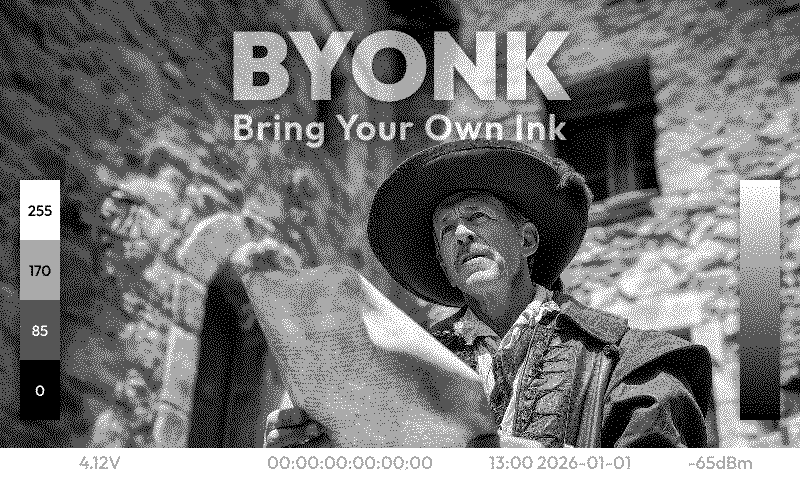
How It Works
flowchart LR
    A[Lua Script] --> B[SVG Template] --> C[Dithering] --> D[TRMNL PNG]
- Lua scripts fetch data from APIs or scrape websites
- SVG templates render the data into beautiful layouts
- Renderer converts SVG to dithered PNG optimized for e-ink
- Device displays the content and sleeps until next refresh
Example: Transit Departures
Lua Script fetches real-time data:
local response = http_get("https://transport.opendata.ch/v1/stationboard?station=Olten")
local data = json_decode(response)

return {
  data = { departures = data.stationboard },
  refresh_rate = 60
}
SVG Template renders the display:
<svg viewBox="0 0 800 480">
  {% for dep in departures %}
  <text y="{{ 100 + loop.index0 * 40 }}">
    {{ dep.category }}{{ dep.number }} → {{ dep.to }}
  </text>
  {% endfor %}
</svg>
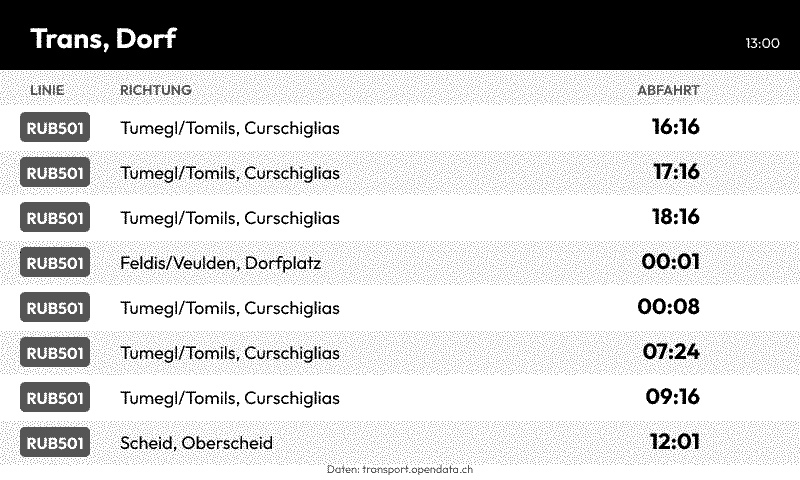
Result on e-ink display:
Next Steps
- Installation Guide - Set up Byonk on your server
- Architecture - Understand how Byonk works
- Create Your First Screen - Build a custom display
- API Reference - HTTP and Lua API documentation
Installation
Byonk can be installed via Docker container or pre-built binaries. All screens, fonts, and configuration are embedded in the binary, so it works out of the box with zero configuration.
Quick Start
# Just run it - embedded assets work immediately
docker run -p 3000:3000 ghcr.io/oetiker/byonk:latest
That’s it! The server is running with embedded default screens.
Docker (Recommended)
Zero-Config Mode
The simplest way to run Byonk:
docker run -d \
  --name byonk \
  -p 3000:3000 \
  ghcr.io/oetiker/byonk:latest
This uses embedded screens, fonts, and config - no volumes needed.
Customization Mode
To customize screens and config, mount volumes and set environment variables:
docker run -d \
  --name byonk \
  -p 3000:3000 \
  -e SCREENS_DIR=/data/screens \
  -e FONTS_DIR=/data/fonts \
  -e CONFIG_FILE=/data/config.yaml \
  -v ./data:/data \
  ghcr.io/oetiker/byonk:latest
On first run with empty directories, Byonk automatically seeds them with embedded defaults.
Available tags:
latest- Latest stable release0- Latest v0.x release0.4- Latest v0.4.x release0.4.0- Specific version
Docker Compose
Zero-config:
services:
  byonk:
    image: ghcr.io/oetiker/byonk:latest
    ports:
      - "3000:3000"
    restart: unless-stopped
With customization:
services:
  byonk:
    image: ghcr.io/oetiker/byonk:latest
    ports:
      - "3000:3000"
    environment:
      - SCREENS_DIR=/data/screens
      - FONTS_DIR=/data/fonts
      - CONFIG_FILE=/data/config.yaml
    volumes:
      - ./data:/data  # Empty on first run = auto-seeded
    restart: unless-stopped
Pre-built Binaries
Download the latest release from GitHub Releases.
Available platforms:
x86_64-unknown-linux-gnu- Linux (Intel/AMD 64-bit)aarch64-unknown-linux-gnu- Linux (ARM 64-bit, e.g., Raspberry Pi 4)x86_64-apple-darwin- macOS (Intel)aarch64-apple-darwin- macOS (Apple Silicon)x86_64-pc-windows-msvc- Windows
Extract and run:
tar -xzf byonk-*.tar.gz
./byonk
By default, Byonk listens on 0.0.0.0:3000 and uses embedded assets.
Extracting Embedded Assets
To customize the embedded screens and config:
# See what's embedded
./byonk init --list

# Extract everything for editing
./byonk init --all

# Extract specific categories
./byonk init --screens
./byonk init --config
Directory Structure (When Customizing)
When using external files (via env vars), Byonk expects:
data/
├── config.yaml          # Device and screen configuration
├── screens/             # Lua scripts and SVG templates
│   ├── default.lua
│   ├── default.svg
│   └── ...
└── fonts/               # Custom fonts (optional)
    └── Outfit-Variable.ttf
Environment Variables
| Variable | Default | Description |
|---|---|---|
BIND_ADDR | 0.0.0.0:3000 | Server bind address |
CONFIG_FILE | (embedded) | Path to configuration file |
SCREENS_DIR | (embedded) | Directory containing Lua scripts and SVG templates |
FONTS_DIR | (embedded) | Directory containing font files |
When path variables are not set, Byonk uses embedded assets (no filesystem access).
Running as a Service (systemd)
Create /etc/systemd/system/byonk.service:
[Unit]
Description=Byonk Content Server
After=network.target

[Service]
Type=simple
User=byonk
WorkingDirectory=/opt/byonk
ExecStart=/opt/byonk/byonk serve
Environment="BIND_ADDR=0.0.0.0:3000"
Restart=always
RestartSec=5

[Install]
WantedBy=multi-user.target
Enable and start:
sudo systemctl enable byonk
sudo systemctl start byonk
CLI Commands
Status (Default)
Running byonk without arguments shows current configuration:
./byonk
Server
Start the HTTP server:
./byonk serve
Render
Render a screen directly to PNG (useful for testing):
./byonk render --mac "00:00:00:00:00:00" --output test.png
Options:
| Option | Description |
|---|---|
-m, --mac | Device MAC address (required) |
-o, --output | Output PNG file path (required) |
-d, --device | Device type: “og” (800x480) or “x” (1872x1404) |
-b, --battery | Battery voltage for testing (e.g., 4.12) |
-r, --rssi | WiFi signal strength for testing (e.g., -67) |
-f, --firmware | Firmware version string for testing |
Example with all device info:
./byonk render -m "AC:15:18:D4:7B:E2" -o test.png \
  --battery=4.12 --rssi=-67 --firmware="1.2.3"
Note: Use
=syntax for negative numbers (e.g.,--rssi=-67).
Init
Extract embedded assets for customization:
./byonk init --all        # Extract everything
./byonk init --screens    # Extract screens only
./byonk init --list       # List embedded assets
Verifying Installation
- Open
http://your-server:3000/health- should return “OK” - Open
http://your-server:3000/swagger-ui- shows API documentation - Point a TRMNL device to your server to test
Configuring Your TRMNL Device
To use Byonk with your TRMNL device, configure the device to point to your server instead of the default TRMNL cloud service.
Note: Refer to TRMNL documentation for instructions on configuring a custom server URL.
Next Steps
- Configure your screens and devices
- Create your first screen
Configuration
Byonk embeds all screens, fonts, and configuration in the binary itself. This means you can run Byonk with zero configuration - it works out of the box.
For customization, Byonk uses a YAML configuration file to define screens and map devices to them.
Configuration Structure
# Screen definitions
screens:
  transit:
    script: transit.lua        # Lua script in screens/
    template: transit.svg      # SVG template in screens/
    default_refresh: 60        # Fallback refresh rate (seconds)

  weather:
    script: weather.lua
    template: weather.svg
    default_refresh: 900

# Device-to-screen mapping
devices:
  "94:A9:90:8C:6D:18":         # Device MAC address
    screen: transit             # Which screen to display
    params:                     # Parameters passed to Lua script
      station: "Olten, Bahnhof"
      limit: 8

  "AA:BB:CC:DD:EE:FF":
    screen: weather
    params:
      city: "Zurich"

# Default screen for unmapped devices
default_screen: default
Screens Section
Each screen definition has three properties:
| Property | Required | Description |
|---|---|---|
script | Yes | Lua script filename (relative to screens/) |
template | Yes | SVG template filename (relative to screens/) |
default_refresh | No | Fallback refresh rate in seconds (default: 900) |
The default_refresh is used when the Lua script returns refresh_rate = 0 or omits it entirely.
Devices Section
Each device entry maps a MAC address to a screen:
| Property | Required | Description |
|---|---|---|
screen | Yes | Name of the screen definition to use |
params | No | Key-value pairs passed to the Lua script |
MAC Address Format
- Use uppercase letters with colons:
"94:A9:90:8C:6D:18" - The MAC address must be quoted (it’s a YAML string)
Parameters
The params section can contain any YAML values:
params:
  # Strings
  station: "Olten, Bahnhof"

  # Numbers
  limit: 8
  temperature_offset: -2.5

  # Booleans
  show_delays: true

  # Lists
  rooms:
    - "Rosa"
    - "Flora"
These are available in Lua as the global params table:
local station = params.station or "Default Station"
local limit = params.limit or 10
Default Screen
The default_screen specifies which screen to show for devices not listed in the devices section:
default_screen: default
If omitted, unknown devices receive an error response.
Hot Reloading
Byonk loads Lua scripts and SVG templates fresh on every request. You can edit these files without restarting the server.
However, config.yaml is only loaded at startup. Changes to device mappings or screen definitions require a server restart.
Example: Complete Configuration
# Byonk Configuration

screens:
  # Default screen - shows time and a message
  default:
    script: default.lua
    template: default.svg
    default_refresh: 300

  # Public transport departures
  transit:
    script: transit.lua
    template: transit.svg
    default_refresh: 60

  # Room booking display
  floerli:
    script: floerli.lua
    template: floerli.svg
    default_refresh: 900

devices:
  # Kitchen display - bus departures
  "94:A9:90:8C:6D:18":
    screen: transit
    params:
      station: "Olten, Südwest"
      limit: 8

  # Office display - room booking
  "AA:BB:CC:DD:EE:FF":
    screen: floerli
    params:
      room: "Rosa"

  # Lobby display - different bus stop
  "BB:CC:DD:EE:FF:00":
    screen: transit
    params:
      station: "Olten, Bahnhof"
      limit: 6

default_screen: default
Embedded Assets
Byonk includes default screens, fonts, and configuration embedded in the binary. This enables zero-config operation:
# Just run it - embedded defaults work immediately
byonk serve
To see what’s embedded:
byonk init --list
Customization Modes
1. Zero-config (embedded only):
byonk serve
# Uses embedded screens, fonts, and config
2. Full customization (env vars + volume mounts):
export SCREENS_DIR=/data/screens
export FONTS_DIR=/data/fonts
export CONFIG_FILE=/data/config.yaml
byonk serve
# Empty paths are auto-seeded with embedded defaults
# Then uses external files (with embedded fallback)
3. Extract for editing:
byonk init --all
# Extracts embedded assets to ./screens/, ./fonts/, ./config.yaml
Init Command
The byonk init command extracts embedded assets to the filesystem:
# List embedded assets
byonk init --list

# Extract everything
byonk init --all

# Extract specific categories
byonk init --screens
byonk init --fonts
byonk init --config

# Force overwrite existing files
byonk init --all --force

# Extract to custom locations (via env vars)
SCREENS_DIR=/my/screens byonk init --screens
Auto-Seeding
When you set an environment variable pointing to an empty or missing directory, Byonk automatically seeds it with embedded assets on startup:
# This creates /data/screens with embedded screens on first run
SCREENS_DIR=/data/screens byonk serve
Merge Behavior
External files take precedence over embedded assets:
- If external file exists → use it
- If external file is missing → fall back to embedded
This lets you customize individual screens while keeping embedded defaults for others.
Environment Variables
| Variable | Default | Description |
|---|---|---|
SCREENS_DIR | (embedded) | Directory for Lua scripts and SVG templates |
FONTS_DIR | (embedded) | Directory for font files |
CONFIG_FILE | (embedded) | Path to config.yaml |
BIND_ADDR | 0.0.0.0:3000 | Server listen address |
When a path env var is not set, embedded assets are used exclusively (no filesystem access).
File Locations
| File | Location | Hot Reload |
|---|---|---|
| Configuration | $CONFIG_FILE or embedded | No (restart required) |
| Lua scripts | $SCREENS_DIR/*.lua or embedded | Yes |
| SVG templates | $SCREENS_DIR/*.svg or embedded | Yes |
| Fonts | $FONTS_DIR/ or embedded | No (restart required) |
Docker Usage
For Docker, mount volumes and set env vars to enable customization:
services:
  byonk:
    image: ghcr.io/oetiker/byonk
    ports:
      - "3000:3000"
    environment:
      - SCREENS_DIR=/data/screens
      - FONTS_DIR=/data/fonts
      - CONFIG_FILE=/data/config.yaml
    volumes:
      - ./data:/data  # Empty on first run = auto-seeded
Or run without volumes for pure embedded mode:
services:
  byonk:
    image: ghcr.io/oetiker/byonk
    ports:
      - "3000:3000"
    # No volumes = uses embedded assets only
Next Steps
Architecture Overview
Byonk is designed as a content server that bridges dynamic data sources with e-ink displays. This page explains how the system is structured and how requests flow through it.
System Overview
flowchart LR
    Display[TRMNL Display]

    subgraph Server[Byonk Server]
        Router[HTTP Router]
        Registry[(Device Registry)]
        Signer[URL Signer]
        Lua[Lua Runtime]
        Template[Template Service]
        Renderer[SVG Renderer]
    end

    Display --> Router
    Router --> Registry
    Router --> Signer
    Router --> Lua
    Lua --> Template
    Template --> Renderer
Core Components
HTTP Router
The entry point for all device requests. Built with Axum, it handles:
- Device registration (
/api/setup) - Content requests (
/api/display,/api/image/:id) - Logging (
/api/log) - API documentation (
/swagger-ui)
Device Registry
Stores device information in memory:
- MAC address to API key mapping
- Device metadata (firmware version, model, battery level)
- Last seen timestamps
Note: The current implementation uses an in-memory store. Device registrations are lost on restart. The architecture supports adding database persistence in the future.
URL Signer
Provides security for image URLs using HMAC-SHA256:
- Signs image URLs with expiration timestamps
- Validates signatures on image requests
- Prevents unauthorized access to device content
Content Pipeline
The heart of Byonk - orchestrates content generation:
- Looks up screen configuration for the device
- Executes Lua script with device parameters
- Renders SVG template with script data
- Converts SVG to PNG with dithering
Lua Runtime
Executes Lua scripts in a sandboxed environment:
- HTTP client for fetching external data
- JSON/HTML parsing utilities
- Time functions
- Logging
Template Service
Renders SVG templates using Tera:
- Jinja2-style syntax
- Custom filters (
truncate,format_time) - Fresh loading on each request (hot reload)
SVG Renderer
Converts SVG to PNG optimized for e-ink:
- Uses resvg for rendering
- Loads custom fonts from
fonts/directory - Blue-noise dithering to 4 gray levels
- Outputs 2-bit indexed PNG
Request Flow
The device-server interaction happens in three phases:
Phase 1: Device Registration
sequenceDiagram
    participant Device as E-ink Display
    participant Router as HTTP Router
    participant Registry as Device Registry

    Device->>+Router: GET /api/setup
    Router->>Registry: lookup/create device
    Registry-->>Router: api_key
    Router-->>-Device: {api_key, friendly_id}
    Note right of Device: Store api_key
Phase 2: Content Generation
sequenceDiagram
    participant Device
    participant Router
    participant Lua
    participant API as External API
    participant Template
    participant Cache

    Device->>+Router: GET /api/display
    Router->>+Lua: execute script
    Lua->>+API: http_get(url)
    API-->>-Lua: JSON data
    Lua-->>-Router: {data, refresh_rate}
    Router->>+Template: render SVG with data
    Template-->>-Router: SVG document
    Router->>Cache: store SVG + hash
    Router-->>-Device: {image_url, filename, refresh_rate}
    Note right of Device: filename is content hash
Phase 3: Image Rendering
sequenceDiagram
    participant Device
    participant Router
    participant Cache
    participant Renderer

    Device->>+Router: GET /api/image/:id
    Router->>Cache: get cached SVG
    Cache-->>Router: SVG document
    Router->>+Renderer: convert to PNG
    Renderer-->>-Router: dithered PNG
    Router-->>-Device: PNG image
    Note right of Device: Display and sleep
Request Details
| Phase | Endpoint | Purpose |
|---|---|---|
| 1. Setup | GET /api/setup | Device registers, receives API key |
| 2. Display | GET /api/display | Runs Lua script, renders SVG, caches it, returns signed image URL and content hash |
| 3. Image | GET /api/image/:id | Converts cached SVG to PNG, returns image |
Phase 2 (content generation):
- Load and execute Lua script with
paramsanddevicecontext - Script fetches external data via
http_get() - Render SVG template with script data
- Cache rendered SVG with content hash
- Sign image URL and return to device with
filenameset to content hash
The filename field contains a hash of the rendered SVG content. This allows TRMNL devices to detect when content has actually changed, even if the same screen is configured.
Phase 3 (image rendering):
- Verify URL signature
- Retrieve cached SVG
- Convert SVG to PNG with blue-noise dithering
- Return PNG to device
Technology Stack
| Component | Technology |
|---|---|
| Web framework | Axum |
| Async runtime | Tokio |
| Scripting | mlua (Lua 5.4) |
| Templating | Tera |
| SVG rendering | resvg (patched for variable fonts) |
| HTTP client | reqwest |
| HTML parsing | scraper |
Design Principles
Fresh Loading
Lua scripts and SVG templates are loaded from disk on every request. This enables:
- Live editing during development
- No restart needed for content changes
- Simple deployment (just copy files)
Blocking Isolation
CPU-intensive operations run in a blocking task pool:
- Lua HTTP requests
- SVG rendering
- Image encoding
This prevents blocking the async event loop.
Graceful Degradation
If content generation fails, devices receive an error screen rather than nothing. The error message helps debugging while keeping the device functional.
Security Model
Signed URLs
Image URLs are signed with HMAC-SHA256:
- 1-hour expiration
- Prevents URL enumeration
- Protects against unauthorized access
No Authentication Required
The /api/setup endpoint is open - any device can register. This matches TRMNL’s design where devices self-register.
Script Sandboxing
Lua scripts run in a controlled environment:
- Only exposed functions are available
- No filesystem access
- No arbitrary code execution
Content Pipeline
The content pipeline is how Byonk transforms data into images for e-ink displays. This page explains each stage in detail.
Pipeline Overview
flowchart TD
    A[Lua Script] -->|JSON data| B[SVG Template]
    B -->|SVG document| C[Cache]
    C -->|cached SVG| D[Renderer]
    D -->|dithered pixels| E[E-ink PNG]
| Stage | Input | Processing | Output |
|---|---|---|---|
| Lua Script | API endpoints, params | Fetch data, parse JSON/HTML | Structured data |
| SVG Template | Data + device context | Tera templating, layout | SVG document |
| Cache | SVG document | Hash content, store | Cached SVG + content hash |
| Renderer | Cached SVG | Rasterize, grayscale, dither | Pixel buffer |
| E-ink PNG | Pixel buffer | Quantize to 4 levels, encode | 2-bit PNG |
Content Change Detection
TRMNL devices use the filename field in the /api/display response to detect content changes. Byonk computes a SHA-256 hash of the rendered SVG content and returns it as the filename. This means:
- Same content = same filename: If your Lua script returns identical data and the template produces the same SVG, the device knows nothing changed
- Changed content = new filename: Any change in the rendered SVG (data, template, or device context) produces a new hash
This is why template rendering happens during /api/display rather than /api/image - the hash must be known before the device decides whether to fetch the image.
Stage 1: Lua Script Execution
Lua scripts fetch and process data from external sources.
Input
The script receives a global params table from config.yaml:
# config.yaml
devices:
  "94:A9:90:8C:6D:18":
    screen: transit
    params:
      station: "Olten, Bahnhof"
      limit: 8
-- In your script
local station = params.station  -- "Olten, Bahnhof"
local limit = params.limit      -- 8
Processing
Scripts can:
- Fetch HTTP data: APIs, web pages, JSON endpoints
- Parse content: JSON decoding, HTML scraping
- Transform data: Filter, sort, calculate
local response = http_get("https://api.example.com/data")
local data = json_decode(response)

local filtered = {}
for _, item in ipairs(data.items) do
  if item.active then
    table.insert(filtered, item)
  end
end
Output
Scripts must return a table with two fields:
return {
  data = {
    -- Any structure - passed to template
    title = "My Screen",
    items = filtered,
    updated_at = time_format(time_now(), "%H:%M")
  },
  refresh_rate = 300  -- Seconds until next update
}
Refresh Rate
The refresh_rate controls when the device fetches new content:
- Low values (30-60s): Real-time data (transit, stocks)
- Medium values (300-900s): Regular updates (weather, calendar)
- High values (3600+s): Static content
Tip: Calculate refresh rates dynamically. For transit, refresh after the next departure:
local seconds_until_departure = departure_time - time_now()
return {
  data = departures,
  refresh_rate = seconds_until_departure + 30
}
Stage 2: Template Rendering
SVG templates use Tera syntax (similar to Jinja2).
Input
The template receives a structured context with three namespaces:
Template Namespaces
| Namespace | Source | Description |
|---|---|---|
data.* | Lua script data return | Your script’s output |
device.* | Device headers | Battery voltage, RSSI |
params.* | config.yaml | Device-specific params |
Device Context Variables
These are automatically available under device.* (when reported by the device):
| Variable | Type | Description |
|---|---|---|
device.battery_voltage | float | Battery voltage (e.g., 4.12) |
device.rssi | integer | WiFi signal strength in dBm (e.g., -65) |
<!-- Show battery voltage in header -->
<text x="780" y="30" text-anchor="end">
  {% if device.battery_voltage %}{{ device.battery_voltage | round(precision=2) }}V{% endif %}
</text>
Note: Device info is also available in Lua scripts via the
deviceglobal table.
Syntax
Variables:
<text>{{ data.title }}</text>
<text>{{ data.user.name }}</text>
<text>{{ device.battery_voltage }}V</text>
<text>{{ params.station }}</text>
Loops:
{% for item in data.items %}
<text y="{{ 100 + loop.index0 * 30 }}">{{ item.name }}</text>
{% endfor %}
Conditionals:
{% if data.error %}
<text fill="red">{{ data.error }}</text>
{% else %}
<text>All good!</text>
{% endif %}
Built-in Filters
| Filter | Usage | Description |
|---|---|---|
truncate | {{ data.text | truncate(length=30) }} | Truncate with ellipsis |
format_time | {{ data.ts | format_time(format="%H:%M") }} | Format Unix timestamp |
length | {{ data.items | length }} | Get array/object length |
Output
A complete SVG document ready for rendering.
Stage 3: SVG to PNG Conversion
The renderer converts SVG to a PNG optimized for e-ink displays.
Font Handling
- Custom fonts from
fonts/directory (loaded first) - System fonts as fallback
- Variable fonts supported via CSS
font-variation-settings
<style>
  .title {
    font-family: Outfit;
    font-variation-settings: "wght" 700;
  }
</style>
Scaling
SVGs are scaled to fit the display while maintaining aspect ratio:
- TRMNL OG: 800 × 480 pixels
- TRMNL X: 1872 × 1404 pixels
The image is centered if the aspect ratio doesn’t match exactly.
Grayscale Conversion
Colors are converted to grayscale using the ITU-R BT.709 formula:
Y = 0.2126 × R + 0.7152 × G + 0.0722 × B
This matches human perception of brightness.
Stage 4: Blue-Noise Dithering
E-ink displays only support 4 gray levels. Dithering creates the illusion of more shades.
Byonk uses blue-noise-modulated error diffusion dithering, an improved algorithm that reduces visible “worm” artifacts while preserving sharp edges for UI content.
How It Works
The algorithm improves upon standard Floyd-Steinberg in three ways:
- Serpentine scanning: Alternates row direction (left-to-right, then right-to-left) to reduce directional artifacts
- Blue noise modulation: Adds subtle randomness to the quantization threshold, breaking up repetitive patterns
- Energy-preserving error: Error is computed from the un-noised value to maintain correct brightness
For each pixel:
  1. Get blue noise value for this position (64×64 tiled pattern)
  2. Add noise offset to pixel value (modulates threshold)
  3. Quantize to nearest level: [0, 85, 170, 255]
  4. Calculate error from ORIGINAL value (not noised)
  5. Distribute error to neighbors (direction depends on row):

     Left-to-right:      Right-to-left:
         X   7/16        7/16   X
     3/16 5/16 1/16      1/16 5/16 3/16
Why Blue Noise?
Standard Floyd-Steinberg can produce visible “worm” patterns in mid-gray areas. Blue noise has a frequency distribution that appears random to the eye but lacks low-frequency components, producing more pleasing results on e-ink displays.
Gray Levels
| Level | RGB Value | Appearance |
|---|---|---|
| 0 | (0, 0, 0) | Black |
| 1 | (85, 85, 85) | Dark gray |
| 2 | (170, 170, 170) | Light gray |
| 3 | (255, 255, 255) | White |
Output Format
The final PNG is:
- 2-bit indexed color (4 colors in palette)
- 4 pixels per byte for compact size
- Size validated against device limits (90KB for OG, 750KB for X)
Error Handling
If any stage fails, Byonk generates an error screen:
<svg>
  <rect fill="white" stroke="red" stroke-width="5"/>
  <text>Error: Failed to fetch data</text>
  <text>Will retry in 60 seconds</text>
</svg>
This ensures:
- Device always receives valid content
- Error is visible for debugging
- Automatic retry on next refresh
Performance Considerations
What’s Fast
- Lua script execution (milliseconds)
- Template rendering (milliseconds)
- Simple SVG rendering (10-50ms)
What’s Slower
- HTTP requests (network dependent)
- Complex SVG with many elements (100-500ms)
- Large images or gradients
Optimization Tips
- Minimize HTTP calls - Cache data in script if possible
- Simplify SVG - Fewer elements = faster rendering
- Avoid gradients - They’re converted to dithered patterns anyway
- Use appropriate refresh rates - Don’t refresh more often than needed
Device Mapping
Byonk allows you to show different content on different TRMNL devices. This page explains how devices are identified, registered, and mapped to screens.
How Devices Are Identified
Each TRMNL device has a unique MAC address that identifies it. This address is sent in the ID header with every request:
ID: 94:A9:90:8C:6D:18
Byonk uses this MAC address to:
- Register new devices
- Look up existing device configuration
- Map devices to screens
Device Registration Flow
sequenceDiagram
    participant Device
    participant Byonk

    Device->>Byonk: GET /api/setup<br/>Headers: ID, FW-Version, Model
    Byonk-->>Device: {api_key, friendly_id}
    Note right of Device: Store api_key

    Device->>Byonk: GET /api/display<br/>Headers: Access-Token, ID
    Byonk-->>Device: {image_url, refresh_rate}
Setup Response
{
  "status": 200,
  "api_key": "a1b2c3d4e5f6...",
  "friendly_id": "abc123def456"
}
- api_key: Authentication token for subsequent requests
- friendly_id: Human-readable identifier (12 hex characters)
Configuration-Based Mapping
Devices are mapped to screens in config.yaml:
devices:
  "94:A9:90:8C:6D:18":
    screen: transit
    params:
      station: "Olten, Bahnhof"

  "AA:BB:CC:DD:EE:FF":
    screen: weather
    params:
      city: "Zurich"

default_screen: default
Lookup Order
When a device requests content:
- Exact MAC match - Check if MAC is in
devicessection - Default screen - Use
default_screenif no match - Error - Return error if no default configured
MAC Address Format
MAC addresses in config must be:
- Uppercase:
"94:A9:90:8C:6D:18"not"94:a9:90:8c:6d:18" - Colon-separated:
"94:A9:90:8C:6D:18"not"94-A9-90-8C-6D-18" - Quoted: YAML requires quotes for strings with colons
Device Parameters
Each device can have custom parameters passed to its screen’s Lua script:
devices:
  "94:A9:90:8C:6D:18":
    screen: transit
    params:
      station: "Olten, Südwest"
      limit: 8
      show_delays: true
In the Lua script:
local station = params.station      -- "Olten, Südwest"
local limit = params.limit          -- 8
local show_delays = params.show_delays  -- true
Parameter Types
You can use any YAML type:
| Type | YAML | Lua |
|---|---|---|
| String | name: "Alice" | params.name → "Alice" |
| Number | count: 42 | params.count → 42 |
| Float | temp: 21.5 | params.temp → 21.5 |
| Boolean | enabled: true | params.enabled → true |
| List | items: [a, b] | params.items[1] → "a" |
| Map | user: {name: Bob} | params.user.name → "Bob" |
Same Screen, Different Parameters
Multiple devices can use the same screen with different parameters:
devices:
  # Kitchen - shows nearby bus stop
  "94:A9:90:8C:6D:18":
    screen: transit
    params:
      station: "Olten, Südwest"

  # Office - shows train station
  "AA:BB:CC:DD:EE:FF":
    screen: transit
    params:
      station: "Olten, Bahnhof"
      limit: 10

  # Lobby - shows airport
  "BB:CC:DD:EE:FF:00":
    screen: transit
    params:
      station: "Zürich Flughafen"
      limit: 6
Finding Your Device’s MAC Address
The MAC address is shown:
-
In Byonk logs when the device connects:
INFO Device registered device_id="94:A9:90:8C:6D:18" -
On the device during setup (check TRMNL documentation)
-
In your router’s connected devices list
Default Screen
The default_screen provides a fallback for:
- Devices not yet configured
- New devices during testing
- Backup if config is incorrect
default_screen: default
If no default_screen is set and a device isn’t in the config, it receives an error response.
Auto-Registration
Byonk automatically registers new devices on their first /api/setup call:
- Generates a random API key
- Generates a friendly ID
- Stores device in registry
No pre-configuration is needed - just add the device to config.yaml to assign a custom screen.
Multiple Screens per Device?
Currently, each device shows one screen. However, you can create a “dashboard” screen that combines multiple data sources:
-- dashboard.lua
local weather = fetch_weather()
local transit = fetch_transit()
local calendar = fetch_calendar()

return {
  data = {
    weather = weather,
    transit = transit,
    calendar = calendar
  },
  refresh_rate = 300
}
Device Metadata
Byonk tracks additional device information from request headers:
| Header | Description |
|---|---|
FW-Version | Firmware version |
Model | Device model (og, x) |
Battery-Voltage | Battery level |
RSSI | WiFi signal strength |
Width, Height | Display dimensions |
This metadata is stored in the device registry and can be used for:
- Debugging connectivity issues
- Monitoring battery levels
- Adapting content to device model
Persistence
Warning: The current implementation stores device registrations in memory. Registrations are lost on server restart.
Devices will automatically re-register on their next request, but any collected metadata is lost.
Future versions may add database persistence for device data.
Tutorial
This tutorial series will teach you how to create custom screens for your TRMNL device using Byonk. You’ll learn:
- Your First Screen - Create a simple “Hello World” screen
- Lua Scripting - Fetch data from APIs and process it
- SVG Templates - Design beautiful layouts
- Advanced Topics - HTML scraping, dynamic refresh, error handling
Prerequisites
Before starting, make sure you have:
- Byonk installed and running
- A text editor for writing Lua and SVG files
- Basic familiarity with programming concepts
Example Screens
Byonk comes with several example screens you can learn from:
Default Screen
A simple clock display showing time and date.
screens/default.lua   - Script
screens/default.svg   - Template
Transit Departures
Real-time public transport departures from Swiss OpenData.
screens/transit.lua   - Fetches from transport.opendata.ch API
screens/transit.svg   - Displays departure list with colors
Room Booking (Floerli)
Scrapes a web page to show room availability.
screens/floerli.lua   - HTML scraping example
screens/floerli.svg   - Shows current/upcoming bookings
Gray Level Test
Demonstrates the 4 gray levels available on e-ink.
screens/graytest.lua  - Minimal script
screens/graytest.svg  - Four gray rectangles
Quick Reference
File Locations
| Type | Location |
|---|---|
| Lua scripts | screens/*.lua |
| SVG templates | screens/*.svg |
| Configuration | config.yaml |
| Custom fonts | fonts/ |
Workflow
- Create a Lua script and SVG template in
screens/ - Define a screen in
config.yaml - Assign the screen to a device
- Test by refreshing your device or checking
/swagger-ui
Tip: Lua scripts and SVG templates are loaded fresh on every request. Just save your changes and refresh!
Ready to Start?
Head to Your First Screen to create your first custom display!
Your First Screen
Let’s create a simple screen that displays a greeting and the current time. This will introduce you to the basic workflow of creating Byonk screens.
Step 1: Create the Lua Script
Create a new file screens/hello.lua:
-- Hello World screen
-- Displays a greeting with the current time

local now = time_now()

return {
  data = {
    greeting = "Hello, World!",
    time = time_format(now, "%H:%M:%S"),
    date = time_format(now, "%A, %B %d, %Y")
  },
  refresh_rate = 60  -- Refresh every minute
}
What this does:
time_now()gets the current Unix timestamptime_format()formats it into readable strings- The returned
datatable is passed to the template refresh_ratetells the device to check back in 60 seconds
Step 2: Create the SVG Template
Create a new file screens/hello.svg:
<svg xmlns="http://www.w3.org/2000/svg" viewBox="0 0 800 480" width="800" height="480">
  <style>
    .greeting {
      font-family: sans-serif;
      font-size: 48px;
      font-weight: bold;
      fill: black;
    }
    .time {
      font-family: sans-serif;
      font-size: 72px;
      font-weight: bold;
      fill: black;
    }
    .date {
      font-family: sans-serif;
      font-size: 24px;
      fill: #555;
    }
  </style>

  <!-- White background -->
  <rect width="800" height="480" fill="white"/>

  <!-- Greeting -->
  <text class="greeting" x="400" y="120" text-anchor="middle">
    {{ data.greeting }}
  </text>

  <!-- Large time display -->
  <text class="time" x="400" y="260" text-anchor="middle">
    {{ data.time }}
  </text>

  <!-- Date below -->
  <text class="date" x="400" y="320" text-anchor="middle">
    {{ data.date }}
  </text>

  <!-- Footer -->
  <text x="400" y="450" text-anchor="middle" font-family="sans-serif" font-size="14" fill="#999">
    My first Byonk screen!
  </text>
</svg>
Template features used:
{{ data.variable }}- Inserts values from the Lua script’sdatatable- CSS styling for fonts and colors
text-anchor="middle"for centered text
Step 3: Add the Screen to Configuration
Edit config.yaml to add your new screen:
screens:
  # ... existing screens ...

  hello:
    script: hello.lua
    template: hello.svg
    default_refresh: 60
Step 4: Assign to a Device
Still in config.yaml, assign the screen to your device:
devices:
  "YOUR:MAC:AD:DR:ES:S0":
    screen: hello
    params: {}
Replace YOUR:MAC:AD:DR:ES:S0 with your device’s actual MAC address.
Tip: Check the Byonk server logs when your device connects - the MAC address is printed there.
Step 5: Test It
-
Restart Byonk (config.yaml changes require restart)
-
Check the API at
http://localhost:3000/swagger-ui:- Use the
/api/displayendpoint with your device’s MAC - You’ll get a signed image URL
- Open that URL to see your screen!
- Use the
-
Or wait for your device to refresh automatically
Understanding the Result
Your screen should look like this:

Adding Parameters
Let’s make the greeting customizable. Update your files:
screens/hello.lua:
local now = time_now()

-- Get name from params, default to "World"
local name = params.name or "World"

return {
  data = {
    greeting = "Hello, " .. name .. "!",
    time = time_format(now, "%H:%M:%S"),
    date = time_format(now, "%A, %B %d, %Y")
  },
  refresh_rate = 60
}
config.yaml:
devices:
  "YOUR:MAC:AD:DR:ES:S0":
    screen: hello
    params:
      name: "Alice"
Now your screen will say “Hello, Alice!” instead of “Hello, World!”.
Troubleshooting
Screen shows error
Check the Byonk logs for script errors:
./target/release/byonk
# Look for ERROR or WARN lines
Template variables not replaced
Make sure your Lua script returns a data table with the expected keys:
return {
  data = {
    greeting = "Hello"  -- Must match {{ greeting }} in template
  },
  refresh_rate = 60
}
Device not updating
- Check that the device MAC in config matches exactly (uppercase, with colons)
- Verify the device is pointing to your Byonk server
- Check device WiFi connectivity
Real-World Example: Transit Departures
Here’s what a more complex screen looks like - the built-in transit departure display:
This screen demonstrates:
- Fetching live data from an API
- Processing JSON responses
- Dynamic refresh rates (updates after each bus departs)
- Styled table layout with alternating rows
- Color-coded line badges
Check out screens/transit.lua and screens/transit.svg in the Byonk source for the complete implementation.
What’s Next?
Now that you have a basic screen working, learn more about:
- Lua Scripting - Fetch data from APIs
- SVG Templates - Create complex layouts
Lua Scripting
Lua scripts are the data engine of Byonk screens. They fetch, process, and transform data before it’s rendered by the template. This guide covers all the APIs available to your scripts.
Script Structure
Every Lua script must return a table with data and refresh_rate:
-- Optional: Use params from config.yaml
local my_param = params.some_key or "default"

-- Your logic here
local result = do_something()

-- Required: Return data for template
return {
  data = {
    -- Passed to SVG template
  },
  refresh_rate = 300  -- Seconds until next refresh
}
Parameters
Device-specific parameters are available via the global params table:
# config.yaml
devices:
  "94:A9:90:8C:6D:18":
    screen: weather
    params:
      city: "Zurich"
      units: "metric"
-- In your script
local city = params.city        -- "Zurich"
local units = params.units      -- "metric"
local missing = params.other    -- nil (not defined)

-- Always provide defaults
local limit = params.limit or 10
HTTP Requests
http_get(url)
Fetches a URL and returns the response body as a string.
local response = http_get("https://api.example.com/data")
Error handling:
local ok, response = pcall(function()
  return http_get("https://api.example.com/data")
end)

if not ok then
  log_error("Request failed: " .. tostring(response))
  return {
    data = { error = "Failed to fetch data" },
    refresh_rate = 60
  }
end
URL encoding:
local city = "Zürich, Schweiz"
local encoded = city:gsub(" ", "%%20"):gsub(",", "%%2C")
local url = "https://api.example.com/city?name=" .. encoded
JSON
json_decode(string)
Parses a JSON string into a Lua table.
local response = http_get("https://api.example.com/data")
local data = json_decode(response)

-- Access fields
local name = data.name
local items = data.items
local first = data.items[1]  -- Lua arrays are 1-indexed!
json_encode(table)
Converts a Lua table to a JSON string.
local data = { name = "test", values = {1, 2, 3} }
local json_str = json_encode(data)
-- '{"name":"test","values":[1,2,3]}'
HTML Parsing
For scraping web pages, Byonk provides CSS selector-based HTML parsing.
html_parse(html)
Parses an HTML string and returns a document object.
local html = http_get("https://example.com")
local doc = html_parse(html)
doc:select(selector)
Queries elements using CSS selectors. Returns an elements collection.
local links = doc:select("a.nav-link")
local rows = doc:select("table.data tr")
local header = doc:select("h1")
doc:select_one(selector)
Returns only the first matching element (or nil).
local title = doc:select_one("title")
if title then
  log_info("Page title: " .. title:text())
end
elements:each(fn)
Iterates over matched elements.
local items = {}
doc:select("ul.list li"):each(function(el)
  table.insert(items, {
    text = el:text(),
    link = el:attr("href")
  })
end)
element:text()
Gets the inner text content.
local heading = doc:select_one("h1")
local text = heading:text()  -- "Welcome to Example"
element:attr(name)
Gets an attribute value.
local link = doc:select_one("a")
local href = link:attr("href")   -- "https://..."
local class = link:attr("class") -- "nav-link"
element:html()
Gets the inner HTML.
local div = doc:select_one("div.content")
local inner_html = div:html()
Example: Scraping a Table
local html = http_get("https://example.com/data")
local doc = html_parse(html)

local rows = {}
doc:select("table tbody tr"):each(function(row)
  local cells = {}
  row:select("td"):each(function(cell)
    table.insert(cells, cell:text())
  end)

  if #cells >= 2 then
    table.insert(rows, {
      name = cells[1],
      value = cells[2]
    })
  end
end)

return {
  data = { rows = rows },
  refresh_rate = 900
}
Time Functions
time_now()
Returns the current Unix timestamp (seconds since 1970).
local now = time_now() -- e.g., 1703672400
time_format(timestamp, format)
Formats a timestamp into a string using strftime patterns.
local now = time_now()

time_format(now, "%H:%M")        -- "14:32"
time_format(now, "%H:%M:%S")     -- "14:32:05"
time_format(now, "%Y-%m-%d")     -- "2024-12-27"
time_format(now, "%A")           -- "Friday"
time_format(now, "%B %d, %Y")    -- "December 27, 2024"
Common format codes:
| Code | Description | Example |
|---|---|---|
%H | Hour (24h) | 14 |
%M | Minute | 32 |
%S | Second | 05 |
%Y | Year | 2024 |
%m | Month | 12 |
%d | Day | 27 |
%A | Weekday name | Friday |
%B | Month name | December |
%a | Short weekday | Fri |
%b | Short month | Dec |
time_parse(string, format)
Parses a date string into a Unix timestamp.
local ts = time_parse("2024-12-27 14:30", "%Y-%m-%d %H:%M")
Logging
Write messages to the Byonk server logs.
log_info("Processing request for station: " .. station)
log_warn("API returned empty response")
log_error("Failed to parse JSON: " .. err)
Logs appear in the server output:
INFO script=true: Processing request for station: Olten
WARN script=true: API returned empty response
ERROR script=true: Failed to parse JSON: unexpected token
Complete Example: Transit API
Here’s a real-world example fetching transit data:
-- transit.lua - Fetch public transport departures

local station = params.station or "Olten"
local limit = params.limit or 8

log_info("Fetching departures for: " .. station)

-- URL encode the station name
local encoded = station:gsub(" ", "%%20"):gsub(",", "%%2C")
local url = "https://transport.opendata.ch/v1/stationboard"
      .. "?station=" .. encoded
      .. "&limit=" .. limit

-- Fetch with error handling
local ok, response = pcall(function()
  return http_get(url)
end)

if not ok then
  log_error("API request failed: " .. tostring(response))
  return {
    data = {
      station = station,
      error = "Failed to fetch departures",
      departures = {}
    },
    refresh_rate = 60
  }
end

-- Parse JSON
local json = json_decode(response)

-- Transform data for template
local departures = {}
local now = time_now()

for i, dep in ipairs(json.stationboard or {}) do
  local departure_time = dep.stop and dep.stop.departure or ""
  local hour, min = departure_time:match("T(%d+):(%d+)")

  table.insert(departures, {
    time = hour and (hour .. ":" .. min) or "??:??",
    line = (dep.category or "") .. (dep.number or ""),
    destination = dep.to or "Unknown",
    delay = dep.stop and dep.stop.delay or 0
  })
end

-- Calculate smart refresh rate
local refresh_rate = 300
if #departures > 0 and json.stationboard[1].stop then
  local first_dep = json.stationboard[1].stop.departureTimestamp
  if first_dep then
    local seconds_until = first_dep - now
    refresh_rate = math.max(30, math.min(seconds_until + 30, 900))
  end
end

log_info("Found " .. #departures .. " departures, refresh in " .. refresh_rate .. "s")

return {
  data = {
    station = json.station and json.station.name or station,
    departures = departures,
    updated_at = time_format(now, "%H:%M")
  },
  refresh_rate = refresh_rate
}
Tips & Best Practices
Always Handle Errors
local ok, result = pcall(function()
  return http_get(url)
end)

if not ok then
  return { data = { error = "..." }, refresh_rate = 60 }
end
Provide Default Values
local limit = params.limit or 10
local show_delays = params.show_delays or true
Log for Debugging
log_info("Params: " .. json_encode(params))
log_info("Fetched " .. #items .. " items")
Keep It Simple
Scripts run on every request. Avoid:
- Complex computations
- Multiple HTTP requests when one will do
- Parsing more data than needed
Use Smart Refresh Rates
Don’t refresh more often than necessary:
-- Real-time data: 30-60 seconds
-- Regular updates: 300-900 seconds
-- Static content: 3600+ seconds
Next Steps
- SVG Templates - Design the visual layout
- Advanced Topics - Error handling, caching strategies
SVG Templates
SVG templates define the visual layout of your screens. They use Tera templating syntax to insert data from your Lua scripts.
Template Basics
A Byonk SVG template is a standard SVG file with Tera expressions:
<svg xmlns="http://www.w3.org/2000/svg" viewBox="0 0 800 480" width="800" height="480">
  <rect width="800" height="480" fill="white"/>

  <text x="400" y="240" text-anchor="middle" font-size="24">
    {{ message }}
  </text>
</svg>
Key points:
- Set
viewBoxto0 0 800 480for TRMNL OG (or0 0 1872 1404for TRMNL X) - Always include
widthandheightattributes - Use
{{ variable }}to insert values from Lua
Display Dimensions
| Device | Width | Height | Aspect Ratio |
|---|---|---|---|
| TRMNL OG | 800 | 480 | 5:3 |
| TRMNL X | 1872 | 1404 | 4:3 |
Byonk automatically scales your SVG to fit the display, but matching the aspect ratio gives the best results.
Variables
Template Namespaces
Variables in templates are organized into three namespaces:
| Namespace | Source | Example |
|---|---|---|
data.* | Lua script return value | data.title, data.items |
device.* | Device info (battery, signal) | device.battery_voltage, device.rssi |
params.* | Config params from config.yaml | params.station, params.limit |
Device Variables
These are automatically available under device.*:
| Variable | Type | Description |
|---|---|---|
device.mac | string | Device MAC address (e.g., “AC:15:18:D4:7B:E2”) |
device.battery_voltage | float or nil | Battery voltage (e.g., 4.12) |
device.rssi | integer or nil | WiFi signal strength in dBm (e.g., -65) |
device.model | string or nil | Device model (“og” or “x”) |
device.firmware_version | string or nil | Firmware version string |
device.width | integer or nil | Display width in pixels (800 or 1872) |
device.height | integer or nil | Display height in pixels (480 or 1404) |
<!-- Display battery and signal in header -->
<text class="status" x="780" y="25" text-anchor="end">
  {% if device.battery_voltage %}{{ device.battery_voltage | round(precision=2) }}V{% endif %}
  {% if device.rssi %} · {{ device.rssi }}dBm{% endif %}
</text>

<!-- Responsive layout based on device dimensions -->
{% if device.width == 1872 %}
  <!-- TRMNL X layout (1872x1404) -->
{% else %}
  <!-- TRMNL OG layout (800x480) -->
{% endif %}
Note: Some device variables may be
nilif the device doesn’t report them. Always use{% if device.variable %}to check before using.
Basic Interpolation
<text>{{ data.title }}</text>
<text>{{ data.user.name }}</text>
<text>{{ data.items[0].label }}</text>
Filters
Apply filters to modify values:
<!-- Truncate long text -->
<text>{{ data.description | truncate(length=50) }}</text>

<!-- Format timestamp (uses UTC) -->
<text>{{ data.updated_at | format_time(format="%H:%M") }}</text>

<!-- Get length -->
<text>{{ data.items | length }} items</text>
Tip: The
format_timetemplate filter uses UTC timezone. For local time formatting, usetime_format()in your Lua script and pass the pre-formatted string to the template.
Default Values
<text>{{ data.title | default(value="Untitled") }}</text>
Control Flow
Conditionals
{% if data.error %}
  <text fill="red">Error: {{ data.error }}</text>
{% else %}
  <text>All systems operational</text>
{% endif %}
Comparisons
{% if data.count > 0 %}
  <text>{{ data.count }} items</text>
{% elif data.count == 0 %}
  <text>No items</text>
{% endif %}

{% if data.status == "active" %}
  <circle fill="green" r="10"/>
{% endif %}
Boolean Checks
{% if data.is_online %}
  <text fill="green">Online</text>
{% endif %}

{% if not data.items %}
  <text>No data available</text>
{% endif %}
Loops
Basic Loop
{% for item in data.items %}
  <text y="{{ 100 + loop.index0 * 30 }}">{{ item.name }}</text>
{% endfor %}
Loop Variables
| Variable | Description |
|---|---|
loop.index | Current iteration (1-indexed) |
loop.index0 | Current iteration (0-indexed) |
loop.first | True on first iteration |
loop.last | True on last iteration |
Positioning with Loops
{% for dep in data.departures %}
  <!-- Calculate Y position based on index -->
  <text y="{{ 80 + loop.index0 * 40 }}">
    {{ dep.time }} - {{ dep.destination }}
  </text>
{% endfor %}
Conditional Styling in Loops
{% for item in data.items %}
  <!-- Alternating row backgrounds -->
  {% if loop.index0 is odd %}
    <rect y="{{ 100 + loop.index0 * 40 }}" width="800" height="40" fill="#f5f5f5"/>
  {% endif %}

  <text y="{{ 125 + loop.index0 * 40 }}">{{ item.name }}</text>
{% endfor %}
Empty State
{% if data.items | length > 0 %}
  {% for item in data.items %}
    <text>{{ item.name }}</text>
  {% endfor %}
{% else %}
  <text fill="#999">No items found</text>
{% endif %}
Styling
Inline Styles
<text x="20" y="40"
      font-family="sans-serif"
      font-size="24"
      font-weight="bold"
      fill="black">
  {{ data.title }}
</text>
CSS in Style Block
<svg xmlns="http://www.w3.org/2000/svg" viewBox="0 0 800 480">
  <style>
    .title { font-family: sans-serif; font-size: 32px; font-weight: bold; }
    .subtitle { font-family: sans-serif; font-size: 18px; fill: #666; }
    .highlight { fill: #333; font-weight: bold; }
  </style>

  <text class="title" x="20" y="40">{{ data.title }}</text>
  <text class="subtitle" x="20" y="70">{{ data.subtitle }}</text>
</svg>
Variable Fonts
Byonk supports variable fonts via CSS font-variation-settings:
<style>
  .light { font-family: Outfit; font-variation-settings: "wght" 300; }
  .regular { font-family: Outfit; font-variation-settings: "wght" 400; }
  .bold { font-family: Outfit; font-variation-settings: "wght" 700; }
</style>
Note: Place custom font files (e.g.,
Outfit-Variable.ttf) in thefonts/directory.
Colors and Grayscale
E-ink displays only show 4 gray levels. Design with this in mind:
Recommended Colors
<style>
  .black { fill: rgb(0, 0, 0); }       /* Level 0 - Black */
  .dark { fill: rgb(85, 85, 85); }     /* Level 1 - Dark gray */
  .light { fill: rgb(170, 170, 170); } /* Level 2 - Light gray */
  .white { fill: rgb(255, 255, 255); } /* Level 3 - White */
</style>
Testing Grayscale
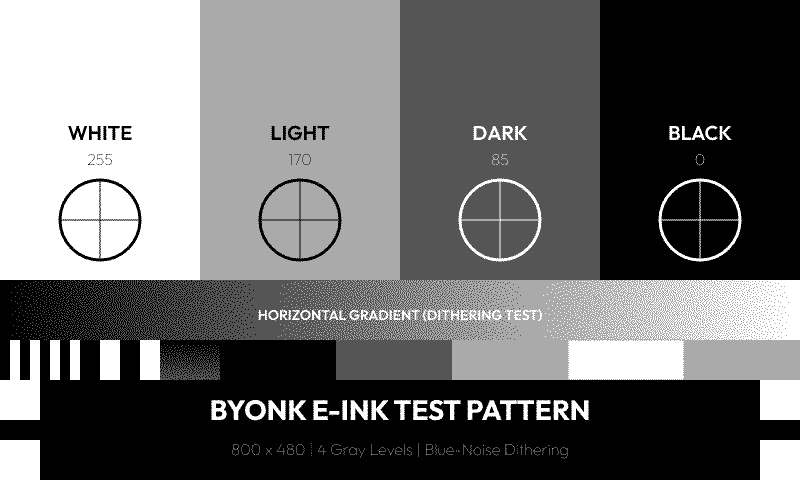
The included graytest.svg demonstrates all 4 levels:
<rect x="0" y="0" width="200" height="480" fill="rgb(0,0,0)"/>
<rect x="200" y="0" width="200" height="480" fill="rgb(85,85,85)"/>
<rect x="400" y="0" width="200" height="480" fill="rgb(170,170,170)"/>
<rect x="600" y="0" width="200" height="480" fill="rgb(255,255,255)"/>
Rendered output:
Avoid
- Gradients - Convert to dithered patterns (may look noisy)
- Subtle color differences - May become indistinguishable
- Many gray levels - Only 4 will render
Layout Patterns
Header + Content
<svg xmlns="http://www.w3.org/2000/svg" viewBox="0 0 800 480">
  <!-- Header bar -->
  <rect width="800" height="70" fill="black"/>
  <text x="30" y="48" fill="white" font-size="28">{{ data.title }}</text>
  <text x="770" y="48" fill="#aaa" font-size="14" text-anchor="end">{{ data.time }}</text>

  <!-- Content area -->
  <g transform="translate(0, 70)">
    <!-- Your content here, Y coordinates start at 0 -->
  </g>
</svg>
Grid Layout
{% for item in data.items %}
  {% set col = loop.index0 % 3 %}
  {% set row = loop.index0 // 3 %}

  <rect x="{{ col * 266 }}" y="{{ 80 + row * 100 }}"
        width="260" height="90" fill="#f0f0f0" rx="5"/>
  <text x="{{ col * 266 + 130 }}" y="{{ 130 + row * 100 }}"
        text-anchor="middle">{{ item.name }}</text>
{% endfor %}
Two Columns
<!-- Left column -->
<text x="30" y="100">Left content</text>

<!-- Divider -->
<line x1="400" y1="80" x2="400" y2="450" stroke="#ccc"/>

<!-- Right column -->
<text x="430" y="100">Right content</text>
Dynamic Styling
Conditional Colors
{% for item in data.items %}
  <text fill="{% if item.is_urgent %}red{% else %}black{% endif %}">
    {{ item.name }}
  </text>
{% endfor %}
Dynamic Classes
<text class="{% if data.count > 100 %}highlight{% else %}normal{% endif %}">
  {{ data.count }}
</text>
Status Indicators
{% if data.status == "online" %}
  <circle cx="20" cy="20" r="8" fill="green"/>
{% elif data.status == "warning" %}
  <circle cx="20" cy="20" r="8" fill="orange"/>
{% else %}
  <circle cx="20" cy="20" r="8" fill="red"/>
{% endif %}
Common Patterns
Truncating Long Text
<text>
  {% if data.title | length > 30 %}
    {{ data.title | truncate(length=30) }}
  {% else %}
    {{ data.title }}
  {% endif %}
</text>
Formatted Numbers
Use Lua to format numbers before passing to template:
-- In Lua script
return {
  data = {
    temperature = string.format("%.1f°C", temp),
    price = string.format("$%.2f", amount)
  }
}
Time-Based Styling
-- In Lua script
local hour = tonumber(time_format(time_now(), "%H"))
return {
  data = {
    is_night = hour < 6 or hour > 20
  }
}
<rect width="800" height="480" fill="{% if is_night %}#333{% else %}white{% endif %}"/>
Debugging Templates
Show Raw Data
<!-- Temporarily add this to see all data -->
<text x="10" y="460" font-size="10" fill="#999">
  Debug: {{ data.items | length }} items
</text>
Check for Missing Data
{% if not data.title %}
  <text fill="red">ERROR: title is missing!</text>
{% endif %}
Template Errors
If your template has a syntax error, Byonk will display an error screen with the message. Check the server logs for details.
Embedding Images
Byonk supports embedding images in your SVG templates. You can include PNG, JPEG, GIF, WebP, and SVG files.
Asset Directory Structure
Place your screen assets in a subdirectory matching your screen name:
screens/
├── hello.lua         # Script at top level
├── hello.svg         # Template at top level
└── hello/            # Assets for "hello" screen
    ├── logo.png
    ├── icon.svg
    └── background.jpg
Method 1: Direct in SVG (Automatic Resolution)
Simply reference images by filename in your SVG template. Byonk automatically resolves relative paths to the screen’s asset directory and embeds them as data URIs:
<svg xmlns="http://www.w3.org/2000/svg" viewBox="0 0 800 480">
  <!-- This automatically loads screens/hello/logo.png -->
  <image x="10" y="10" width="64" height="64" href="logo.png"/>

  <text x="100" y="50">{{ data.greeting }}</text>
</svg>
Supported image formats:
- PNG (
.png) - JPEG (
.jpg,.jpeg) - GIF (
.gif) - WebP (
.webp) - SVG (
.svg)
Notes:
- Paths are relative to the screen’s asset directory
- URLs starting with
data:,http://, orhttps://are left unchanged - Missing images log a warning but don’t break rendering
Method 2: Via Lua (For Dynamic Images)
For more control, use read_asset() and base64_encode() in your Lua script:
screens/hello.lua:
local icon = read_asset("icon.png")

return {
    data = {
        greeting = "Hello World!",
        icon_src = "data:image/png;base64," .. base64_encode(icon)
    },
    refresh_rate = 3600
}
screens/hello.svg:
<svg xmlns="http://www.w3.org/2000/svg" viewBox="0 0 800 480">
  <image x="10" y="10" width="64" height="64" href="{{ data.icon_src }}"/>
  <text x="100" y="50">{{ data.greeting }}</text>
</svg>
This method is useful when you need to:
- Conditionally include images
- Fetch images from external URLs
- Process or transform image data
Background Images
To use a full-screen background image:
<svg xmlns="http://www.w3.org/2000/svg" viewBox="0 0 800 480" width="800" height="480">
  <!-- Background image -->
  <image x="0" y="0" width="800" height="480" href="background.png" preserveAspectRatio="xMidYMid slice"/>

  <!-- Content on top -->
  <text x="400" y="240" text-anchor="middle" fill="white" font-size="32">
    {{ data.title }}
  </text>
</svg>
Tips for background images:
- Use
preserveAspectRatio="xMidYMid slice"to cover the entire area - Consider e-ink limitations: high-contrast images work best
- Keep file sizes reasonable for fast rendering
Next Steps
- Advanced Topics - HTML scraping, error handling
- API Reference - Complete Lua function reference
Advanced Topics
This guide covers advanced techniques for building robust Byonk screens.
Error Handling
Graceful HTTP Failures
Always wrap HTTP requests in pcall:
local function fetch_data(url)
  local ok, response = pcall(function()
    return http_get(url)
  end)

  if not ok then
    log_error("HTTP request failed: " .. tostring(response))
    return nil, response
  end

  return response, nil
end

-- Usage
local data, err = fetch_data("https://api.example.com/data")
if err then
  return {
    data = { error = "Could not fetch data" },
    refresh_rate = 60  -- Retry in 1 minute
  }
end
JSON Parsing Errors
local function safe_json_decode(str)
  local ok, result = pcall(function()
    return json_decode(str)
  end)

  if not ok then
    log_error("JSON parse error: " .. tostring(result))
    return nil
  end

  return result
end
Template Error Display
When errors occur, display them helpfully:
return {
  data = {
    has_error = true,
    error_message = "API returned invalid response",
    error_details = "Expected JSON, got HTML",
    retry_in = 60
  },
  refresh_rate = 60
}
{% if has_error %}
  <rect x="20" y="20" width="760" height="440" fill="white" stroke="red" stroke-width="4" rx="10"/>
  <text x="400" y="200" text-anchor="middle" font-size="24" fill="red">{{ error_message }}</text>
  <text x="400" y="240" text-anchor="middle" font-size="16" fill="#666">{{ error_details }}</text>
  <text x="400" y="300" text-anchor="middle" font-size="14" fill="#999">Retrying in {{ retry_in }} seconds...</text>
{% else %}
  <!-- Normal content -->
{% endif %}
HTML Scraping Techniques
Handling Missing Elements
local function safe_text(element)
  if element then
    return element:text()
  end
  return ""
end

local title = safe_text(doc:select_one("h1"))
Complex Table Parsing
local function parse_table(doc, selector)
  local rows = {}

  doc:select(selector .. " tr"):each(function(row)
    local cells = {}
    row:select("td, th"):each(function(cell)
      table.insert(cells, cell:text():match("^%s*(.-)%s*$"))  -- Trim whitespace
    end)

    if #cells > 0 then
      table.insert(rows, cells)
    end
  end)

  return rows
end

local data = parse_table(doc, "table.schedule")
-- Returns: { {"9:00", "Meeting"}, {"10:00", "Call"}, ... }
Following Links
local function get_detail_page(doc, selector)
  local link = doc:select_one(selector)
  if not link then return nil end

  local href = link:attr("href")
  if not href then return nil end

  -- Handle relative URLs
  if href:sub(1, 1) == "/" then
    href = "https://example.com" .. href
  end

  return http_get(href)
end
Handling Pagination
local all_items = {}
local page = 1

while true do
  local url = "https://example.com/list?page=" .. page
  local html = http_get(url)
  local doc = html_parse(html)

  local items_found = 0
  doc:select(".item"):each(function(el)
    table.insert(all_items, el:text())
    items_found = items_found + 1
  end)

  -- Stop if no items or we have enough
  if items_found == 0 or #all_items >= 50 then
    break
  end

  page = page + 1

  -- Safety limit
  if page > 10 then break end
end
Dynamic Refresh Rates
Time-Based Refresh
local now = time_now()
local hour = tonumber(time_format(now, "%H"))

local refresh_rate
if hour >= 6 and hour < 22 then
  -- Daytime: refresh frequently
  refresh_rate = 300
else
  -- Night: refresh less often
  refresh_rate = 3600
end
Event-Based Refresh
-- Refresh when the next event starts
local next_event_time = events[1].timestamp
local seconds_until = next_event_time - time_now()

-- Refresh 30 seconds after event starts (to show updated state)
local refresh_rate = math.max(30, seconds_until + 30)

-- Cap at reasonable maximum
refresh_rate = math.min(refresh_rate, 3600)
Adaptive Refresh
-- Refresh more often if data is stale
local last_update = data.updated_timestamp
local age = time_now() - last_update

if age > 600 then
  -- Data is stale, refresh soon
  refresh_rate = 60
else
  -- Data is fresh, normal refresh
  refresh_rate = 300
end
Data Transformation
Sorting
-- Sort by time
table.sort(items, function(a, b)
  return a.timestamp < b.timestamp
end)

-- Sort alphabetically
table.sort(items, function(a, b)
  return a.name < b.name
end)
Filtering
local active = {}
for _, item in ipairs(items) do
  if item.status == "active" then
    table.insert(active, item)
  end
end
Limiting
local limit = params.limit or 10
local limited = {}
for i = 1, math.min(#items, limit) do
  table.insert(limited, items[i])
end
Grouping
local by_category = {}
for _, item in ipairs(items) do
  local cat = item.category or "Other"
  if not by_category[cat] then
    by_category[cat] = {}
  end
  table.insert(by_category[cat], item)
end
Working with Dates
Relative Time
local function relative_time(timestamp)
  local diff = timestamp - time_now()

  if diff < 0 then
    return "past"
  elseif diff < 60 then
    return "now"
  elseif diff < 3600 then
    return math.floor(diff / 60) .. " min"
  elseif diff < 86400 then
    return math.floor(diff / 3600) .. " hr"
  else
    return math.floor(diff / 86400) .. " days"
  end
end
Date Comparison
local today_start = time_parse(time_format(time_now(), "%Y-%m-%d"), "%Y-%m-%d")
local today_end = today_start + 86400

local todays_events = {}
for _, event in ipairs(events) do
  if event.timestamp >= today_start and event.timestamp < today_end then
    table.insert(todays_events, event)
  end
end
Timezone Handling
-- time_format uses local timezone
-- For UTC, parse the offset from API responses

local function parse_iso_date(str)
  -- "2024-12-27T14:30:00+01:00"
  local y, m, d, h, min, s = str:match("(%d+)-(%d+)-(%d+)T(%d+):(%d+):(%d+)")
  if y then
    return time_parse(
      string.format("%s-%s-%s %s:%s:%s", y, m, d, h, min, s),
      "%Y-%m-%d %H:%M:%S"
    )
  end
  return nil
end
Performance Optimization
Minimize HTTP Requests
-- Bad: Multiple requests
local weather = json_decode(http_get("https://api.example.com/weather"))
local news = json_decode(http_get("https://api.example.com/news"))
local stocks = json_decode(http_get("https://api.example.com/stocks"))

-- Better: Combined endpoint if available
local dashboard = json_decode(http_get("https://api.example.com/dashboard"))
Early Exit
-- Check for errors early
if not params.api_key then
  return {
    data = { error = "Missing API key" },
    refresh_rate = 3600
  }
end
Limit Data Processing
-- Only process what you need
local limit = params.limit or 10
for i, item in ipairs(json.items) do
  if i > limit then break end
  -- Process item
end
Testing Strategies
Test with Swagger UI
- Open
http://localhost:3000/swagger-ui - Use
/api/displaywith a test MAC address - Copy the image URL and open in browser
- Iterate on your script and template
Log Intermediate Values
log_info("Params: " .. json_encode(params))
log_info("Fetched " .. #items .. " items")
log_info("First item: " .. json_encode(items[1]))
Create Test Screens
# config.yaml
devices:
  "TE:ST:00:00:00:01":
    screen: myscreen
    params:
      test_mode: true
      mock_data: true
if params.test_mode then
  -- Use mock data for testing
  return {
    data = {
      items = {
        { name = "Test Item 1" },
        { name = "Test Item 2" }
      }
    },
    refresh_rate = 30
  }
end

-- Normal data fetching
Real-World Example: Room Booking
This example combines many advanced techniques:
-- floerli.lua - Room booking display

local room_name = params.room or "Rosa"
local base_url = params.url or "https://floerli-olten.ch"

log_info("Fetching bookings for room: " .. room_name)

-- Fetch and parse
local ok, html = pcall(function()
  return http_get(base_url .. "/index.cgi?rm=calendar")
end)

if not ok then
  log_error("Failed to fetch calendar: " .. tostring(html))
  return {
    data = {
      room = room_name,
      error = "Could not load calendar",
      bookings = {}
    },
    refresh_rate = 60
  }
end

local doc = html_parse(html)

-- Find room column index
local room_columns = {
  Flora = 1, Salon = 2, ["Küche"] = 3, Bernsteinzimmer = 4,
  Rosa = 5, Clara = 6, Cosy = 7, Sofia = 8
}
local col = room_columns[room_name] or 5

-- Parse table
local bookings = {}
local now = time_now()
local current_hour = tonumber(time_format(now, "%H"))

doc:select("table.calendar tr"):each(function(row)
  local time_cell = row:select_one("td:first-child")
  local room_cell = row:select_one("td:nth-child(" .. (col + 1) .. ")")

  if time_cell and room_cell then
    local time_str = time_cell:text()
    local hour = tonumber(time_str:match("^(%d+)"))

    if hour and hour >= current_hour then
      local booking_text = room_cell:text():match("^%s*(.-)%s*$")
      local is_free = (booking_text == "" or booking_text == "frei")

      table.insert(bookings, {
        time = time_str,
        title = is_free and nil or booking_text,
        is_free = is_free
      })
    end
  end
end)

-- Calculate refresh: at top of next hour
local minutes_until_next_hour = 60 - tonumber(time_format(now, "%M"))
local refresh_rate = math.max(60, minutes_until_next_hour * 60)

return {
  data = {
    room = room_name,
    bookings = bookings,
    current_booking = bookings[1],
    upcoming = { table.unpack(bookings, 2, 6) },
    updated_at = time_format(now, "%H:%M")
  },
  refresh_rate = refresh_rate
}
Next Steps
- HTTP API Reference - Full endpoint documentation
- Lua API Reference - Complete function reference
HTTP API Reference
Bring Your Own Server API for TRMNL e-ink devices
Version: 0.1.0
Overview
Byonk provides a REST API for TRMNL device communication. The API handles device registration, content delivery, and logging.
| Endpoint | Description |
|---|---|
GET /api/setup | Device registration |
GET /api/display | Get display content URL |
GET /api/image/{hash}.png | Get rendered PNG by content hash |
POST /api/log | Submit device logs |
GET /health | Health check |
Display
GET /api/display
Get display content for a device
Returns JSON with an image_url that the device should fetch separately. The firmware expects status=0 for success (not HTTP 200).
Parameters
| Name | In | Required | Description |
|---|---|---|---|
ID | header | Yes | Device MAC address |
Access-Token | header | Yes | API key from /api/setup |
Width | header | No | Display width in pixels (default: 800) |
Height | header | No | Display height in pixels (default: 480) |
Refresh-Rate | header | No | Current refresh rate in seconds |
Battery-Voltage | header | No | Battery voltage |
RSSI | header | No | WiFi signal strength |
FW-Version | header | No | Firmware version |
Model | header | No | Device model (‘og’ or ‘x’) |
Responses
200: Display content available
{
  "filename": "string",
  "firmware_url": null,
  "image_url": null,
  "refresh_rate": 0,
  "reset_firmware": true,
  "special_function": null,
  "status": 0,
  "temperature_profile": null,
  "update_firmware": true
}
400: Missing required header
404: Device not found
GET /api/image/{hash}.png
Get rendered PNG image by content hash
Returns the actual PNG image data rendered from SVG with dithering applied.
The content hash is provided in the /api/display response and ensures clients can detect when content has changed.
Parameters
| Name | In | Required | Description |
|---|---|---|---|
hash | path | Yes | Content hash from /api/display response |
w | query | No | Display width in pixels (default: 800) |
h | query | No | Display height in pixels (default: 480) |
Responses
200: PNG image
404: Content not found (hash expired or invalid)
500: Rendering error
Logging
POST /api/log
Submit device logs
Devices send diagnostic logs when they encounter errors or issues.
Parameters
| Name | In | Required | Description |
|---|---|---|---|
ID | header | Yes | Device MAC address |
Access-Token | header | Yes | API key from /api/setup |
Request Body
{
  "logs": [null]
}
Responses
200: Logs received successfully
{
  "message": "string",
  "status": 0
}
Device
GET /api/setup
Register a new device or retrieve existing registration
The device sends its MAC address and receives an API key for future requests.
Parameters
| Name | In | Required | Description |
|---|---|---|---|
ID | header | Yes | Device MAC address (e.g., ‘AA:BB:CC:DD:EE:FF’) |
FW-Version | header | Yes | Firmware version (e.g., ‘1.7.1’) |
Model | header | Yes | Device model (‘og’ or ‘x’) |
Responses
200: Device registered successfully
{
  "api_key": null,
  "friendly_id": null,
  "image_url": null,
  "message": null,
  "status": 0
}
400: Missing required header
Lua API Reference
This page documents all functions available to Lua scripts in Byonk.
Global Variables
params
A table containing device-specific parameters from config.yaml.
local station = params.station  -- From config.yaml
local limit = params.limit or 10  -- With default
Type: table
device
A table containing device information (when available).
-- Check battery level
if device.battery_voltage and device.battery_voltage < 3.3 then
  log_warn("Low battery: " .. device.battery_voltage .. "V")
end

-- Check signal strength
if device.rssi and device.rssi < -80 then
  log_warn("Weak WiFi signal: " .. device.rssi .. " dBm")
end

-- Responsive layout based on device type
if device.width == 1872 then
  -- TRMNL X layout
else
  -- TRMNL OG layout
end
Fields:
| Field | Type | Description |
|---|---|---|
mac | string | Device MAC address (e.g., “AC:15:18:D4:7B:E2”) |
battery_voltage | number or nil | Battery voltage (e.g., 4.12) |
rssi | number or nil | WiFi signal strength in dBm (e.g., -65) |
model | string or nil | Device model (“og” or “x”) |
firmware_version | string or nil | Firmware version string |
width | number or nil | Display width in pixels (800 or 1872) |
height | number or nil | Display height in pixels (480 or 1404) |
Type: table
Note: Device fields may be
nilif the device doesn’t report them. Always check before using.
HTTP Functions
http_get(url)
Performs an HTTP GET request and returns the response body.
local response = http_get("https://api.example.com/data")
Parameters:
| Name | Type | Description |
|---|---|---|
url | string | The URL to fetch |
Returns: string - The response body
Throws: Error if the request fails
Example with error handling:
local ok, response = pcall(function()
  return http_get("https://api.example.com/data")
end)

if not ok then
  log_error("Request failed: " .. tostring(response))
end
JSON Functions
json_decode(str)
Parses a JSON string into a Lua table.
local data = json_decode('{"name": "Alice", "age": 30}')
print(data.name)  -- "Alice"
Parameters:
| Name | Type | Description |
|---|---|---|
str | string | JSON string to parse |
Returns: table - The parsed JSON as a Lua table
Notes:
- JSON arrays become 1-indexed Lua tables
- JSON
nullbecomes Luanil
json_encode(table)
Converts a Lua table to a JSON string.
local json = json_encode({name = "Bob", items = {1, 2, 3}})
-- '{"name":"Bob","items":[1,2,3]}'
Parameters:
| Name | Type | Description |
|---|---|---|
table | table | Lua table to encode |
Returns: string - JSON representation
Notes:
- Tables with sequential integer keys become arrays
- Tables with string keys become objects
HTML Parsing Functions
html_parse(html)
Parses an HTML string and returns a document object.
local doc = html_parse("<html><body><h1>Hello</h1></body></html>")
Parameters:
| Name | Type | Description |
|---|---|---|
html | string | HTML string to parse |
Returns: Document - Parsed document object
Document Methods
doc:select(selector)
Queries elements using a CSS selector.
local links = doc:select("a.nav-link")
local items = doc:select("ul > li")
Parameters:
| Name | Type | Description |
|---|---|---|
selector | string | CSS selector |
Returns: Elements - Collection of matching elements
Supported selectors:
- Tag:
div,a,span - Class:
.classname - ID:
#idname - Attribute:
[href],[data-id="123"] - Combinators:
div > p,ul li,h1 + p - Pseudo-classes:
:first-child,:nth-child(2)
doc:select_one(selector)
Returns only the first matching element.
local title = doc:select_one("h1")
if title then
  print(title:text())
end
Parameters:
| Name | Type | Description |
|---|---|---|
selector | string | CSS selector |
Returns: Element or nil - First matching element
Elements Methods
elements:each(fn)
Iterates over all elements in the collection.
doc:select("li"):each(function(el)
  print(el:text())
end)
Parameters:
| Name | Type | Description |
|---|---|---|
fn | function | Callback receiving each element |
Element Methods
element:text()
Gets the inner text content.
local heading = doc:select_one("h1")
local text = heading:text()  -- "Welcome"
Returns: string - Text content
element:attr(name)
Gets an attribute value.
local link = doc:select_one("a")
local href = link:attr("href")  -- "https://..."
local class = link:attr("class")  -- "nav-link" or nil
Parameters:
| Name | Type | Description |
|---|---|---|
name | string | Attribute name |
Returns: string or nil - Attribute value
element:html()
Gets the inner HTML.
local div = doc:select_one("div.content")
local inner = div:html()  -- "<p>Paragraph</p><p>Another</p>"
Returns: string - Inner HTML
element:select(selector)
Queries descendants of this element.
local table = doc:select_one("table.data")
local rows = table:select("tr")
Parameters:
| Name | Type | Description |
|---|---|---|
selector | string | CSS selector |
Returns: Elements - Matching descendants
element:select_one(selector)
Returns first matching descendant.
local row = doc:select_one("tr")
local first_cell = row:select_one("td")
Parameters:
| Name | Type | Description |
|---|---|---|
selector | string | CSS selector |
Returns: Element or nil
Time Functions
time_now()
Returns the current Unix timestamp.
local now = time_now() -- e.g., 1703672400
Returns: number - Unix timestamp (seconds since 1970)
time_format(timestamp, format)
Formats a timestamp into a string using the server’s local timezone.
local now = time_now()
time_format(now, "%H:%M")      -- "14:32"
time_format(now, "%Y-%m-%d")   -- "2024-12-27"
time_format(now, "%A, %B %d")  -- "Friday, December 27"
Parameters:
| Name | Type | Description |
|---|---|---|
timestamp | number | Unix timestamp |
format | string | strftime format string |
Returns: string - Formatted date/time
Format codes:
| Code | Description | Example |
|---|---|---|
%Y | Year (4 digit) | 2024 |
%y | Year (2 digit) | 24 |
%m | Month (01-12) | 12 |
%d | Day (01-31) | 27 |
%H | Hour 24h (00-23) | 14 |
%I | Hour 12h (01-12) | 02 |
%M | Minute (00-59) | 32 |
%S | Second (00-59) | 05 |
%A | Weekday name | Friday |
%a | Weekday short | Fri |
%B | Month name | December |
%b | Month short | Dec |
%p | AM/PM | PM |
%Z | Timezone | CET |
%% | Literal % | % |
time_parse(str, format)
Parses a date string into a Unix timestamp.
local ts = time_parse("2024-12-27 14:30", "%Y-%m-%d %H:%M")
Parameters:
| Name | Type | Description |
|---|---|---|
str | string | Date string to parse |
format | string | strftime format string |
Returns: number - Unix timestamp
Note: Uses local timezone for interpretation.
Asset Functions
read_asset(path)
Reads a file from the current screen’s asset directory.
-- From hello.lua, reads screens/hello/logo.png
local logo_bytes = read_asset("logo.png")
Parameters:
| Name | Type | Description |
|---|---|---|
path | string | Relative path within the screen’s asset directory |
Returns: string - Binary file contents
Throws: Error if the file cannot be read
Asset directory convention:
screens/
├── hello.lua         # Script at top level
├── hello.svg         # Template at top level
└── hello/            # Assets for "hello" screen
    ├── logo.png
    └── icon.svg
When read_asset("logo.png") is called from hello.lua, it reads screens/hello/logo.png.
Example: Embedding an image in data:
local logo = read_asset("logo.png")
local logo_b64 = base64_encode(logo)

return {
    data = {
        logo_src = "data:image/png;base64," .. logo_b64
    },
    refresh_rate = 3600
}
base64_encode(data)
Encodes binary data (string) to a base64 string.
local encoded = base64_encode(raw_bytes)
Parameters:
| Name | Type | Description |
|---|---|---|
data | string | Binary data to encode |
Returns: string - Base64-encoded string
Example: Creating a data URI:
local image_data = read_asset("icon.png")
local data_uri = "data:image/png;base64," .. base64_encode(image_data)
Logging Functions
log_info(message)
Logs an informational message.
log_info("Processing request for: " .. station)
Parameters:
| Name | Type | Description |
|---|---|---|
message | string | Message to log |
Server output:
INFO script=true: Processing request for: Olten
log_warn(message)
Logs a warning message.
log_warn("API response was empty")
Parameters:
| Name | Type | Description |
|---|---|---|
message | string | Message to log |
log_error(message)
Logs an error message.
log_error("Failed to parse response: " .. err)
Parameters:
| Name | Type | Description |
|---|---|---|
message | string | Message to log |
Script Return Value
Every script must return a table with this structure:
return {
  data = {
    -- Any data structure
    -- Available in template as data.*
    title = "My Title",
    items = { ... }
  },
  refresh_rate = 300,  -- Seconds until next refresh
  skip_update = false  -- Optional: skip rendering, just check back later
}
data
| Field | Type | Description |
|---|---|---|
data | table | Data passed to the Tera template under data.* namespace |
The data table can contain any Lua values:
- Strings, numbers, booleans
- Nested tables (become objects)
- Arrays (1-indexed tables with sequential keys)
In templates, access this data with the data. prefix:
<text>{{ data.title }}</text>
{% for item in data.items %}...{% endfor %}
refresh_rate
| Field | Type | Description |
|---|---|---|
refresh_rate | number | Seconds until device should refresh |
Guidelines:
- 30-60: Real-time data (transit, stocks)
- 300-900: Regular updates (weather, calendar)
- 3600+: Static or slow-changing content
If refresh_rate is 0 or omitted, the screen’s default_refresh from config is used.
skip_update
| Field | Type | Description |
|---|---|---|
skip_update | boolean | If true, don’t update the display - just tell device to check back later |
When skip_update is true:
- No new image is rendered
- The device keeps its current display content
- The device will check back after
refresh_rateseconds
This is useful when your data source hasn’t changed:
-- Check if data has changed since last update
local cached_hash = get_data_hash()
local current_data = fetch_data()
local new_hash = compute_hash(current_data)

if cached_hash == new_hash then
  -- No changes - tell device to check back in 5 minutes
  return {
    data = {},
    refresh_rate = 300,
    skip_update = true
  }
end

-- Data changed - render new content
return {
  data = current_data,
  refresh_rate = 300,
  skip_update = false  -- or just omit it
}
Note: When
skip_updateis true, thedatatable is ignored since no rendering occurs.
Standard Lua Functions
Byonk uses Lua 5.4. Standard library functions available include:
String
string.format,string.sub,string.findstring.match,string.gmatch,string.gsubstring.upper,string.lower,string.len
Table
table.insert,table.removetable.sort,table.concatipairs,pairs
Math
math.floor,math.ceil,math.absmath.min,math.maxmath.random
Other
tonumber,tostring,typepcall(for error handling)
Not available: File I/O, OS functions, network (except http_get)