Byonk
Bring Your Own Ink - Self-hosted content server for TRMNL e-ink devices
Features
- Lua Scripting - Fetch data from any API, scrape websites, process JSON - all with simple Lua scripts.
- SVG Templates - Design pixel-perfect screens using SVG with Tera templating (Jinja2-style syntax).
- Variable Fonts - Full support for variable font weights via CSS font-variation-settings.
- Smart Refresh - Scripts control when devices refresh - optimize for fresh data and battery life.
- Palette-Aware Dithering - Perceptually correct Oklab dithering with two rendering intents (Graphics and Photo), supporting greyscale and color palettes.
- Device Mapping - Assign different screens to different devices via simple YAML configuration.
Quick Start
# Run with Docker
docker run -d -p 3000:3000 ghcr.io/oetiker/byonk:latest
Or download a pre-built binary for your platform.
Point your TRMNL device to http://your-server:3000 and it will start displaying content.
How It Works
flowchart LR
    A[Lua Script] --> B[SVG Template] --> C[Dithering] --> D[TRMNL PNG]
- Lua scripts fetch data from APIs or scrape websites
- SVG templates render the data into beautiful layouts
- Renderer converts SVG to dithered PNG optimized for e-ink
- Device displays the content and sleeps until next refresh
Example: Transit Departures
Lua Script fetches real-time data:
local response = http_get("https://transport.opendata.ch/v1/stationboard?station=Olten")
local data = json_decode(response)

return {
  data = { departures = data.stationboard },
  refresh_rate = 60
}
SVG Template renders the display:
<svg viewBox="0 0 800 480">
  {% for dep in departures %}
  <text y="{{ 100 + loop.index0 * 40 }}">
    {{ dep.category }}{{ dep.number }} → {{ dep.to }}
  </text>
  {% endfor %}
</svg>
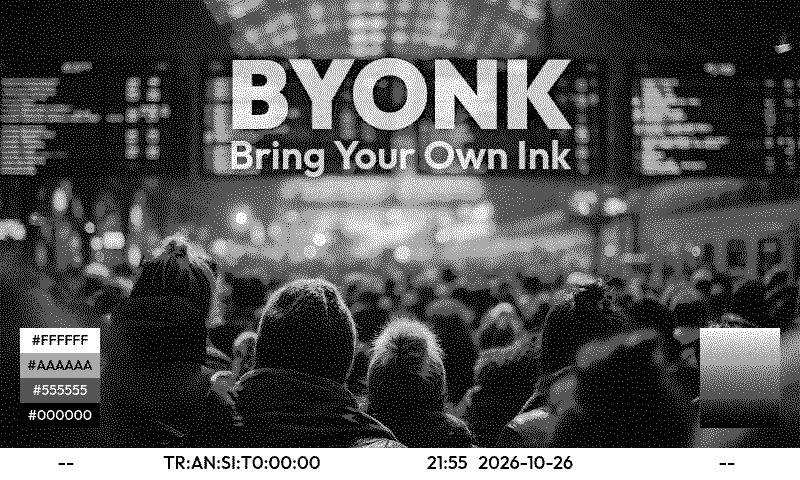
Result on e-ink display:
Next Steps
- Installation Guide - Set up Byonk on your server
- Architecture - Understand how Byonk works
- Create Your First Screen - Build a custom display
- API Reference - HTTP and Lua API documentation
Installation
Byonk can be installed via Docker container or pre-built binaries. All screens, fonts, and configuration are embedded in the binary, so it works out of the box with zero configuration.
Quick Start
# Just run it - embedded assets work immediately
docker run --pull always -p 3000:3000 ghcr.io/oetiker/byonk:latest
That’s it! The server is running with embedded default screens.
Docker (Recommended)
Zero-Config Mode
The simplest way to run Byonk:
docker run -d --pull always \
  --name byonk \
  -p 3000:3000 \
  ghcr.io/oetiker/byonk:latest
This uses embedded screens, fonts, and config - no volumes needed.
Customization Mode
To customize screens and config, mount volumes and set environment variables:
docker run -d --pull always \
  --name byonk \
  -p 3000:3000 \
  -e SCREENS_DIR=/data/screens \
  -e FONTS_DIR=/data/fonts \
  -e CONFIG_FILE=/data/config.yaml \
  -v ./data:/data \
  ghcr.io/oetiker/byonk:latest
On first run with empty directories, Byonk automatically seeds them with embedded defaults.
Available tags:
latest- Latest stable release0- Latest v0.x release0.4- Latest v0.4.x release0.4.0- Specific version
Docker Compose
Zero-config:
services:
  byonk:
    image: ghcr.io/oetiker/byonk:latest
    ports:
      - "3000:3000"
    restart: unless-stopped
With customization:
services:
  byonk:
    image: ghcr.io/oetiker/byonk:latest
    ports:
      - "3000:3000"
    environment:
      - SCREENS_DIR=/data/screens
      - FONTS_DIR=/data/fonts
      - CONFIG_FILE=/data/config.yaml
    volumes:
      - ./data:/data  # Empty on first run = auto-seeded
    restart: unless-stopped
Pre-built Binaries
Download the latest release from GitHub Releases.
Available platforms:
x86_64-unknown-linux-gnu- Linux (Intel/AMD 64-bit)aarch64-unknown-linux-gnu- Linux (ARM 64-bit, e.g., Raspberry Pi 4)x86_64-apple-darwin- macOS (Intel)aarch64-apple-darwin- macOS (Apple Silicon)x86_64-pc-windows-msvc- Windows
Extract and run:
tar -xzf byonk-*.tar.gz
./byonk
This will show you a short usage message. If you want to directly test the server, try
./byonk serve
By default, Byonk listens on 0.0.0.0:3000 and uses embedded assets.
Extracting Embedded Assets
# See what's embedded (built-in screens, examples, fonts, config)
./byonk init --list

# Extract everything for editing
./byonk init --all

# Extract specific categories
./byonk init --screens
./byonk init --config
./byonk init --screens initializes SCREENS_DIR as your writable local
screen repo: it writes a byonk-screens.yaml manifest there (nothing else).
It does not copy the built-in or example screens — those stay embedded
and read-only (built-ins) or get seeded separately (examples), as described
in Screen Repos Section and
Screen Authoring. Use ./byonk init --config to get an
editable config.yaml to start from.
Directory Structure (When Customizing)
When using external files (via env vars), Byonk expects:
data/
├── config.yaml              # Device and screen configuration
├── screens/                 # Your writable `local` screen repo
│   ├── byonk-screens.yaml   # Repo manifest (name, description, author, license)
│   ├── my-clock/            # One screen = one folder
│   │   ├── meta.yaml        # Title, description, params schema
│   │   ├── script.lua       # Data-fetch logic
│   │   └── screen.svg       # Tera template
│   └── ...
├── examples/                # Shipped worked examples, seeded once (read-only; copy to `local` to edit)
│   ├── byonk-screens.yaml
│   ├── hello/
│   └── ...
└── fonts/                   # Custom fonts (optional)
    └── Outfit-Variable.ttf
See Screen Authoring for how the built-in, example, and your-own-screens layers relate to each other.
Environment Variables
| Variable | Default | Description |
|---|---|---|
BIND_ADDR | 0.0.0.0:3000 | Server bind address |
CONFIG_FILE | (embedded) | Path to configuration file |
SCREENS_DIR | (embedded) | Your own writable screen repo (auto-registers as the local handle) |
FONTS_DIR | (embedded) | Directory containing font files |
EXAMPLES_DIR | <SCREENS_DIR>/../examples | Where the shipped worked-example screens are seeded (auto-registers as the examples handle). Only takes effect once — an existing, non-empty directory is left alone. |
BYONK_DEV_USERNAME | (unset) | Login name for the screen editor at /dev/. Both this and the password must be set, or /dev/ stays a 404. |
BYONK_DEV_PASSWORD | (unset) | Password for the above. |
When path variables are not set, Byonk uses embedded assets (no filesystem access).
On first run, an empty/missing SCREENS_DIR gets seeded with only a
byonk-screens.yaml manifest (no screen files — byonk-builtin’s default +
calibration/* screens stay embedded-only and are never copied there). An
empty/missing examples directory separately gets the full shipped examples
set (worked examples like hello, gphoto, swiss-departure-board) plus its
own manifest. Both seed once; your edits and deletions afterward are never
touched again.
Docker note: the default EXAMPLES_DIR is derived as a sibling of
SCREENS_DIR (<SCREENS_DIR>/../examples), one level up from the directory
you actually mount. If you only mount SCREENS_DIR itself (e.g. -v ./screens:/screens -e SCREENS_DIR=/screens), the derived examples directory
falls outside any mounted volume — ephemeral, and unwritable on a read-only
container root. Either mount a parent directory and point SCREENS_DIR at a
subdirectory of it (as in the example above, -v ./data:/data -e SCREENS_DIR=/data/screens, which keeps the derived /data/examples inside
the same volume), or set EXAMPLES_DIR explicitly to a path you’ve mounted.
Config vs. seeding: if screen_repos.examples is set explicitly in
config.yaml, it wins for registration — the examples handle resolves to
that configured path instead of the auto-registered EXAMPLES_DIR/derived
default. Seeding (writing the shipped example files to disk) is unaffected by
this and always follows EXAMPLES_DIR/the derived default, since seeding runs
before config.yaml is parsed. In practice this only matters if you both
override screen_repos.examples.path and still want the shipped examples
copied to disk — in that case, set EXAMPLES_DIR to the same path.
Running as a Service (systemd)
Create /etc/systemd/system/byonk.service:
[Unit]
Description=Byonk Content Server
After=network.target

[Service]
Type=simple
User=byonk
WorkingDirectory=/opt/byonk
ExecStart=/opt/byonk/byonk serve
Environment="BIND_ADDR=0.0.0.0:3000"
Restart=always
RestartSec=5

[Install]
WantedBy=multi-user.target
Enable and start:
sudo systemctl enable byonk
sudo systemctl start byonk
CLI Commands
Status (Default)
Running byonk without arguments shows current configuration:
./byonk
Server
Start the HTTP server:
./byonk serve
Render
Render a screen directly to PNG (useful for testing):
./byonk render --mac "00:00:00:00:00:00" --output test.png
Options:
| Option | Description |
|---|---|
-m, --mac | Device MAC address (required) |
-o, --output | Output PNG file path (required) |
-d, --device | Device type: “og” (800x480) or “x” (1872x1404). The CLI has no live device report, so this also stands in for the reported Model: a panel whose match: equals it is used for a device without panel: |
--board | The Board string a real device would report (e.g. trmnl_x), matched against panel match: ahead of the Model. Together with --device it lets byonk render pick the same panel /api/display does |
-b, --battery | Battery voltage for testing (e.g., 4.12) |
-r, --rssi | WiFi signal strength for testing (e.g., -67) |
-f, --firmware | Firmware version string for testing |
--use-actual | Draw the output PNG in the device’s measured colours instead of the spec colours it sends to the panel. Defaults to on whenever the device’s panel has a calibration; this only changes how the PNG is drawn, never the dithering. Accepts a bare flag (--use-actual means true) or an explicit --use-actual true/--use-actual false. true with no calibration is a no-op, not an error. |
Example with all device info:
./byonk render -m "AC:15:18:D4:7B:E2" -o test.png \
  --battery=4.12 --rssi=-67 --firmware="1.2.3"
Note: Use
=syntax for negative numbers (e.g.,--rssi=-67).
Init
Extract embedded assets for customization:
./byonk init --all        # Extract everything
./byonk init --screens    # Initialize SCREENS_DIR as your writable `local` repo (manifest only)
./byonk init --list       # List embedded assets
Verifying Installation
- Open
http://your-server:3000/health- should return “OK” - Open
http://your-server:3000/swagger-ui- shows API documentation - Point a TRMNL device to your server to test
Configuring Your TRMNL Device
To use Byonk with your TRMNL device, configure the device to point to your server instead of the default TRMNL cloud service.
Note: Refer to TRMNL documentation for instructions on configuring a custom server URL.
Next Steps
- Configure your screens and devices
- Create your first screen
Byonk in Home Assistant
Byonk runs as a Home Assistant app: the same prebuilt ghcr.io/oetiker/byonk
image, storing its configuration in a persistent, editable folder and exposing
Byonk on a host port so your TRMNL devices can reach it directly on your LAN.
It brings its own integration with it — device onboarding, entities, and
automatic token provisioning — so there is nothing separate to install.
Requires a Supervisor-managed install (Home Assistant OS or Supervised) — the integration controls the app via the Supervisor API and will not work on plain Home Assistant Core or Container.
Apps were called add-ons before Home Assistant 2026.2 — same thing, new name.
Install
- In Home Assistant, go to Settings → Apps → App store.
- Open the ⋮ menu, choose Repositories, add
https://github.com/oetiker/byonkand select Add. - Find Byonk in the store, select Install, then Start.
- Byonk asks you to restart Home Assistant. Do that (Settings → System → Restart).
- After the restart, a Byonk card is waiting in Settings → Devices & Services. Select Add.
That is the whole setup. Byonk generates its own management token, and no token or password is ever asked of you.
Point your TRMNL device at Byonk
The app publishes Byonk on host port 3000. Set your TRMNL device’s server
to http://<your-home-assistant-host>:3000.
Onboarding a device
Byonk ships with no devices configured — Home Assistant is the source of truth. When a TRMNL device boots for the first time, it contacts Byonk and displays a registration code on its e-ink screen while waiting to be claimed.
A Discovered card for the new device appears automatically in Settings → Devices & Services.
- Click Add on the Discovered card.
- In the Set up TRMNL device form, choose the screen you want displayed on the device. Optionally set a dither algorithm and panel type.
- If the chosen screen declares parameters (via the
paramsschema in itsmeta.yaml), a second form appears to fill in those values. - Submit — the device is now an HA device with its own config entry, and its screen mapping is written to Byonk. The device starts fetching its assigned screen on the next refresh.
Note: What an un-onboarded (or registered-but-unassigned) device displays on its e-ink panel is controlled by the Byonk Default device’s Screen select (see Entities below) — change it there any time, live, no restart needed.
Removing an HA device (via Settings → Devices & Services → Delete) removes its mapping from Byonk. Byonk mappings that have no corresponding HA device are pruned automatically.
Entities
Hub device (Byonk Server)
| Entity | Type | Description |
|---|---|---|
| Registration enabled | Switch | Allow new TRMNL devices to register |
| Update screen repos | Button | Trigger an immediate refresh of all screen repos (see below) |
| Screen repo status (one per screen repo) | Sensor | Diagnostic sensor per non-builtin screen repo — see Monitoring screen repos below |
The remaining server-global settings — auth_mode and screen_repo_refresh_interval —
are not exposed as entities here; they’re edited in
Settings below (changes apply on app restart).
Byonk Default device
Alongside the hub, Byonk automatically creates a Byonk Default
device — no setup step needed. Its single Screen select entity sets the
screen assigned to byonk’s reserved devices.DEFAULT entry: the screen shown by
every un-onboarded device (with its pairing code) and by any registered device
with no screen of its own. Changes apply live, no restart required.
Per-device entities (one device per TRMNL)
| Entity | Type | Description |
|---|---|---|
| Battery voltage | Sensor | Battery voltage (V) |
| Signal strength | Sensor | Wi-Fi RSSI (dBm) |
| Last seen | Sensor | Timestamp of last check-in |
| Firmware version | Sensor | Firmware version string |
| Screen preview | Camera | Picture of what the panel is showing, rendered by Byonk. It sits in the Sensors card; click it for a full-size view. |
| Refresh preview | Button | Re-render the screen preview now (see Screen Preview) |
| Preview dithering | Switch | On: the dithered image the panel receives. Off: the screen before dithering, in full color. Affects the preview only |
| Preview measured colors | Switch | On: the measured colors a calibration says the panel really produces. Off: the spec colors byonk sends to it. Affects the preview only |
| Model | Sensor | Verbatim Model header reported by the device |
| Screen | Select | Active screen assigned to this device |
| Dither | Select | Dither algorithm override |
| Panel | Select | Panel profile override |
| Refresh interval | Number | Per-device refresh interval in seconds (0 = no override). Precedence: screen’s Lua refresh_rate > this override > screen’s static default |
| Screen parameter (one per param) | Text / Number / Switch / Select | Each parameter declared in the current screen’s parameter schema (the params block in its meta.yaml) appears as its own entity in the Controls card (type mapped from the schema: string→Text, int/float→Number, bool→Switch, enum→Select). Changes apply instantly. The set of entities updates automatically when you assign a different screen to the device. |
Editing device settings
To change the screen for an already-onboarded device, use the Screen select entity on the device card. To adjust dither algorithm or panel type, use the Dither or Panel select entities.
To update the per-screen parameters, use the live entities in the device’s Controls card — each parameter of the current screen appears as its own Text, Number, Switch, or Select entity and applies instantly. The set of parameter entities updates automatically when you change the device’s screen.
Device naming: the device’s name is owned by Home Assistant. Rename the device the usual way (device card → pencil icon) and byonk will mirror the name automatically when you rename the device in Home Assistant. No changes are needed in byonk’s config directly.
Screen preview
Each device page shows a Screen preview camera: a picture of what that device’s panel is displaying, rendered by Byonk from the device’s own screen, parameters, panel profile and dither settings. Change the Screen select and the picture follows, so you can see the effect of a setting without walking over to the device.
The Byonk Default device has one too — that is the screen every un-onboarded or unassigned device shows.
It costs nothing while you are not looking at it. Home Assistant never polls a camera; frames are only pulled while a browser has the picture open. Byonk in turn keeps the rendered image and only re-renders when the device’s configuration changes or the screen’s own refresh rate elapses, so an open device page does not turn into a render loop or hammer whatever APIs the screen’s script calls.
That last rule has one consequence worth knowing: a screen whose data moves on its own — a clock, a weather forecast — can sit still in the preview while the panel has moved on. Press Refresh preview to force a fresh render.
A screen that fails to render shows the error image the panel itself would display, rather than an empty box.
What the preview shows
Two switches on the device page change how the preview is drawn. Neither changes what the device displays — they are Home Assistant’s own view settings, stored on the device’s config entry, and nothing is written back to Byonk’s device configuration.
Preview dithering — on by default. Off returns the screen before dithering: a full-color rasterization with no palette restriction. That is the version to look at when you are checking a layout, since dithering at card size obscures fine detail. Turn it back on to judge how the screen will actually reproduce on e-ink.
Preview measured colors — on by default. Byonk draws the palette in the measured colors a panel calibration says the panel really produces, which is what makes the preview look like the physical device rather than like an idealised screen. Off draws the spec colors Byonk sends to the panel instead. With no calibration configured the two are the same. This switch has no effect while Preview dithering is off, because an undithered render has no palette to map.
Note: the preview is rendered at the panel’s own resolution and scaled to fit the card. E-ink dither patterns are fine-grained, so some of that texture is lost at card size — click the picture to see it full size.
Settings
| Option | Default | Notes |
|---|---|---|
admin_token | (blank) | Leave blank. Managed automatically by Byonk. While blank, the management API is disabled — serving screens is unaffected. |
log_level | info | Server log verbosity (trace/debug/info/warn/error). |
auth_mode | api_key | Device authentication mode (api_key or ed25519). |
screen_repo_refresh_interval | 0 | Seconds between automatic screen repo refreshes (0 = disabled — refresh only via the Update screen repos button, see Entities above). |
screen_repos | (empty) | The screen repo registry: a repeatable list of handle / repo / pin (branch, tag, or commit SHA) / token (optional, for private repos) rows — add one row per remote screen repo. |
dev_username | (blank) | Only needed to open the screen editor from outside Home Assistant. The sidebar entry works without it. |
dev_password | (blank) | Password for the above. Leave both blank to keep the external route disabled. |
This Configuration tab is the source of truth for Byonk’s server-global
configuration — auth_mode, screen_repo_refresh_interval, and the screen repo
registry. Home Assistant Supervisor writes your changes to /data/options.json,
and Byonk reads them back on startup.
Changes apply on app restart — there is no live-reload for app options (this is a Home Assistant Supervisor limitation, not a Byonk one). Restart the app after saving to apply a change. The restart is quick, per-device screen mappings are unaffected (they’re Byonk’s own persisted state), and already-fetched screen repo checkouts are cached on disk, so unchanged screen repos are not re-fetched.
These settings are read-only over the admin API — attempts to change them there are rejected with a 409 pointing back to this Configuration tab. This tab is the only editor. Per-device screen/dither/panel assignment and the two live operational controls (the registration switch, the “Update screen repos” button) are unaffected and continue to work from the entities described in Entities above.
Configuration, screens and fonts
The app maps an editable, persistent folder to /config inside the container,
holding config.yaml, screens/ (your writable local screen repo),
examples/ (the shipped worked-example screens, seeded once so you can read,
run, and fork them), and fonts/. Edit these with the File editor or
Studio Code Server app. Empty folders are seeded with the embedded
defaults on first start — see Screen Authoring for what gets
seeded where. Byonk does not watch config.yaml for changes made outside its
own writers, so an edit made this way — through the File editor, Studio Code
Server, or any other route that touches the file directly — takes effect only
after you restart the app.
Note: the
screen_repos:section and theauth_mode/screen_repo_refresh_intervalsettings inconfig.yamlare ignored — those come from Settings above instead.config.yamlstill supplies everything else: per-device mappings (devices:, normally managed through the entities in Entities above), including the reserveddevices.DEFAULTentry that controls what an un-onboarded or unassigned device displays — set live from the Byonk Default device’s Screen select (see Entities above). That entity, and every other write this page describes, goes through Byonk’s own config writer, which reloads the file it just wrote — no restart needed there. Only a manual edit to the file itself, bypassing Byonk, needs one.
Screen editor
The Byonk entry in the Home Assistant sidebar opens Byonk’s built-in screen editor. No extra login is needed — Home Assistant has already authenticated you — and the entry is shown to administrators only.
If the entry is missing, open Byonk’s page under Settings and turn on Show in sidebar. Home Assistant keeps that switch off for a newly installed app regardless of what the app requests, so it is a one-time step rather than a sign that something is wrong.
The editor lists your screens, edits their Lua and SVG, saves with conflict
detection, previews the rendered result, and calibrates a panel’s measured
colours against the device itself. Here the only writable repo is screens/
(the local handle); the built-in screens, the shipped examples/ and
anything fetched from git are read-only, so fork one with Copy to
customize it.
See Dev Mode for the full tour.
To reach the editor from outside Home Assistant as well, set Dev UI
username and Dev UI password in Settings and open
http://<host>:3000/dev/. Leaving either blank keeps that external route
disabled; the sidebar entry works either way.
Screen repo cache persistence
If the screen_repos list in Settings above references remote
(git-backed) screen repos, their fetched git checkouts are cached on disk.
The app ships with SCREEN_REPOS_CACHE_DIR=/data/packages set in its manifest —
/data is the app’s automatically-persistent private storage — so the cache
survives restarts and rebuilds and screen repos are not re-fetched every boot. You
do not need to configure anything.
(For reference: when SCREEN_REPOS_CACHE_DIR is unset, byonk falls back to a
temp directory, so every fetched checkout would be lost and re-fetched on each
restart. The shipped app sets it, so this caveat does not apply here.)
Monitoring screen repos
Screen repos (see Screen Repos Section in the Configuration guide) are added, edited, and removed in Settings above — not here. This page’s entities give you read-only monitoring and one operational control:
Each screen repo gets a diagnostic status sensor (e.g.
sensor.byonk_disttest_status) on the Byonk Server hub device, whose state is
the fetch status (fetching, ready, error, …) and whose attributes include
the resolved commit (resolved_sha), last_fetched time, repo, pin, and any
error.
When a screen repo fails to fetch, Byonk raises a Home Assistant Repair issue (Settings → System → Repairs) carrying the fetch error, so a broken screen repo surfaces visibly rather than only in the status sensor’s attributes. The issue clears automatically once the screen repo fetches successfully again.
Press the hub device’s Update screen repos button to trigger an immediate
content refresh of every already-configured screen repo (a git pull on the existing
pin — equivalent to waiting for the screen_repo_refresh_interval set in
Settings above); the status sensors update once the fetch completes. This
button does not add, remove, or repin screen repos — only Settings
does that.
Re-authentication
If the admin token stored in the app options becomes invalid (for example after reinstalling the app), Home Assistant will raise a Re-authentication required notification. Click Re-authenticate, and Byonk will read or re-provision the token automatically — no manual input is needed.
Upgrading from an earlier install
If you installed Byonk through HACS before version 0.19.0, switch over in this order:
- Remove Byonk from HACS.
- Restart the Byonk app (Settings → Apps → Byonk → Restart). HACS’s removal deletes the integration files from disk; restarting the app writes them straight back, now managed by the app instead of HACS.
- Restart Home Assistant.
Doing the HACS removal and the Home Assistant restart back-to-back — without restarting the Byonk app in between — leaves Home Assistant with no byonk integration at all until the app is restarted. Your devices and settings are unaffected either way.
Configuration
Byonk embeds all screens, fonts, and configuration in the binary itself. This means you can run Byonk with zero configuration - it works out of the box.
For customization, Byonk uses a YAML configuration file to map devices to screens and to register screen repos.
Screens live in screen repos, not config entries
There is no screens: block in config.yaml. A screen is a folder inside a screen
repo — a directory tree with a byonk-screens.yaml manifest at its root, where every
folder containing a meta.yaml is a screen. Each screen folder holds three fixed-name files:
| File | Purpose |
|---|---|
meta.yaml | Title, description, byonk: engine compatibility, default refresh:, and the params: schema |
script.lua | Data-fetch logic |
screen.svg | Tera SVG template |
Byonk auto-discovers these screens; you reference one by its handle/path ref (e.g.
examples/swiss-departure-board). A minimal default + calibration/* set ships in the
embedded byonk-builtin screen repo; worked examples like swiss-departure-board and
hello ship separately in the embedded examples screen repo. See
Your First Screen for how to author one, and
Admin API for the screen repo/screen listing endpoints.
Configuration Structure
# Device-to-screen mapping
devices:
  "94:A9:90:8C:6D:18":                              # Device MAC address
    screen: examples/swiss-departure-board  # handle/path screen ref
    params:                                          # Parameters passed to script.lua
      station: "Olten, Bahnhof"
      limit: 8

  "AA:BB:CC:DD:EE:FF":
    screen: examples/hello
    params:
      name: "Zurich"

  # Reserved key: shown to every un-onboarded or unassigned device
  DEFAULT:
    screen: byonk-builtin/default

# Optional: register additional screen repos (see below)
screen_repos:
  byonk-builtin: {}                                  # the embedded built-in screen repo
Devices Section
Each device entry maps a MAC address to a screen:
| Property | Required | Description |
|---|---|---|
screen | Yes | Qualified handle/path reference of the screen to display |
name | No | A friendly name for the device, shown in the dev UI and Home Assistant |
params | No | Key-value pairs passed to the Lua script |
colors | No | Override display palette (comma-separated hex RGB, e.g. "#000000,#FFFFFF,#FF0000"; the leading # is optional) |
colors_actual | No | This one display’s measured colors, comma-separated hex RGB and index-parallel to colors. Overrides the panel profile’s calibration, for the one panel that drifted. |
dither | No | Dithering algorithm (see Dither Algorithms below) |
panel | No | Panel profile name (references panels section) |
max_error | No | Caps how much accumulated dithering error one pixel may carry (e.g. 1.0, the default). Lower values suppress error diffusion; very low values make saturated areas render flat. |
noise_scale | No | Blue noise jitter scale (e.g. 0.6). Controls noise modulation strength. |
chroma_clamp | No | Chroma clamp for dithering. Limits chromatic error propagation. |
strength | No | Error diffusion strength (0.0–2.0, default 1.0). Lower = less dithering texture. |
refresh | No | Refresh interval in seconds; 0 means “unset”. A screen’s own refresh_rate overrides it — see Settings order. |
gamut | No | Gamut-compression block: knee (where compression begins, as a fraction of the reachable chroma limit), amount (0 = none, 1 = full) and max_compression (a cap on the factor). |
final | No | The owner’s vetoes — the same settings as above, but nothing overrides them. See final:. |
temperature_profile | No | Refresh profile sent to the device: default (the default), a or b. See Ghosting below. |
maximum_compatibility | No | Ask the device to force a full refresh on every update. No effect on a TRMNL X. See Ghosting. |
min_png_bytes | No | Pad the served image up to this many bytes. Only useful on a TRMNL X; see Ghosting. |
These are the only keys a device entry accepts (plus the retired error_clamp, which is still read and reported). Anything else — a typo such as dithr:, or a key from another tool — stops byonk at startup with a message naming the device and the key, for example Invalid config.yaml: devices.kitchen: unknown field `dithr` . The same holds inside a device’s gamut: block and inside final: (including final.gamut). A YAML merge key (<<:) inside a device entry is an error as well: it was never applied.
If such a key reaches the file while byonk is running (a hand edit), byonk keeps running on the configuration it loaded, and every change made through the dev UI, the admin API or Home Assistant is refused with HTTP 400 and the same message, leaving your file untouched, until the key is fixed. A write whose own body carries an unknown key is refused with HTTP 422.
Ghosting
A faint image staying visible under the current one has two different causes, and only one of them is a settings problem. Tell them apart first:
- Refresh residue — the ghost is the screen shown a moment ago, and it changes as the content changes. The panel is refreshing too gently. The settings below help.
- Burn-in — the ghost is an image the panel held for days or weeks, and it stays put no matter what is drawn over it. No setting fixes this. See Burn-in below.
Both look the same at a glance, and both show up in mid-greys while staying invisible in solid black and solid white — those two are reached by any refresh, while the intermediate levels are the ones left half-set.
temperature_profile
devices:
  "1C:DB:D4:66:5B:50":
    screen: examples/hello
    temperature_profile: a
What this does depends on which panel is listening:
- TRMNL OG, Gen2 and the DIY kits pick their refresh waveform from look-up
tables indexed by temperature, because cold particles need longer, stronger
drive pulses. A non-
defaultprofile selects a different waveform, making the device drive harder and flash more than the room temperature calls for. - TRMNL X has no such table. Its firmware uses the value as a yes/no
switch: any non-
defaultprofile makes the panel run its long clearing sweep before every update instead of every eighth.aandbare therefore identical on an X — expect much heavier flashing, and a longer update.
Notes:
defaultis the value that ghosts. It stays the default so that upgrading changes nothing for devices that are fine.- Try
afirst, thenb. cis not accepted, even though it appears in TRMNL’s own documentation. Device firmware up to and including 1.8.14 never implemented it and silently treats it asdefault— which turns the extra clearing back off. Byonk refuses it and logs a warning rather than letting that happen unseen.- On a TRMNL X this needs device firmware 1.8.4 or newer.
maximum_compatibility
devices:
  "94:A9:90:8C:6D:18":
    maximum_compatibility: true
Asks the device to disable fast refresh and use a full-waveform refresh on every update. Updates flash visibly and take longer, and the firmware drops 2-bit support.
This does nothing on a TRMNL X. That model has no partial-refresh path to
switch off — it already does a full update every time — and its firmware
ignores the flag. Leave it unset there and use temperature_profile instead.
Unset is not the same as false: unset omits the field entirely and leaves the
device on its own default, whereas false would actively ask for fast refresh.
min_png_bytes
devices:
  "1C:DB:D4:66:5B:50":
    min_png_bytes: 102401
A TRMNL X chooses how carefully it renders greys from the size in bytes of the image it downloaded. Above 102 400 bytes it uses a 38-pass grey table; below it, a 9-pass one. Byonk’s images are usually far smaller than that, so an X never reaches the better table on its own.
Setting min_png_bytes pads the served image with a comment block that
decoders ignore, so the picture is unchanged to the pixel and only the byte
count grows. Use 102401 to just clear the threshold. Each update then takes
noticeably longer.
Values above 750 000 bytes are capped, and a warning says so. That is the largest image a TRMNL X accepts — asking for more would produce an image the device refuses, leaving the screen blank.
Pointless on any other model: their firmware refuses images above 90 000 bytes, so the larger table cannot be reached at all.
Burn-in
An e-ink panel that shows the same image for days or weeks keeps a trace of it. Pigment particles that sit in one position gradually stick to the capsule wall, and charge builds up in the material around the held pattern. The result is a bias in the panel itself rather than leftover ink from the last refresh, so driving the next refresh harder does not remove it — the settings above will not help, however far you push them.
Two ways to tell it apart from ordinary refresh residue: the ghost is an old image rather than the previous one, and it survives even when the panel visibly flashes black and white several times before drawing.
It usually fades, slowly, if the panel is made to swing fully between black and white many times — hours of cycling, not one refresh. Deep cases never clear completely. A warm room helps, because the particles move more freely.
The way to avoid it is to keep the picture moving. A screen whose pixels are nearly identical for weeks is what causes this, so prefer content that changes, and avoid leaving a device on one static screen indefinitely.
MAC Address Format
- Use uppercase letters with colons:
"94:A9:90:8C:6D:18" - The MAC address must be quoted (it’s a YAML string)
Parameters
The params section can contain any YAML values:
params:
  # Strings
  station: "Olten, Bahnhof"

  # Numbers
  limit: 8
  temperature_offset: -2.5

  # Booleans
  show_delays: true

  # Lists
  rooms:
    - "Rosa"
    - "Flora"
These are available in Lua as the global params table:
local station = params.station or "Default Station"
local limit = params.limit or 10
Dither Algorithms
The dither option selects which dithering algorithm to use. All algorithms perform color matching in perceptually uniform Oklab space and process pixels in gamma-correct linear RGB.
| Algorithm | Value | Description |
|---|---|---|
| Atkinson (default) | "atkinson" | Error diffusion (75% propagation). Good general-purpose default. |
| Atkinson Hybrid | "atkinson-hybrid" | Hybrid propagation: 100% achromatic, 75% chromatic. Fixes color drift on chromatic palettes. |
| Floyd-Steinberg | "floyd-steinberg" | Error diffusion with blue noise jitter. Smooth gradients, good general-purpose. |
| Jarvis-Judice-Ninke | "jarvis-judice-ninke" or "jjn" | Wide 12-neighbor kernel. Least oscillation on sparse chromatic palettes. |
| Sierra | "sierra" | 10-neighbor kernel. Good balance of quality and speed. |
| Sierra Two-Row | "sierra-two-row" | 7-neighbor kernel. Lighter weight than full Sierra. |
| Sierra Lite | "sierra-lite" | 3-neighbor kernel. Fastest error diffusion. |
| Stucki | "stucki" | Wide 12-neighbor kernel similar to JJN. |
| Burkes | "burkes" | 7-neighbor kernel. Good balance of speed and quality. |
For most screens, the default "atkinson" works well. Use "atkinson-hybrid" for chromatic palettes where Atkinson shows color drift. Use "floyd-steinberg" for photographic content. For sparse chromatic palettes (e.g. black/white/red/yellow), try "jarvis-judice-ninke" or "sierra" to reduce oscillation artifacts.
A device’s dither: is a default: a screen that names its own algorithm
overrides it, because only the script knows what it just drew. To make the
device’s choice stick regardless, put it in the device’s final: block — see
Settings order.
The Reserved DEFAULT Device
devices reserves one key, DEFAULT, whose screen is shown to any device that
isn’t listed elsewhere in devices — either because it hasn’t been onboarded yet
(new devices show their registration code on this screen while waiting to be
claimed) or because it’s registered but has no screen assigned. It’s a qualified
handle/path ref, set the same way as any other device’s screen:
devices:
  DEFAULT:
    screen: byonk-builtin/default
If devices.DEFAULT is omitted, byonk falls back to its embedded
byonk-builtin/default screen — a code-level fallback that always resolves, so
there’s no configuration state that leaves a device with nothing to show.
Screen Repos Section
Screens are distributed as screen repos. The screen_repos: block maps a short handle to
a screen repo source. The embedded byonk-builtin screen repo is always available; register
additional screen repos by repo and pin:
screen_repos:
  byonk-builtin: {}                                       # embedded built-in (always present)
  weather:      { repo: https://github.com/acme/screens, pin: v1.4.0 }
  weather-beta: { repo: https://github.com/acme/screens, pin: v2.0.0 }  # same repo, different pin
  private:      { repo: https://github.com/acme/secret, pin: v1.0.0, token: ${GITHUB_TOKEN} }
  drafts:       { path: /data/drafts }                    # writable local directory
| Property | Required | Description |
|---|---|---|
repo | No | Source git repo, as a full URL with a scheme — https://…, git://…, ssh://…, scp-style git@host:owner/repo, or file:///path for a local repo. A schemeless value like github.com/acme/screens is rejected (it would otherwise be read as a local path). Mutually exclusive with path. Omit both for the embedded built-in. |
path | No | A writable local directory to register as this handle, as an alternative to a git-fetched repo. Mutually exclusive with repo. Unlike repo-backed screen repos, path-backed ones can be written to (see Screen Authoring). |
pin | No | Commit sha, tag, or branch to fetch. Only meaningful with repo. |
token | No | Auth token for private repos (redacted in read APIs). Only meaningful with repo. |
A screen ref’s first segment is the handle: weather/forecast resolves the forecast screen
in the weather screen repo. Registering the same repo under two handles at different pins
lets you run two versions side by side.
Auto-registered local and examples handles
Two handles auto-register from filesystem paths, without needing a
screen_repos: entry — unless you add one yourself, which always wins:
local—SCREENS_DIR, your own writable screen repo.examples— the shipped worked-example screens, seeded once to<SCREENS_DIR>/../examplesby default (override with theEXAMPLES_DIRenv var). See Installation for the env vars and the seeding-vs-registration precedence note (an explicitscreen_repos.examplesconfig entry wins for registration, but seeding always followsEXAMPLES_DIR/the derived default, not the configured path).
See Screen Authoring for how the built-in, example, and your-own-screens layers fit together, and how to fork a read-only screen into a writable one.
Device Registration
Byonk supports optional device registration for enhanced security. When enabled, new devices must be explicitly approved before they can display content.
registration:
  enabled: true

devices:
  # Register using the code shown on the device screen
  "ABCDE-FGHJK":
    screen: examples/swiss-departure-board
    params:
      station: "Olten"
How It Works
- New device connects - Shows the
devices.DEFAULTscreen with a 10-character registration code - Admin reads code - The code is displayed in 2x5 format on the e-ink screen
- Admin adds code to devices - Add the code (hyphenated format) to the
devicessection - Device refreshes - Now shows the configured screen
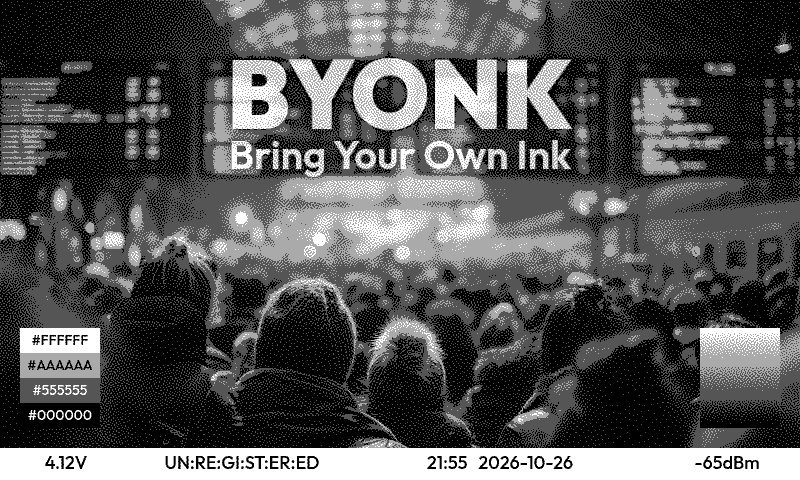
Note: The registration code is derived from the device’s API key via a hash function. This means:
- Devices keep their existing API key (including TRMNL-issued keys) - no WiFi reset required
- The same API key always produces the same registration code
- The config shows only the derived code, not the actual API key
Registration Settings
| Property | Required | Description |
|---|---|---|
enabled | No | Enable device registration (default: true) |
There is no separate registration screen setting — the screen shown to a new,
unregistered device is the same devices.DEFAULT screen described in
The Reserved DEFAULT Device above.
Registration Code Format
- 10 uppercase letters displayed in 2 rows of 5:
A B C D E/F G H J K - Written in config as hyphenated:
"ABCDE-FGHJK" - Uses unambiguous letters only (excludes I, L, O)
- Can be used interchangeably with MAC addresses in the
devicessection - Deterministic: same API key always produces the same code
Example
registration:
  enabled: true

devices:
  # By registration code (read from device screen)
  "ABCDE-FGHJK":
    screen: examples/swiss-departure-board
    params:
      station: "Olten"

  # By MAC address (found in logs)
  "AA:BB:CC:DD:EE:FF":
    screen: examples/hello
Custom Registration Screen
The registration code is available to the devices.DEFAULT screen as device.registration_code and device.registration_code_hyphenated. That screen’s screen.svg can conditionally show it:
{% if device.registration_code %}
<text>Register: {{ device.registration_code_hyphenated }}</text>
{% endif %}
See Device Mapping for more details.
Authentication Mode
Byonk supports optional Ed25519 cryptographic authentication for devices. When enabled, devices use Ed25519 signatures instead of plain API keys.
auth_mode: ed25519 # or "api_key" (default)
The auth_mode setting controls what /api/setup tells devices. The /api/display endpoint always accepts both authentication methods, so existing devices continue to work during migration.
Ed25519 Flow
- Device calls
GET /api/timeto get the server timestamp - Device signs
timestamp_ms (8 bytes BE) || public_key (32 bytes)with its Ed25519 private key - Device sends
X-Public-Key,X-Signature,X-Timestampheaders along with the normalAccess-TokenandIDheaders - Server verifies the signature and checks the timestamp is within ±60 seconds
Settings
| Property | Default | Description |
|---|---|---|
auth_mode | api_key | Authentication mode advertised to devices (api_key or ed25519) |
Hot Reloading
Byonk loads a screen’s script.lua and screen.svg fresh on every request. You can edit
those files without restarting the server.
However, config.yaml is only loaded at startup. Changes to device mappings, the screen repo
registry, or other settings require a server restart (or use the Admin API,
which hot-reloads after writes).
Example: Complete Configuration
# Byonk Configuration

devices:
  # Kitchen display - bus departures
  "94:A9:90:8C:6D:18":
    screen: examples/swiss-departure-board
    params:
      station: "Olten, Südwest"
      limit: 8

  # Office display - room booking (webscrape example)
  "AA:BB:CC:DD:EE:FF":
    screen: examples/webscrape
    params:
      room: "Rosa"

  # Lobby display - different bus stop
  "BB:CC:DD:EE:FF:00":
    screen: examples/swiss-departure-board
    params:
      station: "Olten, Bahnhof"
      limit: 6

  # Reserved key: shown to every un-onboarded or unassigned device
  DEFAULT:
    screen: byonk-builtin/default
Panels Section
Panel profiles define the physical characteristics and measured colors of your e-ink displays. They are used for accurate dithering — the ditherer models what the panel really displays, producing better output.
panels:
  trmnl_og_4grey:
    name: "TRMNL OG (4-grey)"
    match: "trmnl_og_4grey"
    width: 800
    height: 480
    colors: "#000000,#555555,#AAAAAA,#FFFFFF"
    colors_actual: "#383838,#787878,#B8B8B0,#D8D8C8"

  trmnl_og_4clr:
    name: "TRMNL OG (4-color)"
    match: "trmnl_og_4clr"
    width: 800
    height: 480
    colors: "#000000,#FFFFFF,#FF0000,#FFFF00"
    colors_actual: "#303030,#D0D0C8,#C04040,#D0D020"
Panel Properties
| Property | Required | Description |
|---|---|---|
name | Yes | Human-readable display name |
match | No | Exact string match against firmware Board header for auto-detection |
width | No | Display width in pixels |
height | No | Display height in pixels |
colors | Yes | Official palette colors (comma-separated #RRGGBB; the leading # is optional) |
colors_actual | No | Measured/actual colors the panel really displays |
dither | No | Per-panel dither algorithm and tuning defaults (see below) |
Panel Dither Defaults
Panels can carry a default dither algorithm and default tuning values that apply to all devices using that panel. This avoids repeating the same settings in every device config entry.
panels:
  trmnl_og_4clr:
    name: "TRMNL OG (4-color)"
    colors: "#000000,#FFFFFF,#FF0000,#FFFF00"
    colors_actual: "#303030,#D0D0C8,#C04040,#D0D020"
    dither:
      algorithm: floyd-steinberg   # the panel's default algorithm
      max_error: 1.0         # flat default for all algorithms
      noise_scale: 5.0
      floyd-steinberg:          # per-algorithm override
        max_error: 0.8
        noise_scale: 4.0
      atkinson:
        max_error: 1.2
The dither section supports:
algorithm: the panel’s default dither algorithm. It is the panel rung ofditherin the settings order: it beats byonk’satkinsonfallback and loses to the device, the screen, the device’sfinal:block and a live override. Leave it out and the panel picks no algorithm.- Flat keys (
max_error,noise_scale,chroma_clamp,strength): default values for all algorithms - Algorithm sub-sections: per-algorithm overrides that take priority over flat defaults
Resolution within a panel: per-algorithm value > flat default > None. The
algorithm is resolved first; the sub-section used is the one for the algorithm
that won, whichever rung chose it. A panel’s own algorithm therefore brings
its own sub-section with it, and a screen that picks another algorithm gets
that algorithm’s sub-section instead.
error_clampwas renamed tomax_errorand is now ignored.Up to 0.17.x the knob was called
error_clampand it capped the resulting pixel value. Since 0.18.0 it caps the accumulated error, which moved the useful range from around0.1to around1.0. A pre-0.18.0 value still parses under the new meaning and still renders — flat, with saturated areas collapsing to a single ink.Because the name could not keep its old meaning, it changed with it.
error_clampis read, reported at startup with the exact path to edit, and then discarded. Delete the key to take the default, or setmax_errorif you have retuned it. The warning looks like:WARN panels.reterminal_e1004.dither.sierra-lite.error_clamp: 0.11 — `error_clamp` was removed in 0.20.0 and is IGNORED. ...
Algorithm names accept aliases (e.g. jjn for jarvis-judice-ninke).
A panel’s defaults are one rung of the ladder every render setting walks — see Settings order below for the whole of it.
Panel Assignment
Panels are assigned to devices in three ways (highest priority first):
- Device config
panel— explicit assignment in thedevicessection - Board header auto-detection — firmware sends a
Boardheader, matched against panelmatchpatterns - None — firmware palette header or system defaults
devices:
  "ABCDE-FGHJK":
    screen: examples/swiss-departure-board
    panel: trmnl_og_4grey  # explicit panel assignment
When a panel has colors_actual, the ditherer uses these measured values to model what the display really shows. Use dev mode to calibrate and find the right measured colors for your panel.
Settings order: defaults and vetoes
Every render setting resolves in one order, and every render path uses it. There is one ladder, highest first:
| Priority | Source | What it is |
|---|---|---|
| 1 (highest) | Override | A live dev-UI experiment, or a caller’s explicit request (POST /dev/api/render, the MCP render_screen tool). Never configuration. |
| 2 | The device’s final: block | The owner’s veto — “whatever the screen says, on this display, no”. |
| 3 | The screen’s Lua return values | The script is the only participant that can inspect the content it is about to render. |
| 4 | The device, written directly under its key | The owner’s default — which a screen may override. |
| 5 | The panel profile | What the hardware is, shared by every device of that type. |
| 6 (lowest) | Fallback | Byonk’s own defaults, and the device’s own firmware headers. A hardware self-report is evidence, not policy. |
The settings on that ladder are colors, colors_actual, dither,
max_error, noise_scale, chroma_clamp, strength, gamut and refresh.
For dither, the panel rung is the panel’s dither.algorithm and the fallback
is atkinson. For the tuning numbers, the panel rung is the panel dither
defaults above and the fallback is the built-in
per-algorithm default; for colors the fallback is the firmware’s Colors
header and then byonk’s default palette; for refresh there is no panel rung,
and the fallback is the screen’s own meta.yaml refresh, or 900 seconds.
Byonk logs when a device’s refresh is displaced by a screen, so an operator
can see why their setting is inert. For the whole ladder at once — every
rung’s value, and whether it won, was outranked or was rejected — render
through POST /dev/api/render and read its X-Byonk-Resolution header, or ask
the device preview for it with
GET /api/admin/devices/{key}/preview?resolution.
final: — the owner’s veto
Settings written directly under a device are defaults: a screen may
override them, because the script is the only participant that can inspect
the content it is about to render. Settings under final: are vetoes:
nothing overrides them.
devices:
  "AA:BB:CC:DD:EE:FF":
    screen: local/weather
    panel: trmnl_x

    dither: floyd-steinberg    # a default — a screen may pick its own
    strength: 0.9              # a default
    colors_actual: '#1C5240,#00994D,#D8D8C8,#303030'   # this display's own measurement

    final:
      dither: atkinson         # a veto — no screen overrides this
      refresh: 1800            # this panel runs on a battery
final: accepts the same settings as the base rung — colors,
colors_actual, dither, max_error, noise_scale, chroma_clamp,
strength, refresh and gamut — and nothing else: an unrecognised key
there is a startup error naming the field, so a typo cannot silently do
nothing. The settings written directly under a device are just as strict; see
Devices Section.
final.refresh is the one way to hold a battery-powered display to an interval
the owner chooses: it replaces whatever the screen asked for, in either
direction, so a screen that wants a 60-second refresh gets 1800 seconds on the
device above.
Through the admin API or the MCP configure_device tool, final: merges field
by field — setting final.dither does not wipe final.strength — and a field
is removed with one dot: clear: ["dither"] removes the default,
clear: ["final.dither"] the veto, clear: ["final"] the whole block. A bare
name never touches final:.
Home Assistant. The integration’s Dither control writes
final.dither, because what it shows has to be what the device renders. A device last configured through an older integration holds a baredither:instead, so its Dither entity reads empty until you pick the value again. See the changelog.
Customization & File Locations
See Installation for embedded assets, environment variables,
the byonk init command, Docker volume mounts, and file locations.
Next Steps
Screen Authoring
This page explains where byonk’s screens actually come from, why some are editable and others aren’t, and how to turn a read-only screen into a starting point for your own.
Three source layers
Every screen ref (handle/path) resolves through a screen repo — a
directory tree with a byonk-screens.yaml manifest, where every folder
containing a meta.yaml is a screen (see
Screens live in screen repos, not config entries).
byonk ships three of these out of the box, and they play different roles:
| Layer | Handle | Writable? | What it’s for |
|---|---|---|---|
| Base include library | byonk-base-v1 | No (embedded) | Shared SVG layouts and components (base.svg, header.svg, footer.svg, …) that screens {% extends %} or {% include %} — see SVG Templates. It’s also a sandboxed Lua module namespace: require("byonk-base-v1/std") and similar from script.lua. Not a screen repo itself; you never reference it as handle/path for a screen, only inside {% include "byonk-base-v1/…" %} or require("byonk-base-v1/…"). |
| Built-in screens | byonk-builtin | No | A minimal, fixed set: default (the fallback screen for un-onboarded/unassigned devices) and calibration/* (panel calibration patterns). Always present, never changes shape. |
| Examples | examples | No | Worked, runnable samples (hello, mandelbrot, webscrape, gphoto, swiss-departure-board, a font demo) — seeded to disk once so you can read and run them. To change one, copy it into local first. |
Your own screens live in a fourth place: the local repo, described below.
It isn’t a shipped layer — it starts out empty (or with whatever you put
in it).
What makes a repo writable
Writability is a property of where a screen repo’s files live, not of its
name. A screen repo backed by files on disk under a directory byonk manages
(local, or any path:-configured repo — see below) is writable. The
seeded examples repo is the exception: byonk ships it, so it is read-only
(copy an example into local to change it). A screen repo embedded in the binary (byonk-builtin) or checked
out from git (repo:-configured, including the git-fetched form of
screen_repos entries) is read-only — git checkouts can be silently
replaced by the next fetch, so treating them as writable would risk losing
edits.
This is why the byonk-builtin handle can never be re-pointed at your own
files: it’s always the embedded set, wherever you run byonk.
However, watch out for a sharp edge this doesn’t protect you from:
SCREENS_DIR (your local repo) is also checked, file by file, whenever a
byonk-builtin screen is read — so a local screen that happens to reuse
a built-in’s exact folder name silently overrides that built-in’s files.
(This is per-file only: byonk-builtin’s set of screens is fixed by what’s
embedded in the binary, so your own screens are never listed under it — they
appear once, under local.) In
particular, don’t create local/default or local/calibration/color (etc.)
expecting them to be independent of byonk-builtin/default and
byonk-builtin/calibration/color — they aren’t; byonk-builtin/default is
the fallback screen shown to un-onboarded and unassigned devices, so
overriding it this way is easy to do by accident. Pick a different name for
your own screens (as in the examples on this page) and this never comes up.
Where your own screens live: local
Set SCREENS_DIR (or, for the Home Assistant app, use its /config/screens
folder) and byonk auto-registers it as a writable screen repo under the
handle local — no screen_repos: entry required. This is where you
put screens you author yourself: local/my-clock, local/hello from the
tutorial, and so on.
An empty or missing SCREENS_DIR is seeded once with just the
byonk-screens.yaml manifest that registers it — never with copies of the
built-in screens, which stay embedded-only. See
Environment Variables for the
seeding details.
Where examples land: EXAMPLES_DIR
The shipped example screens are seeded once to <SCREENS_DIR>/../examples
by default, and auto-register as the read-only examples handle — override
the location with the EXAMPLES_DIR environment variable (useful in Docker,
where the derived default may fall outside your mounted volume). See
Environment Variables for the full
seeding-vs-registration precedence rules.
The path: config variant
Beyond local, you can register any writable directory as a
named screen repo with screen_repos.<handle>.path:
screen_repos:
  drafts: { path: /data/drafts }
This is the writable counterpart to repo: (a git-fetched, read-only screen
repo): repo and path are mutually exclusive on the same entry. Use
path: when you want a second writable repo of your own — organized
separately from local — rather than a third layer for everyone.
Fork-to-edit
Because byonk-builtin and any repo:-configured screen repo are
read-only, the way to customize one of their screens is to copy it into a
writable repo and edit the copy — the original keeps working for anyone
still referencing it, and your edits are safe from the next git fetch.
The quickest way is the built-in screen editor: select the screen, press Copy, and pick a writable repo to fork it into — see Dev Mode. It carries over every file in the screen’s folder, not just the core three.
You can also do it by hand: copy the screen’s meta.yaml, script.lua, and
screen.svg (and any other files in its folder) from the read-only repo’s
directory into local under a new name, then point a device’s
screen at the new handle/path. For example, to base a screen on
examples/hello:
cp -r <examples dir>/hello <SCREENS_DIR>/my-hello
then set screen: local/my-hello on a device.
Forking from an MCP client
You don’t have to copy files by hand. byonk exposes its screen-authoring core
(ScreenStore) over MCP, so an LLM client can do the whole loop for you. Point
your client at /mcp with the admin token as a bearer credential — see
MCP for the endpoint and authentication details — then:
copy_screenforks any screen, including the read-only builtins and examples, into a writable repo. Pass the destination repo handle asto_handle(e.g.local) and the copy’s path inside that repo asto_path(e.g.my-hello), yieldinglocal/my-hello.to_pathis a directory path, not a title — the copy keeps the source’smeta.yaml, so retitle it by writing that file.read_screen_file/write_screen_fileread and editmeta.yaml,script.luaandscreen.svg. Writes take an optionalif_matchetag so concurrent edits don’t clobber each other.validate_screenandrender_screencheck your work;render_screenreturns the actual dithered PNG plus the script’slog,dataanderror, which is the fastest way to debug a script.configure_devicepoints a device at the result, and sets how it is rendered there — panel, dither algorithm and tuning, refresh interval.
list_screens and list_screen_repos report which handles are writable —
only those can be edited in place, so fork a builtin first.
Editing in the browser
Byonk also ships a web-based screen editor at /dev/: a screens list, a code
editor, and a live preview, plus the New / Copy / Delete operations and
renaming or moving a screen, over the same ScreenStore the MCP tools use. See Dev Mode for
how to enable and open it.
Next Steps
- Your First Screen — build a screen from scratch in
local - Configuration — the
screen_repos:section reference - Installation —
SCREENS_DIR,EXAMPLES_DIR, and seeding behavior
Authoring with an LLM (MCP)
Byonk exposes a Model Context Protocol endpoint at
/mcp. It lets an assistant like Claude Code list, read, create, edit, validate and
render screens on a running byonk — including one running inside Home Assistant —
entirely over the network. There is no filesystem access involved: no Samba share,
no SCREENS_DIR mount, no SSH. Every tool call goes through the same screen store
that backs the rest of byonk, so what the assistant sees and changes is exactly
what byonk itself will render and serve.
Prerequisite: an admin token
/mcp is gated by the same admin token as the Admin API. If no
token is configured, the endpoint doesn’t just refuse requests — it returns
404 Not Found, as if it didn’t exist. Set a token first:
config.yaml:admin.token: <your-secret>- environment variable
BYONK_ADMIN_TOKEN(takes precedence overconfig.yaml) - the Home Assistant app’s Options screen, which provisions the token automatically
See Admin API — Enabling the API for the full rules; they apply here unchanged.
Connecting
The endpoint is http://<host>:<port>/mcp — http://localhost:3000/mcp with byonk’s
default port, or http://homeassistant.local:3000/mcp for the Home Assistant
app. Transport is streamable HTTP, stateless, with plain JSON responses (no
server-sent-events framing to worry about). Authenticate with the token as a Bearer
credential:
Authorization: Bearer <your-secret>
With the Claude Code CLI:
claude mcp add --transport http byonk http://localhost:3000/mcp \
  --header "Authorization: Bearer <your-secret>"
Or as a JSON config block (the shape most MCP clients accept):
{
  "mcpServers": {
    "byonk": {
      "type": "http",
      "url": "http://localhost:3000/mcp",
      "headers": {
        "Authorization": "Bearer <your-secret>"
      }
    }
  }
}
Tools
Read
| Tool | What it does |
|---|---|
list_screens | List every screen this server can resolve, with its repo, title and whether it is writable. |
read_screen_file | Read one file inside a screen (meta.yaml, script.lua, screen.svg, or another asset). Binary files (not valid UTF-8) return no content — only the etag and binary: true. |
list_screen_repos | List the configured screen repositories: handle, kind, writability. |
list_devices | List known TRMNL devices: MAC, model, assigned screen. |
get_config | Read this server’s non-secret global configuration. |
Edit
| Tool | What it does |
|---|---|
write_screen_file | Write one file inside a screen, atomically (supports optimistic-concurrency if_match). UTF-8 text only — refuses to overwrite an existing binary asset. |
create_screen | Scaffold a new screen from the minimal starter (meta.yaml, script.lua, screen.svg). |
copy_screen | Fork any screen — including read-only builtins and examples — into a writable repo. |
rename_screen | Move a screen to a different path within its repo. Every device whose screen: named the old reference is pointed at the new one in config.yaml, in the same call, and the result lists them (rewritten_devices). When devices use the screen and the config is embedded or read-only (no CONFIG_FILE), the rename is refused and nothing moves. |
delete_screen | Delete a screen and every file in its directory. |
delete_screen_file | Delete one sibling asset from a screen directory. |
rename_screen_file | Rename one sibling asset inside a screen directory (the new name may include a subfolder). Refused when the target exists; meta.yaml, script.lua and screen.svg cannot be renamed or be the target. |
create_screen, copy_screen and rename_screen each take the screen’s
location inside a repo — path, to_path and new_path respectively. These
are directory paths (clock, or home/clock to nest), not display titles:
a new screen is always scaffolded as “New Screen” and a copy keeps the source’s
meta.yaml verbatim. Set the title by writing meta.yaml. The repo handle is
passed separately (local, never local/clock).
Binary assets (images, fonts, anything not valid UTF-8) can be read for their etag
but not their content, and cannot be written or overwritten over MCP at all —
write_screen_file refuses if the target already exists and is binary. Place binary
assets by another means (a writable local screen repo mounted via SCREENS_DIR, a
Samba share, or an EXAMPLES_DIR-seeded repo) and author text files around them.
Render
| Tool | What it does |
|---|---|
render_screen | Render a screen and return the dithered PNG plus diagnostics (log, data, error). |
validate_screen | Statically check a screen — meta.yaml, Lua, and template — without running it. |
render_screen shows what the panel will really look like by default: when measured
colours are available (from a named panel or from its own colors_actual argument), the
returned PNG is drawn in them. This changes only how the PNG is drawn, never the dithering
itself — a screen’s dithering targets measured colours whenever they resolve, regardless of
use_actual.
| Argument | Type | What it does |
|---|---|---|
panel | string, optional | Panel profile from panels:. Sets the render size to the panel’s width/height and supplies its colours and dither. An unknown name falls back to the model defaults and adds a warning to log. |
width, height | int, optional | Render size in pixels. Size chain, per axis: explicit width/height, then the panel’s size, then the model default (og 800x480, x 1872x1404). |
image | dithered | raw | both | none | Which image(s) to return. Default dithered. both returns the dithered image then the pre-dither one, each preceded by a text block naming it. |
image_max_width | int, optional | Downscale returned image(s) to at most this width, preserving aspect ratio. Never upscales. |
include_data | bool, default true | Return the table the script produced. |
include_svg | bool, default false | Also return the fully expanded SVG that was rasterized. |
data_uris | shorten | full | omit | How to treat embedded base64 data: URIs in data and the SVG. Default shorten. |
use_actual | bool, optional | Draw the returned PNG in the panel’s measured colours instead of the spec colours. Defaults to on whenever measured colours are available. true with nothing measured is a no-op, not an error. |
colors_actual | string, optional | Comma-separated hex, index-parallel to the palette (e.g. #0A0A0A,#E8E6E0,#A83A30). Lets you preview a calibration without adding a panel to config.yaml. It takes the cascade’s override rung, so since 0.20.0 it wins over a colors_actual returned by the screen’s own script — it used to lose to it, which left no way to preview a calibration against a screen that measures its own. A length mismatch is ignored (with a warning in the diagnostics’ log) rather than failing the render. |
Keeping the response small
render_screen is by far the most expensive tool here, and an LLM client pays
for every byte of it. Rendering the builtin default screen at 800×480 measures:
| Arguments | Response |
|---|---|
| (defaults) | 65 KB |
image_max_width: 200 | 25 KB |
image: "none" | 3 KB |
image: "none", include_data: false | 0.3 KB |
image: "raw" | 648 KB |
image: "both" | 710 KB |
image: "both", image_max_width: 300 | 171 KB |
Note the raw pre-dither image: it is full-colour and ten times the size of
the dithered one, so raw and both are worth pairing with image_max_width
unless you specifically need its exact pixels.
Screens that embed a photo are the extreme case. image_process returns the
picture as a base64 data: URI, which lands in data — serialised twice, as
text and as structured content — and again inside the SVG if you ask for it.
Rendering a 400×240 photo screen measures:
| Arguments | Response |
|---|---|
data_uris: "full" | 336 KB |
(defaults — shorten) | 17 KB |
include_svg: true, data_uris: "full" | 656 KB |
include_svg: true | 17 KB |
include_svg: true, image: "none" | 0.9 KB |
include_svg: true, image: "none", include_data: false | 0.7 KB |
Shortening is what makes include_svg usable at all: verbatim it doubles the
response to 656 KB, shortened it costs about 400 bytes.
Reading the expanded SVG
include_svg returns the markup resvg actually parsed — Tera rendered,
{% extends %} resolved, script data interpolated:
<svg xmlns="http://www.w3.org/2000/svg" width="800" height="480">
  <image x="0" y="0" width="400" height="240" href="data:image/png;base64,<159784 chars elided>"/>
</svg>
Reach for it when a screen renders but looks wrong and the template and the
data each look correct on their own — the bug is usually in how they combined.
validate_screen parses the SVG too, but statically, without the data, and it
returns no markup.
Five arguments let the caller decide what a render is worth:
image: "none"when you only need the script’slog,dataorerror— e.g. checking that an edit still runs. The images dominate the response.image_max_widthfor a layout check at a fraction of the cost. Be aware that resampling destroys the dither pattern, so a scaledditheredimage is fine for judging layout and tone and useless for judging dithering itself. Omit it when you need to inspect the real pixels.include_data: falsewhen you only want the picture and not the table that produced it.data_uristo keep embedded images out of the text entirely. The default already shortens them;omitalso drops the media type, andfullis only worth it when you genuinely need the bytes.
The diagnostics also include measured_source, naming which layer actually supplied the
measured colours for that render: render_opts (the colors_actual argument above),
device (the device’s own colors_actual or its final.colors_actual — new in 0.20.0),
script, panel.colors_actual, Measured-Colors header, or none.
Configure a device
| Tool | What it does |
|---|---|
configure_device | Set which screen a device shows and how that screen is rendered for it (use list_devices first to find its MAC). |
Every field except mac is optional, and an omitted field is left as it was, so
one call can change a single setting without disturbing the others. screen_ref
is only required the first time a device is configured.
Besides screen_ref the tool covers the device’s panel, dither algorithm,
colors palette, its own colors_actual measurement, script params,
refresh interval and name, the dither tuning knobs max_error,
noise_scale, chroma_clamp, strength and gamut, the final block, and
the panel-behaviour flags temperature_profile, maximum_compatibility and
min_png_bytes. It reaches the same settings as
PATCH /api/admin/devices/{key}, which spells two of them differently: there
the device is named by the URL rather than by mac, and its screen field is
screen rather than screen_ref.
colors_actual, gamut and final are new in 0.20.0. gamut was
configurable in config.yaml before, but no tool could reach it; colors_actual
on a device is new.
final is where a setting that a screen must not override goes. Everything
written directly on the device is a default: a screen that returns its own
dither, palette or tuning overrides it, because only the script can inspect
what it just drew. final holds the owner’s vetoes, and nothing overrides
those:
{ "mac": "44:1B:F6:83:93:38", "dither": "floyd-steinberg",
  "final": { "dither": "atkinson", "refresh": 1800 } }
final accepts exactly colors, colors_actual, dither, max_error,
noise_scale, chroma_clamp, strength, refresh and gamut, and merges
field by field like the rest of the call. See the configuration guide’s
Settings order for the
full ladder.
To take a setting back rather than change it, name it in clear:
{ "mac": "44:1B:F6:83:93:38", "clear": ["noise_scale"] }
A device setting overrides the panel’s, so removing it lets the panel’s own value apply again. Setting and clearing the same field in one call is refused.
A name in clear takes at most one dot, and a bare name never reaches
final: "dither" clears the device’s default, "final.dither" one field of
the veto block, and "final" the whole block. So clearing "dither" on a
device whose algorithm came from final changes nothing the renderer sees.
Names are checked before anything is written: an unknown dither algorithm, an
unconfigured panel, a malformed colors or colors_actual list, a negative
tuning number or a temperature_profile other than default/a/b all fail
with a message listing what is accepted — inside final too, where the message
names the field as final.dither. This matters most for dither — an
unrecognised algorithm name is not an error further down the pipeline, it just
renders Atkinson, so a typo used to be invisible until you looked at the panel.
Resources
Byonk also publishes its own authoring references as MCP resources, so the assistant works from this server’s actual rules instead of guessing from stale training data:
-
byonk://reference/lua-api— every global and function available toscript.lua. -
byonk://reference/svg-templates— thescreen.svgtemplating contract. -
byonk://reference/authoring— how screens, screen repos and writability fit together.Each reference is served as an index plus sections: reading the URI above returns the introduction and a list of the document’s
##sections, each with its own URI (byonk://reference/<doc>/<section>, e.g.byonk://reference/lua-api/time-functions) and the###headings inside it. Read the section you need rather than the whole document. -
byonk://schema/meta.yaml— the JSON Schema formeta.yaml, generated from the same type that parses it. -
byonk://examples/<screen path>— one resource per shipped example screen, with the fullmeta.yaml+script.lua+screen.svgsource, known to render on this server.
Have the assistant read byonk://reference/lua-api before it writes a script — it
describes exactly what’s injected into the Lua sandbox, which is not the same as
general-purpose Lua.
A workflow that works
list_screensto see what’s already there and which repos are writable.copy_screena builtin or an example into a writable repo as a starting point. The built-in screens (byonk-builtin) are read-only, so editing one in place fails; forking first is the way in. Theexamplesrepo is read-only too, so copy an example intolocalto change it; the original stays intact as a reference.- Edit with
write_screen_file. render_screenand read itsloganderror.linefields — Lua errors and template errors both surface there, pointing at what to fix.- Repeat steps 3–4 until it renders clean.
configure_deviceto put it on a real device.
Security note
The admin token this endpoint uses grants full screen-authoring rights — creating, editing and deleting screens — and device-configuration rights, not just read access. Treat it like any other credential.
/mcp also accepts requests for any Host header, unlike the loopback-only default
most MCP servers use — this is deliberate, so the endpoint can be reached at a LAN
hostname such as homeassistant.local:3000 rather than only localhost. That means
the Bearer token is the only thing standing between this endpoint and anyone who
can reach the port. Don’t expose it to the internet.
Dev Mode
Dev mode is Byonk’s built-in screen editor: a web page with three toggleable panels — Library, Edit and Preview — behind an icon rail on the left. Pick a screen to write, a panel profile to calibrate, or a device to configure; edit it; and watch the rendered result next to it. It also carries the display calibration tools: dither algorithm, tuning numbers and measured colours.
It is part of the normal server. There is no separate command to start: byonk serve mounts it, behind a login, at /dev/.
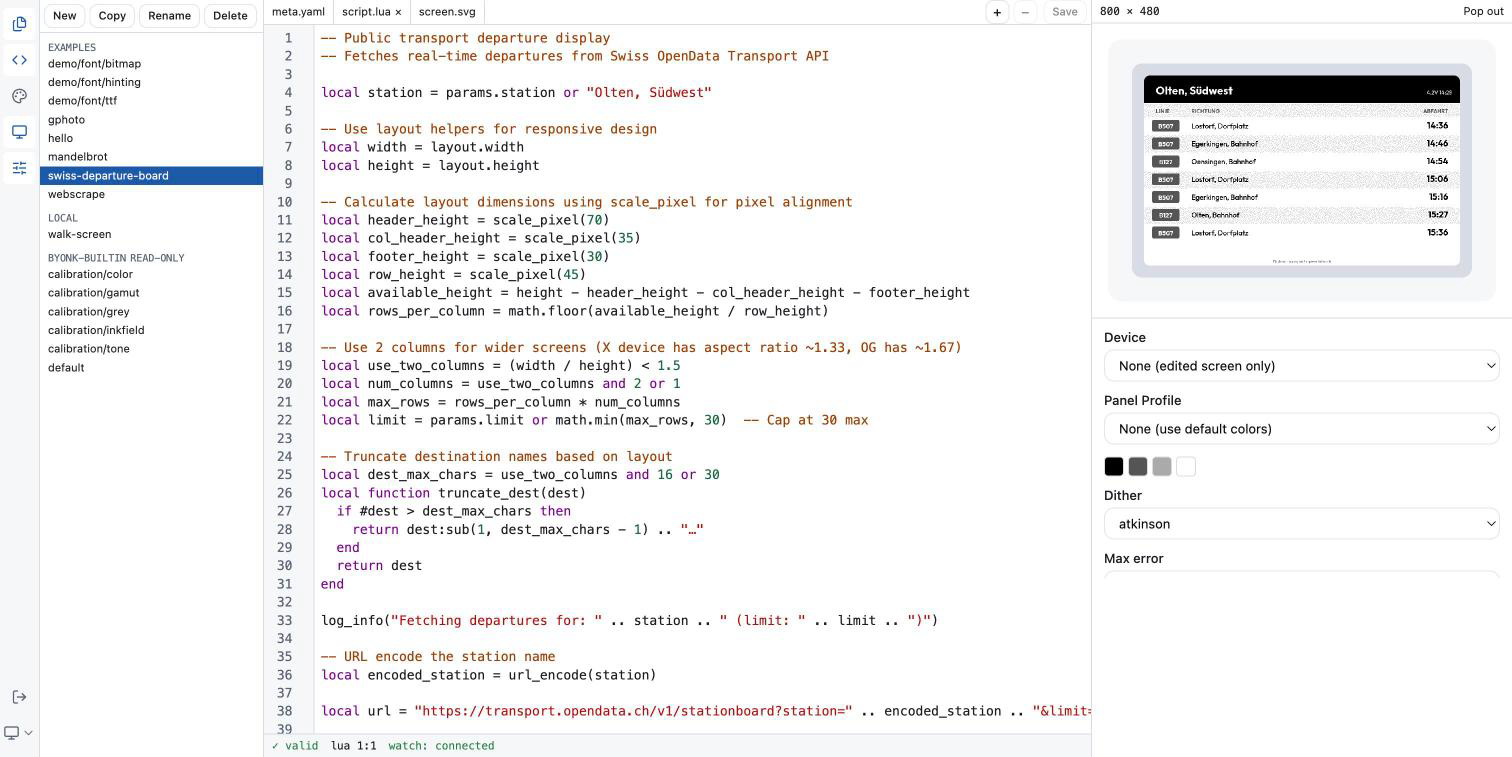
Opening the editor
Set a username and password
The editor is invisible until you give it credentials. With none configured,
the editor page and its login form both answer 404 Not Found, so a server
that was never meant to be edited over the web does not offer a login to guess
at. (The JSON API under /dev/api/ answers 401 rather than 404 in that
case.)
Set both halves, in any one of these places:
| Where | Keys |
|---|---|
| Environment | BYONK_DEV_USERNAME, BYONK_DEV_PASSWORD |
config.yaml | admin.dev_username, admin.dev_password |
| Home Assistant app | the Dev UI username / Dev UI password options |
admin:
  dev_username: tobi
  dev_password: a-long-random-string
The environment wins over config.yaml, exactly as BYONK_ADMIN_TOKEN does.
Both halves are required and a blank value counts as unset, so setting only a
username leaves the login disabled.
Log in
Open http://<host>:3000/dev/ in a browser and the login form appears. A bare
http://<host>:3000/dev is redirected to the same place.
A successful login sets a byonk_dev session cookie — HttpOnly, scoped to
/dev, good for 30 days. The key that signs it is generated fresh each time
the server starts, so restarting Byonk logs everyone out. A wrong username or
password is answered after a one-second delay, and the message never says
which of the two was wrong.
A Logout button sits at the foot of the icon rail, next to the theme
control, whenever there is a cookie session to end — click it (or POST /dev/logout yourself, if you want to script it) to clear the byonk_dev
cookie and return to the login form. The two routes below are not sessions to
end, and the button does not appear for either of them: signing in through
Home Assistant or the admin token has nothing for it to log out of.
The admin token also works
Any request carrying the admin token as a bearer credential is admitted without a login:
Authorization: Bearer <your admin token>
That is what lets a script or an MCP client reach /dev/api/* directly. See
Admin API for where the token comes from.
From the Home Assistant sidebar
The Home Assistant app publishes the editor as an Ingress panel: a Byonk entry in the sidebar opens it directly, with no second login. Home Assistant has already authenticated you, and the app trusts that route only for requests arriving from the Supervisor itself.
Inside Home Assistant you therefore need no dev username or password at all.
Set them only if you also want to reach the editor from outside Home
Assistant, on http://<host>:3000/dev/.
The three panels
An icon rail on the left carries one toggle button per panel: Library, Edit and Preview. Click an icon to show or hide that panel — every combination is allowed, including all three hidden at once. A panel you hide comes back at the size it had. Drag the divider between two open panels to resize them (or focus it and use the arrow keys); sizes are proportions of the window, so every panel keeps a usable width when the window narrows; a drag stops at a panel’s minimum width, and only the rail hides a panel. Panel sizes and which panels are shown are remembered between visits (the theme control described in Colour scheme, and Logout when a cookie session is open, both live at the foot of the same rail).
Everything in the work area is about one subject: a screen, a panel profile or a device. You choose it in Library; Edit changes it and Preview shows it.
App status bar. One line at the bottom of the window, below the three
panes (not to be confused with the Edit panel’s own watch: line). It shows
the most important message first: a save conflict, then an error from the
Library, Edit or Preview, then the live overrides that are still pushed to
devices. When more than one is waiting, +N shows how many; click it to
open the full list upward. The bar always keeps the same height, so the panes
above it do not move when a message appears or goes.
Library. Screens grouped by screen repo handle, then the panel profiles, the devices and the screen repos. Choosing an entry makes it the subject. A repo you cannot write to is labelled “read-only” next to its handle; you can still open any of its screens and read every file, and Copy one into a repo you can write to — but its files open read-only. New and Copy work on screens; Delete works on whatever is selected — a screen, a panel, a device or a screen repo. See New, Copy, Delete. A screen is renamed or moved in Edit’s Details block. Screens, Panels, Devices and Screen repos are collapsible sections, as in the VS Code explorer: click a section heading (or press Enter or Space on it) to fold it. All four headings stay visible, open sections share the height and scroll on their own, and the browser remembers which ones you folded. Selecting a subject elsewhere opens the section it lives in.
The + at the right of the Panels and Devices headings adds one
right away (in a narrow Library they are also in the More actions menu,
⋯, as Add panel and Add device). There is no form: the entry is
written to config.yaml at once, with the rest of the file, comments
included, left as it was, and becomes the subject, so you fill in its
details in Edit’s Details block (see The config editor).
- Add panel adds
new_panel(ornew_panel_2,new_panel_3, … when that is taken), named “New panel”. Its colours and size are copied from the panel you have selected; with no panel selected it gets#000000,#FFFFFFand no size. - Add device adds
new-device(ornew-device-2, …), named “New device”, showing the selected screen, or the first one.
Screen repos. Each row shows the repo’s handle and, under it, where its screens come from: the git URL, “built in” or “local folder”. A dot after the handle marks a repo that is fetching, offline or failed; a failed one is red, and hovering the dot shows the error. Choosing a repo opens it in Edit and renders nothing: Preview stays empty.
- Add screen repo (the + on the heading) works differently from
panels and devices: a git repo cannot exist without its URL, so nothing is
written yet. Edit opens an unsaved draft with the handle
new-repo; fill in the handle and the repo URL and Save adds it. Choosing another subject, or Discard, drops the draft. - Edit’s Details hold the Handle (fixed once the repo exists —
repos are not renamed), the Repo URL (it needs a scheme, such as
https://…,git@host:…orfile:///…), the Ref (a branch, tag or sha to fetch) and the Token for a private repo. The token is write-only: the field shows “set” when one is stored, stays empty to keep it, and Clear token removes it on Save. A refused Save — a handle that is taken, a URL without a scheme — shows the server’s reason under the header and keeps your draft. - The Status block shows the repo’s state, how many screens it has, the commit it resolved to, when it was last fetched and the last error. Update now fetches it again. A fetch runs in the background; the Library and the Screens section follow once it is done.
- Delete removes the repo from
config.yaml. While a device shows one of its screens it is refused, and the message names the devices. byonk-builtin,localandexamplesare registered by byonk itself: their details are read-only and they cannot be updated or deleted here. The same holds for a repo registered withpath:inconfig.yamland for one found inSCREEN_REPOS_DIR: they are folders, not git repos, so there is no URL to edit and nothing to fetch. Their Details show the folder; the screens in apath:repo are edited like those inlocal, and the entry itself is changed inconfig.yaml. In the Home Assistant app the section is read-only too, with the note “Managed in the byonk add-on configuration in Home Assistant.” — repos are set in the app’s Configuration tab there; Update now still works.
Edit. The header names the subject. For a screen it is the file editor:
an optional Details block, then one tab per file (the one you are in is
highlighted and underlined), with meta.yaml, script.lua
and screen.svg first and everything else after them alphabetically.
Save and Cmd/Ctrl-S write the file you are in; see Editing and
saving. For a panel or a device it is the config
editor.
For a screen, the … button in Edit’s header shows and hides the Details; they start hidden, and byonk remembers your choice. They open by themselves while they hold a Repo or Path change you have not saved or after a refused move, so unsaved work is never hidden. A panel’s, a device’s and a screen repo’s Details are always shown, with no … button.
The screen’s Details say where it lives: its Repo and its Path
inside that repo. In a writable repo you can change both — the Repo menu
lists every writable repo — and Save moves the screen there; see
Renaming and moving a screen. A screen in a
read-only repo (the built-in screens, examples, anything fetched from git)
shows its Repo and Path as plain text.
Preview. Always what is rendered. The header says which screen is shown as which hardware, and at which size. The controls depend on the subject:
- With a screen as subject, a Render as menu picks a panel or a device to render it as.
- With a panel as subject, a Screen menu picks the screen to show on it
(it starts at
byonk-builtin/calibration/toneand remembers your later choice until you reload the page), and watch on picks a device to render as, so the preview matches the display you are looking at. - show measured inks shows the panel’s measured colours instead of the official palette.
- Pop out opens the preview in its own window, see Preview and pop-out.
- Simulated inputs sit under the image, always visible: the device
context the preview renders under — battery, WiFi, the clock, and custom
params (not when the subject is a device, which brings its own params).
The block has its own Simulated inputs heading, which shows “not saved”
once you set a value a real device would not report (these values only
ever reach the preview, never a device or
config.yaml), and its fields scroll under that heading when the window is short.
The Preview panel never writes anything. Choosing a device to watch, a screen to borrow or a simulated battery level changes what you see and nothing else.
Which repos you can edit
Writability is a property of where a screen repo’s files live, not of its
name. local (your SCREENS_DIR) and any repo registered with path: are
backed by directories Byonk manages and are editable in place. The embedded
byonk-builtin screens, the shipped examples and any repo fetched from git
with repo: are read-only (Copy an example into local to change it). A
fetch can replace a git checkout wholesale, so edits there would not survive. The full picture is in
Screen Authoring.
In the Home Assistant app only local is writable: the app’s
Screen repos option accepts repo: rows only.
Editing and saving
Type in any file of a screen that lives in a writable repo. Its tab shows a dirty marker until the bytes reach disk.
- Cmd/Ctrl-S saves the file you are in.
- The Save button next to the tabs does the same thing: it saves the active file, not every file you have changed. Switch to a tab and save it to save it.
- With a Repo or Path change pending in Details, both save every changed file and then move the screen; see Renaming and moving a screen.
In a read-only repo the files open read-only: you cannot type in them at all. Cmd/Ctrl-S still fires there, and is answered with a message naming the repo rather than failing in silence. To change such a screen, Copy it into a writable repo and edit the copy.
Conflict detection
Every save carries the etag the file had when you opened it. If the file changed underneath you — another browser tab, an editor on the server, a git fetch — the write is refused and the status bar shows the conflict, with two ways out:
- Reload throws your edits away and takes the version on disk.
- Overwrite re-reads the file only to take its current etag, then writes your buffer over it.
The same conflict is shown when the file watcher reports a change to a file you have unsaved edits in — Byonk never silently replaces a buffer you are still working on.
Renaming and moving a screen
Change the Path in Edit’s Details block to rename a screen (clock, or
home/clock to put it in a folder), or pick another Repo to move it
there; both go in one Save (or Cmd/Ctrl-S). A dot next to “Details” marks a change not
saved yet, and typing never re-renders the preview — the screen renders
where it is until you save.
Save then moves the screen’s folder, every file in it. Into another
repo it is copied and the original removed, as one step: if the original
cannot be removed, the copy is removed again, so the screen is never in
both places, nor in neither. Every device whose screen: in config.yaml
named the old place is changed to the new one in the same step, comments
kept, so no device is left pointing at nothing. The Library then shows the
screen selected under its new name, and the preview renders it once.
If you also have unsaved file edits, Save writes them first and moves the screen only once all of them are saved; a file save that is refused (see Conflict detection) stops the move. Either way the preview renders once: the moved screen with your saved files, or, when nothing moved, the screen where it is. When the move is refused — the path is taken, or the repo is read-only — the Details keep what you typed and the reason shows under the Edit header until your next change. A screen needs a path: an emptied Path cannot be saved.
New, Copy, Delete
| Button | What it needs | What it does |
|---|---|---|
| New | a writable repo to put it in | Scaffolds meta.yaml, script.lua and screen.svg from a minimal starter. The generated meta.yaml pins the running engine’s byonk: compatibility requirement. The screen is created in local, your own screen repo; if local is missing or read-only, the first writable repo is used instead. |
| Copy | any selected screen | Forks it — every file in its folder — into local, the same default New uses. This works from byonk-builtin and from git-fetched repos, which is the supported way to customize a screen you cannot edit. |
| Delete | a writable repo, or a selected panel, device or git screen repo | Removes the screen, or the panel, device or screen repo from config.yaml. A panel that a device names with panel:, or a screen repo one of whose screens a device shows, is not removed; the message lists those devices. |
New and Copy ask for the name in a small form under the Library toolbar (Copy starts from the current name); Delete asks you to confirm there too, and names the screen, panel or device it would remove; its tooltip says which kind. Enter confirms, Escape cancels. If the server refuses the name, the form stays open so you can correct it. The editor’s + and − work the same way.
The + next to the file tabs adds a file to the current screen, and −
deletes the file you are currently looking at. Both need a writable repo.
Creating a file that already exists is reported rather than silently opening
the existing one. meta.yaml, script.lua and screen.svg cannot be deleted
— − stays disabled for them — and no single file may exceed 5 MB.
Asset files
Files that are not text (an image, a font) are tabs too. Selecting one shows it instead of the editor: an image is displayed scaled to fit, with its name, pixel size and byte size; any other file shows its size and a Download link. An asset has no unsaved state and nothing to Save.
- − deletes the selected asset (after a confirmation), as for a text file.
- Rename file (the text-cursor icon) renames the selected file; the open tab follows the new name, and a name that is already taken is reported in the form. It is disabled for the three core files, and for a text file with unsaved changes (save it first).
- + has an Upload… button next to the name field. Pick one or several
files; if a name already exists byonk asks Replace name? before
overwriting. An uploaded
.lua,.yamlor.svgbecomes an ordinary text tab afterwards. A batch triggers one preview render.
In a read-only repo (the examples, a path or directory repo, an add-on managed one) assets can be viewed and downloaded, but not uploaded, renamed or deleted.
Syntax checking
Byonk can check a screen’s files without rendering them: meta.yaml against
the screen metadata schema, script.lua compiled — syntax only, never
executed — and screen.svg compiled as a Tera template with its
{% extends %} / {% include %} chain resolved, so a missing or misspelled
include is caught. This is exposed as POST /dev/api/screen/check (one
unsaved file’s text) and POST /dev/api/screen/validate (a screen as it is
on disk) for scripted or MCP-driven authoring.
The editor checks the file you are typing in automatically: shortly after you
stop typing, it sends the buffer’s current text to POST /dev/api/screen/check and marks any reported line in the gutter, with the
message on hover. It is debounced, not sent on every keystroke, so a burst of
typing costs one check, not one per character. The tab strip also marks a tab
that has any open issue. Saving does not depend on this check passing — a
broken file can still be saved — and Preview re-renders through the full
pipeline on save, which catches everything a check would and more.
After a save succeeds, the whole screen is validated as it now stands on disk and every file that came back clean gets a green ✓ in the tab strip — including files you never opened. A ✓ means “checked just now and found clean”, so nothing is ticked before the first save, and a file’s tick disappears again the moment you type in it, because the verdict describes the saved text rather than what is on screen.
What only a render catches. Because a render actually executes the Lua, it also catches what a syntax check cannot: a failing HTTP request, indexing a nil, an API that changed shape, a template that compiles but positions text off the panel. Those show up in the preview and its console — keep an eye on both.
Preview and pop-out
The preview re-renders whenever you save, whenever the file watcher reports a change, and whenever you change something in the work area that affects the picture. Choosing a different subject, a different “Render as” target or toggling show measured inks renders at once. Typing in a simulated input (battery, WiFi, time, custom parameters) or a config editor field renders after a short pause (about 0.3 seconds), so it does not re-render on every keystroke. Each change costs exactly one render, and a change that leaves the request as it was (re-selecting the subject already shown, say) costs none — which matters for a screen that fetches remote data on every render. Your own save is not rendered a second time when the watcher reports it back. Render time is shown in the preview header and logged in the console. While a render takes longer than a moment, the picture dims and a “Rendering…” label appears over it, so a slow screen never looks like a stale one.
Pop out opens the preview in its own window with Fit and 100% zoom — useful on a second monitor, or for looking at a 1872×1404 TRMNL X render at its real size. Fit scales the image to the largest size that fits the window, enlarging it as well as shrinking it; 100% shows it pixel for pixel, centred when it is smaller than the window and scrollable when it is larger. The pop-out renders nothing itself: the editor window hands it each finished image, so it follows the editor live and goes quiet when the editor window closes. It follows the editor’s colour scheme too.
Colour scheme
A System / Light / Dark control at the foot of the icon rail sets the editor’s colour scheme. It defaults to System — following your operating system’s setting — and your choice is remembered in the browser and applied to the pop-out window as well.
Live reload
Set SCREENS_DIR and Byonk watches it for changes. The editor holds a
Server-Sent Events connection to /dev/api/events regardless of which panels
are open, and the Edit panel’s status bar reports watch: connected or
watch: disconnected at its foot — visible while the Edit panel is open. A
dropped connection retries by itself every three seconds.
When a watched file changes, an open buffer showing that file is reloaded from disk — unless you have unsaved edits in it, in which case you get the conflict in the status bar instead — and the preview re-renders. This is what makes an external editor work alongside the built-in one.
Without SCREENS_DIR there is nothing on disk to watch, and Byonk says so at
startup.
The config editor
Choosing a panel or a device in Library opens the config editor in Edit. It has one section per setting in the render cascade. Each section has an input for each rung you are editing, and a ladder under them. Which sections you get depends on the subject:
-
A panel has
colors_actual(with the swatch editor),dither(the algorithm, saved asdither.algorithm), the four tuning numbers (max_error,noise_scale,chroma_clamp,strength) and thegamutknobs. It has nocolorssection. -
A device has all of those, plus
colorsandrefresh. -
A panel edits its own rung,
panels.<id>inconfig.yaml. -
A device edits its base rung and its
final:rung. Above them are the device’s params, temperature profile, maximum compatibility and minimum PNG bytes.
The first block, Details (always shown), holds what names the entry:
- A panel: Id (letters, digits,
_and-), Name, Match (the firmwareBoardstring this panel is picked for; empty means only devices that name it withpanel:use it), Width, Height and Colors, the official palette as comma-separated#RRGGBB(the leading#is optional). - A device: Key (a MAC address or a registration code; devices byonk
has seen but that have no entry are suggested as you type), Name,
Screen and Panel — “auto” picks it from the device’s
Boardheader, or choose one by name.
Details apply on Save only: Push never carries them, and the preview shows them once saved. Changing the Id or Key renames the entry — a panel’s devices follow it — and the Library keeps it selected under its new name, and the preview’s Render as and Watch on choices follow it. An Id or Key that is already taken, or a name, colours or size the server refuses, keeps your draft and shows the reason under the header until your next edit. The default device cannot be renamed.
The ladder lists every rung that can set that setting, from the strongest to the weakest, each with its value and a status:
| Status | Meaning |
|---|---|
| ← wins | This rung’s value is the one used. |
| outranked | The rung has a value, but a stronger rung overrides it. |
| rejected | The rung has a value that could not be used, with the reason next to it. For example, a six-colour calibration for a panel that renders sixteen colours. |
| absent | The rung does not set this. |
Under the rungs it says the effective value and which rung it came from. That is how you find out why your edit changes nothing: the screen may set the same field and win. The ladder reads the last render. Before any render it says “No render yet”, after an error it says “Last render failed” with the reason, and with Preview closed it says “From the last render — Preview is closed”.
The panel editor also tells you how many devices use the panel (“⚠ 3 devices use this panel”) and, when some configured devices have not polled yet, how many (“2 more devices have not polled since byonk started, so their panel is not known yet.”). Those devices are not counted as users: their panel is simply not known.
Push, Save, Discard
The buttons sit in a bar at the top of the config editor, like the screen editor’s toolbar, with the count of unsaved changes beside them. The form scrolls underneath it.
Your edits are a draft. The draft survives a trip to another subject and back, and Preview renders it as you type.
- Push sends the values you changed to the real hardware as a temporary
override. The editor then says “◉ Live on …” and “It reverts on its own
within 30 minutes, or on Discard.” In panel mode, Push also makes the device
you chose under watch on poll every minute, so you see the result
quickly. Push is a button, never automatic: it wakes a battery-powered
device into a refresh cycle. It is disabled while there is nothing to push.
Some changes cannot be pushed: removing a value, a device’s
colorsandrefresh, and the device’s screen, name, params and other plain fields. They are listed beside the buttons as “applies on Save only”. - Save writes
panels.<id>ordevices.<key>inconfig.yaml, which is the durable step. A panel is saved as a whole: a field you removed is removed from the file. A device cannot be saved without a screen. A pushed panel value sits on the override rung, above the screen and the device, while Save writes the panel rung, below them. So when a device or screen sets its owndither, the panel shows a different result after Save than it did while pushed. - Discard reverts the draft to what is in
config.yamland clears the override.
Switching to another subject, or closing Edit, clears a pushed override but
keeps the draft. A live override is also listed in the app status bar, with its
own Discard, and is still listed after you reload the page. Saving works
the same way whether Byonk runs standalone or as the Home Assistant add-on —
the add-on’s Options screen does not own panels:, so nothing blocks the
write there.
Display calibration
Dev mode provides tools for calibrating dithering and colours to match your physical display. Their controls are in the config editor.
Dither Algorithm Selection
The dither setting lets you try all 9 algorithms on your content, on a
device’s base or final rung or on the panel rung (a panel’s
dither.algorithm; “— (none)” leaves the rung unset):
atkinson(default) — Atkinson error diffusion (75% propagation)atkinson-hybrid— Atkinson with hybrid propagation (100% achromatic / 75% chromatic)floyd-steinberg— Floyd-Steinberg with blue noise jitterjarvis-judice-ninke— wide 12-neighbor kernelsierra,sierra-two-row,sierra-lite— Sierra familystucki— wide 12-neighbor kernel similar to JJNburkes— 7-neighbor kernel, good balance of speed and quality
Dither Tuning Controls
These are the config editor’s tuning numbers:
| Control | Effect |
|---|---|
| Max error | Caps how much accumulated error one pixel may carry into its neighbours. The default is 1.0 — full scale in a channel. Lowering it suppresses diffusion, which quietens oscillation but makes saturated areas render flat. |
| Noise scale | Controls blue noise jitter strength. Higher values break “worm” artifacts more aggressively. |
| Chroma clamp | Limits chromatic error propagation. Prevents color bleeding on chromatic palettes. |
| Strength | Error diffusion strength (0.0–2.0, default 1.0). Lower means less dithering texture. |
Calibrator Screen
Byonk ships a built-in calibration screen (byonk-builtin/calibration/color) designed specifically for display calibration. Assign it to your device temporarily while tuning:
devices:
  "ABCDE-FGHJK":
    screen: byonk-builtin/calibration/color
    panel: my_panel
    dither: atkinson
The calibrator shows everything you need to evaluate dithering quality:
- White-to-color gradients for each palette color — reveals error diffusion artifacts, oscillation, and color bleeding
- Full hue sweep at 100% saturation — shows how the ditherer maps arbitrary colors to your limited palette
- Test photo — real-world image to judge overall photo reproduction
- Solid color patches with hex labels — compare what the panel actually displays against the expected color values
Use the calibrator on your physical device while adjusting tuning in dev mode — the live sync means every change you make is immediately visible on the display.
Gamut Patch Screen
byonk-builtin/calibration/gamut answers a narrower question: which colors can
this panel actually mix, and which does it give up on?
devices:
  "ABCDE-FGHJK":
    screen: byonk-builtin/calibration/gamut
    panel: my_panel
    params:
      hues: 24      # hue columns around the full circle (2-48)
      levels: 6     # lightness rows (1-12)
It draws the hue circle as isolated flat patches rather than the calibrator’s smooth gradient. That difference is the point: in a gradient, neighbouring hues bleed together, so a hue the panel cannot reproduce still looks like it is doing something. Here each patch stands alone, so you can read it directly:
- A speckled patch — the ditherer mixed several palette colors to approximate the request. This is what working output looks like.
- A solid patch — the ditherer picked one palette entry for every pixel. On a 6-color panel expect solid blue across roughly 225°–270°: that genuinely is the best the palette offers, not a bug.
- A solid white patch (drawn outlined, so it doesn’t read as a missing cell) — the request collapsed to white entirely. Cyan around 180° does this on 6-color panels, whose bluest and greenest inks are both dark.
Rows vary lightness because reachability depends on it — a hue may mix cleanly when dark and collapse when light.
Tone Marker A/B Screen
byonk-builtin/calibration/tone answers a different question again: what does
the gamut mapper actually change on real content, on your real panel?
devices:
  "ABCDE-FGHJK":
    screen: byonk-builtin/calibration/tone
    panel: my_panel
    params:
      hues: 12      # patch grid hue columns (2-48)
      levels: 5     # patch grid rows (1-12)
It renders the same content — a photograph, a hue sweep, and a colour patch
grid, top to bottom — twice, side by side. The two columns are identical
markup with one difference: only the right-hand column is marked
data-byonk-tone="continuous". That mark drives three things at once — the
right column is matched against the panel’s measured colours and gamut
mapped, while the left column is matched against the official palette and
exact-match pinned (see
Marking continuous-tone content).
The left column is the untouched control. Whatever visibly differs between the
two columns on your device is what that whole difference in treatment is doing
to your content. The hue sweep is a fixed gradient of 12 equal hue steps, not
driven by either param.
There are no gamut-mapping knobs on this screen — it deliberately shows you what a real screen gets, not a tuning surface.
Calibration Workflow
- Pick the panel you want to calibrate in Library.
- Choose the calibration screen in the Preview header (for example
byonk-builtin/calibration/color) and set watch on to your device. - Adjust the measured colours in Edit — drag hue, saturation and lightness of a swatch or type a hex value — and the tuning numbers, while watching the ladder to see which values actually count.
- Push, walk over, look at the device under its own light, and repeat. E-ink is reflective: a panel only shows the truth under the light it hangs in.
- Save, which writes
colors_actualand the tuning numbers intopanels.<id>inconfig.yaml. - To choose the dither algorithm for every device of the panel, set
ditheron the panel and Save; that writespanels.<id>.dither.algorithm. For one display only, pick the device in Library, setditherthere, and Save. That writesdevices.<key>.
panels:
  my_panel:
    name: "My Panel"
    colors: "#000000,#FFFFFF,#FF0000,#FFFF00"
    colors_actual: "#303030,#D0D0C8,#C04040,#D0D020"  # written by the panel's Save
    dither:
      algorithm: atkinson-hybrid   # written by the panel's Save
      strength: 0.8    # written by the panel's Save

devices:
  "ABCDE-FGHJK":
    screen: examples/gphoto
    panel: my_panel
    dither: floyd-steinberg    # written by the device's Save
Tuning values can also be set per-script in the Lua return table — see Lua API.
Configuration
Dev mode is part of byonk serve and reads the same environment as the rest of
the server:
| Variable | Description | Default |
|---|---|---|
BIND_ADDR | Server bind address | 0.0.0.0:3000 |
SCREENS_DIR | Your writable local screen repo — also what the file watcher watches | (embedded) |
FONTS_DIR | External fonts directory | (embedded) |
CONFIG_FILE | External config file | (embedded) |
BYONK_DEV_USERNAME | Dev UI login name | (unset — editor is 404) |
BYONK_DEV_PASSWORD | Dev UI password | (unset — editor is 404) |
See Environment Variables for the full list.
Example workflow
-
Extract embedded assets to work with:
byonk init --all -
Start the server with an external screens directory and a dev login:
SCREENS_DIR=./screens CONFIG_FILE=./config.yaml \ BYONK_DEV_USERNAME=me BYONK_DEV_PASSWORD=secret \ byonk serve -
Open
http://localhost:3000/dev/and log in -
Pick a screen in Library — or Copy one of the examples into
localand work on that -
Edit
script.luaandscreen.svgin Edit; the preview updates on save -
Use Render as and Simulated inputs in Preview to try another panel or device, freeze the clock, or pass custom params
-
Pick a panel in Library to calibrate its measured colours against a real device, and use the calibration screens below to tune dithering
The /dev/api endpoints
The page is a client of a small JSON API. Everything under /dev/api is
behind the same login as the page, and answers 401 with a JSON body rather
than a redirect when you are not admitted.
| Method and path | Purpose |
|---|---|
GET /dev/api/screens | Screens, configured devices, panel profiles, and the dither algorithm list with per-algorithm defaults |
GET /dev/api/repos | Screen repo handles and whether each is writable |
GET /dev/api/files?ref= | The files of one screen, with size and whether each is text |
GET /dev/api/file?ref=&name= | One file’s text, with its etag |
PUT /dev/api/file?ref=&name= | Write one file. If-Match is required: an etag to update, or * to create (412 if it already exists). A missing header is 428 |
DELETE /dev/api/file?ref=&name= | Delete one file (not the core three) |
GET /dev/api/file/raw?ref=&name= | One file’s bytes, text or binary, with its etag and a Content-Type guessed from the extension (nosniff and Content-Security-Policy: sandbox are set, so an SVG opened directly runs no script) |
PUT /dev/api/file/raw?ref=&name= | Write the request body verbatim, replacing a binary asset or creating one. If-Match rules as for PUT /dev/api/file. The core three are refused (422); up to 5 MiB (413 beyond) |
POST /dev/api/file/rename | {ref, from, to}: rename one file inside its screen (to may name a subfolder). 204 (also when to equals from, which changes nothing; a rename that only changes letter case works on a case-insensitive file system too); 412 if to exists, 404 if from is missing, 422 for a core file on either side |
POST /dev/api/screen | Create a screen from a starter |
DELETE /dev/api/screen?ref= | Delete a screen |
POST /dev/api/screen/copy | Fork a screen into a writable repo |
POST /dev/api/screen/move | Rename a screen within its repo, or move it into another writable one: body {"ref", "to_handle", "to_name"}. Every device whose screen: named ref is pointed at the new ref in the same request. Answers {"ref": …, "rewritten": [device keys]}; 409 when the target exists or a repo is read-only |
POST /dev/api/screen/validate | Validate a screen as it is on disk |
POST /dev/api/screen/check | Check one file’s unsaved text |
POST /dev/api/render | Render a screen to PNG under simulated device context; the answer carries X-Byonk-Resolution (see Rendering a preview) |
GET /dev/api/events | Server-Sent Events stream for live reload |
GET /dev/api/resolve-mac | Resolve a MAC or registration code to that device’s screen and params |
GET /dev/api/overrides | Every live override and tuning session, with the seconds each has left |
PUT /dev/api/overrides/panels/{panel}, DELETE … | Push, and clear, a panel’s temporary override: colors_actual, dither, the tuning numbers and gamut, applied to every device on that panel |
PUT /dev/api/overrides/devices/{device}, DELETE … | Push, and clear, one device’s temporary override: everything but colors and refresh |
POST /dev/api/panels/{panel}/save | Write a panel into config.yaml — name, match, width, height, colors, colors_actual and the dither block — in place, key by key, so comments and the order of panels survive, and clear its override. Save is whole-panel: name and colors are required, and an optional field the request omits is removed from config.yaml. An id different from {panel} renames the panel in the same write: its key changes where it stands and every device’s panel: follows (409 if the id is taken). Answers {"id": …} with the panel’s id after the save |
POST /dev/api/panels | Add panels.<id> with {id, name, colors, width?, height?}, in place; 409 if the id is taken. Answers {"id": …} |
POST /dev/api/devices | Add a device: the POST /api/admin/devices body (key and screen required); 409 if the key is taken. Answers {"key": …, "screen": …} |
GET /dev/api/screen-repos | Every screen repo: handle, kind (builtin, local, examples, git, path for a folder registered with path: in config.yaml, dir for a folder from SCREEN_REPOS_DIR), repo, path (the folder of a path repo), pin, has_token (the token itself is never served), status, pin_kind, resolved_sha, last_fetched, error, screen_count, writable, and managed (true for byonk-builtin, local and examples, which byonk registers itself). Only git repos can be changed, updated or deleted here: the others answer 409 and their folders are changed on disk or in config.yaml. Wrapped as {"addon_mode", "repos"} |
POST /dev/api/screen-repos | Add a repo: {handle, repo, pin?, token?}, in place in config.yaml; the first fetch runs in the background, so poll the list. 400 for a handle that is not lowercase letters, digits, - and _ (starting with a letter or digit) and for a repo without an explicit scheme (https://, ssh://, file:///…, git@host:path); 409 for a taken or reserved handle, and in Home Assistant add-on mode, where the add-on Configuration tab owns the registry. Answers the new repo |
PATCH /dev/api/screen-repos/{handle} | Change repo, pin or token; an omitted field keeps its value and an empty string for pin or token removes it (an empty pin or token on add is ignored). Repos are not renamed (400 if the body names another handle). Same 400/409 rules as add. Answers the repo |
DELETE /dev/api/screen-repos/{handle} | Remove a repo from config.yaml. 409 while a device names one of its screens (the message lists the devices) and for reserved handles. Answers {"deleted": handle} |
POST /dev/api/screen-repos/{handle}/update | Refetch one repo in the background; allowed in add-on mode. Answers the repo |
GET /dev/api/pending-devices | Devices byonk has seen that no entry in config.yaml configures |
DELETE /dev/api/panels/{panel} | Remove a panel from config.yaml and clear its override. 409 while a device names it in panel:; the message lists those devices |
PATCH /dev/api/devices/{key} | Save a device: the same body and rules as PATCH /api/admin/devices/{key} — clear applies first, then the set fields, so one request can replace a value — then clear its override. Unlike the admin route, a key different from {key} renames the device in the same write (409 if it is taken), keeping its place and comments in config.yaml, and ends the old key’s tuning session. Answers {"key": …, "screen": …} |
DELETE /dev/api/devices/{key} | Remove a device from config.yaml, as DELETE /api/admin/devices/{key} does, and clear its override and tuning session |
GET /dev/api/panel-usage | Which devices use each panel, and which have not been seen since byonk started |
PUT /dev/api/tuning-session/{device}, DELETE /dev/api/tuning-session/{device} | Start or refresh, and end, a device’s faster tuning-refresh session (see Push, Save, Discard) |
GET /dev/api/whoami | Who the server thinks you are, and whether you can log out |
Rendering a preview
POST /dev/api/render takes a JSON body and answers with the PNG. It is a
preview only: it changes no server state and reaches no device.
{
  "screen": "local/hello",
  "device": "kitchen",
  "panel": "trmnl_x",
  "model": "og",
  "width": 800,
  "height": 480,
  "draft": {
    "base": { "dither": "floyd-steinberg", "strength": 0.8 },
    "final": { "dither": "atkinson" },
    "params": { "greeting": "hi" },
    "panel": { "colors": "#000000,#FFFFFF", "colors_actual": "#101010,#E8E8E8", "dither": { "max_error": 1.0 } }
  },
  "override": { "dither": "atkinson" },
  "simulated": { "battery_voltage": 4.2, "rssi": -50, "timestamp": 1700000000, "params": {} },
  "view": { "use_actual": true }
}
| Field | Meaning |
|---|---|
screen | The screen to render. Required when device is not given. |
device | A MAC, device config key or registration code. Every render setting and the params come from this device. Without screen, the device’s own screen is rendered; with it, screen is rendered as this device. |
panel | A panel profile id. Replaces the device’s own panel. |
model | og or x. Gives the default size and the fallback palette. Without it, a device render takes the model that device last reported (as the Home Assistant preview does), and anything else takes og. |
width, height | The render size, when it differs from the model’s. |
draft.base | An unsaved device base rung: colors, colors_actual, dither, the tuning numbers, gamut and refresh. |
draft.final | An unsaved final: rung, same fields. |
draft.params | Replaces the device’s params; simulated.params are still merged on top. |
draft.panel | An unsaved panel rung: colors, colors_actual and the panel dither block. |
override | Ad-hoc values from the dev UI controls: dither, colors_actual, the tuning numbers and gamut. They are above every other rung, colors_actual included — a change in 0.20.0, where a script that returned its own measurement used to beat the override. |
simulated | What the device would report: battery voltage, RSSI, the clock, and params that are merged over the device’s own. |
view.use_actual | Draw the PNG in the measured panel colours. Defaults to on when measured colours resolve. |
A draft rung replaces its configured rung completely. A draft.base
without dither removes the device’s dither from the preview, so you can
see what the device does without it. A field that the draft leaves out is
absent, not inherited.
Two fields are refused with 400: override.colors, because the script would
then have been shown a different palette from the one rendered, and
override.refresh, because nothing on this path consumes it. An unknown
field is refused with 422.
The override rung of a preview also carries whatever a Push made live — the
device’s override over its panel’s, with the request’s own override on top —
so the resolution report shows a live Push as the winner it is on the glass.
Overrides
A Push puts a draft on real hardware without writing config.yaml: it becomes
the cascade’s override rung for every device on that panel (a panel
override) or for one device (a device override). When both exist, the
device’s values win field by field. Each override expires 30 minutes after it
was last pushed, so a closed browser tab cannot leave a display showing an
uncommitted draft; Discard clears it at once, and a restart clears all of
them. Saving a panel or a device clears its override, since the configuration
now says the same thing.
A device without panel: is matched to a panel by the Board or Model
header it polls with. Byonk remembers the last ones in memory, which is how
/dev/api/panel-usage and a preview of that device know its panel; until the
device has polled once since byonk started, it is reported as unseen.
The answer carries an X-Byonk-Resolution header. It is one line of JSON
that tells, for every render setting, which value won and why. Example for
one setting, a device with final: {dither: floyd-steinberg} rendering a
screen that asks for atkinson:
{"dither":{"effective":"floyd-steinberg","from":"device_final",
 "order":["override","device_final","screen","device_base","panel","fallback"],
 "rungs":{"device_final":{"value":"floyd-steinberg","status":"winner"},
  "screen":{"value":"atkinson","status":"outranked"},
  "fallback":{"value":"atkinson","status":"outranked"}}}}
(The header is a single line; it is wrapped here for reading.) The settings
are colors, colors_actual, dither, max_error, noise_scale,
chroma_clamp, strength, gamut.knee, gamut.amount,
gamut.max_compression and refresh. Each rung has one status:
| Status | Meaning |
|---|---|
winner | This rung’s value is used. |
outranked | This rung has a value, but a rung higher in order won. |
rejected | This rung has a value that cannot be used. A reason tells why — for example a colors_actual with a different number of entries than the palette. The next rung is tried. |
| (missing) | This rung has no value. order names every rung; a rung that is not in rungs is absent. Absent rungs are left out to keep the header small. |
order is the precedence byonk uses, highest first, and it is
the same for every setting: override > device_final > screen >
device_base > panel > fallback. All five render paths — the device, this
dev render, the authoring render, the CLI and the admin device preview —
resolve on it, so a preview and the glass cannot disagree.
device_final is the device’s final: block, the owner’s veto. device_base
is what is written directly under the device, which the screen may override.
The fallback rung is byonk’s own default. For colors it is the model’s
default palette, and it is used. For the other settings it is only reported: a
setting that falls back is left to the dithering engine’s own default, which is
the same value.
The same header is available on the admin device preview,
GET /api/admin/devices/{key}/preview?resolution — opt-in there, because a
proxy’s default header buffer is not always large enough for it.
For scripted or LLM-driven authoring, prefer the MCP interface, which covers the same screen-store operations with a stable tool contract.
Architecture Overview
Byonk is designed as a content server that bridges dynamic data sources with e-ink displays. This page explains how the system is structured and how requests flow through it.
System Overview
flowchart LR
    Display[TRMNL Display]

    subgraph Server[Byonk Server]
        Router[HTTP Router]
        Registry[(Device Registry)]
        Cache[(Content Cache)]
        Lua[Lua Runtime]
        Template[Template Service]
        Renderer[SVG Renderer]
    end

    Display --> Router
    Router --> Registry
    Router --> Cache
    Router --> Lua
    Lua --> Template
    Template --> Renderer
Core Components
HTTP Router
The entry point for all device requests. Built with Axum, it handles:
- Device registration (
/api/setup) - Content requests (
/api/display,/api/image/:id) - Logging (
/api/log) - API documentation (
/swagger-ui)
Device Registry
Stores device information in memory:
- MAC address to API key mapping
- Device metadata (firmware version, model, battery level)
- Last seen timestamps
Note: The current implementation uses an in-memory store. Device registrations are lost on restart. The architecture supports adding database persistence in the future.
Content Cache
Stores rendered content between the display and image requests:
- Caches rendered SVG documents by content hash
- Enables content change detection via hash comparison
- Allows devices to skip unchanged content
Content Pipeline
The heart of Byonk - orchestrates content generation:
- Looks up screen configuration for the device
- Executes Lua script with device parameters
- Renders SVG template with script data
- Converts SVG to PNG with dithering
Lua Runtime
Executes Lua scripts in a sandboxed environment:
- HTTP client for fetching external data
- JSON/HTML parsing utilities
- Time functions
- Logging
Template Service
Renders SVG templates using Tera:
- Jinja2-style syntax
- Custom filters (
truncate,format_time) - Fresh loading on each request (hot reload)
SVG Renderer
Converts SVG to PNG optimized for e-ink:
- Uses resvg for rendering
- Loads custom fonts from
fonts/directory - Palette-aware dithering via eink-dither engine (Oklab color matching, two rendering intents)
- Outputs optimized PNG (greyscale or indexed, depending on palette)
Request Flow
The device-server interaction happens in three phases:
Phase 1: Device Registration
sequenceDiagram
    participant Device as E-ink Display
    participant Router as HTTP Router
    participant Registry as Device Registry

    Device->>+Router: GET /api/setup
    Router->>Registry: lookup/create device
    Registry-->>Router: api_key
    Router-->>-Device: {api_key, friendly_id}
    Note right of Device: Store api_key
Phase 2: Content Generation
sequenceDiagram
    participant Device
    participant Router
    participant Lua
    participant API as External API
    participant Template
    participant Cache

    Device->>+Router: GET /api/display
    Router->>+Lua: execute script
    Lua->>+API: http_get(url)
    API-->>-Lua: JSON data
    Lua-->>-Router: {data, refresh_rate}
    Router->>+Template: render SVG with data
    Template-->>-Router: SVG document
    Router->>Cache: store SVG + hash
    Router-->>-Device: {image_url, filename, refresh_rate}
    Note right of Device: filename is content hash
Phase 3: Image Rendering
sequenceDiagram
    participant Device
    participant Router
    participant Cache
    participant Renderer

    Device->>+Router: GET /api/image/:id
    Router->>Cache: get cached SVG
    Cache-->>Router: SVG document
    Router->>+Renderer: convert to PNG
    Renderer-->>-Router: dithered PNG
    Router-->>-Device: PNG image
    Note right of Device: Display and sleep
Request Details
| Phase | Endpoint | Purpose |
|---|---|---|
| 1. Setup | GET /api/setup | Device registers, receives API key |
| 2. Display | GET /api/display | Runs Lua script, renders SVG, caches it, returns image URL with content hash |
| 3. Image | GET /api/image/:hash | Converts cached SVG to PNG, returns image |
Phase 2 (content generation):
- Load and execute Lua script with
paramsanddevicecontext - Script fetches external data via
http_get() - Render SVG template with script data
- Cache rendered SVG with content hash
- Return image URL and
filename(content hash) to device
The filename field contains a hash of the rendered SVG content. This allows TRMNL devices to detect when content has actually changed, even if the same screen is configured.
Phase 3 (image rendering):
- Look up cached SVG by content hash
- Convert SVG to PNG with palette-aware dithering
- Return PNG to device
Technology Stack
| Component | Technology |
|---|---|
| Web framework | Axum |
| Async runtime | Tokio |
| Scripting | mlua (Lua 5.4) |
| Templating | Tera |
| SVG rendering | resvg (patched for variable fonts) |
| HTTP client | reqwest |
| HTML parsing | scraper |
Design Principles
Fresh Loading
Lua scripts and SVG templates are loaded from disk on every request. This enables:
- Live editing during development
- No restart needed for content changes
- Simple deployment (just copy files)
Blocking Isolation
CPU-intensive operations run in a blocking task pool:
- Lua HTTP requests
- SVG rendering
- Image encoding
This prevents blocking the async event loop.
Graceful Degradation
If content generation fails, devices receive an error screen rather than nothing. The error message helps debugging while keeping the device functional.
Security Model
Content-Based URLs
Image URLs use content hashes instead of signatures:
- URL path contains SHA-256 hash of rendered content
- Same content always produces the same URL
- No expiration - content is immutable by hash
No Authentication Required
The /api/setup endpoint is open - any device can register. This matches TRMNL’s design where devices self-register.
Script Sandboxing
Lua scripts run in a controlled environment:
- Only exposed functions are available
- No filesystem access
- No arbitrary code execution
Content Pipeline
The content pipeline is how Byonk transforms data into images for e-ink displays. This page explains each stage in detail.
Pipeline Overview
flowchart TD
    A[Lua Script] -->|JSON data| B[SVG Template]
    B -->|SVG document| C[Cache]
    C -->|cached SVG| D[Renderer]
    D -->|dithered pixels| E[E-ink PNG]
| Stage | Input | Processing | Output |
|---|---|---|---|
| Lua Script | API endpoints, params | Fetch data, parse JSON/HTML | Structured data |
| SVG Template | Data + device context | Tera templating, layout | SVG document |
| Cache | SVG document | Hash content, store | Cached SVG + content hash |
| Renderer | Cached SVG | Rasterize, dither to palette | Pixel buffer |
| E-ink PNG | Pixel buffer | Encode as greyscale or indexed PNG | Palette PNG |
Content Change Detection
TRMNL devices use the filename field in the /api/display response to detect content changes. Byonk computes a SHA-256 hash of the rendered SVG content and returns it as the filename. This means:
- Same content = same filename: If your Lua script returns identical data and the template produces the same SVG, the device knows nothing changed
- Changed content = new filename: Any change in the rendered SVG (data, template, or device context) produces a new hash
This is why template rendering happens during /api/display rather than /api/image - the hash must be known before the device decides whether to fetch the image.
Stage 1: Lua Script Execution
Lua scripts fetch and process data from external sources.
Input
The script receives a global params table from config.yaml:
# config.yaml
devices:
  "94:A9:90:8C:6D:18":
    screen: examples/swiss-departure-board
    params:
      station: "Olten, Bahnhof"
      limit: 8
-- In your script
local station = params.station  -- "Olten, Bahnhof"
local limit = params.limit      -- 8
Processing
Scripts can:
- Fetch HTTP data: APIs, web pages, JSON endpoints
- Parse content: JSON decoding, HTML scraping
- Transform data: Filter, sort, calculate
local response = http_get("https://api.example.com/data")
local data = json_decode(response)

local filtered = {}
for _, item in ipairs(data.items) do
  if item.active then
    table.insert(filtered, item)
  end
end
Output
Scripts must return a table with two fields:
return {
  data = {
    -- Any structure - passed to template
    title = "My Screen",
    items = filtered,
    updated_at = time_format(time_now(), "%H:%M")
  },
  refresh_rate = 300  -- Seconds until next update
}
Refresh Rate
The refresh_rate controls when the device fetches new content:
- Low values (30-60s): Real-time data (transit, stocks)
- Medium values (300-900s): Regular updates (weather, calendar)
- High values (3600+s): Static content
Tip: Calculate refresh rates dynamically. For transit, refresh after the next departure:
local seconds_until_departure = departure_time - time_now()
return {
  data = departures,
  refresh_rate = seconds_until_departure + 30
}
Stage 2: Template Rendering
SVG templates use Tera syntax (similar to Jinja2).
Input
The template receives a structured context with three namespaces:
Template Namespaces
| Namespace | Source | Description |
|---|---|---|
data.* | Lua script data return | Your script’s output |
device.* | Device headers | Battery voltage, RSSI |
params.* | config.yaml | Device-specific params |
Device Context Variables
These are automatically available under device.* (when reported by the device):
| Variable | Type | Description |
|---|---|---|
device.battery_voltage | float | Battery voltage (e.g., 4.12) |
device.rssi | integer | WiFi signal strength in dBm (e.g., -65) |
<!-- Show battery voltage in header -->
<text x="780" y="30" text-anchor="end">
  {% if device.battery_voltage %}{{ device.battery_voltage | round(precision=2) }}V{% endif %}
</text>
Note: Device info is also available in Lua scripts via the
deviceglobal table.
Syntax
Variables:
<text>{{ data.title }}</text>
<text>{{ data.user.name }}</text>
<text>{{ device.battery_voltage }}V</text>
<text>{{ params.station }}</text>
Loops:
{% for item in data.items %}
<text y="{{ 100 + loop.index0 * 30 }}">{{ item.name }}</text>
{% endfor %}
Conditionals:
{% if data.error %}
<text fill="red">{{ data.error }}</text>
{% else %}
<text>All good!</text>
{% endif %}
Built-in Filters
| Filter | Usage | Description |
|---|---|---|
truncate | {{ data.text | truncate(length=30) }} | Truncate with ellipsis |
format_time | {{ data.ts | format_time(format="%H:%M") }} | Format Unix timestamp |
length | {{ data.items | length }} | Get array/object length |
Output
A complete SVG document ready for rendering.
Stage 3: SVG to PNG Conversion
The renderer converts SVG to a PNG optimized for e-ink displays.
Font Handling
- Custom fonts from
fonts/directory (loaded first) - System fonts as fallback
- Variable fonts supported via CSS
font-variation-settings
<style>
  .title {
    font-family: Outfit;
    font-variation-settings: "wght" 700;
  }
</style>
Scaling
SVGs are scaled to fit the display while maintaining aspect ratio:
- TRMNL OG: 800 × 480 pixels
- TRMNL X: 1872 × 1404 pixels
The image is centered if the aspect ratio doesn’t match exactly.
Palette-Aware Dithering
E-ink displays support a limited color palette (typically 4 grey levels, but also color palettes like black/white/red/yellow). Dithering creates the illusion of more shades by distributing quantization error to neighboring pixels.
Byonk uses the eink-dither engine which performs color matching in the perceptually uniform Oklab color space and processes pixels in gamma-correct linear RGB. This produces more accurate color reproduction than naive RGB-space dithering.
Dither Algorithms
Byonk supports 9 dithering algorithms, selectable per-device or per-script via the dither option:
| Algorithm | Value | Best for |
|---|---|---|
| Atkinson (default) | "atkinson" | General-purpose, good for small palettes |
| Atkinson Hybrid | "atkinson-hybrid" | Chromatic palettes (fixes color drift) |
| Floyd-Steinberg | "floyd-steinberg" | General-purpose, smooth gradients |
| Jarvis-Judice-Ninke | "jarvis-judice-ninke" | Sparse chromatic palettes (least oscillation) |
| Sierra | "sierra" | Good quality/speed balance |
| Sierra Two-Row | "sierra-two-row" | Lighter weight error diffusion |
| Sierra Lite | "sierra-lite" | Fastest error diffusion |
| Stucki | "stucki" | Wide kernel similar to JJN |
| Burkes | "burkes" | Good balance of speed and quality |
All error diffusion algorithms use blue noise jitter to break “worm” artifacts. Color matching is performed in perceptually uniform Oklab space with gamma-correct linear RGB processing.
Set the dither mode per-device in config.yaml:
devices:
  "ABCDE-FGHJK":
    screen: examples/gphoto
    dither: floyd-steinberg
Or per-script by returning dither in the Lua result table:
return {
  data = { ... },
  refresh_rate = 300,
  dither = "floyd-steinberg"
}
The priority chain is: override > the device’s final.dither >
script dither > device config dither > default (atkinson).
The device’s bare dither: is a default a screen may override; its final:
block is the veto nothing overrides. See
Settings order.
Dither Tuning
Fine-tune dithering behavior with these parameters, settable at multiple levels:
| Parameter | Description | Typical range |
|---|---|---|
max_error | Caps the accumulated diffusion error one pixel may carry. Lower values reduce oscillation; very low ones render saturated areas flat. | 0 – 2.0, default 1.0 |
noise_scale | Blue noise jitter scale. Higher values break worm artifacts more aggressively. | 0.3 – 1.0 |
chroma_clamp | Limits chromatic error propagation. Prevents color bleeding. | 0.5 – 5.0 |
strength | Scales diffused error before propagation. 0.0 = no diffusion, 1.0 = standard. | 0.0 – 2.0 |
Use dev mode to find optimal values interactively, then commit them to your panel profile, device config, or Lua script for production use.
Priority chain: override > the device’s final: block > script
return > device config > panel dither defaults > algorithm
defaults. It is the same ladder for every render setting, and every render
path walks it the same way — see
Settings order.
Panel dither defaults are especially useful because optimal tuning is usually tied to the color palette (which is tied to the panel). Set them once in the panel profile and every device using that panel inherits good defaults. See Panel Dither Defaults for the config format.
Output Format
The final PNG format is chosen automatically based on the palette:
- Grey palette (≤4 colors): Native 2-bit greyscale PNG (4 pixels per byte)
- Grey palette (5-16 colors): Native 4-bit greyscale PNG (2 pixels per byte)
- Color palette: Indexed PNG with PLTE chunk (bit depth chosen by palette size)
- Size validated against device limits (90KB for OG, 750KB for X)
Error Handling
If any stage fails, Byonk generates an error screen:
<svg>
  <rect fill="white" stroke="red" stroke-width="5"/>
  <text>Error: Failed to fetch data</text>
  <text>Will retry in 60 seconds</text>
</svg>
This ensures:
- Device always receives valid content
- Error is visible for debugging
- Automatic retry on next refresh
Performance Considerations
What’s Fast
- Lua script execution (milliseconds)
- Template rendering (milliseconds)
- Simple SVG rendering (10-50ms)
What’s Slower
- HTTP requests (network dependent)
- Complex SVG with many elements (100-500ms)
- Large images or gradients
Optimization Tips
- Minimize HTTP calls - Cache data in script if possible
- Simplify SVG - Fewer elements = faster rendering
- Avoid gradients - They’re converted to dithered patterns anyway
- Use appropriate refresh rates - Don’t refresh more often than needed
Device Mapping
Byonk allows you to show different content on different TRMNL devices. This page explains how devices are identified, registered, and mapped to screens.
How Devices Are Identified
Each TRMNL device has a unique MAC address that identifies it. This address is sent in the ID header with every request:
ID: 94:A9:90:8C:6D:18
Byonk uses this MAC address to:
- Register new devices
- Look up existing device configuration
- Map devices to screens
Device Registration Flow
sequenceDiagram
    participant Device
    participant Byonk

    Device->>Byonk: GET /api/setup<br/>Headers: ID, FW-Version, Model
    Byonk-->>Device: {api_key, friendly_id}
    Note right of Device: Store api_key

    Device->>Byonk: GET /api/display<br/>Headers: Access-Token, ID
    Byonk-->>Device: {image_url, refresh_rate}
Setup Response
{
  "status": 200,
  "api_key": "a1b2c3d4e5f6...",
  "friendly_id": "abc123def456"
}
- api_key: Authentication token for subsequent requests
- friendly_id: Human-readable identifier (12 hex characters)
Configuration-Based Mapping
Devices are mapped to screens in config.yaml:
devices:
  "94:A9:90:8C:6D:18":
    screen: examples/swiss-departure-board
    params:
      station: "Olten, Bahnhof"

  "AA:BB:CC:DD:EE:FF":
    screen: weather/forecast
    params:
      city: "Zurich"

  # Reserved key: shown to every un-onboarded or unassigned device
  DEFAULT:
    screen: byonk-builtin/default
A screen is referenced by a qualified handle/path reference: handle names a
registered package and path locates the screen folder within it. A minimal
default + calibration/* set lives in the embedded byonk-builtin package;
worked examples such as swiss-departure-board live in the embedded examples
package (for example examples/swiss-departure-board); third-party packages
are referenced through their own handle (for example weather/forecast).
Lookup Order
When a device requests content:
- Exact MAC match - Check if MAC is in
devicessection - Reserved DEFAULT device - Use the screen assigned to
devices.DEFAULTif no match - Built-in fallback - If
devices.DEFAULTisn’t set, use the embeddedbyonk-builtin/defaultscreen (this always resolves)
MAC Address Format
MAC addresses in config must be:
- Uppercase:
"94:A9:90:8C:6D:18"not"94:a9:90:8c:6d:18" - Colon-separated:
"94:A9:90:8C:6D:18"not"94-A9-90-8C-6D-18" - Quoted: YAML requires quotes for strings with colons
Device Parameters
See Configuration — Parameters for details on parameter types and usage.
Finding Your Device’s MAC Address
The MAC address is shown:
-
In Byonk logs when the device connects:
INFO Device registered device_id="94:A9:90:8C:6D:18" -
On the device during setup (check TRMNL documentation)
-
In your router’s connected devices list
The Reserved DEFAULT Device
devices reserves one key, DEFAULT, whose screen provides a fallback for:
- Devices not yet onboarded (shows the registration code)
- Devices registered but with no screen assigned
- New devices during testing
devices:
  DEFAULT:
    screen: byonk-builtin/default
If devices.DEFAULT isn’t set, byonk falls back to its embedded
byonk-builtin/default screen, so there’s always something to show.
Auto-Registration
Byonk automatically registers new devices on their first /api/setup call:
- Generates a random API key (32-character hex string)
- Derives a registration code from the key
- Stores device in registry
No pre-configuration is needed - just add the device to config.yaml to assign a custom screen.
Device Registration (Security Feature)
For enhanced security, Byonk supports device registration — requiring new devices to be explicitly approved before showing content.
See Configuration — Device Registration for full setup instructions, registration code format, custom registration screens, and migration notes.
Multiple Screens per Device?
Currently, each device shows one screen. However, you can create a “dashboard” screen that combines multiple data sources:
-- dashboard.lua
local weather = fetch_weather()
local transit = fetch_transit()
local calendar = fetch_calendar()

return {
  data = {
    weather = weather,
    transit = transit,
    calendar = calendar
  },
  refresh_rate = 300
}
Device Metadata
Byonk tracks additional device information from request headers:
| Header | Description |
|---|---|
FW-Version | Firmware version |
Model | Device model (og, x) |
Battery-Voltage | Battery level |
RSSI | WiFi signal strength |
Width, Height | Display dimensions |
This metadata is stored in the device registry and can be used for:
- Debugging connectivity issues
- Monitoring battery levels
- Adapting content to device model
Persistence
Warning: The current implementation stores device registrations in memory. Registrations are lost on server restart.
Devices will automatically re-register on their next request, but any collected metadata is lost.
Future versions may add database persistence for device data.
Tutorial
This tutorial series will teach you how to create custom screens for your TRMNL device using Byonk. You’ll learn:
- Your First Screen - Create a simple “Hello World” screen
- Lua Scripting - Fetch data from APIs and process it
- SVG Templates - Design beautiful layouts
- Advanced Topics - HTML scraping, dynamic refresh, error handling
Prerequisites
Before starting, make sure you have:
- Byonk installed and running
- A text editor for writing Lua and SVG files
- Basic familiarity with programming concepts
Example Screens
Byonk comes with several example screens you can learn from. Each screen is a
folder containing three fixed-name files — meta.yaml (title, description,
and its params: schema), script.lua (the data-fetch logic), and screen.svg
(the Tera template). Those folders live inside a package, and each screen is
referenced by its qualified handle/path. A minimal default + calibration/*
set ships in the embedded byonk-builtin package; the worked examples below ship
separately in the embedded examples package:
Default Screen
A simple clock display showing time and date. Referenced as byonk-builtin/default.
screens/builtin/default/
├── meta.yaml     - Title, description, params
├── script.lua    - Script
└── screen.svg    - Template
Transit Departures
Real-time public transport departures from Swiss OpenData. Referenced as
examples/swiss-departure-board.
screens/examples/swiss-departure-board/
├── meta.yaml     - Title, description, params
├── script.lua    - Fetches from transport.opendata.ch API
└── screen.svg    - Displays departure list with colors
Room Booking (Web Scrape)
Scrapes a web page to show room availability. Referenced as
examples/webscrape.
screens/examples/webscrape/
├── meta.yaml     - Title, description, params
├── script.lua    - HTML scraping example
└── screen.svg    - Shows current/upcoming bookings
Display Color Test
Demonstrates the display palette colors available on e-ink. Referenced as
byonk-builtin/calibration/grey.
screens/builtin/calibration/grey/
├── meta.yaml     - Title, description, params
├── script.lua    - Adapts to device palette
└── screen.svg    - Shows palette color swatches and dithering test
Quick Reference
File Locations
| Type | Location |
|---|---|
byonk-builtin manifest | screens/builtin/byonk-screens.yaml |
examples manifest | screens/examples/byonk-screens.yaml |
| Screen folder | screens/builtin/<path>/ or screens/examples/<path>/ (each with meta.yaml, script.lua, screen.svg) |
| Configuration | config.yaml |
| Custom fonts | fonts/ |
Workflow
- Create a screen folder (
meta.yaml+script.lua+screen.svg) inside a package - Assign the screen to a device by its
handle/pathreference inconfig.yaml - Test by refreshing your device or checking
/swagger-ui
Tip:
script.luaandscreen.svgare loaded fresh on every request. Just save your changes and refresh!
Ready to Start?
Head to Your First Screen to create your first custom display!
Your First Screen
Let’s create a simple screen that displays a greeting and the current time. This will introduce you to the basic workflow of creating Byonk screens.
Step 0: Set Up Your Workspace
Byonk embeds all assets in the binary. To customize screens, you must set environment variables pointing to external directories.
For binary users:
# Set paths and start server (auto-seeds empty directories)
export SCREENS_DIR=./screens
export CONFIG_FILE=./config.yaml
byonk serve
For Docker users:
docker run -d --pull always -p 3000:3000 \
  -e SCREENS_DIR=/data/screens \
  -e CONFIG_FILE=/data/config.yaml \
  -v ./data:/data \
  ghcr.io/oetiker/byonk
On first run, empty directories are automatically populated with defaults. You can then edit the screen files under screens/ and config.yaml.
Tip: Keep the server running in a terminal. Lua scripts and SVG templates are reloaded on every request - just save and refresh!
How screens are organized
A screen is a folder inside a screen package. Each screen folder holds three fixed-name files:
| File | Purpose |
|---|---|
meta.yaml | Title, description, engine compatibility, and the parameter schema |
script.lua | Data-fetch logic; returns a data table and optional refresh_rate |
screen.svg | Tera SVG template rendered with that data |
A package is a directory tree with a byonk-screens.yaml manifest at its root; every
folder inside it that contains a meta.yaml is a screen. When SCREENS_DIR is set, byonk
auto-registers it as a writable package under the handle local, whose folder layout
looks like this:
screens/                       # SCREENS_DIR — registers as the `local` package
  byonk-screens.yaml           # package manifest (name, description, author, license)
  hello/                       # screen ref: local/hello
    meta.yaml
    script.lua
    screen.svg
A screen is referenced by handle/path — here local/hello — and that is the
value a device’s screen field is set to. In this tutorial we build a screen at
local/hello. (Byonk also ships a ready-made, near-identical worked example at
examples/hello — screens/examples/hello/ in the Byonk source — for reference.)
Step 1: Create the meta.yaml
Create screens/hello/meta.yaml. It describes the screen and (later) its parameters:
title: Hello World
description: Displays a greeting with the current time.
byonk: "0.20"       # byonk engine series this screen targets (caret range)
refresh: 60         # default refresh in seconds (script.lua may override)
titleanddescriptionare shown by the admin API and the Home Assistant integration.byonkdeclares engine compatibility: a bare version is parsed as a caret range ("0.17"means>=0.17.0, <0.18.0), not a minimum — pin it to the byonk series you actually tested against.refreshis an optional default; the Lua script’s returnedrefresh_ratestill overrides.
Step 2: Create the Lua Script
Create screens/hello/script.lua:
-- Hello World screen
-- Displays a greeting with the current time

local now = time_now()

return {
  data = {
    greeting = "Hello, World!",
    time = time_format(now, "%H:%M:%S"),
    date = time_format(now, "%A, %B %d, %Y")
  },
  refresh_rate = 60  -- Refresh every minute
}
What this does:
time_now()gets the current Unix timestamptime_format()formats it into readable strings- The returned
datatable is passed to the template refresh_ratetells the device to check back in 60 seconds
Step 3: Create the SVG Template
Create screens/hello/screen.svg:
<svg xmlns="http://www.w3.org/2000/svg" viewBox="0 0 800 480" width="800" height="480">
  <style>
    text {
      font-family: Outfit, sans-serif;
      fill: black;
    }
    .greeting { font-size: 48px; font-weight: 700; }
    .time { font-size: 72px; font-weight: 700; }
    .date { font-size: 24px; font-weight: 400; fill: #555; }
    .footer { font-size: 14px; font-weight: 400; fill: #999; }
  </style>

  <!-- White background -->
  <rect width="800" height="480" fill="white"/>

  <!-- Greeting -->
  <text class="greeting" x="400" y="120" text-anchor="middle">
    {{ data.greeting }}
  </text>

  <!-- Large time display -->
  <text class="time" x="400" y="260" text-anchor="middle">
    {{ data.time }}
  </text>

  <!-- Date below -->
  <text class="date" x="400" y="320" text-anchor="middle">
    {{ data.date }}
  </text>

  <!-- Footer -->
  <text class="footer" x="400" y="450" text-anchor="middle">
    My first Byonk screen!
  </text>
</svg>
Template features used:
{{ data.variable }}- Inserts values from the Lua script’sdatatable- Nothing for font hinting — byonk hints text automatically, choosing the treatment from the panel’s palette. Override it from Lua only if you need to (see Font Hinting)
- CSS styling for fonts and colors
text-anchor="middle"for centered text
Step 4: Assign to a Device
Edit config.yaml and assign the screen to your device by its handle/path reference. There
is no separate screens: block — screens are auto-discovered from their package folders:
devices:
  "YOUR:MAC:AD:DR:ES:S0":
    screen: local/hello
    params: {}
Replace YOUR:MAC:AD:DR:ES:S0 with your device’s actual MAC address.
Tip: Check the Byonk server logs when your device connects - the MAC address is printed there.
Step 5: Test It
-
Restart Byonk (config.yaml changes require restart)
-
Check the API at
http://localhost:3000/swagger-ui:- Use the
/api/displayendpoint with your device’s MAC - You’ll get an image URL with a content hash
- Open that URL to see your screen!
- Use the
-
Or wait for your device to refresh automatically
Adding Parameters
Let’s make the greeting customizable. First declare the parameter in the screen’s
meta.yaml so the admin API and Home Assistant know about it:
screens/hello/meta.yaml:
title: Hello World
description: Displays a greeting with the current time.
byonk: "0.20"
refresh: 60
params:
  name:
    type: string
    label: "Name"
    default: "World"
    description: "Who to greet"
screens/hello/script.lua:
local now = time_now()

-- Get name from params, default to "World"
local name = params.name or "World"

return {
  data = {
    greeting = "Hello, " .. name .. "!",
    time = time_format(now, "%H:%M:%S"),
    date = time_format(now, "%A, %B %d, %Y")
  },
  refresh_rate = 60
}
config.yaml:
devices:
  "YOUR:MAC:AD:DR:ES:S0":
    screen: local/hello
    params:
      name: "Alice"
Now your screen will say “Hello, Alice!” instead of “Hello, World!”.
Adding a QR Code
Let’s add a QR code to the screen that links to documentation. QR codes are useful for providing quick access to related content.
Update screens/hello/script.lua:
local now = time_now()
local name = params.name or "World"

return {
  data = {
    greeting = "Hello, " .. name .. "!",
    time = time_format(now, "%H:%M:%S"),
    date = time_format(now, "%A, %B %d, %Y"),
    -- Generate a QR code anchored to bottom-right corner with 10px margin
    qr_code = qr_svg("https://www.youtube.com/watch?v=dQw4w9WgXcQ", {
      anchor = "bottom-right",
      right = 10,
      bottom = 10,
      module_size = 4
    })
  },
  refresh_rate = 60
}
Update screens/hello/screen.svg to include the QR code:
<!-- Add before the closing </svg> tag -->

<!-- QR Code - use 'safe' filter to render SVG -->
{{ data.qr_code | safe }}
The qr_svg() function generates pixel-aligned QR codes optimized for e-ink displays. Use anchor to specify which corner, and top/left/right/bottom for margins from that edge:
| Anchor | Margin options |
|---|---|
top-left | top, left |
top-right | top, right |
bottom-left | bottom, left |
bottom-right | bottom, right |
center | (centered on screen) |
All options:
qr_svg("https://example.com", {
  anchor = "bottom-right", -- Which corner (default: "top-left")
  right = 10,              -- Margin from right edge in pixels
  bottom = 10,             -- Margin from bottom edge in pixels
  module_size = 4,         -- QR "pixel" size (default: 4, recommended: 3-6)
  ec_level = "M",          -- Error correction: L/M/Q/H (default: M)
  quiet_zone = 4           -- QR quiet zone in modules (default: 4)
})
Tip: Use the
| safefilter in templates to render SVG content without escaping.
Understanding the Result
Your screen should look like this:
Troubleshooting
Screen shows error
Check the Byonk logs for script errors:
byonk serve
# Look for ERROR or WARN lines
Template variables not replaced
Make sure your Lua script returns a data table with the expected keys:
return {
  data = {
    greeting = "Hello"  -- Must match {{ greeting }} in template
  },
  refresh_rate = 60
}
Device not updating
- Check that the device MAC in config matches exactly (uppercase, with colons)
- Verify the device is pointing to your Byonk server
- Check device WiFi connectivity
Real-World Example: Transit Departures
Here’s what a more complex screen looks like - the built-in Swiss departure board display:
This screen demonstrates:
- Fetching live data from an API
- Processing JSON responses
- Dynamic refresh rates (updates after each bus departs)
- Styled table layout with alternating rows
- Color-coded line badges
Check out the screens/examples/swiss-departure-board/ folder
(examples/swiss-departure-board) in the Byonk source for the complete
implementation.
What’s Next?
Now that you have a basic screen working, learn more about:
- Lua Scripting - Fetch data from APIs
- SVG Templates - Create complex layouts
Lua Scripting
Lua scripts are the data engine of Byonk screens. They fetch, process, and transform data before it’s rendered by the template. This guide covers all the APIs available to your scripts.
Script Structure
Every Lua script must return a table with data and refresh_rate:
-- Optional: Use params from config.yaml
local my_param = params.some_key or "default"

-- Your logic here
local result = do_something()

-- Required: Return data for template
return {
  data = {
    -- Passed to SVG template
  },
  refresh_rate = 300  -- Seconds until next refresh
}
Parameters
Device-specific parameters are available via the global params table:
# config.yaml
devices:
  "94:A9:90:8C:6D:18":
    screen: examples/swiss-departure-board
    params:
      city: "Zurich"
      units: "metric"
-- In your script
local city = params.city        -- "Zurich"
local units = params.units      -- "metric"
local missing = params.other    -- nil (not defined)

-- Always provide defaults
local limit = params.limit or 10
HTTP Requests
http_get(url)
Fetches a URL and returns the response body as a string.
local response = http_get("https://api.example.com/data")
Error handling:
local ok, response = pcall(function()
  return http_get("https://api.example.com/data")
end)

if not ok then
  log_error("Request failed: " .. tostring(response))
  return {
    data = { error = "Failed to fetch data" },
    refresh_rate = 60
  }
end
URL encoding:
local city = "Zürich, Schweiz"
local encoded = city:gsub(" ", "%%20"):gsub(",", "%%2C")
local url = "https://api.example.com/city?name=" .. encoded
JSON
json_decode(string)
Parses a JSON string into a Lua table.
local response = http_get("https://api.example.com/data")
local data = json_decode(response)

-- Access fields
local name = data.name
local items = data.items
local first = data.items[1]  -- Lua arrays are 1-indexed!
json_encode(table)
Converts a Lua table to a JSON string.
local data = { name = "test", values = {1, 2, 3} }
local json_str = json_encode(data)
-- '{"name":"test","values":[1,2,3]}'
HTML Parsing
For scraping web pages, Byonk provides CSS selector-based HTML parsing.
html_parse(html)
Parses an HTML string and returns a document object.
local html = http_get("https://example.com")
local doc = html_parse(html)
doc:select(selector)
Queries elements using CSS selectors. Returns an elements collection.
local links = doc:select("a.nav-link")
local rows = doc:select("table.data tr")
local header = doc:select("h1")
doc:select_one(selector)
Returns only the first matching element (or nil).
local title = doc:select_one("title")
if title then
  log_info("Page title: " .. title:text())
end
elements:each(fn)
Iterates over matched elements.
local items = {}
doc:select("ul.list li"):each(function(el)
  table.insert(items, {
    text = el:text(),
    link = el:attr("href")
  })
end)
element:text()
Gets the inner text content.
local heading = doc:select_one("h1")
local text = heading:text()  -- "Welcome to Example"
element:attr(name)
Gets an attribute value.
local link = doc:select_one("a")
local href = link:attr("href")   -- "https://..."
local class = link:attr("class") -- "nav-link"
element:html()
Gets the inner HTML.
local div = doc:select_one("div.content")
local inner_html = div:html()
Example: Scraping a Table
local html = http_get("https://example.com/data")
local doc = html_parse(html)

local rows = {}
doc:select("table tbody tr"):each(function(row)
  local cells = {}
  row:select("td"):each(function(cell)
    table.insert(cells, cell:text())
  end)

  if #cells >= 2 then
    table.insert(rows, {
      name = cells[1],
      value = cells[2]
    })
  end
end)

return {
  data = { rows = rows },
  refresh_rate = 900
}
Time Functions
time_now()
Returns the current Unix timestamp (seconds since 1970).
local now = time_now() -- e.g., 1703672400
time_format(timestamp, format)
Formats a timestamp into a string using strftime patterns.
local now = time_now()

time_format(now, "%H:%M")        -- "14:32"
time_format(now, "%H:%M:%S")     -- "14:32:05"
time_format(now, "%Y-%m-%d")     -- "2024-12-27"
time_format(now, "%A")           -- "Friday"
time_format(now, "%B %d, %Y")    -- "December 27, 2024"
Common format codes:
| Code | Description | Example |
|---|---|---|
%H | Hour (24h) | 14 |
%M | Minute | 32 |
%S | Second | 05 |
%Y | Year | 2024 |
%m | Month | 12 |
%d | Day | 27 |
%A | Weekday name | Friday |
%B | Month name | December |
%a | Short weekday | Fri |
%b | Short month | Dec |
time_parse(string, format)
Parses a date string into a Unix timestamp.
local ts = time_parse("2024-12-27 14:30", "%Y-%m-%d %H:%M")
Logging
Write messages to the Byonk server logs.
log_info("Processing request for station: " .. station)
log_warn("API returned empty response")
log_error("Failed to parse JSON: " .. err)
Logs appear in the server output:
INFO script=true: Processing request for station: Olten
WARN script=true: API returned empty response
ERROR script=true: Failed to parse JSON: unexpected token
Complete Example: Transit API
Here’s a real-world example fetching transit data:
-- swiss-departure-board script.lua - Fetch public transport departures

local station = params.station or "Olten"
local limit = params.limit or 8

log_info("Fetching departures for: " .. station)

-- URL encode the station name
local encoded = station:gsub(" ", "%%20"):gsub(",", "%%2C")
local url = "https://transport.opendata.ch/v1/stationboard"
      .. "?station=" .. encoded
      .. "&limit=" .. limit

-- Fetch with error handling
local ok, response = pcall(function()
  return http_get(url)
end)

if not ok then
  log_error("API request failed: " .. tostring(response))
  return {
    data = {
      station = station,
      error = "Failed to fetch departures",
      departures = {}
    },
    refresh_rate = 60
  }
end

-- Parse JSON
local json = json_decode(response)

-- Transform data for template
local departures = {}
local now = time_now()

for i, dep in ipairs(json.stationboard or {}) do
  local departure_time = dep.stop and dep.stop.departure or ""
  local hour, min = departure_time:match("T(%d+):(%d+)")

  table.insert(departures, {
    time = hour and (hour .. ":" .. min) or "??:??",
    line = (dep.category or "") .. (dep.number or ""),
    destination = dep.to or "Unknown",
    delay = dep.stop and dep.stop.delay or 0
  })
end

-- Calculate smart refresh rate
local refresh_rate = 300
if #departures > 0 and json.stationboard[1].stop then
  local first_dep = json.stationboard[1].stop.departureTimestamp
  if first_dep then
    local seconds_until = first_dep - now
    refresh_rate = math.max(30, math.min(seconds_until + 30, 900))
  end
end

log_info("Found " .. #departures .. " departures, refresh in " .. refresh_rate .. "s")

return {
  data = {
    station = json.station and json.station.name or station,
    departures = departures,
    updated_at = time_format(now, "%H:%M")
  },
  refresh_rate = refresh_rate
}
Tips & Best Practices
Always Handle Errors
local ok, result = pcall(function()
  return http_get(url)
end)

if not ok then
  return { data = { error = "..." }, refresh_rate = 60 }
end
Provide Default Values
local limit = params.limit or 10
local show_delays = params.show_delays or true
Log for Debugging
log_info("Params: " .. json_encode(params))
log_info("Fetched " .. #items .. " items")
Keep It Simple
Scripts run on every request. Avoid:
- Complex computations
- Multiple HTTP requests when one will do
- Parsing more data than needed
Use Smart Refresh Rates
Don’t refresh more often than necessary:
-- Real-time data: 30-60 seconds
-- Regular updates: 300-900 seconds
-- Static content: 3600+ seconds
Next Steps
- SVG Templates - Design the visual layout
- Advanced Topics - Error handling, caching strategies
SVG Templates
SVG templates define the visual layout of your screens. They use Tera templating syntax to insert data from your Lua scripts.
Template Basics
A Byonk SVG template is a standard SVG file with Tera expressions:
<svg xmlns="http://www.w3.org/2000/svg"
     viewBox="0 0 {{ layout.width }} {{ layout.height }}"
     width="{{ layout.width }}" height="{{ layout.height }}">
  <rect width="{{ layout.width }}" height="{{ layout.height }}" fill="white"/>

  <text x="{{ layout.center_x }}" y="{{ layout.center_y }}" text-anchor="middle" font-size="24">
    {{ message }}
  </text>
</svg>
Key points:
- Size the
viewBoxfromlayout.widthandlayout.height, never from fixed numbers - Always include
widthandheightattributes - Use
{{ variable }}to insert values from Lua
Display Dimensions
| Device | Width | Height | Aspect Ratio |
|---|---|---|---|
| TRMNL OG | 800 | 480 | 5:3 |
| TRMNL X | 1872 | 1404 | 4:3 |
Build the size from layout.width and layout.height. These are the panel’s
own pixels, so a template that uses them is always drawn at scale 1, on every
device.
If your SVG is some other size, Byonk scales it to fit rather than failing — and that costs you more than sharpness:
- Every dimension you chose is displayed at the wrong size. Type set at 10 px in a 400x240 SVG is 20 px on an 800x480 panel. You cannot judge a layout that is not being shown at the size you designed it.
- Hinting stops helping. Hinted glyph outlines are fitted to the pixel grid of the SVG’s own coordinate system, not the panel’s.
- Bitmap fonts stop being bitmaps. A strike is drawn for one exact pixel size, so it is only reproduced faithfully at scale 1; at any other scale it is resampled.
Byonk reports this when it happens. byonk render prints it to stderr, and the
authoring API returns it in the render log:
[warn] this screen's SVG is 400x240 but the device is 800x480, so the render is
scaled by 2 to fit ... Use layout.width and layout.height rather than hardcoded
dimensions.
A mismatched aspect ratio is scaled by the smaller of the two ratios and centred, so the render is also padded with blank bands.
The remaining examples on this page write 0 0 800 480 literally, to keep them
short. In a real screen, use layout.width and layout.height.
Variables
Template Namespaces
Variables in templates are organized into four namespaces:
| Namespace | Source | Example |
|---|---|---|
data.* | Lua script return value | data.title, data.items |
device.* | Device info (battery, signal) | device.battery_voltage, device.rssi |
params.* | Config params from config.yaml | params.station, params.limit |
layout.* | Pre-computed layout values | layout.width, layout.grey_count |
Device Variables
These are automatically available under device.*:
| Variable | Type | Description |
|---|---|---|
device.mac | string | Device MAC address (e.g., “AC:15:18:D4:7B:E2”) |
device.battery_voltage | float or nil | Battery voltage (e.g., 4.12) |
device.rssi | integer or nil | WiFi signal strength in dBm (e.g., -65) |
device.model | string or nil | Device model (“og” or “x”) |
device.firmware_version | string or nil | Firmware version string |
device.width | integer or nil | Display width in pixels (800 or 1872) |
device.height | integer or nil | Display height in pixels (480 or 1404) |
<!-- Display battery and signal in header -->
<text class="status" x="780" y="25" text-anchor="end">
  {% if device.battery_voltage %}{{ device.battery_voltage | round(precision=2) }}V{% endif %}
  {% if device.rssi %} · {{ device.rssi }}dBm{% endif %}
</text>

<!-- Responsive layout based on device dimensions -->
{% if device.width == 1872 %}
  <!-- TRMNL X layout (1872x1404) -->
{% else %}
  <!-- TRMNL OG layout (800x480) -->
{% endif %}
Note: Some device variables may be
nilif the device doesn’t report them. Always use{% if device.variable %}to check before using.
Layout Variables
Pre-computed layout values are available under layout.*. These mirror the layout table available in Lua scripts:
| Variable | Type | Description |
|---|---|---|
layout.width | integer | Display width in pixels (default 800) |
layout.height | integer | Display height in pixels (default 480) |
layout.scale | float | Scale factor relative to 800×480 base |
layout.center_x | integer | Horizontal center (width / 2) |
layout.center_y | integer | Vertical center (height / 2) |
layout.margin | integer | Standard margin (20px × scale) |
layout.margin_sm | integer | Small margin (10px × scale) |
layout.margin_lg | integer | Large margin (40px × scale) |
layout.colors | array | Display color palette (hex strings) |
layout.color_count | integer | Number of colors in palette (default 4) |
layout.grey_count | integer | Number of grey levels in palette (default 4) |
This is useful for conditional logic in SVG templates without needing Lua to pass the values through — a template can, for example, choose a denser layout on a small panel by branching on layout.width.
Basic Interpolation
<text>{{ data.title }}</text>
<text>{{ data.user.name }}</text>
<text>{{ data.items[0].label }}</text>
Filters
Apply filters to modify values:
<!-- Truncate long text -->
<text>{{ data.description | truncate(length=50) }}</text>

<!-- Format timestamp (uses UTC) -->
<text>{{ data.updated_at | format_time(format="%H:%M") }}</text>

<!-- Get length -->
<text>{{ data.items | length }} items</text>
Tip: The
format_timetemplate filter uses UTC timezone. For local time formatting, usetime_format()in your Lua script and pass the pre-formatted string to the template.
Default Values
<text>{{ data.title | default(value="Untitled") }}</text>
Control Flow
Conditionals
{% if data.error %}
  <text fill="red">Error: {{ data.error }}</text>
{% else %}
  <text>All systems operational</text>
{% endif %}
Comparisons
{% if data.count > 0 %}
  <text>{{ data.count }} items</text>
{% elif data.count == 0 %}
  <text>No items</text>
{% endif %}

{% if data.status == "active" %}
  <circle fill="green" r="10"/>
{% endif %}
Boolean Checks
{% if data.is_online %}
  <text fill="green">Online</text>
{% endif %}

{% if not data.items %}
  <text>No data available</text>
{% endif %}
Loops
Basic Loop
{% for item in data.items %}
  <text y="{{ 100 + loop.index0 * 30 }}">{{ item.name }}</text>
{% endfor %}
Loop Variables
| Variable | Description |
|---|---|
loop.index | Current iteration (1-indexed) |
loop.index0 | Current iteration (0-indexed) |
loop.first | True on first iteration |
loop.last | True on last iteration |
Positioning with Loops
{% for dep in data.departures %}
  <!-- Calculate Y position based on index -->
  <text y="{{ 80 + loop.index0 * 40 }}">
    {{ dep.time }} - {{ dep.destination }}
  </text>
{% endfor %}
Conditional Styling in Loops
{% for item in data.items %}
  <!-- Alternating row backgrounds -->
  {% if loop.index0 is odd %}
    <rect y="{{ 100 + loop.index0 * 40 }}" width="800" height="40" fill="#f5f5f5"/>
  {% endif %}

  <text y="{{ 125 + loop.index0 * 40 }}">{{ item.name }}</text>
{% endfor %}
Empty State
{% if data.items | length > 0 %}
  {% for item in data.items %}
    <text>{{ item.name }}</text>
  {% endfor %}
{% else %}
  <text fill="#999">No items found</text>
{% endif %}
Styling
Inline Styles
<text x="20" y="40"
      font-family="sans-serif"
      font-size="24"
      font-weight="bold"
      fill="black">
  {{ data.title }}
</text>
CSS in Style Block
<svg xmlns="http://www.w3.org/2000/svg" viewBox="0 0 800 480">
  <style>
    .title { font-family: sans-serif; font-size: 32px; font-weight: bold; }
    .subtitle { font-family: sans-serif; font-size: 18px; fill: #666; }
    .highlight { fill: #333; font-weight: bold; }
  </style>

  <text class="title" x="20" y="40">{{ data.title }}</text>
  <text class="subtitle" x="20" y="70">{{ data.subtitle }}</text>
</svg>
Variable Fonts
Byonk supports variable fonts via CSS font-variation-settings:
<style>
  .light { font-family: Outfit; font-variation-settings: "wght" 300; }
  .regular { font-family: Outfit; font-variation-settings: "wght" 400; }
  .bold { font-family: Outfit; font-variation-settings: "wght" 700; }
</style>
Note: Place custom font files (e.g.,
Outfit-Variable.ttf) in thefonts/directory.
Bundled Fonts
Byonk ships these outline families, so they render the same on your machine and on the device. (The device image contains no system fonts at all — anything not bundled simply does not draw.)
| Family | Use |
|---|---|
Outfit | The house sans. Variable weight 100–900. |
'Source Sans 3' | What sans-serif resolves to. Variable weight 200–900. |
'Source Serif 4' | What serif resolves to. Variable weight and optical size. |
'Source Code Pro' | What monospace resolves to. Variable weight 200–900. |
'Terminus (TTF)' | A pixel face, plus 26 X11* bitmap families — see fonts/FONTS.md. |
cursive and fantasy resolve to Outfit; byonk bundles nothing decorative.
Quote any family name that ends in a digit or contains parentheses. CSS reads
an unquoted font-family as a list of identifiers, and 3, 4 and (TTF) are
not identifiers — the whole declaration is discarded and your text silently comes
out in some other face. There is no warning.
<!-- Wrong: renders in a fallback face -->
<text font-family="Source Sans 3">…</text>
<text font-family="Terminus (TTF)">…</text>

<!-- Right -->
<text font-family="'Source Sans 3'">…</text>
<text font-family="'Terminus (TTF)'">…</text>
Outfit and Source Code Pro contain neither, so they are safe either way.
You do not need to ask for a weight: text with no font-weight renders at 400,
not at whatever the variable font’s own default happens to be. Source Sans 3 and
Source Code Pro default internally to 200 (ExtraLight), and that default does not
reach your screen.
Colors and Palettes
E-ink displays support a limited color palette. The default 4-grey OG palette is #000000, #555555, #AAAAAA, #FFFFFF, but color displays may have palettes like #000000, #FFFFFF, #FF0000, #FFFF00. The display palette is available in Lua via layout.colors.
The palette follows byonk’s render cascade: the device’s final.colors > the Lua script’s colors return > the device’s colors > the panel profile’s colors > the firmware Colors header > the system default. See Settings order. You can override the palette per-device in config.yaml:
devices:
  "ABCDE-FGHJK":
    screen: examples/swiss-departure-board
    colors: "#000000,#FFFFFF,#FF0000"
Or per-script by returning colors in the Lua result table (see Lua API: colors).
Dithering Mode
The dither option picks the error-diffusion algorithm, for example:
atkinson(default) — a good general-purpose choice, crisp on UI contentfloyd-steinberg— smooth gradients, best for photographs
The full list is under Dither Algorithms.
Set per-device in config.yaml or per-script in the Lua return table (see Lua API: dither and Content Pipeline: Dither Algorithms).
Using Palette Colors
For the cleanest output, use colors from the display palette directly. Byonk will dither any color to the nearest palette color, but exact palette matches are preserved without dithering.
-- In your Lua script
local colors = layout.colors  -- e.g., {"#000000", "#555555", "#AAAAAA", "#FFFFFF"}
<!-- Use palette colors for crisp rendering -->
{% for swatch in data.swatches %}
<rect x="{{ swatch.x }}" width="{{ swatch.width }}" height="100" fill="{{ swatch.color }}"/>
{% endfor %}
Marking continuous-tone content
Byonk renders a screen as two kinds of content, and you choose which is which by marking the continuous-tone parts:
<!-- A photograph, or a gradient that sweeps through hues -->
<image data-byonk-tone="continuous" href="photo.jpg" .../>
Everything not marked is treated as structure — text, rules, logos, flat fills, UI chrome. The difference is not cosmetic:
| Unmarked (structure) — the default | Marked continuous | |
|---|---|---|
| Matched against | Official palette (device.colors) | Measured palette (device.colors_actual) |
| Gamut mapping | off | on |
| Exact-match pinning | on — an official colour comes out as that one ink, flat | off |
For structure this is what you want. #FF0000 is simply red: it matches
at distance zero, pins, and renders as one flat ink with no speckle. Black
text next to a saturated block stays black instead of picking up diffused
colour error.
For a photograph it is not. Nominal matching aims a photo at primaries the panel cannot physically produce, so an unmarked photograph looks markedly worse than a marked one. This is the one mistake that costs you real quality — mark your photographs and your hue gradients.
Two rules that are easy to get wrong:
- Mark the element that is continuous-tone, never a group around it. A
<g>wrapper will swallow neighbouring labels and captions, turning text into continuous-tone content and switching off its pinning. - Don’t mark achromatic (grey) gradients. Grey is always in gamut, so mapping it is a no-op — while marking it switches exact-match pinning off across the whole gradient, for no gain. Before marking anything, ask whether the content can even be out of gamut.
Marking rasterizes in document order, so an unmarked element drawn after a marked one paints over it and reverts those pixels to structure. Text over a photograph therefore needs no special handling, as long as it comes later in the document.
Testing Display Colors
The included graytest screen adapts to the device palette and shows all available colors as swatches with gradient and dithering tests.
4-grey palette (TRMNL OG default):
6-color palette (color e-ink display):
The default screen also adapts to the palette:
Avoid
- Gradients - Convert to dithered patterns (may look noisy)
- Subtle color differences - May become indistinguishable on limited palettes
- Colors not in palette - Will be dithered to nearest match
Font Rendering for E-ink
Byonk hints text for you. There is nothing to put in the template — hinting is chosen per render from the palette the device reports, so the same screen does the right thing on a black-and-white panel and on a greyscale one.
Only override it if you have a reason to. That is done from script.lua with
the font_hinting directive, not from CSS: see
Font Hinting for the full surface, including
variants, which let one family appear twice in a screen with different
treatment.
If you are updating an older screen: the
-resvg-hinting-*CSS properties no longer exist, and{% include "byonk-base-v1/hinting.svg" %}is now inert. Including it still works and renders identically, so it can simply be deleted. Anything that set-resvg-hinting-*directly must move into thefont_hintingdirective.
Properties that still matter
| Property | Values | Applies to | Description |
|---|---|---|---|
shape-rendering | auto, crispEdges, geometricPrecision | shapes only | crispEdges disables anti-aliasing on lines and rectangles. It has no effect inside a text rule — text takes its rasterization from text-rendering. |
text-rendering | auto, optimizeSpeed, optimizeLegibility, geometricPrecision | text | optimizeLegibility restores anti-aliasing and keeps hinting. geometricPrecision restores anti-aliasing but disables hinting. |
text-rendering is worth knowing about for one specific case: on a
black-and-white panel byonk draws the whole document 1-bit, and any text that
is not mono-hinted can lose stems. Setting text-rendering="optimizeLegibility"
on those elements is the fix. Byonk warns you when a screen sets this up.
Hinting Demo Screen
examples/demo/font/hinting renders a 3×3 grid of font_hinting variants over
one family — engine (auto, interpreter, auto_fallback) against target
(mono, smooth, and a hinting-off control) at six sizes. It is the worked
example for variants, and a useful thing to put on your own panel.
Several cells deliberately coincide, which is the most useful thing the grid teaches: for a font carrying no usable hinting program the target matters and the engine barely does. The image states which coincidences are expected.
Tips
- Choose font sizes that land on whole pixel boundaries. Fractional pixel heights cause glyphs to snap to the grid differently, producing inconsistent shapes.
- Quote interpolated font families.
font-family="{{ line.family }}"is invalid CSS as soon as the name contains anything but plain identifiers — a family likeTerminus (TTF)silently falls back to a serif. Writefont-family="'{{ line.family }}'". - Don’t set
font-familyin both a CSS rule and an attribute. A presentation attribute is the lowest-priority source in SVG, sotext { font-family: … }in a<style>block silently overrides everyfont-family="…"attribute on matching elements. The text still renders, in the wrong face. Set it on a class or on the element, not both. - Put text on whole-pixel positions, not just whole-pixel sizes. Hinting
fits the outline to the pixel grid; a baseline at
y="80.667"then slides the fitted glyph back off it. Measured on byonk’s own demo, fractional baselines cost 3–5% of the ink to dropped stems — more than the difference between two hinting engines. - Test on your actual display. What reads well depends on the font, the size and the panel.
Bitmap Fonts
Byonk ships with X11 bitmap fonts converted to TTF files. These contain embedded bitmap strikes — pre-rendered glyphs at specific pixel sizes — which produce perfectly crisp text on e-ink displays without any hinting artifacts.
Available Families
Proportional fonts:
| Family | Styles | Pixel Sizes |
|---|---|---|
| X11Helv | Regular, Bold, Oblique, BoldOblique | 8, 10, 11, 12, 14, 17, 18, 20, 24, 25, 34 |
| X11LuSans | Regular, Bold, Oblique, BoldOblique | 8–34 (13 sizes) |
| X11LuType | Regular, Bold | 8–34 (13 sizes) |
| X11Term | Regular, Bold | 14, 18 |
Fixed-width fonts (grouped by cell width):
| Family | Styles | Pixel Sizes |
|---|---|---|
| X11Misc5x | Regular | 6, 7, 8 |
| X11Misc6x | Regular, Bold, Oblique | 9, 10, 12, 13 |
| X11Misc7x | Regular, Bold, Oblique | 13, 14 |
| X11Misc8x | Regular, Bold, Oblique | 13, 16 |
| X11Misc9x | Regular, Bold | 15, 18 |
| X11Misc10x | Regular | 20 |
| X11Misc12x | Regular | 24 |
Usage
Set font-family to the family name and font-size to a pixel size that matches a bitmap strike. The renderer automatically selects the closest strike:
<text font-family="X11Helv" font-size="14">Proportional text</text>
<text font-family="X11Helv" font-size="14" font-weight="700">Bold</text>
<text font-family="X11Misc7x" font-size="13">Fixed width</text>
<text font-family="X11Misc7x" font-size="13" font-style="oblique">Fixed oblique</text>
For sizes without an exact bitmap strike, autotraced scalable outlines are used as fallback — but these won’t look as clean as the native bitmap sizes.
Bitmap Font Demo Screen
The example examples/demo/font/bitmap screen showcases all sizes and styles for a given font family. Assign it to a device and configure it with the font_prefix parameter:
devices:
  "YOUR:MAC:AD:DR:ES:S0":
    screen: examples/demo/font/bitmap
    params:
      font_prefix: X11Helv   # or X11LuSans, X11LuType, X11Term, X11Misc
This renders each available size and style combination as a labeled line, useful for picking the right font and size for your screen.
Layout Patterns
Header + Content
<svg xmlns="http://www.w3.org/2000/svg" viewBox="0 0 800 480">
  <!-- Header bar -->
  <rect width="800" height="70" fill="black"/>
  <text x="30" y="48" fill="white" font-size="28">{{ data.title }}</text>
  <text x="770" y="48" fill="#aaa" font-size="14" text-anchor="end">{{ data.time }}</text>

  <!-- Content area -->
  <g transform="translate(0, 70)">
    <!-- Your content here, Y coordinates start at 0 -->
  </g>
</svg>
Grid Layout
{% for item in data.items %}
  {% set col = loop.index0 % 3 %}
  {% set row = loop.index0 // 3 %}

  <rect x="{{ col * 266 }}" y="{{ 80 + row * 100 }}"
        width="260" height="90" fill="#f0f0f0" rx="5"/>
  <text x="{{ col * 266 + 130 }}" y="{{ 130 + row * 100 }}"
        text-anchor="middle">{{ item.name }}</text>
{% endfor %}
Two Columns
<!-- Left column -->
<text x="30" y="100">Left content</text>

<!-- Divider -->
<line x1="400" y1="80" x2="400" y2="450" stroke="#ccc"/>

<!-- Right column -->
<text x="430" y="100">Right content</text>
Dynamic Styling
Conditional Colors
{% for item in data.items %}
  <text fill="{% if item.is_urgent %}red{% else %}black{% endif %}">
    {{ item.name }}
  </text>
{% endfor %}
Dynamic Classes
<text class="{% if data.count > 100 %}highlight{% else %}normal{% endif %}">
  {{ data.count }}
</text>
Status Indicators
{% if data.status == "online" %}
  <circle cx="20" cy="20" r="8" fill="green"/>
{% elif data.status == "warning" %}
  <circle cx="20" cy="20" r="8" fill="orange"/>
{% else %}
  <circle cx="20" cy="20" r="8" fill="red"/>
{% endif %}
Common Patterns
Truncating Long Text
<text>
  {% if data.title | length > 30 %}
    {{ data.title | truncate(length=30) }}
  {% else %}
    {{ data.title }}
  {% endif %}
</text>
Formatted Numbers
Use Lua to format numbers before passing to template:
-- In Lua script
return {
  data = {
    temperature = string.format("%.1f°C", temp),
    price = string.format("$%.2f", amount)
  }
}
Time-Based Styling
-- In Lua script
local hour = tonumber(time_format(time_now(), "%H"))
return {
  data = {
    is_night = hour < 6 or hour > 20
  }
}
<rect width="800" height="480" fill="{% if is_night %}#333{% else %}white{% endif %}"/>
Debugging Templates
Show Raw Data
<!-- Temporarily add this to see all data -->
<text x="10" y="460" font-size="10" fill="#999">
  Debug: {{ data.items | length }} items
</text>
Check for Missing Data
{% if not data.title %}
  <text fill="red">ERROR: title is missing!</text>
{% endif %}
Template Errors
If your template has a syntax error, Byonk will display an error screen with the message. Check the server logs for details.
Embedding Images
Byonk supports embedding images in your SVG templates. You can include PNG, JPEG, GIF, WebP, and SVG files.
Asset Directory Structure
Place image assets inside the screen’s own folder, alongside its script.lua, screen.svg,
and meta.yaml:
screens/
└── hello/                # screen ref: local/hello
    ├── meta.yaml
    ├── script.lua
    ├── screen.svg
    ├── logo.png
    ├── icon.svg
    └── background.jpg
Method 1: Direct in SVG (Automatic Resolution)
Simply reference images by filename in your SVG template. Byonk automatically resolves relative paths to the screen’s own folder and embeds them as data URIs:
<svg xmlns="http://www.w3.org/2000/svg" viewBox="0 0 800 480">
  <!-- This automatically loads the screen folder's logo.png -->
  <image x="10" y="10" width="64" height="64" href="logo.png"/>

  <text x="100" y="50">{{ data.greeting }}</text>
</svg>
Supported image formats:
- PNG (
.png) - JPEG (
.jpg,.jpeg) - GIF (
.gif) - WebP (
.webp) - SVG (
.svg)
Notes:
- Paths are relative to the screen’s asset directory
- URLs starting with
data:,http://, orhttps://are left unchanged - Missing images log a warning but don’t break rendering
Method 2: Via Lua (For Dynamic Images)
For more control, use read_asset() and base64_encode() in your Lua script:
screens/hello/script.lua:
local icon = read_asset("icon.png")

return {
    data = {
        greeting = "Hello World!",
        icon_src = "data:image/png;base64," .. base64_encode(icon)
    },
    refresh_rate = 3600
}
screens/hello/screen.svg:
<svg xmlns="http://www.w3.org/2000/svg" viewBox="0 0 800 480">
  <image x="10" y="10" width="64" height="64" href="{{ data.icon_src }}"/>
  <text x="100" y="50">{{ data.greeting }}</text>
</svg>
This method is useful when you need to:
- Conditionally include images
- Fetch images from external URLs
- Process or transform image data
Background Images
To use a full-screen background image:
<svg xmlns="http://www.w3.org/2000/svg" viewBox="0 0 800 480" width="800" height="480">
  <!-- Background image -->
  <image x="0" y="0" width="800" height="480" href="background.png" preserveAspectRatio="xMidYMid slice"/>

  <!-- Content on top -->
  <text x="400" y="240" text-anchor="middle" fill="white" font-size="32">
    {{ data.title }}
  </text>
</svg>
Tips for background images:
- Use
preserveAspectRatio="xMidYMid slice"to cover the entire area - Consider e-ink limitations: high-contrast images work best
- Keep file sizes reasonable for fast rendering
Template Reusability
Byonk supports Tera’s template inheritance and includes for reusable components. Shared SVG comes from two places:
byonk-base-v1/…— byonk’s built-in standard library of shared layouts and components (the base layout,header.svg,footer.svg,status_bar.svg), versioned by the-vNsuffix so a futurebyonk-base-v2can change the contract without breaking existing screens.- Repo-relative paths — any
.svgfile inside your own screen package, referenced by its path relative to the package root (e.g.parts/panel.svg). Because a package is one atomic, versioned unit, a screen and the shared SVG it uses can never drift out of sync.
Package Structure
A package is a directory with a byonk-screens.yaml manifest at its root; shared SVG lives
alongside the screen folders:
my-screens/                  # a package (its own repo, or the embedded byonk-builtin tree)
├── byonk-screens.yaml       # package manifest
├── parts/
│   └── panel.svg            # shared SVG, referenced as "parts/panel.svg"
└── dashboard/               # a screen folder
    ├── meta.yaml
    ├── script.lua
    └── screen.svg
Template Inheritance (extends)
Use byonk’s base layout, which defines the overall structure with replaceable blocks:
dashboard/screen.svg:
{% extends "byonk-base-v1/base.svg" %}

{% block title %}My Screen{% endblock %}

{% block content %}
<text x="400" y="200" text-anchor="middle" font-size="32">
  {{ data.message }}
</text>
{% endblock %}

{% block footer %}
<text x="400" y="460" text-anchor="middle" fill="#999" font-size="12">
  Updated: {{ data.updated_at }}
</text>
{% endblock %}
Key points:
- Use
{% extends "byonk-base-v1/base.svg" %}at the start of your template (or a repo-relative base of your own, e.g.{% extends "layouts/base.svg" %}where that path is inside your package) - Define blocks with
{% block name %}...{% endblock %} - Child templates override parent blocks
- Unoverridden blocks use the parent’s default content
Template Includes
Include reusable components in your templates. Reference byonk’s standard components by their
byonk-base-v1/… path, or your own shared SVG by a repo-relative path:
dashboard/screen.svg:
<svg xmlns="http://www.w3.org/2000/svg" viewBox="0 0 800 480" width="800" height="480">
  <rect width="800" height="480" fill="white"/>

  <!-- Include a standard-library component -->
  {% include "byonk-base-v1/header.svg" %}

  <!-- Main content -->
  <g transform="translate(0, 60)">
    <text x="400" y="200" text-anchor="middle">{{ data.message }}</text>
  </g>

  <!-- Include your own shared SVG (repo-relative) -->
  {% include "parts/panel.svg" %}
</svg>
Key points:
-
Use
{% include "byonk-base-v1/filename.svg" %}for standard-library components, or a repo-relative path for your package’s own shared SVG -
Included templates have access to all variables in the current context — but note that your script’s data arrives namespaced under
data.*, while the standard components read bare names liketitle. Bridge the two with{% set %}before the include, or the component silently falls back to its default:{% set title = data.headline %} {% include "byonk-base-v1/header.svg" %} -
Components work well for headers, footers, status bars, and other repeated elements
Standard-Library Components
Byonk’s byonk-base-v1 package ships several ready-to-use components:
| Component | Description |
|---|---|
byonk-base-v1/base.svg | Base layout with title/content/footer blocks (for {% extends %}) |
byonk-base-v1/header.svg | Black title bar across the top 60px |
byonk-base-v1/footer.svg | Footer with timestamp (updated_at) and optional text |
byonk-base-v1/hinting.svg | Deprecated and inert. Hinting moved into the server; see Font Hinting. Kept so existing screens keep working. |
byonk-base-v1/status_bar.svg | WiFi and battery indicators, drawn into the header’s top-right corner |
These components are designed to stack without overlapping: header.svg owns the top 60px,
status_bar.svg the corner inside it, and footer.svg the bottom 30px.
-
The timestamp belongs to the footer.
header.svgdoes not draw one, because that is wherestatus_bar.svg’s icons go. Setupdated_atand includefooter.svg. -
The status icons default to light ink (
rgb(200,200,200)), since they sit on the black header bar. To place them anywhere else, set both position and colour:{% set status_y = 70 %} {% set status_color = "rgb(80,80,80)" %} {% include "byonk-base-v1/status_bar.svg" %}
Combining Extends and Includes
You can use both in the same template:
{% extends "byonk-base-v1/base.svg" %}

{% block title %}Dashboard{% endblock %}

{% block header_extra %}
{% include "byonk-base-v1/status_bar.svg" %}
{% endblock %}

{% block content %}
<text x="400" y="200" text-anchor="middle">{{ data.message }}</text>
{% endblock %}
Next Steps
- Advanced Topics - HTML scraping, error handling
- API Reference - Complete Lua function reference
Advanced Topics
This guide covers advanced techniques for building robust Byonk screens.
Error Handling
Graceful HTTP Failures
Always wrap HTTP requests in pcall:
local function fetch_data(url)
  local ok, response = pcall(function()
    return http_get(url)
  end)

  if not ok then
    log_error("HTTP request failed: " .. tostring(response))
    return nil, response
  end

  return response, nil
end

-- Usage
local data, err = fetch_data("https://api.example.com/data")
if err then
  return {
    data = { error = "Could not fetch data" },
    refresh_rate = 60  -- Retry in 1 minute
  }
end
JSON Parsing Errors
local function safe_json_decode(str)
  local ok, result = pcall(function()
    return json_decode(str)
  end)

  if not ok then
    log_error("JSON parse error: " .. tostring(result))
    return nil
  end

  return result
end
Template Error Display
When errors occur, display them helpfully:
return {
  data = {
    has_error = true,
    error_message = "API returned invalid response",
    error_details = "Expected JSON, got HTML",
    retry_in = 60
  },
  refresh_rate = 60
}
{% if has_error %}
  <rect x="20" y="20" width="760" height="440" fill="white" stroke="red" stroke-width="4" rx="10"/>
  <text x="400" y="200" text-anchor="middle" font-size="24" fill="red">{{ error_message }}</text>
  <text x="400" y="240" text-anchor="middle" font-size="16" fill="#666">{{ error_details }}</text>
  <text x="400" y="300" text-anchor="middle" font-size="14" fill="#999">Retrying in {{ retry_in }} seconds...</text>
{% else %}
  <!-- Normal content -->
{% endif %}
HTML Scraping Techniques
Handling Missing Elements
local function safe_text(element)
  if element then
    return element:text()
  end
  return ""
end

local title = safe_text(doc:select_one("h1"))
Complex Table Parsing
local function parse_table(doc, selector)
  local rows = {}

  doc:select(selector .. " tr"):each(function(row)
    local cells = {}
    row:select("td, th"):each(function(cell)
      table.insert(cells, cell:text():match("^%s*(.-)%s*$"))  -- Trim whitespace
    end)

    if #cells > 0 then
      table.insert(rows, cells)
    end
  end)

  return rows
end

local data = parse_table(doc, "table.schedule")
-- Returns: { {"9:00", "Meeting"}, {"10:00", "Call"}, ... }
Following Links
local function get_detail_page(doc, selector)
  local link = doc:select_one(selector)
  if not link then return nil end

  local href = link:attr("href")
  if not href then return nil end

  -- Handle relative URLs
  if href:sub(1, 1) == "/" then
    href = "https://example.com" .. href
  end

  return http_get(href)
end
Handling Pagination
local all_items = {}
local page = 1

while true do
  local url = "https://example.com/list?page=" .. page
  local html = http_get(url)
  local doc = html_parse(html)

  local items_found = 0
  doc:select(".item"):each(function(el)
    table.insert(all_items, el:text())
    items_found = items_found + 1
  end)

  -- Stop if no items or we have enough
  if items_found == 0 or #all_items >= 50 then
    break
  end

  page = page + 1

  -- Safety limit
  if page > 10 then break end
end
Dynamic Refresh Rates
Time-Based Refresh
local now = time_now()
local hour = tonumber(time_format(now, "%H"))

local refresh_rate
if hour >= 6 and hour < 22 then
  -- Daytime: refresh frequently
  refresh_rate = 300
else
  -- Night: refresh less often
  refresh_rate = 3600
end
Event-Based Refresh
-- Refresh when the next event starts
local next_event_time = events[1].timestamp
local seconds_until = next_event_time - time_now()

-- Refresh 30 seconds after event starts (to show updated state)
local refresh_rate = math.max(30, seconds_until + 30)

-- Cap at reasonable maximum
refresh_rate = math.min(refresh_rate, 3600)
Adaptive Refresh
-- Refresh more often if data is stale
local last_update = data.updated_timestamp
local age = time_now() - last_update

if age > 600 then
  -- Data is stale, refresh soon
  refresh_rate = 60
else
  -- Data is fresh, normal refresh
  refresh_rate = 300
end
Data Transformation
Sorting
-- Sort by time
table.sort(items, function(a, b)
  return a.timestamp < b.timestamp
end)

-- Sort alphabetically
table.sort(items, function(a, b)
  return a.name < b.name
end)
Filtering
local active = {}
for _, item in ipairs(items) do
  if item.status == "active" then
    table.insert(active, item)
  end
end
Limiting
local limit = params.limit or 10
local limited = {}
for i = 1, math.min(#items, limit) do
  table.insert(limited, items[i])
end
Grouping
local by_category = {}
for _, item in ipairs(items) do
  local cat = item.category or "Other"
  if not by_category[cat] then
    by_category[cat] = {}
  end
  table.insert(by_category[cat], item)
end
Working with Dates
Relative Time
local function relative_time(timestamp)
  local diff = timestamp - time_now()

  if diff < 0 then
    return "past"
  elseif diff < 60 then
    return "now"
  elseif diff < 3600 then
    return math.floor(diff / 60) .. " min"
  elseif diff < 86400 then
    return math.floor(diff / 3600) .. " hr"
  else
    return math.floor(diff / 86400) .. " days"
  end
end
Date Comparison
local today_start = time_parse(time_format(time_now(), "%Y-%m-%d"), "%Y-%m-%d")
local today_end = today_start + 86400

local todays_events = {}
for _, event in ipairs(events) do
  if event.timestamp >= today_start and event.timestamp < today_end then
    table.insert(todays_events, event)
  end
end
Timezone Handling
-- time_format uses local timezone
-- For UTC, parse the offset from API responses

local function parse_iso_date(str)
  -- "2024-12-27T14:30:00+01:00"
  local y, m, d, h, min, s = str:match("(%d+)-(%d+)-(%d+)T(%d+):(%d+):(%d+)")
  if y then
    return time_parse(
      string.format("%s-%s-%s %s:%s:%s", y, m, d, h, min, s),
      "%Y-%m-%d %H:%M:%S"
    )
  end
  return nil
end
Performance Optimization
Minimize HTTP Requests
-- Bad: Multiple requests
local weather = json_decode(http_get("https://api.example.com/weather"))
local news = json_decode(http_get("https://api.example.com/news"))
local stocks = json_decode(http_get("https://api.example.com/stocks"))

-- Better: Combined endpoint if available
local dashboard = json_decode(http_get("https://api.example.com/dashboard"))
Early Exit
-- Check for errors early
if not params.api_key then
  return {
    data = { error = "Missing API key" },
    refresh_rate = 3600
  }
end
Limit Data Processing
-- Only process what you need
local limit = params.limit or 10
for i, item in ipairs(json.items) do
  if i > limit then break end
  -- Process item
end
Embedding Remote Images
You can fetch images via HTTP and embed them in SVG templates using http_get() and base64_encode(). The pattern is: fetch the image, base64-encode it, construct a data URI, and pass it to the template.
Lua Script
-- Fetch a remote image and embed it as a data URI
local ok, image_bytes = pcall(function()
  return http_get("https://example.com/photo.png", {
    cache_ttl = 3600  -- Cache for 1 hour to avoid re-fetching
  })
end)

if not ok then
  log_error("Failed to fetch image: " .. tostring(image_bytes))
  return {
    data = { error = "Could not load image" },
    refresh_rate = 60
  }
end

local image_src = "data:image/png;base64," .. base64_encode(image_bytes)

return {
  data = {
    image_src = image_src,
    title = "My Screen"
  },
  refresh_rate = 900
}
SVG Template
<image x="100" y="50" width="200" height="200" href="{{ data.image_src }}"/>
Tip: Use
cache_ttlon thehttp_getcall to avoid re-fetching the image on every device refresh. This is especially important for large images or rate-limited servers.
Google Photos Album Display
The built-in gphoto screen demonstrates fetching images from a shared Google Photos album using HTML scraping (no OAuth required).
Setup
- Open Google Photos and create or select an album
- Click Share → Get link to create a shared link
- Copy the URL (e.g.,
https://photos.app.goo.gl/ABC123...)
Configuration
# config.yaml
devices:
  "XX:XX:XX:XX:XX:XX":
    screen: examples/gphoto
    params:
      album_url: "https://photos.app.goo.gl/YOUR_ALBUM_ID"
      show_status: true      # Show battery/signal overlay
      refresh_rate: 1800     # 30 minutes (default: 3600)
How It Works
The script scrapes the shared album HTML page to extract lh3.googleusercontent.com image URLs, then:
- Selects an image from the album in order, advancing by one each refresh interval (derived statelessly from the system clock, so it survives restarts)
- Appends size parameters (
=w{width}-h{height}-no) to request device-sized images - Fetches and base64-encodes the image for embedding in SVG
- Fetches album HTML without caching and caches images for 24 hours
This approach works because Google’s shared album pages embed image URLs directly in the HTML, even though the Photos API sharing features were deprecated in March 2025.
Testing Strategies
Test with Swagger UI
- Open
http://localhost:3000/swagger-ui - Use
/api/displaywith a test MAC address - Copy the image URL and open in browser
- Iterate on your script and template
Log Intermediate Values
log_info("Params: " .. json_encode(params))
log_info("Fetched " .. #items .. " items")
log_info("First item: " .. json_encode(items[1]))
Create Test Screens
# config.yaml
devices:
  "TE:ST:00:00:00:01":
    screen: mypackage/myscreen
    params:
      test_mode: true
      mock_data: true
if params.test_mode then
  -- Use mock data for testing
  return {
    data = {
      items = {
        { name = "Test Item 1" },
        { name = "Test Item 2" }
      }
    },
    refresh_rate = 30
  }
end

-- Normal data fetching
Real-World Example: Room Booking
This example combines many advanced techniques:
-- script.lua (examples/webscrape) - Room booking display

local room_name = params.room or "Rosa"
local base_url = params.url or "https://floerli-olten.ch"

log_info("Fetching bookings for room: " .. room_name)

-- Fetch and parse
local ok, html = pcall(function()
  return http_get(base_url .. "/index.cgi?rm=calendar")
end)

if not ok then
  log_error("Failed to fetch calendar: " .. tostring(html))
  return {
    data = {
      room = room_name,
      error = "Could not load calendar",
      bookings = {}
    },
    refresh_rate = 60
  }
end

local doc = html_parse(html)

-- Find room column index
local room_columns = {
  Flora = 1, Salon = 2, ["Küche"] = 3, Bernsteinzimmer = 4,
  Rosa = 5, Clara = 6, Cosy = 7, Sofia = 8
}
local col = room_columns[room_name] or 5

-- Parse table
local bookings = {}
local now = time_now()
local current_hour = tonumber(time_format(now, "%H"))

doc:select("table.calendar tr"):each(function(row)
  local time_cell = row:select_one("td:first-child")
  local room_cell = row:select_one("td:nth-child(" .. (col + 1) .. ")")

  if time_cell and room_cell then
    local time_str = time_cell:text()
    local hour = tonumber(time_str:match("^(%d+)"))

    if hour and hour >= current_hour then
      local booking_text = room_cell:text():match("^%s*(.-)%s*$")
      local is_free = (booking_text == "" or booking_text == "frei")

      table.insert(bookings, {
        time = time_str,
        title = is_free and nil or booking_text,
        is_free = is_free
      })
    end
  end
end)

-- Calculate refresh: at top of next hour
local minutes_until_next_hour = 60 - tonumber(time_format(now, "%M"))
local refresh_rate = math.max(60, minutes_until_next_hour * 60)

return {
  data = {
    room = room_name,
    bookings = bookings,
    current_booking = bookings[1],
    upcoming = { table.unpack(bookings, 2, 6) },
    updated_at = time_format(now, "%H:%M")
  },
  refresh_rate = refresh_rate
}
Next Steps
- HTTP API Reference - Full endpoint documentation
- Lua API Reference - Complete function reference
HTTP API Reference
Bring Your Own Server API for TRMNL e-ink devices
Version: 0.1.0
Overview
Byonk provides a REST API for TRMNL device communication. The API handles device registration, content delivery, and logging.
| Endpoint | Description |
|---|---|
GET /api/setup | Device registration |
GET /api/display | Get display content URL |
GET /api/image/{hash}.png | Get rendered PNG by content hash |
POST /api/log | Submit device logs |
GET /health | Health check |
Display
GET /api/display
Get display content for a device
Returns JSON with an image_url that the device should fetch separately. The firmware expects status=0 for success (not HTTP 200).
Parameters
| Name | In | Required | Description |
|---|---|---|---|
ID | header | Yes | Device MAC address |
Access-Token | header | Yes | API key from /api/setup |
Width | header | No | Display width in pixels (default: 800) |
Height | header | No | Display height in pixels (default: 480) |
Refresh-Rate | header | No | Current refresh rate in seconds |
Battery-Voltage | header | No | Battery voltage |
RSSI | header | No | WiFi signal strength |
FW-Version | header | No | Firmware version |
Model | header | No | Device model (‘og’ or ‘x’) |
Board | header | No | Board identifier (e.g., ‘trmnl_og_4clr’) |
Colors | header | No | Display palette as comma-separated hex RGB (e.g., ‘#000000,#FFFFFF,#FF0000,#FFFF00’). Defaults to 4-grey palette if absent. |
Responses
200: Display content available
{
  "filename": "string",
  "firmware_url": null,
  "image_url": null,
  "refresh_rate": 0,
  "reset_firmware": true,
  "special_function": null,
  "status": 0,
  "temperature_profile": null,
  "update_firmware": true
}
400: Missing required header
404: Device not found
GET /api/image/{hash}.png
Get rendered PNG image by content hash
Returns the actual PNG image data rendered from SVG with dithering applied.
The content hash is provided in the /api/display response and ensures clients can detect when content has changed.
Parameters
| Name | In | Required | Description |
|---|---|---|---|
hash | path | Yes | Content hash from /api/display response |
Responses
200: PNG image
404: Content not found (cache miss or invalid hash)
500: Rendering error
Logging
POST /api/log
Submit device logs
Devices send diagnostic logs when they encounter errors or issues.
Parameters
| Name | In | Required | Description |
|---|---|---|---|
ID | header | Yes | Device MAC address |
Access-Token | header | Yes | API key from /api/setup |
Request Body
{
  "logs": [null]
}
Responses
200: Logs received successfully
{
  "message": "string",
  "status": 0
}
Device
GET /api/setup
Register a new device or retrieve existing registration
The device sends its MAC address and receives an API key for future requests.
Parameters
| Name | In | Required | Description |
|---|---|---|---|
ID | header | Yes | Device MAC address (e.g., ‘AA:BB:CC:DD:EE:FF’) |
FW-Version | header | Yes | Firmware version (e.g., ‘1.7.1’) |
Model | header | Yes | Device model (‘og’ or ‘x’) |
Responses
200: Device registered successfully
{
  "api_key": null,
  "friendly_id": null,
  "image_url": null,
  "message": null,
  "status": 0
}
400: Missing required header
Admin API
Byonk exposes a token-gated management API under /api/admin/*. It lets you read device
telemetry, manage device-to-screen mappings, inspect the effective config, and update
global settings — all without restarting the server.
Enabling the API
The admin API is disabled by default. If no token is configured, every /api/admin/*
request returns 404 Not Found — the route is invisible to unauthenticated callers.
To enable it, provide a secret token in either of these ways (the environment variable takes precedence):
BYONK_ADMIN_TOKEN=mysecrettoken # environment variable
or in config.yaml:
admin:
  token: mysecrettoken
Authentication
Every request must include the token as a Bearer credential:
Authorization: Bearer mysecrettoken
| Situation | HTTP status |
|---|---|
| No token configured (admin disabled) | 404 Not Found |
Authorization header missing or wrong token | 401 Unauthorized |
| Token correct | request proceeds |
The comparison is constant-time to avoid timing side-channels.
The same token also admits a request to the screen editor
under /dev/, so a script that already holds it needs no separate dev login.
The editor’s own username and password are two more keys in this section:
admin:
  token: mysecrettoken
  dev_username: tobi
  dev_password: a-long-random-string
Endpoints
GET /api/admin/devices
Return all known devices: every device that has been seen (with telemetry) merged with its config mapping, plus any configured devices that have never connected yet.
Response 200 — array of device objects:
[
  {
    "key": "AA:BB:CC:DD:EE:FF",
    "mac": "AA:BB:CC:DD:EE:FF",
    "registration_code": "ABCD-1234",
    "registered": true,
    "reserved": false,
    "model": "og",
    "firmware_version": "1.7.1",
    "last_seen": "2026-06-28T10:15:00+00:00",
    "battery_voltage": 4.12,
    "rssi": -58,
    "screen": "examples/swiss-departure-board",
    "dither": "atkinson",
    "panel": null,
    "colors": null,
    "params": { "station": "Olten, Südwest", "limit": 8 },
    "final": { "dither": "floyd-steinberg" }
  }
]
Field notes:
key— the config map key for this device (MAC or registration code).registered—trueif the device appears in thedevices:config section.reserved—truefor the reservedDEFAULTdevice (byonk-managed fallback),falsefor physical devices.registration_codeis an empty string for devices that appear in config but have never connected (it is nevernull).- Telemetry fields (
model,firmware_version,last_seen,battery_voltage,rssi) arenullfor devices that are configured but have never connected. screen,dither,panel,colors,paramsreflect the resolved config mapping; they arenullwhen the device has no mapping.finalreports the device’sfinal:rung — the vetoes that outrank the screen. Onlyfinal.ditheris projected here, because that is the one veto a client writes and has to read back. The key is omitted when the device vetoes no dither, so an absentfinal:block and one that sets nothing a client can read look the same. Note thatditherbeside it is the device’s default, which a screen may override — the two are different settings.
GET /api/admin/pending
Return devices that have contacted the server but are not yet registered (i.e., they appear
in the device registry but have no matching entry in the devices: config section).
Response 200 — array of pending-device objects:
[
  {
    "mac": "AA:BB:CC:DD:EE:FF",
    "registration_code": "ABCD-1234",
    "model": "og",
    "firmware_version": "1.7.1",
    "last_seen": "2026-06-28T09:00:00+00:00"
  }
]
Use registration_code or mac as the key when calling POST /api/admin/devices.
GET /api/admin/config
Return the effective configuration as JSON, parsed from the on-disk config.yaml. The
admin.token field is stripped from the response.
Response 200 — the full config as a JSON object (structure mirrors config.yaml).
GET /api/admin/screens
Return the available screens grouped by screen repo, plus panel profiles and supported
dither algorithms. Every screen is addressed by its canonical handle/path reference — the
value a device’s screen field is set to.
Response 200:
{
  "screen_repos": [
    {
      "handle": "byonk-builtin",
      "name": "byonk-builtin",
      "description": "Screens bundled with byonk.",
      "author": "Byonk",
      "license": "MIT",
      "screens": [
        {
          "ref": "examples/swiss-departure-board",
          "title": "Swiss Departure Board",
          "description": "Live public-transport departures for a Swiss stop.",
          "params": [
            {
              "name": "station",
              "type": "string",
              "required": false,
              "default": "Olten, Südwest",
              "label": "Stop name",
              "description": "Stop name as used by the transport API"
            },
            {
              "name": "limit",
              "type": "int",
              "required": false,
              "default": 8,
              "label": "Departures",
              "description": "Number of departures to show",
              "min": 1.0,
              "max": 30.0,
              "mode": "box"
            }
          ],
          "byonk": "0.17",
          "compat_warning": null
        }
      ]
    }
  ],
  "panels": [
    {
      "name": "trmnl_og",
      "width": 800,
      "height": 480,
      "colors": "#000000,#555555,#AAAAAA,#FFFFFF"
    }
  ],
  "dither_algorithms": [
    "floyd-steinberg",
    "atkinson",
    "atkinson-hybrid",
    "jarvis-judice-ninke",
    "sierra",
    "sierra-two-row",
    "sierra-lite",
    "stucki",
    "burkes"
  ]
}
Field notes:
- Screens are grouped under the screen repo that provides them. The repo-level
name,description,author, andlicensecome from that screen repo’sbyonk-screens.yamlmanifest. refis the canonicalhandle/pathreference (e.g.examples/gphoto) — the assignable screen id, and whatscreenis set to on a device.titleanddescriptioncome from the screen’smeta.yaml.paramsis the screen’s parameter schema (ParamField[]), sourced frommeta.yaml.byonkis the engine-compatibility requirement declared inmeta.yaml.compat_warningisnullwhen the running engine satisfies the screen’sbyonkrequirement, or a human-readable string when it does not (the screen is still served).widthandheightmay benullfor panels without explicit dimensions.- Optional
ParamFieldkeys (label,description,min,max,step,unit,mode,options) are omitted from the JSON when not set.
GET /api/admin/screen-repos
List the registered screen repos. byonk-builtin is always present (it is the embedded
built-in screen repo, registered even without a screen_repos: config entry); any additional
entries come from the screen_repos: config section.
Response 200 — array of screen repo objects:
[
  {
    "handle": "byonk-builtin",
    "repo": null,
    "pin": null,
    "builtin": true,
    "token_set": false,
    "screen_count": 11,
    "status": "ready",
    "pin_kind": "embedded",
    "resolved_sha": null,
    "last_fetched": null,
    "error": null
  },
  {
    "handle": "weather",
    "repo": "github.com/acme/screens",
    "pin": "v1.4.0",
    "builtin": false,
    "token_set": true,
    "screen_count": 3,
    "status": "ready",
    "pin_kind": "tag",
    "resolved_sha": "13dce1d25716356cc7fc2ef7d137b8dfc3157fbf",
    "last_fetched": "2026-07-03T12:34:56+00:00",
    "error": null
  }
]
Field notes:
handle— the short registry key; also the first segment of everyhandle/pathscreen ref.repo/pin— the source repo and pin for remote screen repos; bothnullfor the embedded built-in.builtin—truefor the embeddedbyonk-builtinhandle (or any screen repo without a remote repo).token_set— whether an auth token is configured for the screen repo. The token itself is never serialized in any response; only this boolean is exposed.screen_count— number of screens the loader discovered in the screen repo.status— one of:"ready"— fetched (or embedded) and currently serving."fetching"— a fetch is in progress right now."error"— the screen repo has never been fetched successfully (e.g. just registered and the background fetch hasn’t completed yet, or every fetch attempt has failed and nothing is cached). It is not currently serving."offline"— the most recent refresh attempt failed, but a previously fetched checkout is still cached and continues to serve. A fetch failure never takes down an already-cached screen repo.
pin_kind— howpinwas resolved:"sha","tag","branch", or"embedded"for the built-in screen repo.nullif the screen repo has never been successfully fetched. A full commitshapin is immutable — it is fetched once and cached forever, never re-fetched. Atagorbranchpin is mutable — it is re-fetched on demand (via the update endpoints below) and automatically everyscreen_repo_refresh_intervalseconds.resolved_sha— the commit sha the screen repo is currently pinned/fetched at, ornullif never successfully fetched. The cache is keyed byrepo+resolved_sha.last_fetched— RFC3339 timestamp of the last successful fetch, ornullif never successfully fetched.error— the most recent fetch error message, ornullif the last fetch (or the current state) has no error.
POST /api/admin/screen-repos
Register a new remote screen repo. Triggers an asynchronous background
fetch (fire-and-forget) — the response reflects whatever status exists at
that instant (typically no status yet, since the fetch hasn’t completed).
Poll GET /api/admin/screen-repos for the settled result.
Request body:
{
  "handle": "weather",
  "repo": "github.com/acme/screens",
  "pin": "v1.4.0",
  "token": "ghp_xxxxxxxxxxxx"
}
Required field: handle. repo, pin, and token are optional (though a
screen repo needs repo/pin to have anything to fetch). token is used for
authenticating against a private repo and — like every screen repo token — is
never echoed back in any response.
Responses:
| Status | Meaning |
|---|---|
200 | Registered — returns the screen repo’s ScreenRepoInfo (same shape as GET /api/admin/screen-repos entries) |
400 | Validation error (missing handle) |
409 | handle is byonk-builtin (reserved), a screen repo with that handle already exists, or config is embedded/read-only (set CONFIG_FILE) |
PATCH /api/admin/screen-repos/:handle
Update an existing screen repo’s repo, pin, or token. All fields are
optional; an omitted field keeps its current value — in particular, an
omitted token is never cleared.
Request body (all fields optional):
{
  "pin": "v1.5.0"
}
If repo or pin changes, a background re-fetch is triggered (same
fire-and-forget semantics as POST /api/admin/screen-repos).
Responses:
| Status | Meaning |
|---|---|
200 | Updated — returns the screen repo’s ScreenRepoInfo |
404 | No screen repo with that handle |
409 | handle is byonk-builtin (reserved), or config is embedded/read-only |
DELETE /api/admin/screen-repos/:handle
Remove a screen repo registration. Rejected if any device’s screen still
references the handle (<handle>/...) — delete or repoint those device
mappings first. On success, the in-memory loader is rebuilt immediately so
the handle’s screens stop resolving right away (the cached checkout on disk
is left in place).
Responses:
| Status | Meaning |
|---|---|
200 | Deleted — {"ok": true} |
404 | No screen repo with that handle |
409 | handle is byonk-builtin (reserved); a device references the handle (message names the offending device); or config is embedded/read-only |
POST /api/admin/screen-repos/:handle/update
Trigger a re-fetch of a single screen repo handle. Fire-and-forget: the fetch
runs in the background, and the response reflects whatever status exists at
that instant. Poll GET /api/admin/screen-repos for the settled status. Calling
this on byonk-builtin is accepted but is a no-op (the embedded screen repo is
never fetched).
Responses:
| Status | Meaning |
|---|---|
200 | Refresh triggered — returns the screen repo’s ScreenRepoInfo (pre-refresh snapshot) |
404 | No screen repo with that handle |
POST /api/admin/screen-repos/update
Trigger a forced re-fetch of every registered non-builtin screen repo
(fire-and-forget, runs in the background). Forcing bypasses the “already
cached and immutable” skip that a normal periodic refresh applies to sha
pins — every handle gets a real fetch attempt. Poll GET /api/admin/screen-repos
for the settled status of each screen repo.
Responses:
| Status | Meaning |
|---|---|
200 | Refresh triggered for all screen repos — {"ok": true} |
POST /api/admin/devices
Create a new device mapping in config.yaml.
Request body:
{
  "key": "AA:BB:CC:DD:EE:FF",
  "screen": "examples/swiss-departure-board",
  "panel": null,
  "dither": "atkinson",
  "colors": null,
  "params": { "station": "Bern, Bahnhof", "limit": 10 }
}
Required fields: key, screen. screen must be a qualified handle/path reference (as
listed by GET /api/admin/screens). All other fields are optional.
The full set of writable settings is:
| Field | Meaning |
|---|---|
screen | Qualified handle/path screen reference |
panel | Panel profile name, as configured under panels |
dither | Dither algorithm — GET /api/admin/screens lists the accepted names |
colors | Palette override, comma-separated #rrggbb (the leading # is optional), at least two |
colors_actual | This one display’s measured colors, comma-separated #rrggbb (# optional), index-parallel to the resolved palette. Overrides the panel profile’s calibration |
params | Parameters for the screen’s Lua script |
refresh | Refresh interval in seconds; 0 means “use the screen’s own default” |
name | Friendly name |
max_error | Cap on accumulated dithering error |
noise_scale | Blue-noise jitter scale |
chroma_clamp | Chroma clamp for dithering |
strength | Dither strength — 0.0 diffuses nothing, 1.0 is standard |
gamut | Gamut compression: { "knee": …, "amount": …, "max_compression": … } |
final | The device’s vetoes: { "dither": …, "colors": …, "colors_actual": …, "max_error": …, "noise_scale": …, "chroma_clamp": …, "strength": …, "refresh": …, "gamut": … }. Nothing else is accepted |
temperature_profile | default, a or b; passed to the device |
maximum_compatibility | Ask the firmware to force a full-waveform refresh every update |
min_png_bytes | Pad the served PNG to at least this many bytes |
final is not a duplicate of the fields above it. Everything written
directly on the device is a default a screen may override; everything under
final is a veto nothing overrides. See the configuration guide’s
Settings order
for the whole ladder. final merges field by field like the rest of the body,
so setting final.dither leaves final.strength alone.
panel, dither, colors, colors_actual and temperature_profile are
validated against what this server actually understands, and an unknown value
is a 400 — inside final too, where the error names the field as
final.dither. This matters for dither in particular: an unrecognised
algorithm name is not an error anywhere further down the pipeline — the
renderer falls back to atkinson — so without the check a typo would be
invisible until you looked at the panel.
gamut and colors_actual became writable here in 0.20.0. gamut was
already configurable in config.yaml, but no API or MCP client could reach it;
colors_actual on a device is new in 0.20.0. The deprecated error_clamp key is still not writable; an existing
entry keeps it, because a write preserves every key it does not manage itself.
Responses:
| Status | Meaning |
|---|---|
200 | Created — {"key": "AA:BB:CC:DD:EE:FF", "screen": "examples/swiss-departure-board"} |
400 | Validation error (missing key/screen, unknown screen, param type mismatch, out-of-range value), or config.yaml holds a key byonk does not know (a hand edit) — the message names the device and the key, and the file is left untouched |
409 | Device key already exists, or config is embedded/read-only (set CONFIG_FILE env var) |
422 | The body names a field byonk does not know, at the top or inside gamut/final (for example dithr) |
PATCH /api/admin/devices/:key
Update an existing device mapping. The :key in the URL must match an existing entry in the
devices: config section.
It accepts the same settings as POST (see the table above), minus key. All of
them merge individually: an omitted field keeps its current value.
params merges key by key, so changing one param does not drop the others.
The exception is a request that also changes screen: the params then belong to
a different script, so whatever the request carries replaces the map wholesale.
Sending no params with a screen change carries the previous params across
unchanged — they are validated against the new screen’s schema, not reset to its
defaults.
Request body (all fields optional):
{
  "screen": "examples/swiss-departure-board",
  "dither": "floyd-steinberg",
  "params": { "limit": 5 }
}
Removing a setting
An omitted field means “leave alone”, so PATCH on its own can change a setting
but never take it back. List the settings to remove in clear:
{ "clear": ["noise_scale", "min_png_bytes"] }
A device setting overrides the panel’s, so clearing one lets the panel’s value
apply again. Every writable field except screen can be cleared — a device must
always have a screen, so change it instead. Setting and clearing the same field
in one request is a 400, as is clearing a name that is not a setting. clear
is only valid on PATCH; on POST there is nothing to clear and it is refused.
A name in clear takes at most one dot, and a bare name never reaches
final:
clear entry | What it removes |
|---|---|
"dither" | The device’s default — its bare dither: key |
"final.dither" | One field of the veto block, leaving the rest of final: alone |
"final" | The whole final: block |
So { "clear": ["dither"] } on a device whose algorithm came from final:
changes nothing the renderer sees. final.<field> accepts only the nine
cascade settings; clear: ["final.screen"] is a 400, for the same reason
final: {screen: …} is a startup error.
Responses:
| Status | Meaning |
|---|---|
200 | Updated — {"key": "AA:BB:CC:DD:EE:FF", "screen": "examples/swiss-departure-board"} |
400 | Validation error, or config.yaml holds a key byonk does not know (see POST) |
404 | No device with that key |
409 | Config is embedded/read-only |
422 | The body names a field byonk does not know (see POST) |
DELETE /api/admin/devices/:key
Remove a device mapping from config.yaml.
Responses:
| Status | Meaning |
|---|---|
200 | Deleted — {"deleted": "AA:BB:CC:DD:EE:FF"} |
404 | No device with that key |
409 | :key is the reserved DEFAULT device (it cannot be deleted), or config is embedded/read-only |
GET /api/admin/devices/:key/preview
Render what this device’s panel is showing, as a PNG.
The render uses the device’s own configuration — its screen, parameters, panel
profile, dither algorithm and tuning — and its identity from the registry, so a
screen that reads device.mac or device.battery_voltage sees the real values.
A device that has never checked in reports no telemetry rather than placeholder
values.
A device without panel: uses the panel its last poll’s Board or Model matched
since byonk started, as /api/display does, and a new match re-renders the
cached preview.
Both of the device’s cascade rungs apply — its own settings and its final:
vetoes — and its script is shown the same pre-resolved device.dither it is
shown on the real device. Before 0.20.0 this preview rendered with the device’s
numbers but told the script the panel’s, so a screen that branched on
device.dither.max_error could draw something here that it would not draw on
the glass. The cache key covers both rungs, so changing a veto invalidates it.
Query parameters:
| Parameter | Meaning |
|---|---|
force | Present in any form (?force, ?force=1) — re-render instead of serving the cached copy |
dither | off/0/false/no returns the screen before dithering: the full-colour rasterization, with no palette restriction. Anything else, or absent, keeps the dithered render the panel receives |
measured | off/0/false/no draws the palette in the spec colors byonk sends to the panel, instead of the measured colors a calibration says it really produces. No effect when dither is off — an undithered render has no palette to map |
resolution | Present in any form (?resolution, ?resolution=1) — add the X-Byonk-Resolution header, naming for every render setting which rung won and what each other rung held. New in 0.20.0 |
Only an explicit no turns an option off; dither=on, dither=1 and dither=true
all keep it on.
resolution is opt-in rather than always on because the header is one line of
JSON covering eleven settings and six rungs each, which can exceed a reverse
proxy’s default header buffer (4 KiB in nginx). It appears only on a response
that actually rendered: a cache hit re-serves bytes without resolving
anything, and the error image resolves nothing at all, so neither carries the
header even with ?resolution — pair it with ?force when you need the report
for certain. The header’s shape is documented under
dev mode. Neither parameter changes what the device displays — they select
how this picture is drawn, nothing more. Each combination is cached separately, so
flipping one back and forth does not re-render.
Caching: a rendered preview is held and re-served until either the device’s
configuration changes or the screen’s own refresh_rate elapses (with a floor of
30 seconds). This is what makes it safe for a client to poll the endpoint every
few seconds. The cache does not notice edits to a screen’s source files — the
refresh rate bounds how long that can be stale, and ?force ends it immediately.
Responses:
| Status | Meaning |
|---|---|
200 | image/png. Cache-Control: no-store, plus X-Byonk-Preview: hit|miss naming whether it was re-served or rendered |
404 | No device configuration for that key — nothing is assigned, so there is nothing to preview |
A screen that fails to render still returns 200 with a PNG: the error image the
panel itself would display. A broken-image icon would say only that something
went wrong, not what.
curl -s -H "Authorization: Bearer $TOKEN" \
  http://localhost:3000/api/admin/devices/AA:BB:CC:DD:EE:FF/preview \
  -o preview.png
PATCH /api/admin/settings
Update global settings in config.yaml. All fields are optional; only provided fields are
changed.
Request body:
{
  "registration_enabled": true,
  "auth_mode": "api_key",
  "screen_repo_refresh_interval": 3600
}
| Field | Type | Allowed values |
|---|---|---|
registration_enabled | boolean | true / false |
auth_mode | string | "api_key" or "ed25519" |
screen_repo_refresh_interval | integer | seconds between automatic re-fetches of mutable (tag/branch) screen repo pins; 0 disables periodic refresh (the default) |
There is no default_screen or registration_screen field here — the screen
shown to un-onboarded or unassigned devices is the reserved DEFAULT device,
set like any other device via POST / PATCH /api/admin/devices/DEFAULT
(see above).
Responses:
| Status | Meaning |
|---|---|
200 | Applied — {"ok": true} |
400 | Validation error (unknown screen, invalid auth_mode) |
409 | Config is embedded/read-only |
Comment-preserving writes and hot-reload
All write endpoints (POST, PATCH, DELETE) modify config.yaml in place using a
targeted YAML path patch. Existing comments and formatting in the file are preserved — only
the specific keys that changed are rewritten.
After a successful write the server reloads the config atomically (via an ARC swap) so the
change takes effect without a restart. The next /api/display request for an affected
device will use the updated mapping immediately. If the reloaded YAML fails to parse, the
write is rolled back to the previous file contents.
Writes require a file-backed config. If the server was started with an embedded/bundled
config (no CONFIG_FILE environment variable), write endpoints return 409 Conflict with
the message "config is embedded/read-only; set CONFIG_FILE".
Parameter schema format
Each screen declares its accepted parameters in the params: block of its meta.yaml.
Byonk parses this as YAML. The result is returned by GET /api/admin/screens and validated
on every device write.
Syntax
# <screen>/meta.yaml
title: My Screen
description: What this screen shows.
byonk: "0.20"
params:
  <param-name>:
    type: <type>
    # … other keys …
Field reference
| Key | Type | Default | Description |
|---|---|---|---|
type | string | — | Required. One of string, int, float, bool, enum, color, url. |
required | bool | false | When true, the param must be present in every device mapping. |
default | any | — | Default value shown in UI when param is absent. |
label | string | — | Human-readable name for UI display. |
description | string | — | Longer hint shown in tooltips or help text. |
min | number | — | Minimum value (applies to int and float). |
max | number | — | Maximum value (applies to int and float). |
step | number | — | Increment step for UI sliders. |
unit | string | — | Unit label shown next to the value (e.g., "px", "°C"). |
mode | string | — | UI hint for input style (e.g., "box" for a numeric input box). |
options | list | — | Required for enum type. A list of bare strings ([a, b]) or {value, label} objects. |
sensitive | bool | false | Treat value as a secret (mask in UI). |
multiline | bool | false | Use a textarea instead of a single-line input. |
hidden | bool | false | Do not show in UI (still accepted in API). |
advanced | bool | false | Collapse into an “advanced” section in UI. |
Example — Swiss departure board screen
The bundled examples/swiss-departure-board screen declares its params in
meta.yaml:
# examples/swiss-departure-board/meta.yaml
title: Swiss Departure Board
description: Live public-transport departures for a Swiss stop.
byonk: "0.20"
params:
  station:
    type: string
    label: "Stop name"
    default: "Olten, Südwest"
    description: "Stop name as used by the transport API"
  limit:
    type: int
    label: "Departures"
    default: 8
    min: 1
    max: 30
    mode: box
    description: "Number of departures to show"
Field order is preserved in the schema response. The script.lua accesses these values via
the params Lua table (params.station, params.limit).
Enum options
Enum options can be plain strings (where label defaults to the value):
theme:
type: enum
options: [light, dark, auto]
Or objects with explicit labels:
theme:
type: enum
options:
- { value: light, label: "Light mode" }
- { value: dark, label: "Dark mode" }
- { value: auto, label: "Follow system" }
Validation
When a device mapping is created or updated via the API, Byonk validates every provided param against the screen’s schema:
- Missing required params →
400 Bad Request - Wrong type (e.g., string where
intexpected) →400 Bad Request - Value outside
min/maxrange →400 Bad Request - Value not in
enumoptions →400 Bad Request
Extra params not listed in the schema are silently accepted (ignored by validation).
Lua API Reference
This page documents all functions available to Lua scripts in Byonk.
Global Variables
params
A table containing device-specific parameters from config.yaml.
local station = params.station -- From config.yaml
local limit = params.limit or 10 -- With default
Type: table
device
A table containing device information (when available).
-- Check battery level
if device.battery_voltage and device.battery_voltage < 3.3 then
log_warn("Low battery: " .. device.battery_voltage .. "V")
end
-- Check signal strength
if device.rssi and device.rssi < -80 then
log_warn("Weak WiFi signal: " .. device.rssi .. " dBm")
end
-- Responsive layout based on device type
if device.width == 1872 then
-- TRMNL X layout
else
-- TRMNL OG layout
end
Fields:
| Field | Type | Description |
|---|---|---|
mac | string | Device MAC address (e.g., “AC:15:18:D4:7B:E2”) |
battery_voltage | number or nil | Battery voltage (e.g., 4.12) |
rssi | number or nil | WiFi signal strength in dBm (e.g., -65) |
model | string or nil | Device model (“og” or “x”) |
firmware_version | string or nil | Firmware version string |
width | number or nil | Display width in pixels (800 or 1872) |
height | number or nil | Display height in pixels (480 or 1404) |
board | string or nil | Board identifier (e.g., “trmnl_og_4clr”) |
colors | table or nil | Display palette as hex RGB strings (e.g., {“#000000”, “#FFFFFF”}) |
colors_actual | table or nil | The panel’s measured colours, index-parallel to colors (see below) |
dither | table | Pre-script resolved dither tuning (see below) |
Type: table
Note: Device fields may be
nilif the device doesn’t report them. Always check before using.
What the render settings in device mean
device.colors, device.colors_actual and device.dither are resolved
before your script runs, on byonk’s render cascade (see
dither below for the full ladder). Of that ladder they walk the
rungs that exist yet: a live dev-UI override, the device’s final: veto, the
device’s own base setting, the panel, and byonk’s fallback — veto first, so
you are told the decision the renderer will actually make rather than a value
it is about to overrule.
One rung is necessarily missing: the screen’s. That rung is what you are about
to return, so it cannot be in the value you read on the way in. Everything you
return outranks the device’s base setting and the panel, and loses to final:
and to a dev override.
device.colors_actual
The colours the panel really shows, as measured — index-parallel to
device.colors. nil when the panel has no measured colours configured.
This is deliberately not filled in from device.colors when absent, so a
script can tell an uncalibrated panel from one that measures exactly to spec.
⚠️ Use measured colours to decide, never to paint.
A measured value is the right input for a judgement — “is this ink dark enough that I need white text on it?” — because it is what the eye will see. It is the wrong thing to write into a
fillorstroke.Ordinary (non-
continuous) content is matched against the official palette, so an official colour like#00FF00matches at distance zero and comes out as that one ink, flat. A measured value like#0D876Bis not an official entry, cannot match exactly, and dithers — the flat block you wanted breaks up into speckle. Paintdevice.colors[i]; the panel maps the index to its real ink for you.
local shown = device.colors_actual or device.colors
-- DECIDE with the measured colour: pick a foreground that genuinely
-- contrasts on this panel, not one that only contrasts in the spec.
local fg = luminance(shown[i]) < 128 and "#FFFFFF" or "#000000"
-- PAINT with the official colour, so the block pins to a single ink.
local bg = device.colors[i]
screens/builtin/calibration/color is the worked example: its solid patches
are filled from device.colors and pick their label colour from
device.colors_actual.
device.colors_actual is resolved before this script runs, so it reflects
whichever of these applies first: the dev colour-tuning override (or, when
rendering via the render_screen MCP tool, its colors_actual argument) >
the device’s final.colors_actual > the device’s own colors_actual >
panel.colors_actual in config.yaml > the Measured-Colors header > none.
A script can still change what actually gets dithered against by returning
its own colors_actual — see below. The return takes the screen rung of the
cascade, so for the render itself the full chain is: dev override /
render-opts > final.colors_actual > script > device colors_actual >
panel.colors_actual > measured header > none. A mismatched length anywhere
in that chain never fails the render — the offending layer is skipped with a
warning and the next one down is tried.
Changed in 0.20.0. A caller’s explicit measurement — the dev UI’s panel editor (Push), or the
render_screentool’scolors_actualargument — now outranks acolors_actualreturned by the script. It used to lose to it, which made previewing a calibration impossible on any screen that measures its own.
Which palette a pixel is matched against depends on how it is marked.
Content inside a data-byonk-tone="continuous" region is matched against the
measured colours; everything else is matched against the official
ones. So measured colours steer the palette index only for the parts of
the document you marked as continuous-tone — see
Marking continuous-tone content.
Either way, the PNG that gets sent to a real device is drawn in the nominal
palette (colors) — the device itself maps index to physical ink, so sending
it nominal colours is correct whichever palette the matching targeted. This
split only matters if you’re inspecting the raw PNG bytes; render_screen’s
use_actual (see the MCP guide) exists precisely so an authoring agent can
instead see what the panel will really look like.
device.dither
The device.dither sub-table contains the pre-script resolved dither tuning values — the panel’s defaults with the device’s base settings and its final: vetoes resolved over them. Scripts can read these to make selective adjustments rather than setting everything blindly.
Every render path resolves this the same way, so a value you branch on in a preview is the value you get on the glass.
-- Read current tuning
local algo = device.dither.algorithm -- "floyd-steinberg" (resolved algorithm)
local ec = device.dither.max_error -- 1.0 (from panel/device config)
local ns = device.dither.noise_scale -- 4.0
local cc = device.dither.chroma_clamp -- nil (not set)
local st = device.dither.strength -- 1.0 (default)
-- Selectively override: halve the error clamp, keep everything else
return {
data = { ... },
refresh_rate = 300,
max_error = (device.dither.max_error or 1.0) * 0.5,
-- noise_scale not returned -> keeps panel/device value
}
| Field | Type | Description |
|---|---|---|
algorithm | string or nil | Pre-script resolved dither algorithm |
max_error | number or nil | Error diffusion clamp (from device config / panel) |
noise_scale | number or nil | Blue noise jitter scale |
chroma_clamp | number or nil | Chromatic error clamp |
strength | number or nil | Error diffusion strength (0.0–2.0, default 1.0) |
gamut | table | Gamut compression: knee, amount, max_compression, each a number or nil |
algorithmis the configured string, not a canonical one. The rest of byonk accepts aliases and spelling variants —jjnforjarvis-judice-ninke,Floyd_Steinbergforfloyd-steinberg— and normalises them internally. The name handed to your script is the raw one, so compare it with care: lowercase it, swap_for-, and map the remaining aliases —floydsteinberg,atkinsonhybrid,jjn,sierratworow,sierralite, andsierra-light/sierralight(all three meansierra-lite) — before matching, or branch on the tuning numbers instead.
layout
A table containing pre-computed responsive layout values. These values are automatically calculated based on the device dimensions, making it easy to create screens that work on both TRMNL OG (800×480) and TRMNL X (1872×1404).
-- Use pre-computed values directly
local margin = layout.margin -- pixel-aligned margin
local center = layout.center_x -- screen center X
-- Access display palette
local colors = layout.colors -- {"#000000", "#555555", "#AAAAAA", "#FFFFFF"}
local count = layout.color_count -- 4
local greys = layout.grey_count -- 4 (colors where R=G=B)
Fields:
| Field | Type | Description | Default (OG) | Example (X) |
|---|---|---|---|---|
width | integer | Device width in pixels | 800 | 1872 |
height | integer | Device height in pixels | 480 | 1404 |
scale | number | Scale factor: min(width/800, height/480) | 1.0 | 2.34 |
center_x | integer | Horizontal center: floor(width/2) | 400 | 936 |
center_y | integer | Vertical center: floor(height/2) | 240 | 702 |
colors | table | Display palette as hex RGB strings | {“#000000”,“#555555”,“#AAAAAA”,“#FFFFFF”} | 16 grey values |
color_count | integer | Number of palette colors | 4 | 16 |
grey_count | integer | Number of grey levels (colors where R=G=B) | 4 | 16 |
margin | integer | Standard margin: floor(20 * scale) | 20 | 46 |
margin_sm | integer | Small margin: floor(10 * scale) | 10 | 23 |
margin_lg | integer | Large margin: floor(40 * scale) | 40 | 93 |
Type: table
Note: All margin values are pre-floored for pixel-aligned positioning.
fonts
A table of all available font families and their faces. Keyed by family name, each value is an array of face records.
-- List all font families
for family, faces in pairs(fonts) do
print(family) -- "X11Helv", "TerminusTTF", "Outfit", ...
end
-- Query a specific family
for _, face in ipairs(fonts["X11Helv"]) do
print(face.style) -- "Normal", "Italic", "Oblique"
print(face.weight) -- 400 (number)
print(face.stretch) -- "Normal", "Condensed", ...
print(face.monospaced) -- true/false
print(face.post_script_name)-- "X11Helv"
-- Bitmap strike sizes (sorted ppem values), empty for outline-only fonts
for _, ppem in ipairs(face.bitmap_strikes) do
print(ppem) -- 8, 10, 11, 12, ...
end
end
Face fields:
| Field | Type | Description |
|---|---|---|
style | string | "Normal", "Italic", or "Oblique" |
weight | number | CSS-style weight (100–900, 400 = normal, 700 = bold) |
stretch | string | "Normal", "Condensed", "Expanded", etc. |
monospaced | boolean | Whether the face is monospaced |
post_script_name | string | PostScript name of the face |
bitmap_strikes | table | Sorted array of available bitmap ppem sizes (empty if none) |
Type: table
Layout Helper Functions
These functions help scale values appropriately for different device resolutions.
scale_font(value)
Scales a font size value by the layout scale factor. Returns a float to preserve precision for font rendering.
local title_size = scale_font(48) -- 48.0 on OG, 112.32 on X
local body_size = scale_font(24) -- 24.0 on OG, 56.16 on X
Parameters:
| Name | Type | Description |
|---|---|---|
value | number | Base font size (designed for 800×480) |
Returns: number - Scaled font size (float)
scale_pixel(value)
Scales a pixel value by the layout scale factor and floors the result for pixel-aligned positioning.
local header_y = scale_pixel(70) -- 70 on OG, 163 on X
local icon_size = scale_pixel(32) -- 32 on OG, 74 on X
Parameters:
| Name | Type | Description |
|---|---|---|
value | number | Base pixel value (designed for 800×480) |
Returns: integer - Scaled and floored pixel value
greys(levels)
Generates a grey palette with the specified number of levels. Useful for creating gradients or color swatches that match the device’s grey level capability.
-- Generate palette matching device capability
local palette = greys(layout.grey_levels)
for i, entry in ipairs(palette) do
print(entry.value) -- 0-255 grey value
print(entry.color) -- "#000000" to "#ffffff"
print(entry.text_color) -- "#ffffff" for dark, "#000000" for light
end
Parameters:
| Name | Type | Description |
|---|---|---|
levels | integer | Number of grey levels (typically 4 or 16) |
Returns: table - Array of palette entries
Palette entry fields:
| Field | Type | Description |
|---|---|---|
value | integer | Grey value from 0 (black) to 255 (white) |
color | string | Hex color string (e.g., “#808080”) |
text_color | string | Contrasting text color (“#ffffff” or “#000000”) |
Example with 4 levels:
local palette = greys(4)
-- palette[1] = {value=0, color="#000000", text_color="#ffffff"}
-- palette[2] = {value=85, color="#555555", text_color="#ffffff"}
-- palette[3] = {value=170, color="#aaaaaa", text_color="#000000"}
-- palette[4] = {value=255, color="#ffffff", text_color="#000000"}
Example: Responsive Screen
Here’s how to create a screen that works on both TRMNL OG and TRMNL X:
-- Before (manual boilerplate):
local width = device and device.width or 800
local height = device and device.height or 480
local scale = math.min(width / 800, height / 480)
local font_size = math.floor(48 * scale) -- Wrong: shouldn't floor fonts
local header_y = math.floor(70 * scale) -- Correct: pixel-aligned
-- After (using helpers):
local font_size = scale_font(48) -- Preserves precision for fonts
local header_y = scale_pixel(70) -- Pixel-aligned position
local margin = layout.margin -- Pre-computed pixel margin
local colors = layout.colors -- Display palette colors
HTTP Functions
Byonk provides four HTTP functions: http_request (full control), http_get (GET
shorthand), http_post (POST shorthand), and http_response, which returns the whole
reply so a script can check whether the request actually succeeded.
Which to use. http_get and friends return only the body, so a 404 or a 500 arrives
looking exactly like data. If the screen should react to a failure — or say what went
wrong — use http_response.
http_request(url, options?)
Core HTTP function with full control over the request method and options.
-- GET request (default)
local response = http_request("https://api.example.com/data")
-- POST with JSON body
local response = http_request("https://api.example.com/users", {
method = "POST",
json = { name = "Alice", email = "alice@example.com" }
})
-- PUT request with headers
local response = http_request("https://api.example.com/users/123", {
method = "PUT",
headers = { ["Authorization"] = "Bearer " .. params.token },
json = { name = "Alice Updated" }
})
-- DELETE request
local response = http_request("https://api.example.com/users/123", {
method = "DELETE",
headers = { ["Authorization"] = "Bearer " .. params.token }
})
Parameters:
| Name | Type | Description |
|---|---|---|
url | string | The URL to fetch |
options | table (optional) | Request options (see below) |
Options:
| Name | Type | Default | Description |
|---|---|---|---|
method | string | “GET” | HTTP method: “GET”, “POST”, “PUT”, “DELETE”, “PATCH”, “HEAD” |
params | table | none | Query parameters (automatically URL-encoded) |
headers | table | none | Key-value pairs of HTTP headers |
body | string | none | Request body as string |
json | table | none | Request body as JSON (auto-serializes, sets Content-Type) |
basic_auth | table | none | Basic auth: { username = "...", password = "..." } |
timeout | number | 30 | Request timeout in seconds |
follow_redirects | boolean | true | Whether to follow HTTP redirects |
max_redirects | number | 10 | Maximum number of redirects to follow |
danger_accept_invalid_certs | boolean | false | Accept self-signed/expired certificates (insecure!) |
ca_cert | string | none | Path to CA certificate PEM file for server verification |
client_cert | string | none | Path to client certificate PEM file for mTLS |
client_key | string | none | Path to client private key PEM file for mTLS |
cache_ttl | number | none | Cache response for N seconds (LRU cache, max 100 entries) |
Returns: string - The response body
Throws: Error if the request fails
JSON option details:
The json option supports complex nested structures. Tables with sequential integer keys (starting at 1) become JSON arrays; tables with string keys become JSON objects. Use bracket syntax for keys with spaces or special characters:
http_post("https://api.example.com/data", {
json = {
-- Nested objects and arrays
users = {
{ name = "Alice", tags = {"admin", "user"} },
{ name = "Bob", roles = { level = 2, active = true } }
},
-- Keys with spaces or special characters
["Content-Type"] = "application/json",
["my key with spaces"] = "works fine",
-- Mixed types
count = 42,
enabled = true,
optional = nil -- becomes JSON null
}
})
http_get(url, options?)
Convenience wrapper for GET requests. Same as http_request with method = "GET".
-- Simple usage
local response = http_get("https://api.example.com/data")
-- With query parameters (auto URL-encoded)
local response = http_get("https://api.example.com/search", {
params = {
query = "hello world", -- becomes ?query=hello%20world&limit=10
limit = 10
}
})
-- With authentication header
local response = http_get("https://api.example.com/data", {
headers = { ["Authorization"] = "Bearer " .. params.api_token }
})
-- With basic auth
local response = http_get("https://api.example.com/data", {
basic_auth = { username = params.user, password = params.pass }
})
-- Accept self-signed certificates (for internal APIs)
local response = http_get("https://internal.example.com/data", {
danger_accept_invalid_certs = true
})
-- Use custom CA certificate for server verification
local response = http_get("https://internal.example.com/data", {
ca_cert = "/path/to/ca.pem"
})
-- Mutual TLS (mTLS) with client certificate
local response = http_get("https://secure-api.example.com/data", {
ca_cert = "/path/to/ca.pem",
client_cert = "/path/to/client.pem",
client_key = "/path/to/client-key.pem"
})
-- Cache response for 5 minutes (300 seconds)
-- Useful for APIs with rate limits or data that doesn't change frequently
local response = http_get("https://api.weather.com/current", {
params = { city = "Zurich" },
cache_ttl = 300 -- Cache for 5 minutes
})
Response Caching:
The cache_ttl option enables response caching with LRU (Least Recently Used) eviction:
- Responses are cached in memory for the specified number of seconds
- Cache key is based on URL, method, params, headers, and body
- Maximum 100 cached entries; oldest entries are evicted when full
- Cache is shared across all script executions
- Useful for reducing API calls to rate-limited services or slow APIs
-- First call fetches from API, subsequent calls within 60s use cache
local data = http_get("https://api.example.com/data", { cache_ttl = 60 })
http_post(url, options?)
Convenience wrapper for POST requests. Same as http_request with method = "POST".
-- POST with JSON body
local response = http_post("https://api.example.com/data", {
json = { key = "value", count = 42 }
})
-- POST with form-like body
local response = http_post("https://api.example.com/data", {
headers = { ["Content-Type"] = "application/x-www-form-urlencoded" },
body = "key=value&count=42"
})
-- POST with authentication
local response = http_post("https://api.example.com/data", {
headers = { ["Authorization"] = "Bearer " .. params.token },
json = { action = "update" }
})
Example with error handling:
local ok, response = pcall(function()
return http_get("https://api.example.com/data", {
headers = { ["Authorization"] = "Bearer " .. params.token }
})
end)
if not ok then
log_error("Request failed: " .. tostring(response))
end
http_response(url, options?)
Makes a request and returns the whole reply instead of just the body. Takes exactly the
same options as http_request.
Unlike the other three, it does not raise when the request fails. A refused connection, a timeout and a 500 are all outcomes the script can inspect and decide about, because what a failure means is the screen’s business, not byonk’s.
local reply = http_response("https://api.example.com/data", { timeout = 15 })
if not reply.ok then
-- reply.error is set when nothing arrived at all; otherwise it was a bad status.
error("Could not reach the API: " .. (reply.error or ("HTTP " .. tostring(reply.status))))
end
local data = json_decode(reply.body)
Returns: table
| Field | Type | Description |
|---|---|---|
ok | boolean | true only for a 2xx status |
status | number | The HTTP status, or nil if no reply arrived |
body | string | The response body, or nil if no reply arrived |
headers | table | Response headers, with lowercased names |
error | string | Why nothing arrived, or nil if a reply did |
from_cache | boolean | Whether this came from the cache_ttl cache |
Notes:
okis about the status only. A 404 that returns a helpful JSON error body still hasok = false, and its body is there for you to read.- Only successful responses are cached, so an error page is never served as data for the
rest of a
cache_ttlwindow. - If a screen has no sensible way to carry on, raise. Calling
error()makes byonk draw its own error screen on the device, naming the screen and your message, and makesbyonk renderexit non-zero. That is far more useful than a screen that renders with pieces missing.
JSON Functions
json_decode(str)
Parses a JSON string into a Lua table.
local data = json_decode('{"name": "Alice", "age": 30}')
print(data.name) -- "Alice"
Parameters:
| Name | Type | Description |
|---|---|---|
str | string | JSON string to parse |
Returns: table - The parsed JSON as a Lua table
Notes:
- JSON arrays become 1-indexed Lua tables
- JSON
nullbecomes Luanil
json_encode(table)
Converts a Lua table to a JSON string.
local json = json_encode({name = "Bob", items = {1, 2, 3}})
-- '{"name":"Bob","items":[1,2,3]}'
Parameters:
| Name | Type | Description |
|---|---|---|
table | table | Lua table to encode |
Returns: string - JSON representation
Notes:
- Tables with sequential integer keys become arrays
- Tables with string keys become objects
HTML Parsing Functions
html_parse(html)
Parses an HTML string and returns a document object.
local doc = html_parse("<html><body><h1>Hello</h1></body></html>")
Parameters:
| Name | Type | Description |
|---|---|---|
html | string | HTML string to parse |
Returns: Document - Parsed document object
Document Methods
doc:select(selector)
Queries elements using a CSS selector.
local links = doc:select("a.nav-link")
local items = doc:select("ul > li")
Parameters:
| Name | Type | Description |
|---|---|---|
selector | string | CSS selector |
Returns: Elements - Collection of matching elements
Supported selectors:
- Tag:
div,a,span - Class:
.classname - ID:
#idname - Attribute:
[href],[data-id="123"] - Combinators:
div > p,ul li,h1 + p - Pseudo-classes:
:first-child,:nth-child(2)
doc:select_one(selector)
Returns only the first matching element.
local title = doc:select_one("h1")
if title then
print(title:text())
end
Parameters:
| Name | Type | Description |
|---|---|---|
selector | string | CSS selector |
Returns: Element or nil - First matching element
Elements Methods
elements:each(fn)
Iterates over all elements in the collection.
doc:select("li"):each(function(el)
print(el:text())
end)
Parameters:
| Name | Type | Description |
|---|---|---|
fn | function | Callback receiving each element |
Element Methods
element:text()
Gets the inner text content.
local heading = doc:select_one("h1")
local text = heading:text() -- "Welcome"
Returns: string - Text content
element:attr(name)
Gets an attribute value.
local link = doc:select_one("a")
local href = link:attr("href") -- "https://..."
local class = link:attr("class") -- "nav-link" or nil
Parameters:
| Name | Type | Description |
|---|---|---|
name | string | Attribute name |
Returns: string or nil - Attribute value
element:html()
Gets the inner HTML.
local div = doc:select_one("div.content")
local inner = div:html() -- "<p>Paragraph</p><p>Another</p>"
Returns: string - Inner HTML
element:select(selector)
Queries descendants of this element.
local table = doc:select_one("table.data")
local rows = table:select("tr")
Parameters:
| Name | Type | Description |
|---|---|---|
selector | string | CSS selector |
Returns: Elements - Matching descendants
element:select_one(selector)
Returns first matching descendant.
local row = doc:select_one("tr")
local first_cell = row:select_one("td")
Parameters:
| Name | Type | Description |
|---|---|---|
selector | string | CSS selector |
Returns: Element or nil
Time Functions
time_now()
Returns the current Unix timestamp.
local now = time_now() -- e.g., 1703672400
Returns: number - Unix timestamp (seconds since 1970)
time_format(timestamp, format)
Formats a timestamp into a string using the server’s local timezone.
local now = time_now()
time_format(now, "%H:%M") -- "14:32"
time_format(now, "%Y-%m-%d") -- "2024-12-27"
time_format(now, "%A, %B %d") -- "Friday, December 27"
Parameters:
| Name | Type | Description |
|---|---|---|
timestamp | number | Unix timestamp |
format | string | strftime format string |
Returns: string - Formatted date/time
Format codes:
| Code | Description | Example |
|---|---|---|
%Y | Year (4 digit) | 2024 |
%y | Year (2 digit) | 24 |
%m | Month (01-12) | 12 |
%d | Day (01-31) | 27 |
%H | Hour 24h (00-23) | 14 |
%I | Hour 12h (01-12) | 02 |
%M | Minute (00-59) | 32 |
%S | Second (00-59) | 05 |
%A | Weekday name | Friday |
%a | Weekday short | Fri |
%B | Month name | December |
%b | Month short | Dec |
%p | AM/PM | PM |
%Z | Timezone | CET |
%% | Literal % | % |
time_parse(str, format)
Parses a date string into a Unix timestamp.
local ts = time_parse("2024-12-27 14:30", "%Y-%m-%d %H:%M")
Parameters:
| Name | Type | Description |
|---|---|---|
str | string | Date string to parse |
format | string | strftime format string |
Returns: number - Unix timestamp
Note: Uses local timezone for interpretation.
Asset Functions
read_asset(path)
Reads a file from the current screen’s own folder.
-- From screens/examples/hello/script.lua, reads screens/examples/hello/logo.png
local logo_bytes = read_asset("logo.png")
Parameters:
| Name | Type | Description |
|---|---|---|
path | string | Relative path within the screen’s folder |
Returns: string - Binary file contents
Throws: Error if the file cannot be read
Asset location convention:
screens/examples/hello/ # The "hello" screen folder
├── meta.yaml # Title, description, params
├── script.lua # Data-fetch logic
├── screen.svg # Template
├── logo.png # Asset
└── icon.svg # Asset
When read_asset("logo.png") is called from this screen’s script.lua, it reads
screens/examples/hello/logo.png — a file sitting alongside script.lua in the
screen’s own folder.
Example: Embedding an image in data:
local logo = read_asset("logo.png")
local logo_b64 = base64_encode(logo)
return {
data = {
logo_src = "data:image/png;base64," .. logo_b64
},
refresh_rate = 3600
}
base64_encode(data)
Encodes binary data (string) to a base64 string.
local encoded = base64_encode(raw_bytes)
Parameters:
| Name | Type | Description |
|---|---|---|
data | string | Binary data to encode |
Returns: string - Base64-encoded string
Example: Creating a data URI from a local asset:
local image_data = read_asset("icon.png")
local data_uri = "data:image/png;base64," .. base64_encode(image_data)
Example: Embedding a remote image:
local image_bytes = http_get("https://example.com/photo.png", { cache_ttl = 3600 })
local image_src = "data:image/png;base64," .. base64_encode(image_bytes)
See Embedding Remote Images for a complete example with error handling.
Image Functions
image_process(bytes, options)
Prepares a photograph for an e-ink panel: decodes it, optionally crops and
resizes it, tone-maps it, sharpens it, and re-encodes it as a data: URI
ready to drop into an SVG <image href="...">.
An e-ink panel is a low-dynamic-range display with a handful of colours. A photograph sent to it untouched loses its shadows to a black sink, blows its highlights to paper white, and desaturates until nothing reaches a coloured palette entry. These options exist to fix that before dithering ever sees the image.
local photo = http_get("https://example.com/photo.jpg")
local src, w, h = image_process(photo, {
preset = "eink",
palette_aware = true,
fit = "cover",
width = layout.width,
height = layout.height,
})
return { data = { image_src = src, image_w = w, image_h = h } }
Parameters:
| Name | Type | Description |
|---|---|---|
bytes | string | Encoded image bytes (PNG, JPEG, etc.), e.g. from http_get |
options | table (optional) | Geometry, tone and output options (see below) |
Returns: string, integer, integer — the data: URI, and the result’s
actual width and height in pixels. With fit = "cover" or "stretch" these
always equal the width/height you asked for. With fit = "contain" or
"none" they can differ — see the fit table below — so use the returned
values, not the ones you passed in, when positioning the image in the SVG.
All options are optional. image_process(bytes, {}) decodes and
re-encodes without changing anything.
Geometry options:
| Name | Type | Default | Description |
|---|---|---|---|
crop | table | none | { x = ..., y = ..., w = ..., h = ... }, each 0–1, normalised to the decoded image (after EXIF orientation is applied, before resizing). x/y default to 0; w/h are required if crop is given at all. The region must lie within the image or image_process raises an error. |
fit | string | "cover" | How the (possibly cropped) image meets width/height. One of "cover", "contain", "stretch", "none" — see below. |
width, height | integer | none | Target size in pixels, up to 4096 each. Give both, one, or neither — see fit below for what each combination does. |
How the four fit modes differ — this is the part a screen author most
often gets wrong:
fit | Behaviour |
|---|---|
cover (default) | Fills the width×height box exactly, cropping whatever doesn’t fit. The result is always exactly width×height. Use this for a full-bleed photo. |
contain | Scales to fit inside the box, preserving aspect ratio, and crops nothing. The result is not padded up to width×height — one dimension comes out smaller than requested (e.g. asking for 80×48 on a 200×100 source returns 80×40). Read the two return values to find out how big it actually is. |
stretch | Fills the box exactly like cover, but scales each axis independently instead of cropping — the image distorts if the box’s aspect ratio doesn’t match the source’s. |
none | Ignores width/height entirely and keeps the (cropped) source’s own pixel size. Set this only when you want the source resolution and are positioning the <image> yourself. |
If you give only one of width/height (in any fit mode except none),
the other is derived from the source’s aspect ratio.
Photo (tone) options. Order is fixed and not something you control: crop → resize → exposure → white balance → auto-levels/blacks/whites → highlights/shadows → contrast → curve → clarity → vibrance → saturation → grayscale/invert → sharpen. Resizing first is what keeps a 24-megapixel source cheap; sharpening last, at output size, is what makes it mean anything.
| Option | Range | Effect |
|---|---|---|
exposure | −5…5 | Stops of exposure, applied in linear light |
temperature | −100…100 | Positive is warmer, applied in linear light |
tint | −100…100 | Positive is greener, applied in linear light |
auto_levels | boolean | Stretch the histogram to the full range before the other tone options |
blacks, whites | −100…100 | Nudge where the black/white points land |
highlights, shadows | −100…100 | Recover the two ends. The most useful pair on e-ink |
contrast | −100…100 | S-curve about mid-grey |
curve | { {in, out}, ... } | Point tone curve, sorted by input, for anything the sliders miss |
clarity | −100…100 | Large-radius local contrast. The single option that makes a dithered photo readable |
vibrance | −100…100 | Saturation boost weighted toward dull pixels, so muted colours reach a coloured palette entry |
saturation | −100…100 | Global saturation |
grayscale, invert | boolean | |
sharpen | { amount = 0…100, radius = 0.3…10 } | Applied last, at output size. amount defaults to 40 and radius to 1.0 if you set the table but omit one of them |
preset | "eink" | "none" (default) | A tuned base layer: turns on auto_levels, opens up shadows, pulls back highlights, and adds clarity, vibrance and a light sharpen. Any of those fields you set explicitly yourself overrides the preset’s value for that field — the rest of the preset still applies |
palette_aware | boolean | See below |
There are 17 fields in total on the underlying pipeline (16 tone/geometry
options above plus the palette-derived black/white points palette_aware
sets internally) — preset = "eink" is a starting point for most of them,
not a replacement for the ones you still need to set (fit, width,
height).
palette_aware, when true, places the tone-mapped black and white
points at the panel’s real darkest and lightest measurable colours instead
of pure black/white, so the tone mapping doesn’t spend range the panel can’t
show. It looks at device.colors_actual (the panel’s measured colours)
first, falling back to device.colors (the configured palette) if the
device isn’t calibrated. If neither is available, it does nothing and logs
a warning — a screen using it still renders everywhere, just without the
adjustment on unconfigured devices.
Output options:
| Name | Type | Default | Description |
|---|---|---|---|
format | "png" | "jpeg" | "png" | Output image format |
quality | 1–100 | 90 | JPEG quality. Ignored for PNG |
Throws: Error if the image can’t be decoded, if crop lies outside the
image, if the source exceeds internal size limits (32 MB encoded, 40
megapixels decoded, 4096px per output dimension), or if a tone option is
out of range. Wrap in pcall if a screen should survive a bad image:
local ok, src = pcall(function()
return image_process(photo, { preset = "eink" })
end)
if not ok then
log_error("image failed: " .. tostring(src))
end
Out-of-range tone values (exposure, temperature, tint, blacks,
whites, highlights, shadows, contrast, clarity, vibrance,
saturation, sharpen.amount, sharpen.radius) are errors, not silent
clamps, and the error message names the field, the value you gave, and
the valid range — so exposure = 30 (a typo for 3.0) is caught instead of
quietly producing a blown-out image. Unknown fit, preset or format
strings are errors too, for the same reason.
A wrong-typed value is different: it is silently ignored, not
rejected, matching http_request, qr_svg and the dither options
elsewhere in this API. image_process reads each option with Lua’s normal
number/string coercion, so exposure = "3.0" works exactly like
exposure = 3.0 — but exposure = "abc", width = "twenty",
crop = "half" or sharpen = "lots" fail that coercion and are dropped as
if you hadn’t set them at all, with no error and no log line. Likewise
quality = 300 doesn’t fit in the underlying integer type and silently
falls back to the default of 90. If a photo option doesn’t seem to be
taking effect, double-check its type before assuming a bug.
URL Encoding Functions
url_encode(str)
URL-encodes a string for safe use in URLs (query parameters, path segments).
local encoded = url_encode("hello world") -- "hello%20world"
local station = url_encode("Zürich, HB") -- "Z%C3%BCrich%2C%20HB"
Parameters:
| Name | Type | Description |
|---|---|---|
str | string | String to URL-encode |
Returns: string - URL-encoded string
Example: Building a URL with special characters:
local station = params.station -- "Zürich, HB"
local url = "https://api.example.com/departures?station=" .. url_encode(station)
-- Result: https://api.example.com/departures?station=Z%C3%BCrich%2C%20HB
Note: When using the params option in http_get/http_request, parameters are automatically URL-encoded. Use url_encode only when building URLs manually.
url_decode(str)
Decodes a URL-encoded string.
local decoded = url_decode("hello%20world") -- "hello world"
local station = url_decode("Z%C3%BCrich%2C%20HB") -- "Zürich, HB"
Parameters:
| Name | Type | Description |
|---|---|---|
str | string | URL-encoded string to decode |
Returns: string - Decoded string
Throws: Error if the string contains invalid UTF-8 after decoding
QR Code Functions
qr_svg(data, options)
Generates a pixel-aligned QR code as an SVG fragment for embedding in templates. Uses anchor-based positioning with edge margins, so you don’t need to calculate the QR code size.
-- Position QR code in bottom-right corner with 10px margins
local qr = qr_svg("https://example.com", {
anchor = "bottom-right",
right = 10,
bottom = 10,
module_size = 4
})
-- Centered QR code
local qr = qr_svg("https://example.com", {
anchor = "center",
module_size = 5
})
-- Top-left with custom margins
local qr = qr_svg("https://example.com", {
anchor = "top-left",
left = 20,
top = 20,
module_size = 4,
ec_level = "H"
})
Parameters:
| Name | Type | Description |
|---|---|---|
data | string | Content to encode (URL, text, etc.) |
options | table | Positioning and rendering options (see below) |
Options:
| Name | Type | Default | Description |
|---|---|---|---|
anchor | string | “top-left” | Which corner to anchor: “top-left”, “top-right”, “bottom-left”, “bottom-right”, “center” |
top | integer | 0 | Margin from top edge in pixels (for top-* anchors) |
left | integer | 0 | Margin from left edge in pixels (for *-left anchors) |
right | integer | 0 | Margin from right edge in pixels (for *-right anchors) |
bottom | integer | 0 | Margin from bottom edge in pixels (for bottom-* anchors) |
module_size | integer | 4 | Size of each QR module in pixels (recommended: 3-6) |
ec_level | string | “M” | Error correction level: “L” (7%), “M” (15%), “Q” (25%), “H” (30%) |
quiet_zone | integer | 4 | QR quiet zone in modules |
Anchor and margin combinations:
| Anchor | Relevant margins |
|---|---|
top-left | top, left |
top-right | top, right |
bottom-left | bottom, left |
bottom-right | bottom, right |
center | (centered, margins ignored) |
Returns: string - SVG fragment (<g> element with <rect> elements)
Throws: Error if QR code generation fails or if an invalid anchor is specified.
Example in template:
-- script.lua
return {
data = {
-- QR code anchored to bottom-right with 10px margin
qr_code = qr_svg("https://www.youtube.com/watch?v=dQw4w9WgXcQ", {
anchor = "bottom-right",
right = 10,
bottom = 10,
module_size = 4
})
},
refresh_rate = 3600
}
<!-- screen.svg -->
{{ data.qr_code | safe }}
Notes:
- Screen dimensions are automatically read from
device.widthanddevice.height(defaults to 800x480) - Use integer values for margins and
module_sizefor crisp rendering on e-ink displays - Module size 3-6 pixels works well for 800x480 displays
- Higher error correction allows the QR code to remain scannable even if partially obscured
Logging Functions
log_info(message)
Logs an informational message.
log_info("Processing request for: " .. station)
Parameters:
| Name | Type | Description |
|---|---|---|
message | string | Message to log |
Server output:
INFO script=true: Processing request for: Olten
log_warn(message)
Logs a warning message.
log_warn("API response was empty")
Parameters:
| Name | Type | Description |
|---|---|---|
message | string | Message to log |
log_error(message)
Logs an error message.
log_error("Failed to parse response: " .. err)
Parameters:
| Name | Type | Description |
|---|---|---|
message | string | Message to log |
Script Return Value
Every script must return a table with this structure:
return {
data = {
-- Any data structure
-- Available in template as data.*
title = "My Title",
items = { ... }
},
refresh_rate = 300, -- Seconds until next refresh
skip_update = false, -- Optional: skip rendering, just check back later
colors = { "#000000", "#FFFFFF", "#FF0000" }, -- Optional: override display palette
colors_actual = { "#0A0A0A", "#E8E6E0", "#A83A30" }, -- Optional: override measured colours
dither = "atkinson", -- Optional: dither algorithm
max_error = 1.0, -- Optional: cap on accumulated diffusion error
noise_scale = 0.6, -- Optional: blue noise jitter scale
chroma_clamp = 2.0, -- Optional: chromatic error clamp
strength = 0.8, -- Optional: error diffusion strength (default 1.0)
}
data
| Field | Type | Description |
|---|---|---|
data | table | Data passed to the Tera template under data.* namespace |
The data table can contain any Lua values:
- Strings, numbers, booleans
- Nested tables (become objects)
- Arrays (1-indexed tables with sequential keys)
In templates, access this data with the data. prefix:
<text>{{ data.title }}</text>
{% for item in data.items %}...{% endfor %}
refresh_rate
| Field | Type | Description |
|---|---|---|
refresh_rate | number | Seconds until device should refresh |
Guidelines:
- 30-60: Real-time data (transit, stocks)
- 300-900: Regular updates (weather, calendar)
- 3600+: Static or slow-changing content
If refresh_rate is 0 or omitted, the device’s refresh is used, and failing
that the screen’s own refresh from meta.yaml. 0 means “unset” at every
level, so a device with refresh: 0 is a device that has not set one.
The screen outranks the device’s refresh. Only the script knows when its
own content next changes, so a screen that returns refresh_rate keeps that
interval even on a device configured with refresh. Byonk logs when a device’s
refresh is displaced this way, so an operator can see why their setting is
inert.
The one thing above you is the device’s final.refresh — the owner’s veto,
and the only rung that can hold a battery-powered display to an interval it
can live with:
- The device’s
final.refresh— the owner’s veto - The script’s
refresh_rate(when greater than0) — this is you - The device’s
refresh - The screen’s
meta.yamlrefresh, or 900 seconds
A displaced final.refresh is impossible, so nothing is logged for it: the
owner set it on purpose, and /dev/api/render’s X-Byonk-Resolution header
reports the whole ladder when you need to see why an interval came out as it
did.
colors
| Field | Type | Description |
|---|---|---|
colors | table or nil | Optional array of hex RGB color strings to override the display palette |
The palette is resolved on byonk’s render cascade (see dither
below), highest first:
- The device’s
final.colors— the owner’s veto - The script’s
colors— this is you - The device’s
colors— the owner’s default - The panel profile’s
colors - Fallback — the firmware’s own
Colorsheader, and failing that#000000,#555555,#AAAAAA,#FFFFFF
The firmware header is the bottom of the ladder, not a rung of it: what the hardware says about itself is evidence, used when nobody has decided, and any configured or returned palette replaces it.
The cascade’s override rung sits above all of these, but no caller can reach it
for colors: /dev/api/render refuses override.colors outright, because
your script would then have been shown a palette the render does not use.
-- Force a 3-color palette for this screen
return {
data = { ... },
refresh_rate = 300,
colors = { "#000000", "#FFFFFF", "#FF0000" }
}
colors_actual
| Field | Type | Description |
|---|---|---|
colors_actual | table or nil | Optional array of hex RGB strings overriding the measured colours used for dithering, for this render only |
This does not change the display palette itself (colors, above) — it changes what the dithering
algorithm targets while still emitting that palette. It’s how a screen adapts its own render to a
calibration it has computed, or how an author previews one:
return {
data = { ... },
colors = { "#000000", "#FFFFFF", "#FF0000", "#00FF00" },
colors_actual = { "#0A0A0A", "#E8E6E0", "#A83A30", "#3F7A45" },
}
Must have the same number of entries as the resolved palette (colors, above). If it does not,
the render still succeeds: the value is ignored, the next source in the chain is used instead, and
a warning is written to the script log. On the authoring path this is visible in the MCP
render_screen tool’s log field. On /dev/api/render the warning goes to the server’s
tracing output, and the rejected value and its reason are reported in the response’s
X-Byonk-Resolution header (the dev UI does not display it yet).
A script that returns colors_actual takes the screen rung of the cascade: it wins over the
device’s own colors_actual, the panel’s calibration and the firmware’s measured header, and
loses to the device’s final.colors_actual and to a caller’s explicit measurement — the dev
UI’s panel editor (Push), /dev/api/render’s override.colors_actual, or the render_screen MCP
tool’s colors_actual argument. This changed in 0.20.0; the script used to win over those
too, which left no way to preview a calibration against a screen that measures its own.
The winning source isn’t rendered anywhere in the dev UI, but it is visible
as measured_source in the MCP render_screen tool’s diagnostics, and as a tracing field in
server logs — so it’s inspectable rather than mysterious, just not from the dev UI itself. See
device.colors_actual above for the full precedence chain and why measured colours steer
dithering while the emitted PNG palette can still be the nominal one.
dither
| Field | Type | Description |
|---|---|---|
dither | string or nil | Optional dithering algorithm |
Controls the dithering algorithm used when converting SVG to e-ink PNG. Available values:
| Value | Algorithm | Description |
|---|---|---|
"atkinson" (default) | Atkinson | Error diffusion (75% propagation) |
"atkinson-hybrid" | Atkinson Hybrid | 100% achromatic / 75% chromatic propagation |
"floyd-steinberg" | Floyd-Steinberg | General-purpose error diffusion |
"jarvis-judice-ninke" | JJN | Wide kernel, least oscillation |
"sierra" | Sierra | 10-neighbor error diffusion |
"sierra-two-row" | Sierra Two-Row | 7-neighbor error diffusion |
"sierra-lite" | Sierra Lite | Fastest error diffusion |
"stucki" | Stucki | Wide 12-neighbor kernel similar to JJN |
"burkes" | Burkes | 7-neighbor, good balance of speed and quality |
The algorithm is resolved on byonk’s render cascade, highest first:
- A live dev-UI override
- The device’s
final.dither— the owner’s veto - The script’s
dither— this is you - The device’s
dither— the owner’s default - The panel’s
dither.algorithm atkinson
The screen outranks the device’s default, and loses to its veto. A device
sets dither: to say “normally use this here”, which your script may override
because only the script knows what it just drew; it sets final: {dither: …}
to say “on this display, no” — for instance because the panel hangs in a dark
hallway and the owner can see the result and you cannot.
Every render setting walks that same ladder —
override → final: → screen → device → panel → fallback — and every render
path walks it the same way, so what a preview shows is what the panel gets.
New in 0.20.0.
final:is the rung that vetoes a screen. A baredevices.<key>.ditheris a default your script may override; if you keep a config that needs the device to win, move the value intofinal:. To see which rung actually won, render throughPOST /dev/api/render: itsX-Byonk-Resolutionheader names every rung’s value and whether it won, was outranked, or was rejected.
-- Use Floyd-Steinberg dithering for a screen that displays images
return {
data = { image_url = "..." },
refresh_rate = 3600,
dither = "floyd-steinberg"
}
font_hinting
| Field | Type | Description |
|---|---|---|
font_hinting | table, false, or nil | Overrides how byonk hints this screen’s text |
Omit it. Byonk already hints text for you, choosing per render from the panel: mono hinting with 1-bit glyphs on a black-and-white panel, smooth anti-aliased hinting once there are greys. This key is only for overriding that.
return {
data = { ... },
refresh_rate = 300,
font_hinting = {
engine = "auto", -- interpreter | auto | auto_fallback
target = "mono", -- or a table, see below
variants = {
["Crisp Body"] = { font = "Outfit", hinting = { target = "mono" } },
},
},
}
font_hinting = falseturns hinting off entirely.targetis"mono","smooth","light","lcd","vertical_lcd", or a table:{ mode = "mono", aliased = false }, or{ mode = "light", symmetric = true, preserve_linear_metrics = false }.- A directive that only declares
variantskeeps byonk’s adaptive default; state atargetto replace it. - A variant is a name you invent for a font hinted a particular way, so one
screen can render the same family two ways. Its
fontmust be an installed family and its name must not be — both are checked when the script runs, and a mistake is an error rather than a silently different font.
Errors here are hard errors, unlike the dither knobs above, which ignore a malformed value. A mistyped hinting target would otherwise render as something you never asked for with nothing said about it.
See Font Hinting for the full reference, including the
one trap: on a black-and-white panel a variant that opts out of mono hinting is
still drawn 1-bit and its stems can drop out. The fix is
text-rendering="optimizeLegibility" on those elements — byonk warns when a
screen sets this up.
max_error, noise_scale, chroma_clamp, strength
| Field | Type | Description |
|---|---|---|
max_error | number or nil | Caps the accumulated diffusion error a pixel may carry (default 1.0) |
noise_scale | number or nil | Blue noise jitter scale (e.g. 0.6) |
chroma_clamp | number or nil | Limits chromatic error propagation (e.g. 2.0) |
strength | number or nil | Error diffusion strength multiplier (0.0 = no diffusion, 1.0 = standard, default) |
Fine-tune dithering behavior per-script. These take the screen rung of the
cascade, so they override the device’s own numbers and the panel’s defaults,
and are overridden by the device’s final: block and by dev UI settings.
Priority chain: dev UI > device final: > script return > device config > panel dither defaults > algorithm defaults.
Use dev mode to interactively find good values, then set them here or in the panel dither defaults for production use.
-- Tuned values for a photo screen on a 4-color panel
return {
data = { ... },
refresh_rate = 3600,
dither = "floyd-steinberg",
max_error = 1.0,
noise_scale = 0.5,
strength = 0.8
}
skip_update
| Field | Type | Description |
|---|---|---|
skip_update | boolean | If true, don’t update the display - just tell device to check back later |
When skip_update is true:
- No new image is rendered
- The device keeps its current display content
- The device will check back after
refresh_rateseconds
This is useful when your data source hasn’t changed:
-- Check if data has changed since last update
local cached_hash = get_data_hash()
local current_data = fetch_data()
local new_hash = compute_hash(current_data)
if cached_hash == new_hash then
-- No changes - tell device to check back in 5 minutes
return {
data = {},
refresh_rate = 300,
skip_update = true
}
end
-- Data changed - render new content
return {
data = current_data,
refresh_rate = 300,
skip_update = false -- or just omit it
}
Note: When
skip_updateis true, thedatatable is ignored since no rendering occurs.
Standard Lua Functions
Byonk uses Lua 5.4. Standard library functions available include:
String
string.format,string.sub,string.findstring.match,string.gmatch,string.gsubstring.upper,string.lower,string.len
Table
table.insert,table.removetable.sort,table.concatipairs,pairs
Math
math.floor,math.ceil,math.absmath.min,math.maxmath.random
Time
os.time,os.date,os.clock,os.difftime
(For formatting and parsing, prefer byonk’s own
time_format and
time_parse, which take a timezone.)
Other
tonumber,tostring,typepcall(for error handling)
Not available
A screen script runs in a sandbox. It gets no filesystem, no subprocess and no
environment — the only ways out are the HTTP functions above and
read_asset, which stays inside the screen’s own folder.
The following are removed and evaluate to nil:
| Removed | Why |
|---|---|
the whole io library | file access |
the whole package library | require still works, but is a byonk resolver limited to the screen’s own repo and byonk-base |
dofile, loadfile | file access |
load | compiles arbitrary bytecode, which can escape the VM |
os.execute, os.exit | run programs / stop the server |
os.getenv, os.setlocale | read the server’s environment / change its global state |
os.remove, os.rename, os.tmpname | file access |
debug | Lua’s introspection escape hatch |
This matters because a screen repo is re-fetched on a timer: an upstream change runs new Lua on your server without anyone reading it first.
Font Hinting
Byonk hints text automatically. A screen needs no configuration to get sharp type — this page is only for overriding what byonk chooses.
What byonk does on its own
Hinting nudges a glyph’s outline so its stems land on whole pixels. At the sizes an e-ink panel uses, that is the difference between crisp type and mush. Byonk picks the treatment from the panel’s palette:
| Panel | What byonk applies | Why |
|---|---|---|
| 2 neutral colours (black and white) | Mono hinting, and the glyphs are drawn 1-bit | Hinting alone still leaves anti-aliased grey edges, which the ditherer turns into speckle. A 1-bit panel wants a 1-bit glyph. |
| More than 2 greys | Smooth hinting, anti-aliased | There are greys available to render the edges with, so the softer treatment reads better. |
This is decided per render from the palette the device reports, so the same screen does the right thing on different hardware.
Upgrading: this used to require
{% include "byonk-base-v1/hinting.svg" %}in your template. It no longer does — the include is now inert and can be deleted without changing the output.
Overriding it
Return a font_hinting table from script.lua. Everything in it is optional.
return {
data = { ... },
font_hinting = {
engine = "auto",
target = "mono",
},
}
Turning hinting off
font_hinting = false
Useful for a screen that is mostly photographic, where hinted small type is not what you are optimising for.
engine
Which hinter adjusts the outline.
| Value | Meaning |
|---|---|
"auto" (default) | The automatic hinter. Ignores whatever hints the font ships with. |
"interpreter" | Run the font’s own embedded hinting program. |
"auto_fallback" | Use the font’s hints where it has them, the automatic hinter where it doesn’t. |
Most of the fonts byonk bundles carry no usable hinting program, so "auto" is
the default and is usually what you want.
target
What the hinted outline is being prepared for. Either a shorthand string or a
table whose mode selects the style.
target = "mono" -- shorthand
target = { mode = "mono", aliased = false } -- the long form
target = { mode = "light", symmetric = true, preserve_linear_metrics = false }
mode | Extra keys | Meaning |
|---|---|---|
"mono" | aliased (default true) | Strong hinting for monochrome rasterization. With aliased = true the glyph is also drawn 1-bit. |
"smooth" / "normal" | symmetric, preserve_linear_metrics | The standard anti-aliased treatment. |
"light" | same | Lighter touch — less horizontal adjustment. |
"lcd" / "vertical_lcd" | same | Tuned for subpixel layouts. Of little use on e-ink. |
symmetric defaults to false and preserve_linear_metrics to true, which
is what byonk itself uses for a grey panel — so target = "smooth" gives you
exactly what a grey panel would have got anyway.
aliased only has meaning on the document default, not on a variant —
but that is a limit of the flag, not of the variant. Aliasing is an ordinary
inheritable SVG property, so an element using a variant can ask for it itself:
<text font-family="'Crisp Body', Outfit" text-rendering="optimizeSpeed">10px</text>
A mono variant plus optimizeSpeed renders byte-identically to the
document-level target = { mode = "mono", aliased = true }. That pairing is how
you get genuinely crisp 1-bit type for part of a screen — on a grey panel as
well as a black-and-white one — which is the whole reason variants exist.
Only ever pair optimizeSpeed with mono hinting. See the warning below for
what happens otherwise.
variants — hinting one font two ways in one screen
A variant is a name you invent that byonk intercepts during font selection and resolves to a real family with its own hinting and bitmap-strike settings. That is what lets the same font appear twice in one screen with different treatment.
font_hinting = {
variants = {
["Crisp Body"] = { font = "Outfit", hinting = { target = "mono" } },
["Plain Labels"] = { font = "X11Helv", strikes = false },
},
}
<text font-family="'Crisp Body', Outfit">Sharp at 10px</text>
| Key | Meaning |
|---|---|
font | Required. The real family this is a variant of. Must be installed — fonts.families() lists what this server has. |
hinting | A table like the top-level engine/target. Omit to inherit the document default; false turns hinting off for this variant only. |
strikes | false stops a bitmap font using its embedded pixel strikes. |
Two rules byonk enforces at parse time, both of which fail loudly rather than silently rendering the wrong thing:
- The variant name must not be a real installed family. The name is a hook byonk intercepts, so naming it after a real family shadows that family.
fontmust name an installed family. A family that does not resolve falls through to the generic mapping, so a typo would silently give you a different font rather than an error.
Name a variant for its purpose, not <Family> <TechnicalTerm>. "Outfit Mono" reads as a monospaced Outfit to everyone who meets it later; "Crisp Body" says what it is for.
Always name a real fallback in the SVG (font-family="'Crisp Body', Outfit"),
so the text still resolves sensibly if the variant is ever removed.
Do not also set
font-familyin a CSS rule that matches the same element. In SVG a presentation attribute is the lowest priority, sotext { font-family: Outfit; }in a<style>block overrides everyfont-family="'Crisp Body', …"attribute on the elements it matches — and the variant is then never selected. Nothing warns you: the text renders perfectly well in the base font. Byonk’s own hinting demo shipped this way, with nine cells that were supposed to differ and did not. Put the family on a class, or on the elements, but not in both places.
Naming variants does not replace the default
A directive that only declares variants leaves byonk’s adaptive default in
place. You have to state a target to override it. So this keeps mono hinting
on a black-and-white panel and merely adds a variant:
font_hinting = { variants = { ["Crisp Body"] = { font = "Outfit" } } }
The one trap: a variant that escapes aliasing
Glyph aliasing is a property of the document; hinting is a property of the face. On a black-and-white panel byonk makes the whole document 1-bit. A variant that opts out of mono hinting is still drawn 1-bit — and aliasing an outline that was not mono-hinted drops stems, because the rasterizer has no dropout control. Thin strokes simply vanish.
Byonk warns when a screen sets this up, naming the variants involved. The fix is in the SVG, on the elements using that variant:
<text font-family="'Soft Body', Outfit" text-rendering="optimizeLegibility">…</text>
optimizeLegibility restores anti-aliasing and keeps hinting.
Do not use
geometricPrecisionfor this. It also restores anti-aliasing, but it disables hinting at the same time — which is not what you asked for.
The same property runs the other way, and that is the useful direction: an
element that is mono-hinted can ask for text-rendering="optimizeSpeed" to be
drawn 1-bit even where the document is not. optimizeSpeed without mono
hinting is precisely the state this section warns about, so the two belong
together — see examples/demo/font/hinting, which states a text-rendering
on every cell for exactly this reason.
Notes
- A bitmap font only renders as a bitmap at a size it has a strike for. At
any other size its nearest strike is scaled, which is blocky.
fonts/FONTS.mdlists the sizes each bundled family carries. - Two knobs are currently inert:
mode = "light"renders identically to"normal", and withengine = "interpreter"thetargethas no effect.