Dev Mode
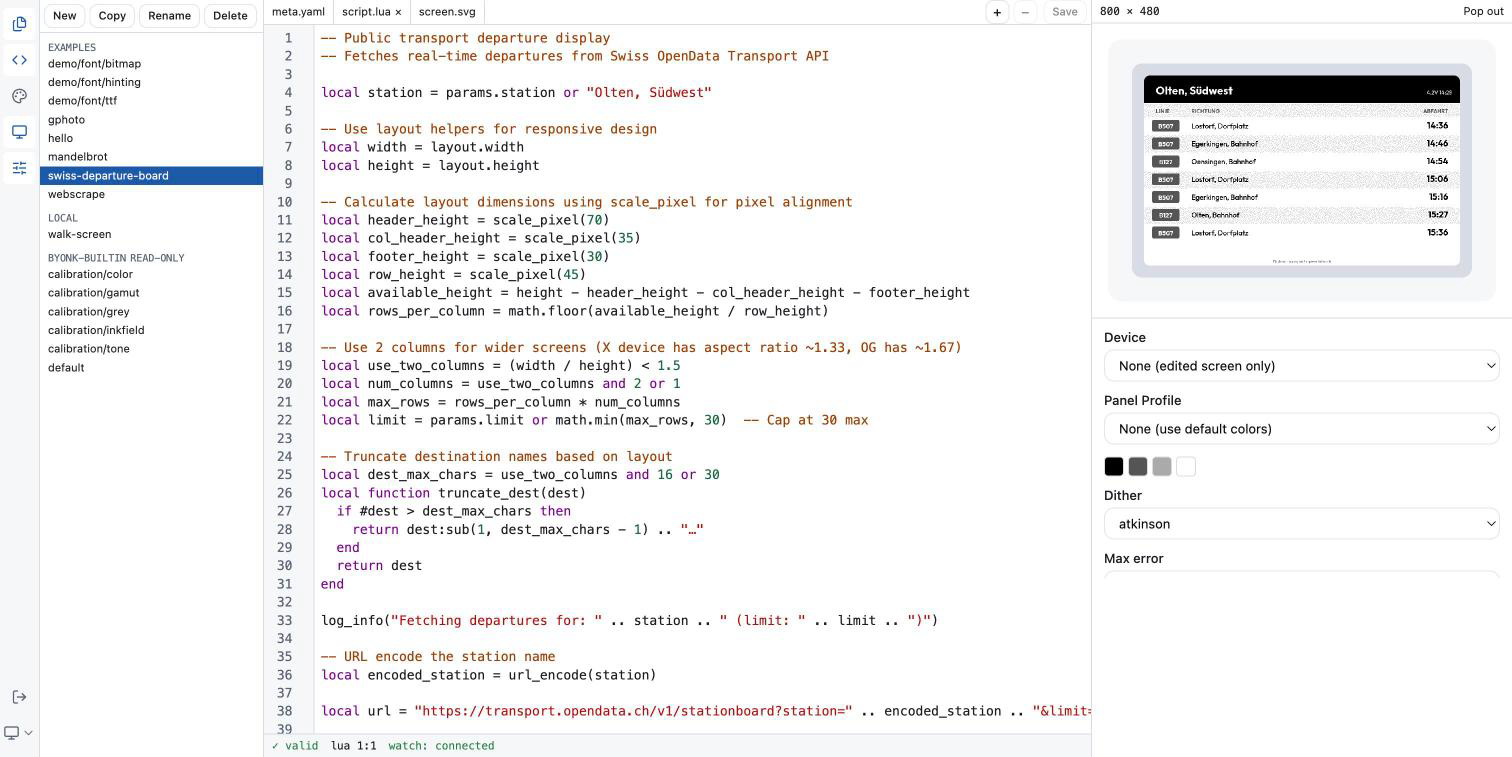
Dev mode is Byonk’s built-in screen editor: a web page with three toggleable panels — Library, Edit and Preview — behind an icon rail on the left. Pick a screen to write, a panel profile to calibrate, or a device to configure; edit it; and watch the rendered result next to it. It also carries the display calibration tools: dither algorithm, tuning numbers and measured colours.
It is part of the normal server. There is no separate command to start: byonk serve mounts it, behind a login, at /dev/.
Opening the editor
Set a username and password
The editor is invisible until you give it credentials. With none configured,
the editor page and its login form both answer 404 Not Found, so a server
that was never meant to be edited over the web does not offer a login to guess
at. (The JSON API under /dev/api/ answers 401 rather than 404 in that
case.)
Set both halves, in any one of these places:
| Where | Keys |
|---|---|
| Environment | BYONK_DEV_USERNAME, BYONK_DEV_PASSWORD |
config.yaml | admin.dev_username, admin.dev_password |
| Home Assistant app | the Dev UI username / Dev UI password options |
admin:
  dev_username: tobi
  dev_password: a-long-random-string
The environment wins over config.yaml, exactly as BYONK_ADMIN_TOKEN does.
Both halves are required and a blank value counts as unset, so setting only a
username leaves the login disabled.
Log in
Open http://<host>:3000/dev/ in a browser and the login form appears. A bare
http://<host>:3000/dev is redirected to the same place.
A successful login sets a byonk_dev session cookie — HttpOnly, scoped to
/dev, good for 30 days. The key that signs it is generated fresh each time
the server starts, so restarting Byonk logs everyone out. A wrong username or
password is answered after a one-second delay, and the message never says
which of the two was wrong.
A Logout button sits at the foot of the icon rail, next to the theme
control, whenever there is a cookie session to end — click it (or POST /dev/logout yourself, if you want to script it) to clear the byonk_dev
cookie and return to the login form. The two routes below are not sessions to
end, and the button does not appear for either of them: signing in through
Home Assistant or the admin token has nothing for it to log out of.
The admin token also works
Any request carrying the admin token as a bearer credential is admitted without a login:
Authorization: Bearer <your admin token>
That is what lets a script or an MCP client reach /dev/api/* directly. See
Admin API for where the token comes from.
From the Home Assistant sidebar
The Home Assistant app publishes the editor as an Ingress panel: a Byonk entry in the sidebar opens it directly, with no second login. Home Assistant has already authenticated you, and the app trusts that route only for requests arriving from the Supervisor itself.
Inside Home Assistant you therefore need no dev username or password at all.
Set them only if you also want to reach the editor from outside Home
Assistant, on http://<host>:3000/dev/.
The three panels
An icon rail on the left carries one toggle button per panel: Library, Edit and Preview. Click an icon to show or hide that panel — every combination is allowed, including all three hidden at once. A panel you hide comes back at the size it had. Drag the divider between two open panels to resize them (or focus it and use the arrow keys); sizes are proportions of the window, so every panel keeps a usable width when the window narrows; a drag stops at a panel’s minimum width, and only the rail hides a panel. Panel sizes and which panels are shown are remembered between visits (the theme control described in Colour scheme, and Logout when a cookie session is open, both live at the foot of the same rail).
Everything in the work area is about one subject: a screen, a panel profile or a device. You choose it in Library; Edit changes it and Preview shows it.
App status bar. One line at the bottom of the window, below the three
panes (not to be confused with the Edit panel’s own watch: line). It shows
the most important message first: a save conflict, then an error from the
Library, Edit or Preview, then the live overrides that are still pushed to
devices. When more than one is waiting, +N shows how many; click it to
open the full list upward. The bar always keeps the same height, so the panes
above it do not move when a message appears or goes.
Library. Screens grouped by screen repo handle, then the panel profiles, the devices and the screen repos. Choosing an entry makes it the subject. A repo you cannot write to is labelled “read-only” next to its handle; you can still open any of its screens and read every file, and Copy one into a repo you can write to — but its files open read-only. New and Copy work on screens; Delete works on whatever is selected — a screen, a panel, a device or a screen repo. See New, Copy, Delete. A screen is renamed or moved in Edit’s Details block. Screens, Panels, Devices and Screen repos are collapsible sections, as in the VS Code explorer: click a section heading (or press Enter or Space on it) to fold it. All four headings stay visible, open sections share the height and scroll on their own, and the browser remembers which ones you folded. Selecting a subject elsewhere opens the section it lives in.
The + at the right of the Panels and Devices headings adds one
right away (in a narrow Library they are also in the More actions menu,
⋯, as Add panel and Add device). There is no form: the entry is
written to config.yaml at once, with the rest of the file, comments
included, left as it was, and becomes the subject, so you fill in its
details in Edit’s Details block (see The config editor).
- Add panel adds
new_panel(ornew_panel_2,new_panel_3, … when that is taken), named “New panel”. Its colours and size are copied from the panel you have selected; with no panel selected it gets#000000,#FFFFFFand no size. - Add device adds
new-device(ornew-device-2, …), named “New device”, showing the selected screen, or the first one.
Screen repos. Each row shows the repo’s handle and, under it, where its screens come from: the git URL, “built in” or “local folder”. A dot after the handle marks a repo that is fetching, offline or failed; a failed one is red, and hovering the dot shows the error. Choosing a repo opens it in Edit and renders nothing: Preview stays empty.
- Add screen repo (the + on the heading) works differently from
panels and devices: a git repo cannot exist without its URL, so nothing is
written yet. Edit opens an unsaved draft with the handle
new-repo; fill in the handle and the repo URL and Save adds it. Choosing another subject, or Discard, drops the draft. - Edit’s Details hold the Handle (fixed once the repo exists —
repos are not renamed), the Repo URL (it needs a scheme, such as
https://…,git@host:…orfile:///…), the Ref (a branch, tag or sha to fetch) and the Token for a private repo. The token is write-only: the field shows “set” when one is stored, stays empty to keep it, and Clear token removes it on Save. A refused Save — a handle that is taken, a URL without a scheme — shows the server’s reason under the header and keeps your draft. - The Status block shows the repo’s state, how many screens it has, the commit it resolved to, when it was last fetched and the last error. Update now fetches it again. A fetch runs in the background; the Library and the Screens section follow once it is done.
- Delete removes the repo from
config.yaml. While a device shows one of its screens it is refused, and the message names the devices. byonk-builtin,localandexamplesare registered by byonk itself: their details are read-only and they cannot be updated or deleted here. The same holds for a repo registered withpath:inconfig.yamland for one found inSCREEN_REPOS_DIR: they are folders, not git repos, so there is no URL to edit and nothing to fetch. Their Details show the folder; the screens in apath:repo are edited like those inlocal, and the entry itself is changed inconfig.yaml. In the Home Assistant app the section is read-only too, with the note “Managed in the byonk add-on configuration in Home Assistant.” — repos are set in the app’s Configuration tab there; Update now still works.
Edit. The header names the subject. For a screen it is the file editor:
an optional Details block, then one tab per file (the one you are in is
highlighted and underlined), with meta.yaml, script.lua
and screen.svg first and everything else after them alphabetically.
Save and Cmd/Ctrl-S write the file you are in; see Editing and
saving. For a panel or a device it is the config
editor.
For a screen, the … button in Edit’s header shows and hides the Details; they start hidden, and byonk remembers your choice. They open by themselves while they hold a Repo or Path change you have not saved or after a refused move, so unsaved work is never hidden. A panel’s, a device’s and a screen repo’s Details are always shown, with no … button.
The screen’s Details say where it lives: its Repo and its Path
inside that repo. In a writable repo you can change both — the Repo menu
lists every writable repo — and Save moves the screen there; see
Renaming and moving a screen. A screen in a
read-only repo (the built-in screens, examples, anything fetched from git)
shows its Repo and Path as plain text.
Preview. Always what is rendered. The header says which screen is shown as which hardware, and at which size. The controls depend on the subject:
- With a screen as subject, a Render as menu picks a panel or a device to render it as.
- With a panel as subject, a Screen menu picks the screen to show on it
(it starts at
byonk-builtin/calibration/toneand remembers your later choice until you reload the page), and watch on picks a device to render as, so the preview matches the display you are looking at. - show measured inks shows the panel’s measured colours instead of the official palette.
- Pop out opens the preview in its own window, see Preview and pop-out.
- Simulated inputs sit under the image, always visible: the device
context the preview renders under — battery, WiFi, the clock, and custom
params (not when the subject is a device, which brings its own params).
The block has its own Simulated inputs heading, which shows “not saved”
once you set a value a real device would not report (these values only
ever reach the preview, never a device or
config.yaml), and its fields scroll under that heading when the window is short.
The Preview panel never writes anything. Choosing a device to watch, a screen to borrow or a simulated battery level changes what you see and nothing else.
Which repos you can edit
Writability is a property of where a screen repo’s files live, not of its
name. local (your SCREENS_DIR) and any repo registered with path: are
backed by directories Byonk manages and are editable in place. The embedded
byonk-builtin screens, the shipped examples and any repo fetched from git
with repo: are read-only (Copy an example into local to change it). A
fetch can replace a git checkout wholesale, so edits there would not survive. The full picture is in
Screen Authoring.
In the Home Assistant app only local is writable: the app’s
Screen repos option accepts repo: rows only.
Editing and saving
Type in any file of a screen that lives in a writable repo. Its tab shows a dirty marker until the bytes reach disk.
- Cmd/Ctrl-S saves the file you are in.
- The Save button next to the tabs does the same thing: it saves the active file, not every file you have changed. Switch to a tab and save it to save it.
- With a Repo or Path change pending in Details, both save every changed file and then move the screen; see Renaming and moving a screen.
In a read-only repo the files open read-only: you cannot type in them at all. Cmd/Ctrl-S still fires there, and is answered with a message naming the repo rather than failing in silence. To change such a screen, Copy it into a writable repo and edit the copy.
Conflict detection
Every save carries the etag the file had when you opened it. If the file changed underneath you — another browser tab, an editor on the server, a git fetch — the write is refused and the status bar shows the conflict, with two ways out:
- Reload throws your edits away and takes the version on disk.
- Overwrite re-reads the file only to take its current etag, then writes your buffer over it.
The same conflict is shown when the file watcher reports a change to a file you have unsaved edits in — Byonk never silently replaces a buffer you are still working on.
Renaming and moving a screen
Change the Path in Edit’s Details block to rename a screen (clock, or
home/clock to put it in a folder), or pick another Repo to move it
there; both go in one Save (or Cmd/Ctrl-S). A dot next to “Details” marks a change not
saved yet, and typing never re-renders the preview — the screen renders
where it is until you save.
Save then moves the screen’s folder, every file in it. Into another
repo it is copied and the original removed, as one step: if the original
cannot be removed, the copy is removed again, so the screen is never in
both places, nor in neither. Every device whose screen: in config.yaml
named the old place is changed to the new one in the same step, comments
kept, so no device is left pointing at nothing. The Library then shows the
screen selected under its new name, and the preview renders it once.
If you also have unsaved file edits, Save writes them first and moves the screen only once all of them are saved; a file save that is refused (see Conflict detection) stops the move. Either way the preview renders once: the moved screen with your saved files, or, when nothing moved, the screen where it is. When the move is refused — the path is taken, or the repo is read-only — the Details keep what you typed and the reason shows under the Edit header until your next change. A screen needs a path: an emptied Path cannot be saved.
New, Copy, Delete
| Button | What it needs | What it does |
|---|---|---|
| New | a writable repo to put it in | Scaffolds meta.yaml, script.lua and screen.svg from a minimal starter. The generated meta.yaml pins the running engine’s byonk: compatibility requirement. The screen is created in local, your own screen repo; if local is missing or read-only, the first writable repo is used instead. |
| Copy | any selected screen | Forks it — every file in its folder — into local, the same default New uses. This works from byonk-builtin and from git-fetched repos, which is the supported way to customize a screen you cannot edit. |
| Delete | a writable repo, or a selected panel, device or git screen repo | Removes the screen, or the panel, device or screen repo from config.yaml. A panel that a device names with panel:, or a screen repo one of whose screens a device shows, is not removed; the message lists those devices. |
New and Copy ask for the name in a small form under the Library toolbar (Copy starts from the current name); Delete asks you to confirm there too, and names the screen, panel or device it would remove; its tooltip says which kind. Enter confirms, Escape cancels. If the server refuses the name, the form stays open so you can correct it. The editor’s + and − work the same way.
The + next to the file tabs adds a file to the current screen, and −
deletes the file you are currently looking at. Both need a writable repo.
Creating a file that already exists is reported rather than silently opening
the existing one. meta.yaml, script.lua and screen.svg cannot be deleted
— − stays disabled for them — and no single file may exceed 5 MB.
Asset files
Files that are not text (an image, a font) are tabs too. Selecting one shows it instead of the editor: an image is displayed scaled to fit, with its name, pixel size and byte size; any other file shows its size and a Download link. An asset has no unsaved state and nothing to Save.
- − deletes the selected asset (after a confirmation), as for a text file.
- Rename file (the text-cursor icon) renames the selected file; the open tab follows the new name, and a name that is already taken is reported in the form. It is disabled for the three core files, and for a text file with unsaved changes (save it first).
- + has an Upload… button next to the name field. Pick one or several
files; if a name already exists byonk asks Replace name? before
overwriting. An uploaded
.lua,.yamlor.svgbecomes an ordinary text tab afterwards. A batch triggers one preview render.
In a read-only repo (the examples, a path or directory repo, an add-on managed one) assets can be viewed and downloaded, but not uploaded, renamed or deleted.
Syntax checking
Byonk can check a screen’s files without rendering them: meta.yaml against
the screen metadata schema, script.lua compiled — syntax only, never
executed — and screen.svg compiled as a Tera template with its
{% extends %} / {% include %} chain resolved, so a missing or misspelled
include is caught. This is exposed as POST /dev/api/screen/check (one
unsaved file’s text) and POST /dev/api/screen/validate (a screen as it is
on disk) for scripted or MCP-driven authoring.
The editor checks the file you are typing in automatically: shortly after you
stop typing, it sends the buffer’s current text to POST /dev/api/screen/check and marks any reported line in the gutter, with the
message on hover. It is debounced, not sent on every keystroke, so a burst of
typing costs one check, not one per character. The tab strip also marks a tab
that has any open issue. Saving does not depend on this check passing — a
broken file can still be saved — and Preview re-renders through the full
pipeline on save, which catches everything a check would and more.
After a save succeeds, the whole screen is validated as it now stands on disk and every file that came back clean gets a green ✓ in the tab strip — including files you never opened. A ✓ means “checked just now and found clean”, so nothing is ticked before the first save, and a file’s tick disappears again the moment you type in it, because the verdict describes the saved text rather than what is on screen.
What only a render catches. Because a render actually executes the Lua, it also catches what a syntax check cannot: a failing HTTP request, indexing a nil, an API that changed shape, a template that compiles but positions text off the panel. Those show up in the preview and its console — keep an eye on both.
Preview and pop-out
The preview re-renders whenever you save, whenever the file watcher reports a change, and whenever you change something in the work area that affects the picture. Choosing a different subject, a different “Render as” target or toggling show measured inks renders at once. Typing in a simulated input (battery, WiFi, time, custom parameters) or a config editor field renders after a short pause (about 0.3 seconds), so it does not re-render on every keystroke. Each change costs exactly one render, and a change that leaves the request as it was (re-selecting the subject already shown, say) costs none — which matters for a screen that fetches remote data on every render. Your own save is not rendered a second time when the watcher reports it back. Render time is shown in the preview header and logged in the console. While a render takes longer than a moment, the picture dims and a “Rendering…” label appears over it, so a slow screen never looks like a stale one.
Pop out opens the preview in its own window with Fit and 100% zoom — useful on a second monitor, or for looking at a 1872×1404 TRMNL X render at its real size. Fit scales the image to the largest size that fits the window, enlarging it as well as shrinking it; 100% shows it pixel for pixel, centred when it is smaller than the window and scrollable when it is larger. The pop-out renders nothing itself: the editor window hands it each finished image, so it follows the editor live and goes quiet when the editor window closes. It follows the editor’s colour scheme too.
Colour scheme
A System / Light / Dark control at the foot of the icon rail sets the editor’s colour scheme. It defaults to System — following your operating system’s setting — and your choice is remembered in the browser and applied to the pop-out window as well.
Live reload
Set SCREENS_DIR and Byonk watches it for changes. The editor holds a
Server-Sent Events connection to /dev/api/events regardless of which panels
are open, and the Edit panel’s status bar reports watch: connected or
watch: disconnected at its foot — visible while the Edit panel is open. A
dropped connection retries by itself every three seconds.
When a watched file changes, an open buffer showing that file is reloaded from disk — unless you have unsaved edits in it, in which case you get the conflict in the status bar instead — and the preview re-renders. This is what makes an external editor work alongside the built-in one.
Without SCREENS_DIR there is nothing on disk to watch, and Byonk says so at
startup.
The config editor
Choosing a panel or a device in Library opens the config editor in Edit. It has one section per setting in the render cascade. Each section has an input for each rung you are editing, and a ladder under them. Which sections you get depends on the subject:
-
A panel has
colors_actual(with the swatch editor),dither(the algorithm, saved asdither.algorithm), the four tuning numbers (max_error,noise_scale,chroma_clamp,strength) and thegamutknobs. It has nocolorssection. -
A device has all of those, plus
colorsandrefresh. -
A panel edits its own rung,
panels.<id>inconfig.yaml. -
A device edits its base rung and its
final:rung. Above them are the device’s params, temperature profile, maximum compatibility and minimum PNG bytes.
The first block, Details (always shown), holds what names the entry:
- A panel: Id (letters, digits,
_and-), Name, Match (the firmwareBoardstring this panel is picked for; empty means only devices that name it withpanel:use it), Width, Height and Colors, the official palette as comma-separated#RRGGBB(the leading#is optional). - A device: Key (a MAC address or a registration code; devices byonk
has seen but that have no entry are suggested as you type), Name,
Screen and Panel — “auto” picks it from the device’s
Boardheader, or choose one by name.
Details apply on Save only: Push never carries them, and the preview shows them once saved. Changing the Id or Key renames the entry — a panel’s devices follow it — and the Library keeps it selected under its new name, and the preview’s Render as and Watch on choices follow it. An Id or Key that is already taken, or a name, colours or size the server refuses, keeps your draft and shows the reason under the header until your next edit. The default device cannot be renamed.
The ladder lists every rung that can set that setting, from the strongest to the weakest, each with its value and a status:
| Status | Meaning |
|---|---|
| ← wins | This rung’s value is the one used. |
| outranked | The rung has a value, but a stronger rung overrides it. |
| rejected | The rung has a value that could not be used, with the reason next to it. For example, a six-colour calibration for a panel that renders sixteen colours. |
| absent | The rung does not set this. |
Under the rungs it says the effective value and which rung it came from. That is how you find out why your edit changes nothing: the screen may set the same field and win. The ladder reads the last render. Before any render it says “No render yet”, after an error it says “Last render failed” with the reason, and with Preview closed it says “From the last render — Preview is closed”.
The panel editor also tells you how many devices use the panel (“⚠ 3 devices use this panel”) and, when some configured devices have not polled yet, how many (“2 more devices have not polled since byonk started, so their panel is not known yet.”). Those devices are not counted as users: their panel is simply not known.
Push, Save, Discard
The buttons sit in a bar at the top of the config editor, like the screen editor’s toolbar, with the count of unsaved changes beside them. The form scrolls underneath it.
Your edits are a draft. The draft survives a trip to another subject and back, and Preview renders it as you type.
- Push sends the values you changed to the real hardware as a temporary
override. The editor then says “◉ Live on …” and “It reverts on its own
within 30 minutes, or on Discard.” In panel mode, Push also makes the device
you chose under watch on poll every minute, so you see the result
quickly. Push is a button, never automatic: it wakes a battery-powered
device into a refresh cycle. It is disabled while there is nothing to push.
Some changes cannot be pushed: removing a value, a device’s
colorsandrefresh, and the device’s screen, name, params and other plain fields. They are listed beside the buttons as “applies on Save only”. - Save writes
panels.<id>ordevices.<key>inconfig.yaml, which is the durable step. A panel is saved as a whole: a field you removed is removed from the file. A device cannot be saved without a screen. A pushed panel value sits on the override rung, above the screen and the device, while Save writes the panel rung, below them. So when a device or screen sets its owndither, the panel shows a different result after Save than it did while pushed. - Discard reverts the draft to what is in
config.yamland clears the override.
Switching to another subject, or closing Edit, clears a pushed override but
keeps the draft. A live override is also listed in the app status bar, with its
own Discard, and is still listed after you reload the page. Saving works
the same way whether Byonk runs standalone or as the Home Assistant add-on —
the add-on’s Options screen does not own panels:, so nothing blocks the
write there.
Display calibration
Dev mode provides tools for calibrating dithering and colours to match your physical display. Their controls are in the config editor.
Dither Algorithm Selection
The dither setting lets you try all 9 algorithms on your content, on a
device’s base or final rung or on the panel rung (a panel’s
dither.algorithm; “— (none)” leaves the rung unset):
atkinson(default) — Atkinson error diffusion (75% propagation)atkinson-hybrid— Atkinson with hybrid propagation (100% achromatic / 75% chromatic)floyd-steinberg— Floyd-Steinberg with blue noise jitterjarvis-judice-ninke— wide 12-neighbor kernelsierra,sierra-two-row,sierra-lite— Sierra familystucki— wide 12-neighbor kernel similar to JJNburkes— 7-neighbor kernel, good balance of speed and quality
Dither Tuning Controls
These are the config editor’s tuning numbers:
| Control | Effect |
|---|---|
| Max error | Caps how much accumulated error one pixel may carry into its neighbours. The default is 1.0 — full scale in a channel. Lowering it suppresses diffusion, which quietens oscillation but makes saturated areas render flat. |
| Noise scale | Controls blue noise jitter strength. Higher values break “worm” artifacts more aggressively. |
| Chroma clamp | Limits chromatic error propagation. Prevents color bleeding on chromatic palettes. |
| Strength | Error diffusion strength (0.0–2.0, default 1.0). Lower means less dithering texture. |
Calibrator Screen
Byonk ships a built-in calibration screen (byonk-builtin/calibration/color) designed specifically for display calibration. Assign it to your device temporarily while tuning:
devices:
  "ABCDE-FGHJK":
    screen: byonk-builtin/calibration/color
    panel: my_panel
    dither: atkinson
The calibrator shows everything you need to evaluate dithering quality:
- White-to-color gradients for each palette color — reveals error diffusion artifacts, oscillation, and color bleeding
- Full hue sweep at 100% saturation — shows how the ditherer maps arbitrary colors to your limited palette
- Test photo — real-world image to judge overall photo reproduction
- Solid color patches with hex labels — compare what the panel actually displays against the expected color values
Use the calibrator on your physical device while adjusting tuning in dev mode — the live sync means every change you make is immediately visible on the display.
Gamut Patch Screen
byonk-builtin/calibration/gamut answers a narrower question: which colors can
this panel actually mix, and which does it give up on?
devices:
  "ABCDE-FGHJK":
    screen: byonk-builtin/calibration/gamut
    panel: my_panel
    params:
      hues: 24      # hue columns around the full circle (2-48)
      levels: 6     # lightness rows (1-12)
It draws the hue circle as isolated flat patches rather than the calibrator’s smooth gradient. That difference is the point: in a gradient, neighbouring hues bleed together, so a hue the panel cannot reproduce still looks like it is doing something. Here each patch stands alone, so you can read it directly:
- A speckled patch — the ditherer mixed several palette colors to approximate the request. This is what working output looks like.
- A solid patch — the ditherer picked one palette entry for every pixel. On a 6-color panel expect solid blue across roughly 225°–270°: that genuinely is the best the palette offers, not a bug.
- A solid white patch (drawn outlined, so it doesn’t read as a missing cell) — the request collapsed to white entirely. Cyan around 180° does this on 6-color panels, whose bluest and greenest inks are both dark.
Rows vary lightness because reachability depends on it — a hue may mix cleanly when dark and collapse when light.
Tone Marker A/B Screen
byonk-builtin/calibration/tone answers a different question again: what does
the gamut mapper actually change on real content, on your real panel?
devices:
  "ABCDE-FGHJK":
    screen: byonk-builtin/calibration/tone
    panel: my_panel
    params:
      hues: 12      # patch grid hue columns (2-48)
      levels: 5     # patch grid rows (1-12)
It renders the same content — a photograph, a hue sweep, and a colour patch
grid, top to bottom — twice, side by side. The two columns are identical
markup with one difference: only the right-hand column is marked
data-byonk-tone="continuous". That mark drives three things at once — the
right column is matched against the panel’s measured colours and gamut
mapped, while the left column is matched against the official palette and
exact-match pinned (see
Marking continuous-tone content).
The left column is the untouched control. Whatever visibly differs between the
two columns on your device is what that whole difference in treatment is doing
to your content. The hue sweep is a fixed gradient of 12 equal hue steps, not
driven by either param.
There are no gamut-mapping knobs on this screen — it deliberately shows you what a real screen gets, not a tuning surface.
Calibration Workflow
- Pick the panel you want to calibrate in Library.
- Choose the calibration screen in the Preview header (for example
byonk-builtin/calibration/color) and set watch on to your device. - Adjust the measured colours in Edit — drag hue, saturation and lightness of a swatch or type a hex value — and the tuning numbers, while watching the ladder to see which values actually count.
- Push, walk over, look at the device under its own light, and repeat. E-ink is reflective: a panel only shows the truth under the light it hangs in.
- Save, which writes
colors_actualand the tuning numbers intopanels.<id>inconfig.yaml. - To choose the dither algorithm for every device of the panel, set
ditheron the panel and Save; that writespanels.<id>.dither.algorithm. For one display only, pick the device in Library, setditherthere, and Save. That writesdevices.<key>.
panels:
  my_panel:
    name: "My Panel"
    colors: "#000000,#FFFFFF,#FF0000,#FFFF00"
    colors_actual: "#303030,#D0D0C8,#C04040,#D0D020"  # written by the panel's Save
    dither:
      algorithm: atkinson-hybrid   # written by the panel's Save
      strength: 0.8    # written by the panel's Save

devices:
  "ABCDE-FGHJK":
    screen: examples/gphoto
    panel: my_panel
    dither: floyd-steinberg    # written by the device's Save
Tuning values can also be set per-script in the Lua return table — see Lua API.
Configuration
Dev mode is part of byonk serve and reads the same environment as the rest of
the server:
| Variable | Description | Default |
|---|---|---|
BIND_ADDR | Server bind address | 0.0.0.0:3000 |
SCREENS_DIR | Your writable local screen repo — also what the file watcher watches | (embedded) |
FONTS_DIR | External fonts directory | (embedded) |
CONFIG_FILE | External config file | (embedded) |
BYONK_DEV_USERNAME | Dev UI login name | (unset — editor is 404) |
BYONK_DEV_PASSWORD | Dev UI password | (unset — editor is 404) |
See Environment Variables for the full list.
Example workflow
-
Extract embedded assets to work with:
byonk init --all -
Start the server with an external screens directory and a dev login:
SCREENS_DIR=./screens CONFIG_FILE=./config.yaml \ BYONK_DEV_USERNAME=me BYONK_DEV_PASSWORD=secret \ byonk serve -
Open
http://localhost:3000/dev/and log in -
Pick a screen in Library — or Copy one of the examples into
localand work on that -
Edit
script.luaandscreen.svgin Edit; the preview updates on save -
Use Render as and Simulated inputs in Preview to try another panel or device, freeze the clock, or pass custom params
-
Pick a panel in Library to calibrate its measured colours against a real device, and use the calibration screens below to tune dithering
The /dev/api endpoints
The page is a client of a small JSON API. Everything under /dev/api is
behind the same login as the page, and answers 401 with a JSON body rather
than a redirect when you are not admitted.
| Method and path | Purpose |
|---|---|
GET /dev/api/screens | Screens, configured devices, panel profiles, and the dither algorithm list with per-algorithm defaults |
GET /dev/api/repos | Screen repo handles and whether each is writable |
GET /dev/api/files?ref= | The files of one screen, with size and whether each is text |
GET /dev/api/file?ref=&name= | One file’s text, with its etag |
PUT /dev/api/file?ref=&name= | Write one file. If-Match is required: an etag to update, or * to create (412 if it already exists). A missing header is 428 |
DELETE /dev/api/file?ref=&name= | Delete one file (not the core three) |
GET /dev/api/file/raw?ref=&name= | One file’s bytes, text or binary, with its etag and a Content-Type guessed from the extension (nosniff and Content-Security-Policy: sandbox are set, so an SVG opened directly runs no script) |
PUT /dev/api/file/raw?ref=&name= | Write the request body verbatim, replacing a binary asset or creating one. If-Match rules as for PUT /dev/api/file. The core three are refused (422); up to 5 MiB (413 beyond) |
POST /dev/api/file/rename | {ref, from, to}: rename one file inside its screen (to may name a subfolder). 204 (also when to equals from, which changes nothing; a rename that only changes letter case works on a case-insensitive file system too); 412 if to exists, 404 if from is missing, 422 for a core file on either side |
POST /dev/api/screen | Create a screen from a starter |
DELETE /dev/api/screen?ref= | Delete a screen |
POST /dev/api/screen/copy | Fork a screen into a writable repo |
POST /dev/api/screen/move | Rename a screen within its repo, or move it into another writable one: body {"ref", "to_handle", "to_name"}. Every device whose screen: named ref is pointed at the new ref in the same request. Answers {"ref": …, "rewritten": [device keys]}; 409 when the target exists or a repo is read-only |
POST /dev/api/screen/validate | Validate a screen as it is on disk |
POST /dev/api/screen/check | Check one file’s unsaved text |
POST /dev/api/render | Render a screen to PNG under simulated device context; the answer carries X-Byonk-Resolution (see Rendering a preview) |
GET /dev/api/events | Server-Sent Events stream for live reload |
GET /dev/api/resolve-mac | Resolve a MAC or registration code to that device’s screen and params |
GET /dev/api/overrides | Every live override and tuning session, with the seconds each has left |
PUT /dev/api/overrides/panels/{panel}, DELETE … | Push, and clear, a panel’s temporary override: colors_actual, dither, the tuning numbers and gamut, applied to every device on that panel |
PUT /dev/api/overrides/devices/{device}, DELETE … | Push, and clear, one device’s temporary override: everything but colors and refresh |
POST /dev/api/panels/{panel}/save | Write a panel into config.yaml — name, match, width, height, colors, colors_actual and the dither block — in place, key by key, so comments and the order of panels survive, and clear its override. Save is whole-panel: name and colors are required, and an optional field the request omits is removed from config.yaml. An id different from {panel} renames the panel in the same write: its key changes where it stands and every device’s panel: follows (409 if the id is taken). Answers {"id": …} with the panel’s id after the save |
POST /dev/api/panels | Add panels.<id> with {id, name, colors, width?, height?}, in place; 409 if the id is taken. Answers {"id": …} |
POST /dev/api/devices | Add a device: the POST /api/admin/devices body (key and screen required); 409 if the key is taken. Answers {"key": …, "screen": …} |
GET /dev/api/screen-repos | Every screen repo: handle, kind (builtin, local, examples, git, path for a folder registered with path: in config.yaml, dir for a folder from SCREEN_REPOS_DIR), repo, path (the folder of a path repo), pin, has_token (the token itself is never served), status, pin_kind, resolved_sha, last_fetched, error, screen_count, writable, and managed (true for byonk-builtin, local and examples, which byonk registers itself). Only git repos can be changed, updated or deleted here: the others answer 409 and their folders are changed on disk or in config.yaml. Wrapped as {"addon_mode", "repos"} |
POST /dev/api/screen-repos | Add a repo: {handle, repo, pin?, token?}, in place in config.yaml; the first fetch runs in the background, so poll the list. 400 for a handle that is not lowercase letters, digits, - and _ (starting with a letter or digit) and for a repo without an explicit scheme (https://, ssh://, file:///…, git@host:path); 409 for a taken or reserved handle, and in Home Assistant add-on mode, where the add-on Configuration tab owns the registry. Answers the new repo |
PATCH /dev/api/screen-repos/{handle} | Change repo, pin or token; an omitted field keeps its value and an empty string for pin or token removes it (an empty pin or token on add is ignored). Repos are not renamed (400 if the body names another handle). Same 400/409 rules as add. Answers the repo |
DELETE /dev/api/screen-repos/{handle} | Remove a repo from config.yaml. 409 while a device names one of its screens (the message lists the devices) and for reserved handles. Answers {"deleted": handle} |
POST /dev/api/screen-repos/{handle}/update | Refetch one repo in the background; allowed in add-on mode. Answers the repo |
GET /dev/api/pending-devices | Devices byonk has seen that no entry in config.yaml configures |
DELETE /dev/api/panels/{panel} | Remove a panel from config.yaml and clear its override. 409 while a device names it in panel:; the message lists those devices |
PATCH /dev/api/devices/{key} | Save a device: the same body and rules as PATCH /api/admin/devices/{key} — clear applies first, then the set fields, so one request can replace a value — then clear its override. Unlike the admin route, a key different from {key} renames the device in the same write (409 if it is taken), keeping its place and comments in config.yaml, and ends the old key’s tuning session. Answers {"key": …, "screen": …} |
DELETE /dev/api/devices/{key} | Remove a device from config.yaml, as DELETE /api/admin/devices/{key} does, and clear its override and tuning session |
GET /dev/api/panel-usage | Which devices use each panel, and which have not been seen since byonk started |
PUT /dev/api/tuning-session/{device}, DELETE /dev/api/tuning-session/{device} | Start or refresh, and end, a device’s faster tuning-refresh session (see Push, Save, Discard) |
GET /dev/api/whoami | Who the server thinks you are, and whether you can log out |
Rendering a preview
POST /dev/api/render takes a JSON body and answers with the PNG. It is a
preview only: it changes no server state and reaches no device.
{
  "screen": "local/hello",
  "device": "kitchen",
  "panel": "trmnl_x",
  "model": "og",
  "width": 800,
  "height": 480,
  "draft": {
    "base": { "dither": "floyd-steinberg", "strength": 0.8 },
    "final": { "dither": "atkinson" },
    "params": { "greeting": "hi" },
    "panel": { "colors": "#000000,#FFFFFF", "colors_actual": "#101010,#E8E8E8", "dither": { "max_error": 1.0 } }
  },
  "override": { "dither": "atkinson" },
  "simulated": { "battery_voltage": 4.2, "rssi": -50, "timestamp": 1700000000, "params": {} },
  "view": { "use_actual": true }
}
| Field | Meaning |
|---|---|
screen | The screen to render. Required when device is not given. |
device | A MAC, device config key or registration code. Every render setting and the params come from this device. Without screen, the device’s own screen is rendered; with it, screen is rendered as this device. |
panel | A panel profile id. Replaces the device’s own panel. |
model | og or x. Gives the default size and the fallback palette. Without it, a device render takes the model that device last reported (as the Home Assistant preview does), and anything else takes og. |
width, height | The render size, when it differs from the model’s. |
draft.base | An unsaved device base rung: colors, colors_actual, dither, the tuning numbers, gamut and refresh. |
draft.final | An unsaved final: rung, same fields. |
draft.params | Replaces the device’s params; simulated.params are still merged on top. |
draft.panel | An unsaved panel rung: colors, colors_actual and the panel dither block. |
override | Ad-hoc values from the dev UI controls: dither, colors_actual, the tuning numbers and gamut. They are above every other rung, colors_actual included — a change in 0.20.0, where a script that returned its own measurement used to beat the override. |
simulated | What the device would report: battery voltage, RSSI, the clock, and params that are merged over the device’s own. |
view.use_actual | Draw the PNG in the measured panel colours. Defaults to on when measured colours resolve. |
A draft rung replaces its configured rung completely. A draft.base
without dither removes the device’s dither from the preview, so you can
see what the device does without it. A field that the draft leaves out is
absent, not inherited.
Two fields are refused with 400: override.colors, because the script would
then have been shown a different palette from the one rendered, and
override.refresh, because nothing on this path consumes it. An unknown
field is refused with 422.
The override rung of a preview also carries whatever a Push made live — the
device’s override over its panel’s, with the request’s own override on top —
so the resolution report shows a live Push as the winner it is on the glass.
Overrides
A Push puts a draft on real hardware without writing config.yaml: it becomes
the cascade’s override rung for every device on that panel (a panel
override) or for one device (a device override). When both exist, the
device’s values win field by field. Each override expires 30 minutes after it
was last pushed, so a closed browser tab cannot leave a display showing an
uncommitted draft; Discard clears it at once, and a restart clears all of
them. Saving a panel or a device clears its override, since the configuration
now says the same thing.
A device without panel: is matched to a panel by the Board or Model
header it polls with. Byonk remembers the last ones in memory, which is how
/dev/api/panel-usage and a preview of that device know its panel; until the
device has polled once since byonk started, it is reported as unseen.
The answer carries an X-Byonk-Resolution header. It is one line of JSON
that tells, for every render setting, which value won and why. Example for
one setting, a device with final: {dither: floyd-steinberg} rendering a
screen that asks for atkinson:
{"dither":{"effective":"floyd-steinberg","from":"device_final",
 "order":["override","device_final","screen","device_base","panel","fallback"],
 "rungs":{"device_final":{"value":"floyd-steinberg","status":"winner"},
  "screen":{"value":"atkinson","status":"outranked"},
  "fallback":{"value":"atkinson","status":"outranked"}}}}
(The header is a single line; it is wrapped here for reading.) The settings
are colors, colors_actual, dither, max_error, noise_scale,
chroma_clamp, strength, gamut.knee, gamut.amount,
gamut.max_compression and refresh. Each rung has one status:
| Status | Meaning |
|---|---|
winner | This rung’s value is used. |
outranked | This rung has a value, but a rung higher in order won. |
rejected | This rung has a value that cannot be used. A reason tells why — for example a colors_actual with a different number of entries than the palette. The next rung is tried. |
| (missing) | This rung has no value. order names every rung; a rung that is not in rungs is absent. Absent rungs are left out to keep the header small. |
order is the precedence byonk uses, highest first, and it is
the same for every setting: override > device_final > screen >
device_base > panel > fallback. All five render paths — the device, this
dev render, the authoring render, the CLI and the admin device preview —
resolve on it, so a preview and the glass cannot disagree.
device_final is the device’s final: block, the owner’s veto. device_base
is what is written directly under the device, which the screen may override.
The fallback rung is byonk’s own default. For colors it is the model’s
default palette, and it is used. For the other settings it is only reported: a
setting that falls back is left to the dithering engine’s own default, which is
the same value.
The same header is available on the admin device preview,
GET /api/admin/devices/{key}/preview?resolution — opt-in there, because a
proxy’s default header buffer is not always large enough for it.
For scripted or LLM-driven authoring, prefer the MCP interface, which covers the same screen-store operations with a stable tool contract.